D

Dataki

13
Workflows

Workflows by Dataki

Workflow preview: Answer questions about documentation with BigQuery RAG and OpenAI
Free advanced

Answer questions about documentation with BigQuery RAG and OpenAI

# BigQuery RAG with OpenAI Embeddings This workflow demonstrates how to use **Retrieval-Augmented Generation (RAG)** with **BigQuery** and **OpenAI**. By default, you cannot directly use OpenAI Cloud Models within BigQuery. ### Try it *This template comes with access to a **public BigQuery table** that stores part of the n8n documentation (about nodes and triggers), allowing you to try the workflow right away: [`n8n-docs-rag.n8n_docs.n8n_docs_embeddings`](https://console.cloud.google.com/bigquery?ws=!1m5!1m4!4m3!1sn8n-docs-rag!2sn8n_docs!3sn8n_docs_embeddings)* *⚠️ **Important:** BigQuery uses the *requester pays* model.* *The table is small (~40 MB), and BigQuery provides **1 TB of free processing per month**. Running 3–4 queries for testing should remain within the free tier, unless your project has already consumed its quota. More info here: [BigQuery Pricing](https://cloud.google.com/bigquery/pricing?hl=en)* ## Why this workflow? Many organizations already use BigQuery to store enterprise data, and OpenAI for LLM use cases. When it comes to RAG, the common approach is to rely on dedicated vector databases such as **Qdrant**, **Pinecone**, **Weaviate**, or PostgreSQL with **pgvector**. Those are good choices, but in cases where an organization already uses and is familiar with BigQuery, it can be more efficient to leverage its built-in vector capabilities for RAG. Then comes the question of the LLM. If OpenAI is the chosen provider, teams are often frustrated that it is not directly compatible with BigQuery. This workflow solves that limitation. ## Prerequisites To use this workflow, you will need: * A good understanding of BigQuery and its vector capabilities * A BigQuery table containing documents and an embeddings column * The embeddings column must be of type **FLOAT** and mode **REPEATED** (to store arrays) * A data pipeline that **generates embeddings with the OpenAI API** and stores them in BigQuery This template comes with a public table that stores part of the **n8n documentation** (about nodes and triggers), so you can try it out: `n8n-docs-rag.n8n_docs.n8n_docs_embeddings` ## How it works The system consists of two workflows: * **Main workflow** → Hosts the AI Agent, which connects to a subworkflow for RAG * **Subworkflow** → Queries the BigQuery vector table. The retrieved documents are then used by the AI Agent to generate an answer for the user.

D
Dataki
AI RAG
3 Sep 2025
351
0
Workflow preview: Reliable AI agent output without structured output parser - w/ OpenAI & Switch
Free advanced

Reliable AI agent output without structured output parser - w/ OpenAI & Switch

This workflow serves as a **solid foundation** when you need an **AI Agent to return output in a specific JSON schema**, without relying on the often-unreliable **Structured Output Parser**. ## What It Does The example workflow takes a simple input (like a food item) and expects a JSON-formatted output containing its nutritional values. ## Why Use This Instead of Structured Output Parser? The built-in [Structured Output Parser](https://docs.n8n.io/integrations/builtin/cluster-nodes/sub-nodes/n8n-nodes-langchain.outputparserstructured/common-issues/) node is known to be unreliable when working with AI Agents. While the **n8n documentation recommends using a “Basic LLM Chain”** followed by a **Structured Output Parser**, this alternative workflow **completely avoids using the Structured Output Parser node**. Instead, it implements a custom loop that manually validates the AI Agent's output. This method has **proven especially reliable** with OpenAI's `gpt-4.1` series (`gpt-4.1`, `gpt-4.1-mini`, `gpt-4.1-nano`), which tend to **produce correctly structured JSON** on the first try, as long as the **System Prompt is well defined**. In this template, `gpt-4.1-nano` is set by default. ### How It Works Instead of using the *Structured Output Parser*, this workflow loops the AI Agent through a manual schema validation process: - A **custom schema check** is performed after the AI Agent response. - A **runIndex counter** tracks the number of retries. - A **Switch node**: - If the output does **not** match the expected schema, it routes back to the AI Agent with an updated prompt asking it to return the correct format. The process allows up to **4 retries** to avoid infinite loops. - If the output **does** match the schema, it continues to a **Set node** that serves as chat response (you can customize this part to fit your use case). This approach ensures schema consistency, offers flexibility, and avoids the brittleness of the default parser.

D
Dataki
Engineering
22 May 2025
1196
0
Workflow preview: Compare different LLM responses side-by-side with Google Sheets
Free advanced

Compare different LLM responses side-by-side with Google Sheets

This workflow allows you to **easily evaluate and compare the outputs of two language models (LLMs)** before choosing one for production. In the chat interface, both model outputs are shown side by side. Their responses are also logged into a Google Sheet, where they can be evaluated manually or automatically using a more advanced model. ### Use Case You're developing an AI agent, and since LLMs are non-deterministic, you want to determine which one performs best for your specific use case. This template is designed to help you compare them effectively. ### How It Works - The user sends a message to the chat interface. - The input is duplicated and sent to two different LLMs. - Each model processes the same prompt independently, using its own memory context. - Their answers, along with the user input and previous context, are logged to Google Sheets. - You can review, compare, and evaluate the model outputs manually (or automate it later). - In the chat, both responses are also shown one after the other for direct comparison. ### How To Use It - Copy this [Google Sheets template](https://docs.google.com/spreadsheets/d/1grO5jxm05kJ7if9wBIOozjkqW27i8tRedrheLRrpxf4/) (File > Make a Copy). - Set up your **System Prompt** and **Tools** in the **AI Agent** node to suit your use case. - Start chatting! Each message will trigger both models and log their responses to the spreadsheet. *Note: This version is set up for two models. If you want to compare more, you’ll need to extend the workflow logic and update the sheet.* ### About Models You can use **OpenRouter** or **Vertex AI** to test models across providers. If you're using a node for a specific provider, like OpenAI, you can compare different models from that provider (e.g., `gpt-4.1` vs `gpt-4.1-mini`). ### Evaluation in Google Sheets This is ideal for teams, allowing non-technical stakeholders (not just data scientists) to evaluate responses based on real-world needs. Advanced users can automate this evaluation using a more capable model (like `o3` from **OpenAI**), but note that this will increase token usage and cost. ### Token Considerations Since **each input is processed by two different models**, the workflow will consume more tokens overall. Keep an eye on usage, especially if working with longer prompts or running multiple evaluations, as this can impact cost.

D
Dataki
Engineering
25 Apr 2025
1474
0
Workflow preview: Generate AI-ready llms.txt files from Screaming Frog website crawls
Free advanced

Generate AI-ready llms.txt files from Screaming Frog website crawls

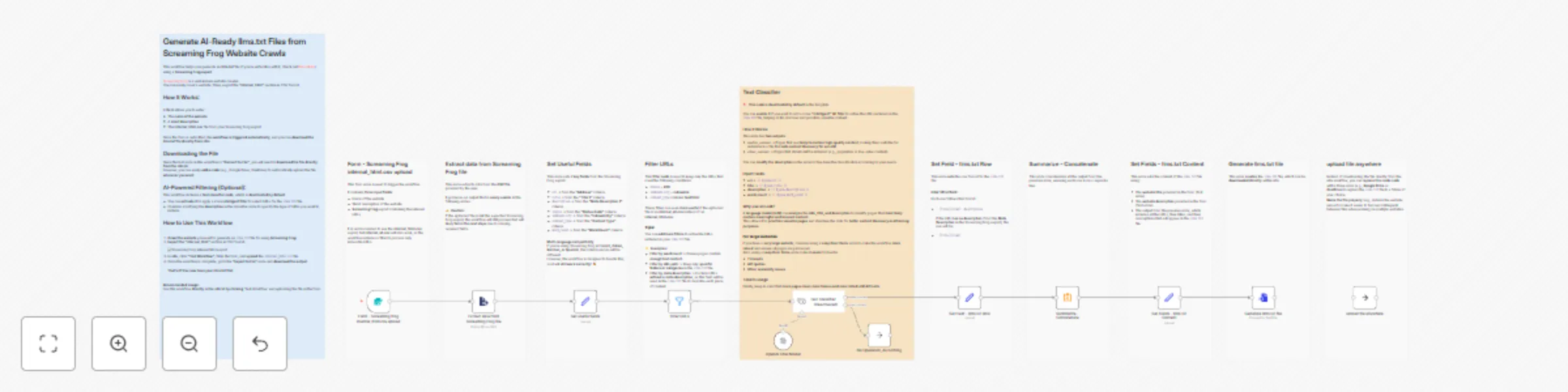
This workflow helps you generate an **llms.txt** file (if you're unfamiliar with it, check out [this article](https://towardsdatascience.com/llms-txt-414d5121bcb3/)) using a **Screaming Frog export**. [Screaming Frog](https://www.screamingfrog.co.uk/seo-spider/) is a well-known website crawler. You can easily crawl a website. Then, export the **"internal_html"** section in CSV format. ## How It Works: A **form** allows you to enter: - The **name of the website** - A **short description** - The **internal_html.csv** file from your Screaming Frog export Once the form is submitted, the **workflow is triggered automatically**, and you can **download the llms.txt file directly from n8n**. ## Downloading the File Since the last node in this workflow is **"Convert to File"**, you will need to **download the file directly from the n8n UI**. However, you can easily **add a node** (e.g., Google Drive, OneDrive) to automatically upload the file **wherever you want**. ## AI-Powered Filtering (Optional): This workflow includes a **text classifier node**, which is **deactivated by default**. - You can **activate it** to apply a more **intelligent filter** to select URLs for the `llms.txt` file. - Consider modifying the **description** in the classifier node to specify the type of URLs you want to include. ## How to Use This Workflow 1. **Crawl the website** you want to generate an `llms.txt` file for using **Screaming Frog**. 2. **Export the "internal_html"** section in CSV format. ![Screaming Frog internal html export](https://i.imgur.com/M0nJQiV.png) 3. In **n8n**, click **"Test Workflow"**, fill in the form, and **upload** the `internal_html.csv` file. 4. Once the workflow is complete, go to the **"Export to File"** node and **download the output**. **That's it! You now have your llms.txt file!** **Recommended Usage:** Use this workflow **directly in the n8n UI by clicking** 'Test Workflow' and uploading the file in the form.

D
Dataki
Document Extraction
19 Mar 2025
3547
0
Workflow preview: AI-generated summary block for WordPress posts
Free advanced

AI-generated summary block for WordPress posts

## What is this workflow? This **n8n template** automates the process of adding an **AI-generated summary** at the top of your WordPress posts. It **retrieves, processes, and updates** your posts dynamically, ensuring efficiency and flexibility without relying on a heavy WordPress plugin. ## Example of AI Summary Section ![Example of AI Summary Section](https://i.imgur.com/XkNKJsJ.png) ## How It Works 1. **Triggers** → Runs on a **scheduled interval** or via a **webhook** when a new post is published. 2. **Retrieves posts** → Fetches content from WordPress and converts HTML to Markdown for AI processing. 3. **AI Summary Generation** → Uses OpenAI to create a concise summary. 4. **Post Update** → Inserts the summary at the top of the post while keeping the original excerpt intact. 5. **Data Logging & Notifications** → Saves processed posts to **Google Sheets** and notifies a **Slack channel**. ## Why use this workflow? ✅ **No need for a WordPress plugin** → Keeps your site lightweight. ✅ **Highly flexible** → Easily connect with **Google Sheets, Slack, or other services**. ✅ **Customizable** → Adapt AI prompts, formatting, and integrations to your needs. ✅ **Smart filtering** → Ensures posts are not reprocessed unnecessarily. 💡 *Check the detailed sticky notes for setup instructions and customization options!*

D
Dataki
Content Creation
30 Jan 2025
2775
0
Workflow preview: AI-powered information monitoring with OpenAI, Google Sheets, Jina AI and Slack
Free advanced

AI-powered information monitoring with OpenAI, Google Sheets, Jina AI and Slack

**Check Legal Regulations**: This workflow involves scraping, so ensure you comply with the legal regulations in your country before getting started. Better safe than sorry! ## 📌 Purpose This workflow enables **automated and AI-driven topic monitoring**, delivering **concise article summaries** directly to a **Slack channel** in a structured and easy-to-read format. It allows users to stay informed on specific topics of interest effortlessly, without manually checking multiple sources, ensuring a **time-efficient and focused** monitoring experience. **To get started, copy the Google Sheets template required for this workflow from [here](https://docs.google.com/spreadsheets/d/1F2FzWt9FMkA5V5i9d_hBJRahLDvxs3DQBOLkLYowXbY).** ## 🎯 Target Audience This workflow is designed for: - **Industry professionals** looking to track key developments in their field. - **Research teams** who need up-to-date insights on specific topics. - **Companies** aiming to keep their teams informed with relevant content. ## ⚙️ How It Works 1. **Trigger:** A **Scheduler** initiates the workflow at regular intervals (default: every hour). 2. **Data Retrieval:** - RSS feeds are fetched using the **RSS Read** node. - Previously monitored articles are checked in **Google Sheets** to avoid duplicates. 3. **Content Processing:** - The article relevance is assessed using **OpenAI (GPT-4o-mini)**. - Relevant articles are scraped using **Jina AI** to extract content. - Summaries are generated and formatted for Slack. 4. **Output:** - Summaries are posted to the specified Slack channel. - Article metadata is stored in **Google Sheets** for tracking. ## 🛠️ Key APIs and Nodes Used - **Scheduler Node:** Triggers the workflow periodically. - **RSS Read:** Fetches the latest articles from defined RSS feeds. - **Google Sheets:** Stores monitored articles and manages feed URLs. - **OpenAI API (GPT-4o-mini):** Classifies article relevance and generates summaries. - **Jina AI API:** Extracts the full content of relevant articles. - **Slack API:** Posts formatted messages to Slack channels. --- This workflow provides an **efficient and intelligent way** to stay informed about your topics of interest, directly within Slack.

D
Dataki
Market Research
25 Jan 2025
19368
0
Workflow preview: AI agent : Google calendar assistant using OpenAI
Free intermediate

AI agent : Google calendar assistant using OpenAI

This template is a **simple AI Agent that acts as a Google Calendar Assistant**. It is designed for beginners to have their **"first AI Agent"** performing **common tasks** and to help them understand how it works. ## For new users of n8n, AI Agents, and OpenAI: This template **involves using an OpenAI API Key**. If you are new to AI Agents, make sure to **research and understand key concepts** such as: - **"Tokens"** (used for API requests), - **"Tool calling"** (how the AI interacts with external tools), - **OpenAI's usage costs** (how you will be billed for API usage). ## Functionality It has two main functionalities: - **Create events** in a calendar - **Retrieve events** from a calendar ## How you can use it Everything is **explained with sticky notes in the workflow**. It is **ready-to-use**: all you need to do is connect your OpenAI credentials, and you can start using the workflow.

D
Dataki
Personal Productivity
7 Jan 2025
66220
0
Workflow preview: ✨ Vision-based AI agent scraper - with Google Sheets, ScrapingBee, and Gemini
Free advanced

✨ Vision-based AI agent scraper - with Google Sheets, ScrapingBee, and Gemini

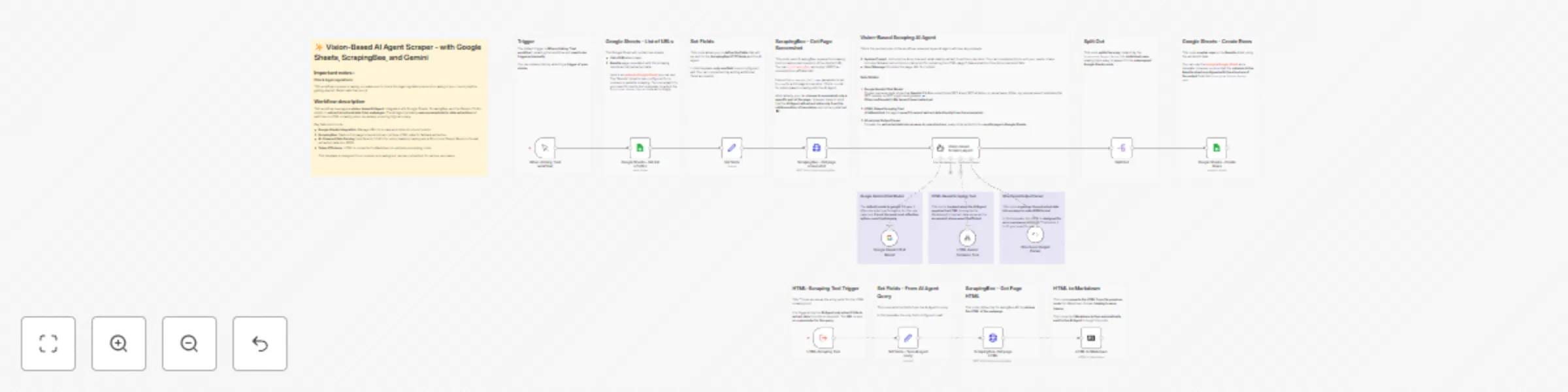
## Important Notes: ### Check Legal Regulations: This workflow involves scraping, so **ensure you comply with the legal regulations** in your country before getting started. **Better safe than sorry**! ## Workflow Description: **😮‍💨 Tired of struggling with XPath, CSS selectors, or DOM specificity when scraping ?** This AI-powered solution is here to simplify your workflow! With a **vision-based AI Agent**, you can extract data effortlessly **without worrying about how the DOM is structured**. This workflow leverages a **vision-based AI Agent**, integrated with Google Sheets, ScrapingBee, and the Gemini-1.5-Pro model, to **extract structured data from webpages**. The AI Agent primarily **uses screenshots for data extraction** but switches to HTML scraping when necessary, ensuring high accuracy. ### Key Features: - **Google Sheets Integration**: Manage URLs to scrape and store structured results. - **ScrapingBee**: Capture full-page screenshots and retrieve HTML data for fallback extraction. - **AI-Powered Data Parsing**: Use Gemini-1.5-Pro for vision-based scraping and a Structured Output Parser to format extracted data into JSON. - **Token Efficiency**: HTML is converted to Markdown to optimize processing costs. This template is designed for e-commerce scraping but can be customized for various use cases.

D
Dataki
Market Research
22 Nov 2024
36934
0
Workflow preview: AI agent to chat with you Search Console data, using OpenAI and Postgres
Free advanced

AI agent to chat with you Search Console data, using OpenAI and Postgres

**Edit 19/11/2024**: As explained on the workflow, the **AI Agent with the original system prompt was not effective when using `gpt4-o-mini`**. To address this, I **optimized the prompt to work better with this model.** You can find the prompts I’ve tested on this **[Notion Page](https://dataki.notion.site/Prompts-for-n8n-Workflow-AI-Agent-to-Chat-with-Your-Search-Console-Data-143a162bd9cd8000b4d6dc8750a0d83f)**. And yes, there is one that **works well with `gpt4-o-mini`**. ## AI Agent to chat with you Search Console Data, using OpenAI and Postgres This **AI Agent enables you to interact with your Search Console data** through a **chat interface**. Each node is **documented within the template**, providing sufficient information for setup and usage. You will also need to **configure Search Console OAuth credentials**. Follow this **[n8n documentation](https://docs.n8n.io/integrations/builtin/credentials/google/oauth-generic/#configure-your-oauth-consent-screen)** to set up the OAuth credentials. ## Important Notes ### Correctly Configure Scopes for Search Console API Calls - It’s essential to **configure the scopes correctly** in your Google Search Console API OAuth2 credentials. Incorrect **configuration can cause issues with the refresh token**, requiring frequent reconnections. Below is the configuration I use to **avoid constant re-authentication**: ![Search Console API oAuth2 config 1](https://i.imgur.com/vVLM7gG.png) ![Search Console API oAuth2 config 2](https://i.imgur.com/naT1NaX.png) Of course, you'll need to add your **client_id** and **client_secret** from the **Google Cloud Platform app** you created to access your Search Console data. ### Configure Authentication for the Webhook Since the **webhook will be publicly accessible**, don’t forget to **set up authentication**. I’ve used **Basic Auth**, but feel free to **choose the method that best meets your security requirements**. ## 🤩💖 Example of awesome things you can do with this AI Agent ![Example of chat with this AI Agent](https://i.imgur.com/jbfsYvT.png)

D
Dataki
Internal Wiki
13 Nov 2024
8999
0
Workflow preview: WordPress - AI chatbot to enhance user experience - with Supabase and OpenAI
Free advanced

WordPress - AI chatbot to enhance user experience - with Supabase and OpenAI

This is the **first version of a template for a RAG/GenAI App** using **WordPress content**. As **creating, sharing, and improving templates** brings me joy 😄, feel free to reach out on [LinkedIn](https://www.linkedin.com/in/nicolas-aknin/) if you have **any ideas to enhance this template**! # How It Works This template includes three workflows: - **Workflow 1**: Generate embeddings for your WordPress posts and pages, then store them in the Supabase vector store. - **Workflow 2**: Handle upserts for WordPress content when edits are made. - **Workflow 3**: Enable chat functionality by performing Retrieval-Augmented Generation (RAG) on the embedded documents. ## Why use this template? This template can be applied to various use cases: - Build a **GenAI application** that requires embedded documents from your website's content. - Embed or create a **chatbot** page on your website to **enhance user experience** as visitors search for information. - Gain **insights** into the **types of questions** visitors are asking on your website. - Simplify **content management** by asking the AI for related content ideas or checking if **similar content already exists**. Useful for internal linking. ## Prerequisites - Access to **Supabase** for storing embeddings. - Basic knowledge of **Postgres** and **pgvector**. - A **WordPress website** with content to be embedded. - An **OpenAI API key** - Ensure that your n8n workflow, Supabase instance, and WordPress website are set to the **same timezone** (or use GMT) for consistency. ## Workflow 1 : Initial Embedding This workflow retrieves your WordPress pages and posts, generates embeddings from the content, and stores them in Supabase using `pgvector`. ### Step 0 : Create Supabase tables **Nodes :** - `Postgres - Create Documents Table`: This table is structured to support **OpenAI embedding** models with **1536 dimensions** - `Postgres - Create Workflow Execution History Table` These two nodes create tables in Supabase: - The **documents** table, which stores embeddings of your website content. - The **n8n_website_embedding_histories** table, which logs workflow executions for efficient management of upserts. This table tracks the workflow execution ID and execution timestamp. ### Step 1 : Retrieve and Merge WordPress Pages and Posts **Nodes :** - `WordPress - Get All Posts` - `WordPress - Get All Pages` - `Merge WordPress Posts and Pages` These three nodes retrieve **all content and metadata from your posts and pages** and merge them. **Important: ** **Apply filters** to avoid generating embeddings for all site content. ### Step 2 : Set Fields, Apply Filter, and Transform HTML to Markdown **Nodes :** - `Set Fields` - `Filter - Only Published & Unprotected Content` - `HTML to Markdown` These three nodes prepare the content for embedding by: 1. Setting up the necessary fields for content embeddings and document metadata. 2. Filtering to include only **published** and **unprotected** content (`protected=false`), ensuring private or unpublished content is **excluded from your GenAI application**. 3. Converting HTML to Markdown, which enhances **performance and relevance** in Retrieval-Augmented Generation (RAG) by optimizing document embeddings. ### Step 3: Generate Embeddings, Store Documents in Supabase, and Log Workflow Execution **Nodes**: - `Supabase Vector Store` - **Sub-nodes**: - `Embeddings OpenAI` - `Default Data Loader` - `Token Splitter` - `Aggregate` - `Supabase - Store Workflow Execution` This step involves generating embeddings for the content and storing it in Supabase, followed by logging the workflow execution details. 1. **Generate Embeddings**: The `Embeddings OpenAI` node generates vector embeddings for the content. 2. **Load Data**: The `Default Data Loader` prepares the content for embedding storage. The metadata stored includes the content title, publication date, modification date, URL, and **ID**, which is **essential for managing upserts**. ⚠️ **Important Note :** Be cautious **not to store any sensitive information in metadata** fields, as this information will be **accessible to the AI and may appear in user-facing answers**. 3. **Token Management**: The `Token Splitter` ensures that content is segmented into manageable sizes to comply with token limits. 4. **Aggregate**: Ensure the last node is run only for 1 item. 5. **Store Execution Details**: The `Supabase - Store Workflow Execution` node saves the workflow execution ID and timestamp, enabling tracking of when each content update was processed. This setup **ensures that content embeddings are stored in Supabase for use in downstream applications**, while workflow execution details are logged for consistency and version tracking. This workflow should be **executed only once for the initial embedding**. **Workflow 2**, described below, will **handle all future upserts**, ensuring that new or updated content is embedded as needed. ## Workflow 2: Handle document upserts **Content on a website follows a lifecycle**—it may be **updated**, **new content** might be added, or, at times, content may be **deleted**. In this **first version of the template**, the upsert workflow manages: - **Newly added content** - **Updated content** ### Step 1: Retrieve WordPress Content with Regular CRON **Nodes**: - `CRON - Every 30 Seconds` - `Postgres - Get Last Workflow Execution` - `WordPress - Get Posts Modified After Last Workflow Execution` - `WordPress - Get Pages Modified After Last Workflow Execution` - `Merge Retrieved WordPress Posts and Pages` A **CRON job** (set to run **every 30 seconds** in this template, but you can **adjust it** as needed) initiates the workflow. A **Postgres SQL** query on the `n8n_website_embedding_histories` table retrieves the **timestamp** of the **latest workflow execution**. Next, the HTTP nodes use the **WordPress API** (**update the example URL** in the template with your own website’s URL and add your **WordPress credentials**) to request **all posts and pages modified after the last workflow execution date**. This process captures both **newly added** and **recently updated content**. The retrieved content is then merged for further processing. ### Step 2 : Set fields, use filter **Nodes :** - `Set fields2` - `Filter - Only published and unprotected content` The same that Step 2 in **Workflow 1**, except that HTML To Makrdown is used in further Step. ### Step 3: Loop Over Items to Identify and Route Updated vs. Newly Added Content **Here, I initially aimed to use 'update documents' instead of the delete + insert approach, but encountered challenges, especially with updating both content and metadata columns together. Any help or suggestions are welcome! :)** **Nodes**: - `Loop Over Items` - `Postgres - Filter on Existing Documents` - `Switch` - **Route `existing_documents`** (if documents with matching IDs are found in metadata): - `Supabase - Delete Row if Document Exists`: Removes any existing entry for the document, preparing for an update. - `Aggregate2`: Used to aggregate documents on Supabase with ID to ensure that `Set Fields3` is executed only once for each WordPress content to **avoid duplicate execution**. - `Set Fields3`: Sets fields required for embedding updates. - **Route `new_documents`** (if no matching documents are found with IDs in metadata): - `Set Fields4`: Configures fields for embedding newly added content. In this step, a loop processes **each item**, directing it based on **whether the document already exists**. The **`Aggregate2`** node acts as a control to ensure `Set Fields3` runs only once per WordPress content, effectively **avoiding duplicate execution** and optimizing the update process. ### Step 4 : HTML to Markdown, Supabase Vector Store, Update Workflow Execution Table The **HTML to Markdown** node mirrors **Workflow 1 - Step 2**. Refer to that section for a detailed explanation on how HTML content is converted to Markdown for improved embedding performance and relevance. Following this, the content is **stored in the Supabase vector store** to manage embeddings efficiently. Lastly, the **workflow execution table is updated. These nodes mirros the **Workflow 1 - Step 3 nodes**. ## Workflow 3 : An example of GenAI App with Wordpress Content : Chatbot to be embed on your website ### Step 1: Retrieve Supabase Documents, Aggregate, and Set Fields After a Chat Input **Nodes**: - `When Chat Message Received` - `Supabase - Retrieve Documents from Chat Input` - `Embeddings OpenAI1` - `Aggregate Documents` - `Set Fields` When a user sends a message to the chat, the prompt (user question) is sent to the Supabase vector store retriever. The RPC function `match_documents` (created in **Workflow 1 - Step 0**) retrieves documents relevant to the user’s question, enabling a more accurate and relevant response. In this step: 1. The **Supabase vector store retriever** fetches documents that match the user’s question, including metadata. 2. The **Aggregate Documents** node consolidates the retrieved data. 3. Finally, **Set Fields** organizes the data to create a more readable input for the AI agent. **Directly using the AI agent** without these nodes would prevent metadata from being sent to the language model (LLM), but **metadata is essential for enhancing the context** and accuracy of the AI’s response. By including metadata, the **AI’s answers can reference relevant document details, making the interaction more informative**. ### Step 2: Call AI Agent, Respond to User, and Store Chat Conversation History **Nodes**: - **AI Agent** - Sub-nodes: - `OpenAI Chat Model` - `Postgres Chat Memories` - **Respond to Webhook** This step involves calling the AI agent to generate an answer, responding to the user, and storing the conversation history. The model used is **gpt4-o-mini**, chosen for its cost-efficiency.

D
Dataki
Support Chatbot
28 Oct 2024
12543
0
Workflow preview: Enrich company data from Google Sheet with OpenAI Agent and ScrapingBee
Free intermediate

Enrich company data from Google Sheet with OpenAI Agent and ScrapingBee

This workflow demonstrates how to enrich data from a list of companies in a spreadsheet. While this workflow is production-ready if all steps are followed, adding error handling would enhance its robustness. ## Important notes - **Check legal regulations**: This workflow involves scraping, so make sure to check the legal regulations around scraping in your country before getting started. Better safe than sorry! - **Mind those tokens**: OpenAI tokens can add up fast, so keep an eye on usage unless you want a surprising bill that could knock your socks off! 💸 ## Main Workflow ### Node 1 - `Webhook` This node triggers the workflow via a webhook call. You can replace it with any other trigger of your choice, such as form submission, a new row added in Google Sheets, or a manual trigger. ### Node 2 - `Get Rows from Google Sheet` This node retrieves the list of companies from your spreadsheet. here is the **[Google Sheet Template you can use](https://docs.google.com/spreadsheets/d/1AIzJGxdMmwMDuHyRqGyX-E0QYbyxWKlSMn-awlHH19s/)**. The columns in this Google Sheet are: - **Company**: The name of the company - **Website**: The website URL of the company *These two fields are required at this step.* - **Business Area**: The business area deduced by OpenAI from the scraped data - **Offer**: The offer deduced by OpenAI from the scraped data - **Value Proposition**: The value proposition deduced by OpenAI from the scraped data - **Business Model**: The business model deduced by OpenAI from the scraped data - **ICP**: The Ideal Customer Profile deduced by OpenAI from the scraped data - **Additional Information**: Information related to the scraped data, including: - **Information Sufficiency**: - *Description*: Indicates if the information was sufficient to provide a full analysis. - *Options*: "Sufficient" or "Insufficient" - **Insufficient Details**: - *Description*: If labeled "Insufficient," specifies what information was missing or needed to complete the analysis. - **Mismatched Content**: - *Description*: Indicates whether the page content aligns with that of a typical company page. - **Suggested Actions**: - *Description*: Provides recommendations if the page content is insufficient or mismatched, such as verifying the URL or searching for alternative sources. ### Node 3 - `Loop Over Items` This node ensures that, in subsequent steps, the website in "extra workflow input" corresponds to the row being processed. You can delete this node, but you'll need to ensure that the "query" sent to the scraping workflow corresponds to the website of the specific company being scraped (rather than just the first row). ### Node 4 - `AI Agent` This AI agent is configured with a prompt to extract data from the content it receives. The node has three sub-nodes: - **OpenAI Chat Model**: The model used is currently `gpt4-o-mini`. - **Call n8n Workflow**: This sub-node calls the workflow to use ScrapingBee and retrieves the scraped data. - **Structured Output Parser**: This parser structures the output for clarity and ease of use, and then adds rows to the Google Sheet. ### Node 5 - `Update Company Row in Google Sheet` This node updates the specific company's row in Google Sheets with the enriched data. ## Scraper Agent Workflow ### Node 1 - `Tool Called from Agent` This is the trigger for when the AI Agent calls the Scraper. A query is sent with: - Company name - Website (the URL of the website) ### Node 2 - `Set Company URL` This node renames a field, which may seem trivial but is useful for performing transformations on data received from the AI Agent. ### Node 3 - `ScrapingBee: Scrape Company's Website` This node scrapes data from the URL provided using ScrapingBee. You can use any scraper of your choice, but ScrapingBee is recommended, as it allows you to configure scraper behavior directly. Once configured, copy the provided "curl" command and import it into n8n. ### Node 4 - `HTML to Markdown` This node converts the scraped HTML data to Markdown, which is then sent to OpenAI. The Markdown format generally uses fewer tokens than HTML. ## Improving the Workflow It's always a pleasure to share workflows, but creators sometimes want to keep some magic to themselves ✨. Here are some ways you can enhance this workflow: - Handle potential errors - Configure the scraper tool to scrape other pages on the website. Although this will cost more tokens, it can be useful (e.g., scraping "Pricing" or "About Us" pages in addition to the homepage). - Instead of Google Sheets, connect directly to your CRM to enrich company data. - Trigger the workflow from form submissions on your website and send the scraped data about the lead to a Slack or Teams channel.

D
Dataki
Lead Generation
16 Oct 2024
9352
0
Workflow preview: Enrich Pipedrive's Organization Data with OpenAI GPT-4o & Notify it in Slack
Free intermediate

Enrich Pipedrive's Organization Data with OpenAI GPT-4o & Notify it in Slack

This workflow **enriches new Pipedrive organization's data by adding a note to the organization object in Pipedrive**. It assumes there is a custom "website" field in your Pipedrive setup, as data will be scraped from this website to generate a note using OpenAI. Then, a notification is sent in Slack. ## ⚠️ Disclaimer **This workflow uses a scraping API. Before using it, ensure you comply with the regulations regarding web scraping in your country or state**. ## Important Notes - The **OpenAI model used is GPT-4o**, chosen for its large input token capacity. However, it is not the cheapest model if cost is very important to you. - The system prompt in the OpenAI Node generates output with relevant information, but feel free to improve or **modify it according to your needs**. ## **How It Works** ### Node 1: `Pipedrive Trigger - An Organization is Created` This is the trigger of the workflow. When **an organization object is created in Pipedrive**, this node is triggered and retrieves the data. **Make sure you have a "website" custom field in Pipedrive** (the name of the field in the n8n node will appear as a random ID and not with the Pipedrive custom field name). ### Node 2: `ScrapingBee - Get Organization's Website's Homepage Content` This node **scrapes the content** from the URL of the website associated with the **Pipedrive Organization** created in Node 1. The workflow uses the [ScrapingBee](https://www.scrapingbee.com/) API, but **you can use any preferred API or simply the HTTP request node in n8n**. ### Node 3: `OpenAI - Message GPT-4o with Scraped Data` This node sends HTML-scraped data from the previous node to the **OpenAI GPT-4o model**. The system prompt instructs the model to **extract company data**, such as products or services offered and competitors (if known by the model), and format it as HTML for optimal use in a Pipedrive Note. ### Node 4: `Pipedrive - Create a Note with OpenAI Output` This node **adds a Note to the Organization created in Pipedrive** using the OpenAI node output. The Note will include the company description, target market, selling products, and competitors (if GPT-4o was able to determine them). ### Node 5 & 6: `HTML To Markdown` & `Code - Markdown to Slack Markdown` These two nodes **format the HTML output to Slack Markdown**. The Note created in Pipedrive is in HTML format, **as specified by the System Prompt of the OpenAI Node**. To send it to Slack, it needs to be converted to Markdown and then to Slack Markdown. ### Node 7: `Slack - Notify` This node **sends a message in Slack containing the Pipedrive Organization Note** created with this workflow.

D
Dataki
Lead Generation
7 Jul 2024
2177
0
Workflow preview: Store Notion's Pages as Vector Documents into Supabase with OpenAI
Free intermediate

Store Notion's Pages as Vector Documents into Supabase with OpenAI

***Workflow updated on 17/06/2024:** Added 'Summarize' node to avoid creating a row for each Notion content block in the Supabase table.* ## Store Notion's Pages as Vector Documents into Supabase **This workflow assumes you have a Supabase project with a table that has a vector column. If you don't have it, follow the instructions here:** [Supabase Langchain Guide](https://supabase.com/docs/guides/ai/langchain?queryGroups=database-method&database-method=sql) ## Workflow Description This workflow automates the process of storing Notion pages as vector documents in a Supabase database with a vector column. The steps are as follows: 1. **Notion Page Added Trigger**: - Monitors a specified Notion database for newly added pages. You can create a specific Notion database where you copy the pages you want to store in Supabase. - Node: `Page Added in Notion Database` 2. **Retrieve Page Content**: - Fetches all block content from the newly added Notion page. - Node: `Get Blocks Content` 3. **Filter Non-Text Content**: - Excludes blocks of type "image" and "video" to focus on textual content. - Node: `Filter - Exclude Media Content` 4. **Summarize Content**: - Concatenates the Notion blocks content to create a single text for embedding. - Node: `Summarize - Concatenate Notion's blocks content` 5. **Store in Supabase**: - Stores the processed documents and their embeddings into a Supabase table with a vector column. - Node: `Store Documents in Supabase` 6. **Generate Embeddings**: - Utilizes OpenAI's API to generate embeddings for the textual content. - Node: `Generate Text Embeddings` 7. **Create Metadata and Load Content**: - Loads the block content and creates associated metadata, such as page ID and block ID. - Node: `Load Block Content & Create Metadata` 8. **Split Content into Chunks**: - Divides the text into smaller chunks for easier processing and embedding generation. - Node: `Token Splitter`

D
Dataki
Document Extraction
12 Jun 2024
6874
0