D

Daniel Rosehill

5
Workflows

Workflows by Daniel Rosehill
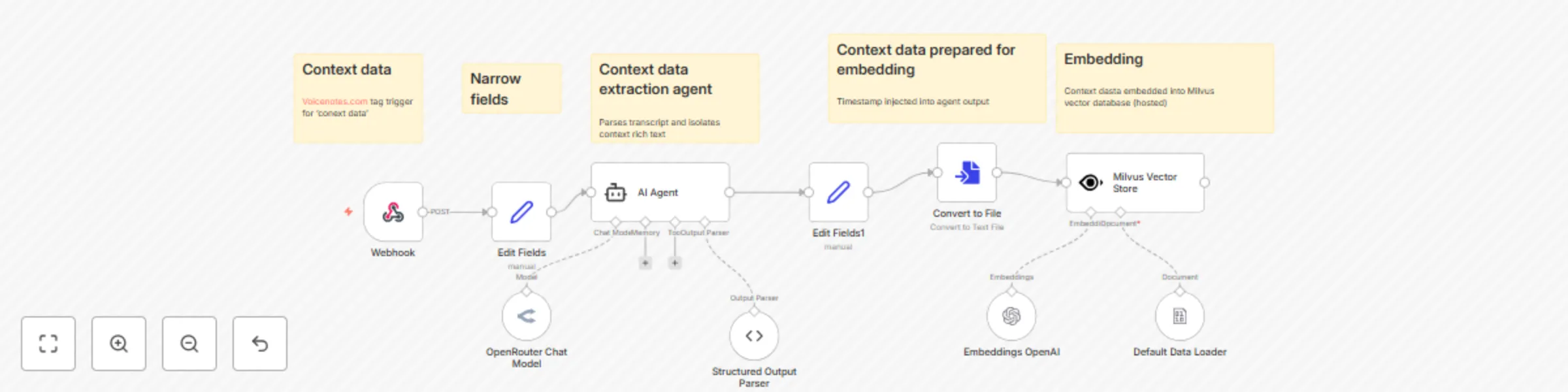
Workflow preview: Extract context from voice notes with OpenRouter AI & Milvus for RAG systems
Free advanced

Extract context from voice notes with OpenRouter AI & Milvus for RAG systems

# Voice Note Context Extraction Pipeline with AI Agent & Vector Storage ### This n8n template demonstrates how to automatically extract and store contextual information from voice notes using AI agents and vector databases for future retrieval. ### How it works - **Webhook trigger** receives voice note data including title, transcript, and timestamp from external services (example here: voicenotes.com) - **Field extraction** isolates the key data fields (title, transcript, timestamp) for processing - **AI Context Agent** processes the transcript to extract meaningful context while: - Correcting speech-to-text errors - Converting first-person references to third-person facts - Filtering out casual conversation and focusing on significant information - **Output formatting** structures the extracted context with timestamps for embedding - **File conversion** prepares the context data for vector storage - **Vector embedding** uses OpenAI embeddings to create searchable representations - **Milvus storage** stores the embedded context for future retrieval in RAG applications ### How to use - Configure the webhook endpoint to receive data from your voice note service - Set up credentials for OpenRouter (LLM), OpenAI (embeddings), and Milvus (vector storage) - Customize the AI agent's system prompt to match your context extraction needs - The workflow automatically processes incoming voice notes and stores extracted context ### Requirements - OpenRouter account for LLM access - OpenAI API key for embeddings - Milvus vector database (cloud or self-hosted) - Voice note service with webhook capabilities (e.g., Voicenotes.com) ### Customizing this workflow - **Modify the context extraction prompt** to focus on specific types of information (preferences, facts, relationships) - **Add filtering logic** to process only voice notes with specific tags or keywords - **Integrate with other storage** systems like Pinecone, Weaviate, or local vector databases - **Connect to RAG systems** to use the stored context for enhanced AI conversations - **Add notification nodes** to confirm successful context extraction and storage ### Use cases - **Personal AI assistant** that remembers your preferences and context from voice notes - **Knowledge management** system for capturing insights from recorded thoughts - **Content creation** pipeline that extracts key themes from voice recordings - **Research assistant** that builds context from interview transcripts or meeting notes

D
Daniel Rosehill
Engineering
15 Aug 2025
546
0

Workflow preview: Expense organizer with Google Drive routing and Gemini AI entity detection
Free advanced

Expense organizer with Google Drive routing and Gemini AI entity detection

## Who's it for This workflow is perfect for individuals, small businesses, or households who need to: - Automatically process and categorize expense receipts - Extract structured data from invoices and receipts using AI - Store receipts in multiple locations (Google Drive and S3) - Send automated email notifications with expense details - Send documents to accounting systems via email hooks ## How it works This comprehensive expense processing workflow combines AI-powered document analysis with automated file management and notifications. Here's the complete flow: 1. **Form Submission**: Users submit expenses through a web form with receipt upload and category selection (Personal, Business, or Shared/Home) 2. **AI Document Processing**: The workflow extracts text from PDF receipts using OCR, then uses Google Gemini AI to parse and structure the data into a standardized JSON format including vendor details, amounts, dates, and categorization 3. **Smart Routing**: Based on the expense category, receipts are automatically routed to different processing paths with category-specific folder organization 4. **Multi-Destination Storage**: Receipts are uploaded to: - Google Drive (organized by year/month folders) - S3 cloud storage buckets - Different destinations based on expense type 5. **Email Notifications**: Sends formatted HTML email notifications with complete expense details and links to stored receipts 6. **Accounting System Integration**: Automatically forwards business expenses to accounting systems via email hooks (customizable per user requirements) ## Requirements ### Credentials needed: - **Google Gemini API**: For AI-powered document analysis - **Google Drive OAuth2**: For personal and business drive access - **Gmail OAuth2**: For sending email notifications - **S3 Storage**: For cloud backup (AWS S3, Wasabi, etc.) ### Services used: - Google Drive (multiple accounts supported) - Google Gemini AI - Gmail - S3-compatible storage - Form trigger webhook ## How to set up ### Step 1: Configure Credentials 1. Set up Google Gemini API credentials in n8n 2. Configure Google Drive OAuth2 for both personal and business accounts 3. Add Gmail OAuth2 credentials 4. Set up S3 storage credentials ### Step 2: Update Configuration 1. Replace all placeholder values: - `YOUR_GEMINI_CREDENTIAL_ID` with your Gemini credential ID - `YOUR_PERSONAL_GDRIVE_CREDENTIAL_ID` with personal Drive credential - `YOUR_BUSINESS_GDRIVE_CREDENTIAL_ID` with business Drive credential - `YOUR_GMAIL_CREDENTIAL_ID` with Gmail credential - `YOUR_S3_CREDENTIAL_ID` with S3 credential 2. Update Google Drive folder structure: - Replace `YOUR_BUSINESS_DRIVE_ID` and `YOUR_SHARED_DRIVE_ID` with actual drive IDs - Update the JavaScript code in the three Code nodes with your actual folder mapping 3. Configure email addresses: - Replace `[email protected]` with your notification email - Replace `[email protected]` with your accounting system's email hook (this is a mail hook for uploading documents to small business accounting systems - can be modified per user requirements) 4. Update S3 bucket names: - Replace `business-expenses`, `personal-expenses`, and `shared-expenses` with your bucket names ### Step 3: Set Up Folder Structure Create organized folder structures in your Google Drives: ``` Drive Root/ ├── 2024/ │ ├── January/ │ ├── February/ │ └── ... (all months) ├── 2025/ │ ├── January/ │ └── ... (all months) └── 2026/ └── ... (all months) ``` ### Step 4: Test the Workflow 1. Activate the workflow 2. Submit a test expense through the form 3. Verify files are uploaded to correct locations 4. Check email notifications are received ## How to customize the workflow ### Expense Categories Modify the form dropdown options and conditional logic to add/remove expense categories: - Edit the "On form submission" node form fields - Update the IF condition nodes for routing - Add new processing paths as needed ### AI Processing Schema Customize the structured output parser schema to extract different fields: - Modify the JSON schema in the "Structured Output Parser" node - Update the AI system prompt for different extraction requirements - Add new fields for specific business needs ### Storage Destinations Add or modify storage locations: - Duplicate upload nodes for additional cloud services - Modify folder organization logic in Code nodes - Add new conditional routing for different storage rules ### Email Templates Customize the HTML email template: - Edit the email message content in the Gmail node - Add/remove expense fields in the table - Modify styling and branding ### Folder Organization Update the JavaScript code in Code nodes to match your folder structure: - Modify the CSV data with your actual folder IDs - Change the date-based organization logic - Add custom folder naming conventions ### Integration Extensions Extend the workflow with additional integrations: - Add Slack notifications - Connect to accounting software (QuickBooks, Xero) - Integrate with expense management platforms - Add approval workflows for business expenses

D
Daniel Rosehill
Invoice Processing
8 Aug 2025
524
0

Workflow preview: Process Voice Notes to AI Responses with Claude Sonnet, Nuclino & Slack
Free advanced

Process Voice Notes to AI Responses with Claude Sonnet, Nuclino & Slack

This workflow provides a way to capture detailed AI prompts using a voice note transcription service and then passes them on for completion to an AI agent. To preserve outputs in a knowledge management system, the AI response and the prompt are combined into one document that is created in a Nuclino collection (note: the Nuclino step is configured manually with a HTTP request node). ### How it works - A webhook receives voice note data from Voicenotes.com containing the title and transcript - The transcript is extracted and sent to an AI Agent powered by OpenRouter's Claude Sonnet model - The AI generates a structured response in markdown format with Summary, Prompt, and Response sections - The original prompt and AI response are merged and prepared for multiple outputs - A Nuclino document is created via HTTP Request with the structured content - A Slack notification is sent with the prompt, response, and Nuclino note URL - Both the original prompt and AI response are archived in NocoDB for future reference ### How to use - The webhook trigger can be configured to receive data from Voicenotes.com or any service that provides title and transcript data - Replace the manual trigger with webhook, form, or other triggers as needed - Customize the AI system message to change response format and behavior - Configure Nuclino workspace and collection IDs for proper document organization ### Requirements - **OpenRouter account** for AI model access (Claude Sonnet) - **Nuclino account** and API token for document creation - **Slack workspace** with bot permissions for notifications - **NocoDB instance** for archiving (optional) - **Voicenotes.com account** for voice input (or alternative webhook source) ### Customising this workflow - **AI Models**: Switch between different OpenRouter models by changing the model parameter - **Response Format**: Modify the AI Agent system message to change output structure - **Documentation Platforms**: Replace Nuclino HTTP Request with other documentation APIs - **Notification Channels**: Add multiple Slack channels or other notification services - **Archive Storage**: Replace NocoDB with other database solutions - **Input Sources**: Adapt webhook to accept data from different voice note or transcription services ### Nuclino API The Nuclino API is documented [here](https://www.nuclino.com/api).

D
Daniel Rosehill
Internal Wiki
30 Jul 2025
245
0

Workflow preview: Voice-to-text AI assistant with Voicenotes, Claude Sonnet & email delivery
Free advanced

Voice-to-text AI assistant with Voicenotes, Claude Sonnet & email delivery

This workflow provides a mechanism for using AI transcribed voice notes using [Voicenotes AI](Voicenotes AI) and then running them into an AI agent as prompts. On the "collection" end of the workflow, we gather the output (with the recorded prompt) and do two things: 1) It is saved into NocoDB as a new row on a database table recording AI outputs and prompts. 2) The prompt gets sent to an AI agent and the output gets returned to the user's email ## Who Is It For? If you like using voice AI tools to write detailed prompts for AI, then this workflow helps to remove the points of friction in getting from A to B! ## How Does It Work? Simply tag your voice note in Voicenotes with your preferred tag (I'm using 'prompt'). Then, provide the N8N webhook as the URL for a webhook that will trigger whenever a new note is created with this tag (and this tag only). Now, whenever you wish to use a voice note as a prompt, just add the 'tag.' This will trigger the webhook which, in turn, will trigger this workflow - sending the prompt to an AI agent of your choosing (configure within the workflow) and then saving the output into a database and returning it by email. Note: The AI agent system prompt is written to define a structured output to provide Gmail-safe HTML. This is thin injected into a template. You can use a Google Group to gather together the output runs or just receive them at your main address (if you don't use Gmail, just swap out for any other email node or your preferred delivery channel). ## How To Set It Up You'll need a Voicenotes account in order to use the service! Once you have one, you'll next want to create the tag and the webhook. In N8N, create your webhook node and then provide that to Voicenotes: ![1.png](fileId:1890) Create a note. Then assign it a new tag: "Prompts" (or as you prefer). ![2.png](fileId:1891) The webhook is matched to the tag. ![3.png](fileId:1889) ## Requirements - Voicenotes AI account ## Customisation The delivery mechanism can be customized to your preferences. If you're not a Google user, substitute the template and sending mechanism for your preferred delivery provider You could for example collect the outputs to a Slack channel or Telegram bot. You may omit the collector in NocoDB or substitute it for another wiki or knowledge management platform such as Notion or Nuclino.

D
Daniel Rosehill
Personal Productivity
29 Jul 2025
617
0

Workflow preview: Improve AI agent system prompts with GPT-4o feedback analysis and email delivery
Free intermediate

Improve AI agent system prompts with GPT-4o feedback analysis and email delivery

# AI Agent System Prompt 'Auto-Tuner' This workflow configures an AI agent which provides an edited system prompt for an autonomous AI agent Based on the following pieces of information provided by the user in an input form: - Agent name - Agent purpose - What's working - What's not working - Current system prompt There are two additional form elements that I've marked as non-required but if you want to force more detail from the user you can mark these as required: - Example prompt - Example output This information gets sent to the AI agent which is configured with a system prompt of its own and the form elements are concatenated into a user prompt prompting the agent to evaluate the system prompt, deliver an improved version, and provide some notes for logging. The output structure is constrained with JSON. OpenAI 4o is recommended for its overall strong adherence to structured outputs. Once the agent delivers its improved system prompt, this gets passed to the user via email notification. The final delivery stage can be alternated according to user preference ## When This Is Useful Anyone working on AI agent configurations will likely be familiar with the pivotal importance of the system prompt in directing the desired behavior of the agent. Frequently this requires long hours of iteration before a consistent desired behaviour is achieved. Sometimes we can figure out what's working and not based on our own intuition and experience, but at other times soliciting the outside perspective of another AI tool can be a helpful way to consider alternative explanations or improve our own prompt engineering. This configuration is intended to speed up this iterative process and reduce the amount of time we spend working on system prompts to configure effective agent workflows

D
Daniel Rosehill
Engineering
19 May 2025
1954
0