D

Daniel Nkencho

12
Workflows

Workflows by Daniel Nkencho

Workflow preview: Extract & process Q&A from URLs with Airtop, OpenRouter AI & Safety Guardrails
Free advanced

Extract & process Q&A from URLs with Airtop, OpenRouter AI & Safety Guardrails

Transform your Telegram bot into a secure content analyzer: send any URL, and get safe, structured Q&A extractions with AI-powered safety checks and web search capabilities. ## 📋 What This Template Does This workflow activates when a user sends a valid URL to your Telegram bot. It extracts questions and answers from the webpage using Airtop, applies NSFW and PII guardrails to ensure safe content, then uses an OpenRouter AI agent (with optional Tavily search) to generate and send a concise response. If guardrails fail, it alerts the user instead. - Filters for valid URLs only to prevent unnecessary processing - Extracts structured Q&A from documents or forms - Enforces safety checks for harmful or private content - Supports web searches for enhanced responses when needed ## 🔧 Prerequisites - A Telegram bot created via @BotFather - Accounts with Airtop, OpenRouter, and Tavily ## 🔑 Required Credentials ### Telegram API Setup 1. Open Telegram → Search @BotFather → Use /newbot command 2. Follow prompts to create bot and obtain API token 3. Add to n8n as **Telegram API** credential type ### Airtop API Setup 1. Visit https://airtop.ai → Sign up or log in → Navigate to Dashboard → API Keys 2. Generate a new API key with extraction permissions 3. Add to n8n as **Airtop API** credential type ### OpenRouter API Setup 1. Go to https://openrouter.ai → Sign up or log in → Navigate to API Keys section 2. Generate and copy your API key (free tier sufficient for basic use) 3. Add to n8n as **OpenRouter API** credential type ### Tavily API Setup 1. Visit https://app.tavily.com → Sign up or log in → Go to API Keys 2. Generate and copy your API key 3. Add to n8n as **Tavily API** credential type ## ⚙️ Configuration Steps 1. Import the workflow JSON into n8n 2. Assign your Telegram, Airtop, OpenRouter, and Tavily credentials to the respective nodes 3. Activate the workflow to register the Telegram trigger 4. Test by sending a plain URL (no extra text) to your bot in Telegram 5. Monitor the first execution and adjust guardrail thresholds if needed ## 🎯 Use Cases - Researchers summarizing academic papers or reports while ensuring no sensitive data leaks - Support teams extracting info from customer-submitted docs/forms with automatic safety filtering - Content creators pulling Q&A from articles for bots, blocking inappropriate responses - Educators analyzing educational resources safely for student-facing chat tools ## ⚠️ Troubleshooting - No response from bot: Verify the message contains only a valid URL; adjust regex in Filter Only URLs node if needed - Guardrail failures: Lower NSFW threshold (e.g., from 0.7 to 0.5) or disable PII checks in Apply Safety Guardrails node - Extraction errors: Test with public, text-heavy URLs; some JS-heavy sites may require alternative extractors - Rate limits hit: Check OpenRouter/Tavily dashboards for usage; upgrade to paid tiers for heavy traffic

D
Daniel Nkencho
Document Extraction
15 Nov 2025
66
0
Workflow preview: Create AI nature videos with Sora 2 (Kie AI), Gemini, and send to Telegram
Free intermediate

Create AI nature videos with Sora 2 (Kie AI), Gemini, and send to Telegram

Generate stunning 10-second AI-crafted nature stock videos on autopilot and deliver them straight to your Telegram chat—perfect for content creators seeking effortless inspiration without the hassle of manual prompting or editing. ## 📋 What This Template Does This workflow automates the creation and delivery of high-quality, 10-second nature-themed videos using AI generation tools. Triggered on a schedule, it leverages Google Gemini to craft precise video prompts, submits them to the Kie AI API for video synthesis, polls for completion, downloads the result, and sends it via Telegram. - Dynamically generates varied nature scenes (e.g., misty forests, ocean sunsets) with professional cinematography specs. - Handles asynchronous video processing with webhook callbacks for efficiency. - Ensures commercial-ready outputs: watermark-free, portrait aspect, natural ambient audio. - Customizable schedule for daily/weekly bursts of creative B-roll footage. ## 🔧 Prerequisites - n8n instance with HTTP Request and LangChain nodes enabled. - Google Gemini API access for prompt generation. - Kie AI API account for video creation (supports Sora-like text-to-video models). - Telegram Bot setup for message delivery. ## 🔑 Required Credentials ### Google Gemini API Setup 1. Go to [aistudio.google.com](https://aistudio.google.com) → Create API key. 2. Ensure the key has access to Gemini 1.5 Flash or Pro models. 3. Add to n8n as "Google Gemini API" credential type. ### Kie AI API Setup 1. Sign up at [kie.ai](https://kie.ai) → Dashboard → API Keys. 2. Generate a new API key with video generation permissions (sora-2-text-to-video model). 3. Add to n8n as "HTTP Header Auth" credential (header: Authorization, value: Bearer [Your API Key]). ### Telegram Bot API Setup 1. Create a bot via @BotFather on Telegram → Get API token. 2. Note your target chat ID (use @userinfobot for personal chats). 3. Add to n8n as "Telegram API" credential type. ## ⚙️ Configuration Steps 1. Import the workflow JSON into your n8n instance. 2. Assign the required credentials to the Gemini, Kie AI, and Telegram nodes. 3. Update the Telegram node's chat ID with your target chat (e.g., personal or group). 4. Adjust the Schedule Trigger interval (e.g., daily at 9 AM) via node settings. 5. Activate the workflow and monitor the first execution for video delivery. ## 🎯 Use Cases - Content creators automating daily social media B-roll: Generate fresh nature clips for Instagram Reels or YouTube intros without filming. - Marketing teams sourcing versatile stock footage: Quickly produce themed videos for campaigns, like serene landscapes for wellness brands. - Educational bots for classrooms: Deliver randomized nature videos to Telegram groups for biology lessons on ecosystems and wildlife. - Personal productivity: Schedule motivational nature escapes to your chat for remote workers needing quick digital breaks. ## ⚠️ Troubleshooting - Video generation fails with quota error: Check Kie AI dashboard for usage limits and upgrade plan if needed. - Prompt output too generic: Tweak the Video Prompting Agent's system prompt for more specificity (e.g., add seasonal themes). - Telegram send error: Verify bot token and chat ID; test with a simple message node first. - Webhook callback timeout: Ensure n8n production URL is publicly accessible; use ngrok for local testing.

D
Daniel Nkencho
Content Creation
31 Oct 2025
964
0
Workflow preview: Generate AI videos from text or images with Sora 2/Pro & GPT-5 enhancement
Free advanced

Generate AI videos from text or images with Sora 2/Pro & GPT-5 enhancement

Harness OpenAI's Sora 2 for instant video creation from text or images using fal.ai's API—powered by GPT-5 for refined prompts that ensure cinematic quality. This template processes form submissions, intelligently routes to text-to-video (with mandatory prompt enhancement) or image-to-video modes, and polls for completion before redirecting to your generated clip. ## 📋 What This Template Does Users submit prompts, aspect ratios (9:16 or 16:9), models (sora-2 or pro), durations (4s, 8s, or 12s), and optional images via a web form. For text-to-video, GPT-5 automatically refines the prompt for optimal Sora 2 results; image mode uses the raw input. It calls one of four fal.ai endpoints (text-to-video, text-to-video/pro, image-to-video, image-to-video/pro), then loops every 60s to check status until the video is ready. - Handles dual modes: Text (with GPT-5 enhancement) or image-seeded generation - Supports pro upgrades for higher fidelity and longer clips - Auto-uploads images to a temp host and polls asynchronously for hands-free results - Redirects directly to the final video URL on completion ## 🔧 Prerequisites - n8n instance with HTTP Request and LangChain nodes enabled - fal.ai account for Sora 2 API access - OpenAI account for GPT-5 prompt refinement ## 🔑 Required Credentials ### fal.ai API Setup 1. Sign up at fal.ai and navigate to Dashboard → API Keys 2. Generate a new key with "sora-2" permissions (full access recommended) 3. In n8n, create "Header Auth" credential: Name it "fal.ai", set Header Name to "Authorization", Value to "Key [Your API Key]" ### OpenAI API Setup 1. Log in at platform.openai.com → API Keys (top-right profile menu) 2. Click "Create new secret key" and copy it (store securely) 3. In n8n, add "OpenAI API" credential: Paste key, select GPT-5 model in the LLM node ## ⚙️ Configuration Steps 1. Import the workflow JSON into your n8n instance via Settings → Import from File 2. Assign fal.ai and OpenAI credentials to the relevant HTTP Request and LLM nodes 3. Activate the workflow—the form URL auto-generates in the trigger node 4. Test by submitting a sample prompt (e.g., "A cat chasing a laser"); monitor executions for video output 5. Adjust polling wait (60s node) for longer generations if needed ## 🎯 Use Cases - **Social Media Teams**: Generate 9:16 vertical Reels from text ideas, like quick product animations enhanced by GPT-5 for professional polish - **Content Marketers**: Animate uploaded images into 8s promo clips, e.g., turning a static ad graphic into a dynamic story for email campaigns - **Educators and Trainers**: Create 4s explainer videos from outlines, such as historical reenactments, using pro mode for detailed visuals - **App Developers**: Embed as a backend service to process user prompts into Sora 2 videos on-demand for creative tools ## ⚠️ Troubleshooting - **API quota exceeded**: Check fal.ai dashboard for usage limits; upgrade to pro tier or extend polling waits - **Prompt refinement fails**: Ensure GPT-5 credential is set and output matches JSON schema—test LLM node independently - **Image upload errors**: Confirm file is JPG/PNG under 10MB; verify tmpfiles.org endpoint with a manual curl test - **Endless polling loop**: Add an IF node after 10 checks to timeout; increase wait to 120s for 12s pro generations

D
Daniel Nkencho
Content Creation
25 Oct 2025
1700
0
Workflow preview: Generate song lyrics and music from text prompts using OpenAI and Fal.ai Minimax
Free advanced

Generate song lyrics and music from text prompts using OpenAI and Fal.ai Minimax

Spark your creativity instantly in any chat—turn a simple prompt like "heartbreak ballad" into original, full-length lyrics and a professional AI-generated music track, all without leaving your conversation. ## 📋 What This Template Does This chat-triggered workflow harnesses AI to generate detailed, genre-matched song lyrics (at least 600 characters) from user messages, then queues them for music synthesis via Fal.ai's minimax-music model. It polls asynchronously until the track is ready, delivering lyrics and audio URL back in chat. - Crafts original, structured lyrics with verses, choruses, and bridges using OpenAI - Submits to Fal.ai for melody, instrumentation, and vocals aligned to the style - Handles long-running generations with smart looping and status checks - Returns complete song package (lyrics + audio link) for seamless sharing ## 🔧 Prerequisites - n8n account (self-hosted or cloud with chat integration enabled) - OpenAI account with API access for GPT models - Fal.ai account for AI music generation ## 🔑 Required Credentials ### OpenAI API Setup 1. Go to [platform.openai.com](https://platform.openai.com) → API keys (sidebar) 2. Click "Create new secret key" → Name it (e.g., "n8n Songwriter") 3. Copy the key and add to n8n as "OpenAI API" credential type 4. Test by sending a simple chat completion request ### Fal.ai HTTP Header Auth Setup 1. Sign up at [fal.ai](https://fal.ai) → Dashboard → API Keys 2. Generate a new API key → Copy it 3. In n8n, create "HTTP Header Auth" credential: Name="Fal.ai", Header Name="Authorization", Header Value="Key [Your API Key]" 4. Test with a simple GET to their queue endpoint (e.g., /status) ## ⚙️ Configuration Steps 1. Import the workflow JSON into your n8n instance 2. Assign OpenAI API credentials to the "OpenAI Chat Model" node 3. Assign Fal.ai HTTP Header Auth to the "Generate Music Track", "Check Generation Status", and "Fetch Final Result" nodes 4. Activate the workflow—chat trigger will appear in your n8n chat interface 5. Test by messaging: "Create an upbeat pop song about road trips" ## 🎯 Use Cases - **Content Creators**: YouTubers generating custom jingles for videos on the fly, streamlining production from idea to audio export - **Educators**: Music teachers using chat prompts to create era-specific folk tunes for classroom discussions, fostering interactive learning - **Gift Personalization**: Friends crafting anniversary R&B tracks from shared memories via quick chats, delivering emotional audio surprises - **Artist Brainstorming**: Songwriters prototyping hip-hop beats in real-time during sessions, accelerating collaboration and iteration ## ⚠️ Troubleshooting - **Invalid JSON from AI Agent**: Ensure the system prompt stresses valid JSON; test the agent standalone with a sample query - **Music Generation Fails (401/403)**: Verify Fal.ai API key has minimax-music access; check usage quotas in dashboard - **Status Polling Loops Indefinitely**: Bump wait time to 45-60s for complex tracks; inspect fal.ai queue logs for bottlenecks - **Lyrics Under 600 Characters**: Tweak agent prompt to enforce fuller structures like [V1][C][V2][B][C]; verify output length in executions

D
Daniel Nkencho
Content Creation
22 Oct 2025
593
0
Workflow preview: Generate custom logos from websites using OpenAI and Gemini
Free intermediate

Generate custom logos from websites using OpenAI and Gemini

Transform any website into a custom logo in seconds with AI-powered analysis—no design skills required! ## 📋 What This Template Does This workflow receives a website URL via webhook, captures a screenshot and fetches the page content, then leverages OpenAI to craft an optimized prompt based on the site's visuals and text. Finally, Google Gemini generates a professional logo image, which is returned as a binary response for immediate use. - Automates screenshot capture and content scraping for comprehensive site analysis - Intelligently generates tailored logo prompts using multimodal AI - Produces high-quality, context-aware logos with Gemini's image generation - Delivers the logo directly via webhook response ## 🔧 Prerequisites - n8n self-hosted or cloud instance with webhook support - ScreenshotOne account for website screenshots - OpenAI account with API access - Google AI Studio account for Gemini API ## 🔑 Required Credentials ### ScreenshotOne API Setup 1. Sign up at screenshotone.com and navigate to Dashboard → API Keys 2. Generate a new access key with screenshot permissions 3. In the workflow, replace "[Your ScreenshotOne Access Key]" in the "Capture Website Screenshot" node with your key (no n8n credential needed—it's an HTTP query param) ### OpenAI API Setup 1. Log in to platform.openai.com → API Keys 2. Create a new secret key with chat completions access 3. Add to n8n as "OpenAI API" credential type and assign to "OpenAI Prompt Generator" node ### Google Gemini API Setup 1. Go to aistudio.google.com/app/apikey 2. Create a new API key (free tier available) 3. Add to n8n as "Google PaLM API" credential type and assign to "Generate Logo Image" node ## ⚙️ Configuration Steps 1. Import the workflow JSON into your n8n instance 2. Assign the required credentials to the OpenAI and Google Gemini nodes 3. Replace the placeholder API key in the "Capture Website Screenshot" node's query parameters 4. Activate the workflow to enable the webhook 5. Test by sending a POST request to the webhook URL with JSON body: {"websiteUrl": "https://example.com"} ## 🎯 Use Cases - **Marketing teams prototyping brand assets**: Quickly generate logo variations for client websites during pitches, saving hours on manual design - **Web developers building portfolios**: Auto-create matching logos for new sites to enhance visual consistency in demos - **Freelance designers iterating ideas**: Analyze competitor sites to inspire custom logos without starting from scratch - **Educational projects on AI design**: Teach students how multimodal AI combines text and images for creative outputs ## ⚠️ Troubleshooting - **Screenshot fails (timeout/error)**: Increase "timeout" param to 120s or check URL accessibility; verify API key and quotas at screenshotone.com - **Prompt generation empty**: Ensure OpenAI credential has sufficient quota; test node isolation with a simple query - **Logo image blank or low-quality**: Refine the prompt in "Generate Logo Prompt" for more specifics (e.g., add style keywords); check Gemini API limits - **Webhook not triggering**: Confirm POST method and JSON body format; view execution logs for payload details

D
Daniel Nkencho
Content Creation
17 Oct 2025
452
0
Workflow preview: Backup & restore n8n workflows with Telegram, Google Drive and form upload
Free advanced

Backup & restore n8n workflows with Telegram, Google Drive and form upload

Secure your n8n automations with this comprehensive template that automates periodic backups to Telegram for instant access while enabling flexible restores from Google Drive links or direct file uploads—ensuring quick recovery without data loss. ## 📋 What This Template Does This dual-branch workflow handles full n8n instance backups and restores seamlessly. The backup arm runs every 3 days, fetching all workflows via the n8n API, aggregating them into a JSON array, converting to a text file, and sending it to Telegram for offsite storage and sharing. The restore arm supports two entry points: manual execution to pull a backup from Google Drive or form-based upload for local files, then parses the JSON, cleans workflows for compatibility, and loops to create missing ones or update existing by name—handling batches efficiently to respect API limits. - Scheduled backups with Telegram delivery for easy stakeholder access - Dual restore paths: Drive download or direct file upload via form - Intelligent create-or-update logic with data sanitization to avoid conflicts - Looped processing with existence checks and error continuation ## 🔧 Prerequisites - n8n instance with API enabled (self-hosted or cloud) - Telegram account for bot setup - Google Drive account (optional, for Drive-based restores) ## 🔑 Required Credentials ### n8n API Setup 1. In n8n, navigate to Settings → n8n API 2. Enable the API and generate a new key 3. Add to n8n as "n8n API" credential type, pasting the key in the API Key field ### Telegram API Setup 1. Message @BotFather on Telegram to create a new bot and get your token 2. Find your chat ID by messaging @userinfobot 3. Add to n8n as "Telegram API" credential type, entering the Bot Token ### Google Drive OAuth2 API Setup 1. In Google Cloud Console, go to APIs & Services → Credentials 2. Create an OAuth 2.0 Client ID for Web application, enable Drive API 3. Add redirect URI: [your-n8n-instance-url]/rest/oauth2-credential/callback 4. Add to n8n as "Google Drive OAuth2 API" credential type and authorize ## ⚙️ Configuration Steps 1. Import the workflow JSON into your n8n instance 2. Assign the n8n API, Telegram API, and Google Drive credentials to their nodes 3. Update the Telegram chat ID in the "Send Backup to Telegram" node 4. Set the Google Drive file ID in the "Download Backup from Drive" node (from file URL) 5. Activate the workflow and test backup by executing the Schedule node manually 6. Test restore: Run manual trigger for Drive or use the form for upload ## 🎯 Use Cases - Dev teams backing up staging workflows to Telegram for rapid production restores during deployments - Solo automators uploading local backups via form to sync across devices after n8n migrations - Agencies sharing client workflow archives via Drive links for secure, collaborative restores - Educational setups scheduling exports to Telegram for student template distribution and recovery ## ⚠️ Troubleshooting - Backup file empty: Verify n8n API permissions include read access to workflows - Restore parse errors: Check JSON validity in backup file; adjust Code node property reference if needed - API rate limits hit: Increase Wait node duration or reduce batch size in Loop - Form upload fails: Ensure file is valid JSON text; test with small backup first

D
Daniel Nkencho
DevOps
15 Oct 2025
274
0
Workflow preview: Web crawler: Convert websites to AI-ready markdown in Google Sheets
Free advanced

Web crawler: Convert websites to AI-ready markdown in Google Sheets

Transform any website into a structured knowledge repository with this intelligent crawler that extracts hyperlinks from the homepage, intelligently filters images and content pages, and aggregates full Markdown-formatted content—perfect for fueling AI agents or building comprehensive company dossiers without manual effort. ## 📋 What This Template Does This advanced workflow acts as a lightweight web crawler: it scrapes the homepage to discover all internal links (mimicking a sitemap extraction), deduplicates and validates them, separates image assets from textual pages, then fetches and converts non-image page content to clean Markdown. Results are seamlessly appended to Google Sheets for easy analysis, export, or integration into vector databases. - Automatically discovers and processes subpage links from the homepage - Filters out duplicates and non-HTTP links for efficient crawling - Converts scraped content to Markdown for AI-ready formatting - Categorizes and stores images, links, and full content in a single sheet row per site ## 🔧 Prerequisites - Google account with Sheets access for data storage - n8n instance (cloud or self-hosted) - Basic understanding of URLs and web links ## 🔑 Required Credentials ### Google Sheets OAuth2 API Setup 1. Go to console.cloud.google.com → APIs & Services → Credentials 2. Click "Create Credentials" → Select "OAuth client ID" → Choose "Web application" 3. Add authorized redirect URIs: https://your-n8n-instance.com/rest/oauth2-credential/callback (replace with your n8n URL) 4. Download the client ID and secret, then add to n8n as "Google Sheets OAuth2 API" credential type 5. During setup, grant access to Google Sheets scopes (e.g., spreadsheets) and test the connection by listing a sheet ## ⚙️ Configuration Steps 1. Import the workflow JSON into your n8n instance 2. In the "Set Website" node, update the `website_url` value to your target site (e.g., https://example.com) 3. Assign your Google Sheets credential to the three "Add ... to Sheet" nodes 4. Update the `documentId` and `sheetName` in those nodes to your target spreadsheet ID and sheet name/ID 5. Ensure your sheet has columns: "Website", "Links", "Scraped Content", "Images" 6. Activate the workflow and trigger manually to test scraping ## 🎯 Use Cases - Knowledge base creation: Crawl a company's site to aggregate all content into Sheets, then export to Notion or a vector DB for internal wikis - AI agent training: Extract structured Markdown from industry sites to fine-tune LLMs on domain-specific data like legal docs or tech blogs - Competitor intelligence: Build dossiers by crawling rival websites, separating assets and text for SEO audits or market analysis - Content archiving: Preserve dynamic sites (e.g., news portals) as static knowledge dumps for compliance or historical research ## ⚠️ Troubleshooting - No links extracted: Verify the homepage has <a> tags; test with a simple site like example.com and check HTTP response in executions - Sheet update fails: Confirm column names match exactly (case-sensitive) and credential has edit permissions; try a new blank sheet - Content truncated: Google Sheets limits cells to ~50k chars—adjust the `.slice(0, 50000)` in "Add Scraped Content to Sheet" or split into multiple rows - Rate limiting errors: Add a "Wait" node after "Scrape Links" with 1-2s delay if the site blocks rapid requests

D
Daniel Nkencho
Document Extraction
14 Oct 2025
985
0
Workflow preview: Daily AI news digest from Hacker News with GPT-5 summaries and email delivery
Free advanced

Daily AI news digest from Hacker News with GPT-5 summaries and email delivery

# Daily AI News Digest from Hacker News with GPT Summaries and Email Delivery Automate your daily AI news briefing: fetch AI-tagged stories from Hacker News, filter for the last 24 hours, scrape and summarize with GPT, then deliver a clean HTML email digest—no manual curation needed. ## What It Does Runs on schedule to fetch up to 1000 Hacker News stories tagged "AI", filters for today's posts, loops through each to scrape content from source URLs, generates concise AI summaries via OpenAI GPT, aggregates into a styled HTML newsletter, and sends via email. ## Setup Requirements **Credentials Needed:** - **OpenAI API Key**: Get from platform.openai.com/api-keys, add as "OpenAI" credential in n8n - **SMTP Server**: Configure email credentials (Gmail, Zoho, etc.) in n8n's SMTP settings **Configuration Steps:** 1. Import workflow JSON into n8n 2. Add OpenAI credential to "GPT 5 pro" node 3. Add SMTP credential to "Send email" node 4. Update `fromEmail` and `toEmail` fields in "Send email" node 5. Set schedule in "start" trigger node (default: daily) 6. Activate workflow ## Key Features - **Smart Filtering**: Fetches 1000 stories, filters last 24 hours using date expressions - **AI Summarization**: GPT generates heading + 2-sentence summaries with links - **Reliable Scraping**: HTTP requests with markdown conversion for clean LLM input - **Batch Processing**: Loops through items, processes sequentially - **Responsive Design**: Mobile-friendly HTML email template with inline CSS - **Aggregation**: Combines all summaries into single digest ## Customization Options - **Change Keywords**: Modify "AI" filter in "Get many items" node - **Adjust Timeframe**: Edit date filter in "Today" node - **Tweak Summaries**: Customize GPT prompt in "News Summary Agent" node - **Email Styling**: Update HTML/CSS in "Send email" node - **Schedule**: Change frequency in "start" trigger ## Use Cases - Personal daily AI briefings for researchers/developers - Team knowledge sharing via automated newsletters - Content curation for blogs or social media - Trend monitoring for marketers ## Troubleshooting - **No stories returned**: Check HN API limits, verify keyword filter - **Scraping failures**: Some sites block bots—proxy noted in workflow but may need updates - **Email not sending**: Verify SMTP credentials and test connection - **Poor summaries**: Adjust GPT prompt or switch model **Execution Time**: 2-10 minutes depending on story count

D
Daniel Nkencho
Social Media
9 Oct 2025
2225
0
Workflow preview: Automated Gmail support agent with Gemini 2.5, RAG & Cohere reranking
Free intermediate

Automated Gmail support agent with Gemini 2.5, RAG & Cohere reranking

# AI Email Support Agent with RAG & Cohere Reranking Transform your inbox into an intelligent support system: automatically detect new emails, retrieve relevant knowledge from Pinecone, rerank with Cohere for precision, generate contextual replies using Gemini AI, and respond—all while maintaining conversation history. ## What It Does This workflow triggers on incoming Gmail messages, leverages a LangChain agent with PostgreSQL memory for context, queries a Pinecone vector store (RAG) enhanced by Cohere reranking and OpenAI embeddings, crafts personalized responses via Gemini 2.5, and auto-replies to keep support flowing. ## Key Features - **Gmail Integration** - Real-time polling for new emails every minute - **RAG with Pinecone** - Retrieves top 10 relevant docs from "agency-info" index as agent tool - **Cohere Reranking** - Boosts retrieval accuracy by reordering results semantically - **Persistent Memory** - Postgres chat history keyed by email ID for ongoing threads - **Gemini-Powered Agent** - Handles queries with custom system prompt for agency support - **Seamless Auto-Reply** - Sends formatted text responses directly in Gmail ## Perfect For - **Agencies**: Automate client FAQs on services, pricing, and ownership - **Support Teams**: Scale responses without losing conversation context - **Small Businesses**: Handle inquiries 24/7 with AI-driven accuracy - **Developers**: Prototype RAG agents with vector stores and rerankers - **Marketers**: Personalize outreach replies based on knowledge base - **Consultants**: Quick, informed answers from internal docs ## Technical Highlights Built on n8n's LangChain ecosystem, this workflow highlights: - Trigger-to-response pipeline with polling and webhooks - Hybrid retrieval: Embeddings + vector search + semantic reranking - Stateful agents with database-backed memory for multi-turn chats - Multi-provider setup: OpenAI (embeddings), Cohere (rerank), Google (LLM) - Scalable for production with configurable topK and session keys ## Setup Instructions ### Prerequisites - n8n instance with LangChain nodes enabled - Accounts for: Gmail (OAuth2), OpenAI (API key), Cohere (API key), Google Gemini (API key), Pinecone (API key and index), Postgres (database connection, e.g., Neon or Supabase) ### Required Credentials #### Gmail OAuth2 1. Enable Gmail API in Google Cloud Console 2. Create OAuth2 credential in n8n with scopes: `https://www.googleapis.com/auth/gmail.readonly`, `https://www.googleapis.com/auth/gmail.send` #### OpenAI API 1. Get API key from platform.openai.com 2. Add as OpenAI credential in n8n #### Cohere API 1. Sign up at cohere.com 2. Copy API key to n8n Cohere credential #### Google Gemini API 1. Generate key at https://aistudio.google.com/ 2. Add as Google PaLM credential in n8n (compatible with Gemini) #### Pinecone API 1. Create index "agency-info" with dimension 1024 2. Add API key to n8n Pinecone credential #### Postgres 1. Set up database (e.g., Neon/Supabase) with a table for chat history 2. Add connection details (host, database, user, password) to n8n Postgres credential ### Configuration Steps 1. Import the workflow JSON into your n8n instance 2. Assign all required credentials to the respective nodes 3. Populate the Pinecone "agency-info" index with your knowledge base documents (use a separate upsert workflow or Pinecone dashboard) 4. Customize the `tableName` in the Postgres Memory node if needed (default: "email_support_agent_") 5. Adjust the agent's system prompt or topK retrieval if required for your use case 6. Activate the workflow and test by sending a sample email to trigger it ## Troubleshooting - **No trigger firing**: Verify Gmail scopes and polling interval - **Empty retrieval**: Check Pinecone index population, dimensions (must be 1024), and document embeddings - **Rerank errors**: Ensure Cohere API key is valid and has sufficient quota - **Memory issues**: Confirm Postgres connection and that `sessionKey` uses email ID Perfect for deploying hands-off email automation. Import, connect credentials, and activate!

D
Daniel Nkencho
Support Chatbot
9 Oct 2025
210
0
Workflow preview: Smart chat routing between Gemini and GPT models based on query complexity
Free intermediate

Smart chat routing between Gemini and GPT models based on query complexity

# Adaptive LLM Router for Optimized AI Chat Responses Elevate your AI chatbots with intelligent model selection: automatically route simple queries to cost-effective LLMs and complex ones to powerful ones, balancing performance and expenses seamlessly. ## What It Does This workflow listens for chat messages, uses a lightweight Gemini model to classify query complexity, then selects and routes to the optimal LLM (Gemini 2.5 Pro for complex, OpenAI GPT-4.1 Nano for simple) to generate responses—ensuring efficient resource use. ## Key Features - **Complexity Classifier** - Quick assessment using Gemini 2.0 Flash - **Dynamic Model Switching** - Routes to premium or budget models based on needs - **Chat Trigger** - Webhook-based for real-time conversations - **Current Date Awareness** - Injects $now into system prompt - **Modular Design** - Easy to add more models or adjust rules - **Cost Optimization** - Reserves heavy models for demanding tasks only ## Perfect For - **Chatbot Developers**: Build responsive, cost-aware AI assistants - **Customer Support**: Handle routine vs. technical queries efficiently - **Educational Tools**: Simple facts vs. in-depth explanations - **Content Creators**: Quick ideas vs. detailed writing assistance - **Researchers**: Basic lookups vs. complex analysis - **Business Apps**: Optimize API costs in production environments ## Technical Highlights Harnessing n8n's LangChain nodes, this workflow demonstrates: - Webhook triggers for instant chat handling - Agent-based classification with strict output rules - Conditional model selection for AI chains - Integration of multiple LLM providers (Google Gemini, OpenAI) - Scalable architecture for expanding model options Ideal for minimizing AI costs while maximizing response quality. No coding required—import, configure credentials, and deploy!

D
Daniel Nkencho
Engineering
3 Oct 2025
302
0
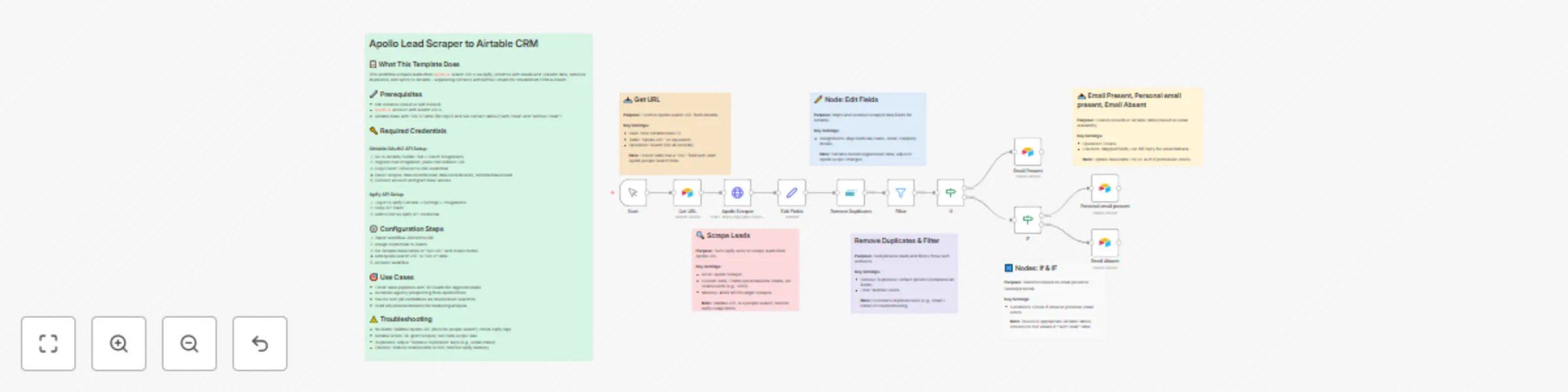
Workflow preview: Automate Apollo lead scraping & email enrichment to Airtable CRM with Apify
Free advanced

Automate Apollo lead scraping & email enrichment to Airtable CRM with Apify

# Apollo Lead Scraper to Airtable CRM Automate your lead generation by scraping targeted prospects from Apollo.io, enriching with contact details, and seamlessly syncing to Airtable for organized outreach—all without manual data entry. ## What It Does This workflow pulls search URLs from Airtable, uses Apify to scrape Apollo leads (up to 50k), enriches with emails and LinkedIn profiles, removes duplicates, filters valid entries, and categorizes contacts into Airtable tables based on email availability for efficient CRM management. ## Key Features - **Apify Apollo Scraper** - Extracts up to 50k leads with personal/work emails - **Smart Deduplication** - Removes duplicates based on key fields like email and name - **Email Categorization** - Separates contacts with/without emails into dedicated tables - **Field Mapping** - Customizable data transformation for Airtable compatibility - **Configurable Limits** - Adjust total records and memory for optimal performance - **Error Handling** - Built-in troubleshooting for common issues like invalid URLs ## Perfect For - **Sales Teams**: Build targeted B2B pipelines for email campaigns - **Recruiters**: Source candidates by job title, location, and skills - **Marketers**: Create datasets for market research and analysis - **Agencies**: Automate client prospecting from custom filters - **Researchers**: Collect professional data for industry studies - **CRM Managers**: Maintain clean, enriched contact databases ## Technical Highlights Leveraging n8n's Airtable and Apify integrations, this workflow showcases: - Dynamic data fetching from Airtable tables - Actor-based web scraping with custom parameters - Conditional branching for data routing - Efficient data processing with set, filter, and if nodes - Scalable design for large datasets with memory optimization Ideal for automating lead workflows and scaling prospecting efforts. No advanced coding needed—just set up credentials and run!

D
Daniel Nkencho
Lead Generation
29 Sep 2025
457
0
Workflow preview: Edit images with text prompts using Gemini AI and Telegram Bot
Free intermediate

Edit images with text prompts using Gemini AI and Telegram Bot

Transform your Telegram chats into a creative powerhouse with this AI-driven image editing bot. Send an image document with a descriptive caption, and watch it get intelligently edited in seconds—no design skills required! ## 📋 What This Template Does This workflow powers a Telegram bot that automatically processes incoming image documents with text prompts. It downloads the file, uses Google Gemini AI to edit the image based on your caption, and instantly replies with the enhanced version. - Triggers on new messages containing documents and captions - Securely downloads and validates files before AI processing - Leverages Gemini for precise, prompt-based image edits - Sends the polished result back to the chat seamlessly ## 🔧 Prerequisites - A Telegram bot created via @BotFather - Google AI Studio account for Gemini API access - n8n instance with Telegram and Google Gemini nodes enabled ## 🔑 Required Credentials ### Telegram API Setup 1. Open Telegram and message @BotFather 2. Use `/newbot` to create your bot and note the token 3. In n8n, go to Credentials → Add Credential → Search "Telegram API" 4. Paste the token and save as "Telegram Bot" ### Google Gemini API Setup 1. Visit aistudio.google.com and sign in with Google 2. Click "Get API key" → Create API key in a new project 3. In n8n, go to Credentials → Add Credential → Search "Google Gemini API" 4. Enter the API key and save as "Gemini API" ## ⚙️ Configuration Steps 1. Import the provided JSON into your n8n workflows 2. Assign the Telegram Bot credential to the trigger and Telegram nodes 3. Assign the Gemini API credential to the Edit Image node 4. Activate the workflow and note your bot's username 5. Test by sending an image document with a caption like "add a sunset background" to your bot ## 🎯 Use Cases - **Personal creativity boost**: Send a selfie with "make me a superhero" for fun edits during downtime - **Social media content**: Upload product photos with "enhance lighting and add text overlay" for quick marketing visuals - **Educational sketches**: Share drawings with "colorize and detail" to turn student ideas into professional illustrations - **Team collaboration**: In group chats, prompt "remove background" for instant design feedback loops ## ⚠️ Troubleshooting - **Bot not responding**: Verify token in credentials and ensure "message" updates are enabled in the trigger - **File download fails**: Check if the sent file is a document/image; Telegram expires links after 1 hour—resend if needed - **AI edit errors**: Confirm Gemini API key quotas; shorten prompts if over 100 words for better results - **No edited image sent**: Inspect execution log for binary data flow; ensure "binaryData" is toggled on in send node

D
Daniel Nkencho
Content Creation
27 Sep 2025
1041
0