C

Chandan Singh

3
Workflows

Workflows by Chandan Singh
Workflow preview: Back up self-hosted workflows to Google Drive daily with change detection
Free advanced

Back up self-hosted workflows to Google Drive daily with change detection

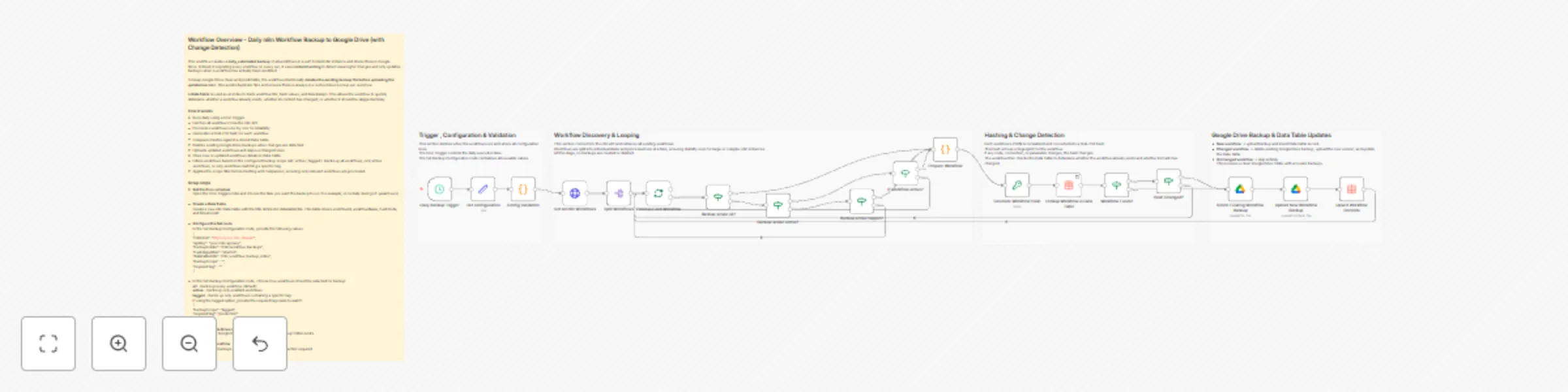
This workflow creates a **daily, automated backup** of all workflows in a self-hosted n8n instance and stores them in Google Drive. Instead of exporting every workflow on every run, it uses **content hashing** to detect meaningful changes and only updates backups when a workflow has actually been modified. To keep Google Drive clean and predictable, the workflow intentionally **deletes the existing backup file before uploading the updated version**. This avoids duplicate files and ensures there is always *one authoritative backup per workflow*. A **Data Table** is used as an index to track workflow IDs, hash values, and timestamps. This allows the workflow to quickly determine whether a workflow already exists, whether its content has changed, or whether it should be skipped entirely. ### How it works - Runs daily using a Cron Trigger. - Fetches all workflows from the n8n API. - Processes workflows one-by-one for reliability. - Generates a SHA-256 hash for each workflow. - Compares hashes against a stored Data Table. - Deletes existing Google Drive backups when changes are detected. - Uploads updated workflows and skips unchanged ones. - Store new or updated workflows details in Data Table. - Filters workflows based on the configured backup scope (all | active | tagged ). Backs up all workflows, only active workflows, or only workflows matching a specific tag. - Applies the scope filter before hashing and comparison, ensuring only relevant workflows are processed. ### Setup steps - **Set the Cron schedule** Open the Cron Trigger node and choose the time you want the backup to run (for example, once daily during off-peak hours). - **Create a Data Table** Create a new n8n Data Table with the title defined in dataTableTitle. This table stores workflowId, workflowName, hashCode, and DriveFiveId. - **Configure the Set node** In the Set Backup Configuration node, provide the following values: { "n8nHost": "https://your-n8n-domain", "apiKey": "your-n8n-api-key", "backupFolder": "/n8n/workflow-backups", "hashAlgorithm": "sha256", "dataTableTitle": "n8n_workflow_backup_index", "backupScope" : "", "requiredTag" : "" } - In the Set Backup Configuration node, choose how workflows should be selected for backup: **all** – backs up every workflow (default) **active** – backs up only enabled workflows **tagged** – backs up only workflows containing a specific tag If using the tagged option, provide the required tag name to match. { "backupScope": "tagged", "requiredTag": "production" } - **Connect Google Drive credentials** Authorize your Google Drive account and ensure the backup folder exists. - **Activate the workflow** Once enabled, backups run automatically with no further action required.

C
Chandan Singh
DevOps
29 Dec 2025
4
0
Workflow preview: Synchronize MySQL database schemas to Pinecone with OpenAI embeddings
Free advanced

Synchronize MySQL database schemas to Pinecone with OpenAI embeddings

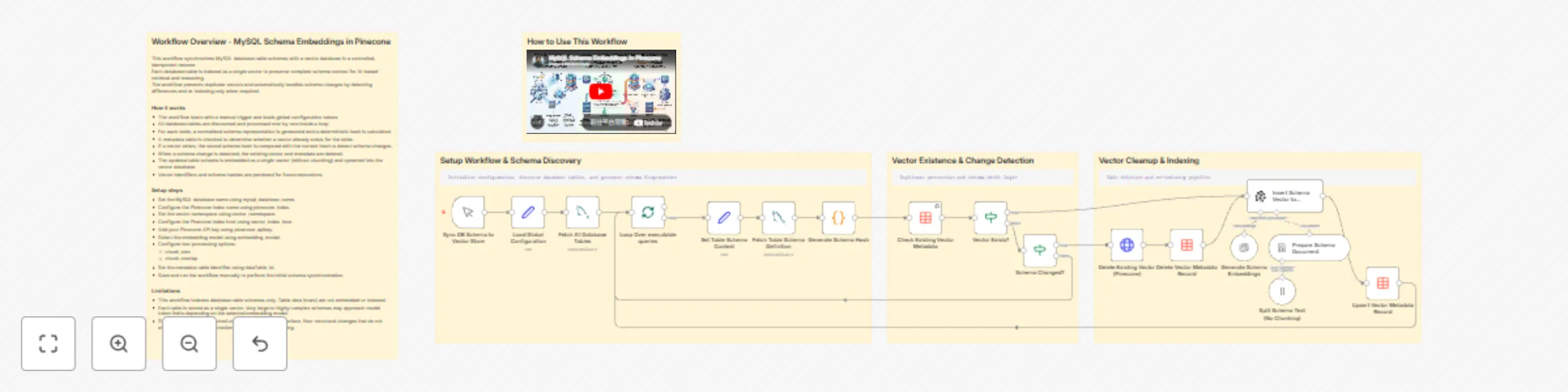
This workflow synchronizes MySQL database table schemas with a vector database in a controlled, idempotent manner. Each database table is indexed as a single vector to preserve complete schema context for AI-based retrieval and reasoning. The workflow prevents duplicate vectors and automatically handles schema changes by detecting differences and re-indexing only when required. ### How it works - The workflow starts with a manual trigger and loads global configuration values. - All database tables are discovered and processed one by one inside a loop. - For each table, a normalized schema representation is generated, and a deterministic hash is calculated. - A metadata table is checked to determine whether a vector already exists for the table. - If a vector exists, the stored schema hash is compared with the current hash to detect schema changes. - When a schema change is detected, the existing vector and metadata are deleted. - The updated table schema is embedded as a single vector (without chunking) and upserted into the vector database. - Vector identifiers and schema hashes are persisted for future executions. ### Setup steps - Set the MySQL database name using mysql_database_name. - Configure the Pinecone index name using pinecone_index. - Set the vector namespace using vector_namespace. - Configure the Pinecone index host using vector_index_host. - Add your Pinecone API key using pinecone_apikey. - Select the embedding model using embedding_model. - Configure text processing options: - chunk_size - chunk_overlap - Set the metadata table identifier using dataTable_Id. - Save and run the workflow manually to perform the initial schema synchronization. ### Limitations - This workflow indexes database table schemas only. Table data (rows) are not embedded or indexed. - Each table is stored as a single vector. Very large or highly complex schemas may approach model token limits depending on the selected embedding model. - Schema changes are detected using a hash-based comparison. Non-structural changes that do not affect the schema representation will not trigger re-indexing.

C
Chandan Singh
Document Extraction
20 Dec 2025
60
0
Workflow preview: Automated error notifications with optional GPT-4o diagnostics via email
Free intermediate

Automated error notifications with optional GPT-4o diagnostics via email

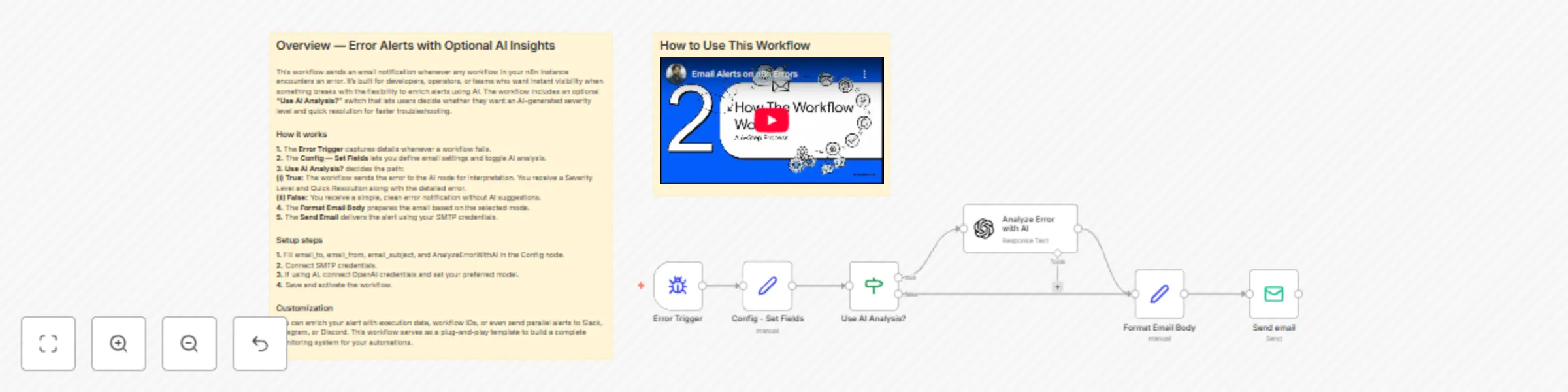
**++Who’s it for++** This template is ideal for anyone who needs reliable, real-time visibility into failed executions in n8n. Whether you’re a developer, operator, founder, or part of a small team, this workflow helps you detect issues quickly without digging through execution logs. It’s especially useful for users who want the flexibility to enable AI-powered diagnostics when needed. **++What it does++** The workflow sends an automated email alert whenever any workflow in your n8n instance encounters an error. It captures key details such as workflow name, timestamp, node name, and error message. If you enable AI analysis, the alert also includes a Severity Level and a Quick Resolution—giving you an instant, actionable understanding of the problem. If AI is disabled, you receive a clean, minimal error notification. **++How it works++** **1.** Error Trigger activates when any workflow fails. **2.** Config — Set Fields stores your SMTP settings and the AnalyzeErrorWithAI toggle. **3.** Use AI Analysis? decides whether to run the AI node. **4.** If enabled, Analyze Error with AI generates structured recommendations. **5.** Format Email Body builds the message based on the selected mode. **6.** Send Email delivers the notification. **++Requirements++** **1.** SMTP credentials **2.** A valid sender & recipient email **3.** Optional: OpenAI credentials if using AI analysis **++How to set up++** **1.** Open the Config node and fill in email settings and the AI toggle. **2.** Add your SMTP and (optional) OpenAI credentials. **3.** Save, activate, and test the workflow.

C
Chandan Singh
DevOps
5 Dec 2025
368
0