Vadim
Workflows by Vadim
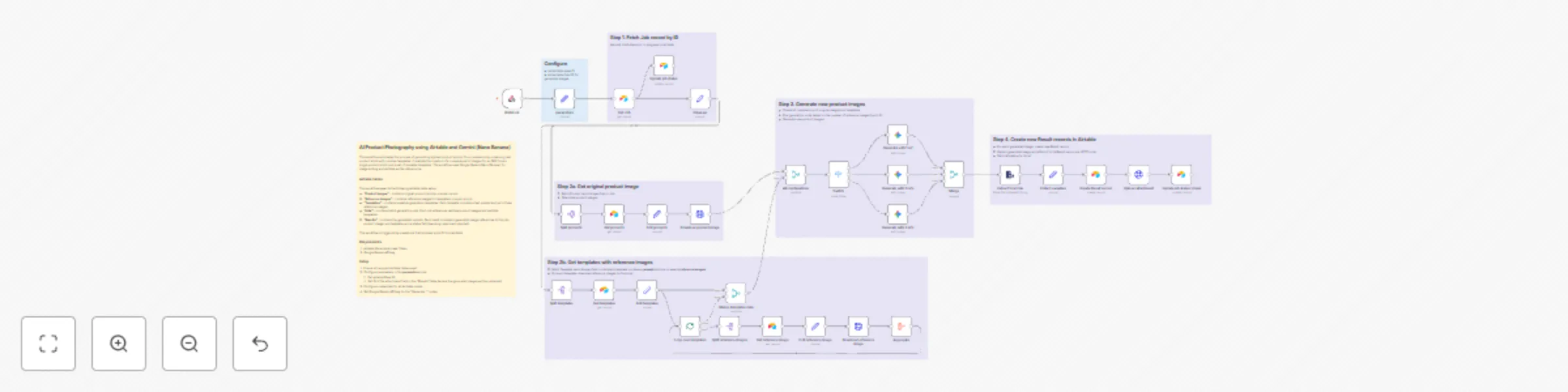
Create stylized product photography with Airtable & Gemini Nano Banana
This workflow automates the process of generating stylized product photos for e-commerce by combining real product shots with creative templates. It enables the creation of a complete set of images for an SKU from a single product photo and a set of reusable templates. The workflow uses Google Gemini (Nano Banana) for image editing and Airtable as the data source. **Example use case.** An apparel brand can use this workflow to turn plain product photos (e.g., socks on a white background) into lifestyle images that match their brand aesthetic. By combining each product photo with predefined templates and reference images, the workflow generates a variety of stylized results automatically - ready for marketing or online stores. ## How it works This workflow expects the following Airtable table setup: - **"Product Images"** - contains original product photos, one per record. - **"Reference Images"** - contains reference images for templates, one per record. - **"Templates"** - contains reusable generation templates. Each template includes a text prompt and up to three reference images. - **"Jobs"** - contains batch generation jobs. Each job references multiple product images and multiple templates. - **"Results"** - contains the generated outputs. Each result includes a generated image, references to the job, product image, and template, and a status field (pending, approved, rejected). The workflow is triggered by a webhook that receives a job ID from Airtable. It then: 1. Fetches the job record. 2. Retrieves the associated product images and templates (each with its text prompt and reference images). 3. Downloads all required product and reference images. 4. For each product-template combination, sends these images and the prompt to Google Gemini to generate new AI-edited images. 5. Saves the generated images back into Airtable. **NOTE**: A separate workflow should handle the human-in-the-loop approval process and any regeneration of rejected results. ## Requirements 1. Airtable Personal Access Token 2. Google Gemini API key ## Setup 1. Ensure all required Airtable tables exist. 2. Configure parameters in the **parameters** node: - Set Airtable Base ID - Set ID of the attachment field in the "Results" table (where the generated images will be uploaded) 4. Configure credentials for all Airtable nodes. 5. Set Google Gemini API key for the "Generate..." nodes.
Capture and Store CRM Contacts with Telegram & Gemini AI
## What it does This workflow is an AI agent in the form of a Telegram bot. Its main purpose is to **capture contact information and store it in a CRM**. The agent supports multi-modal inputs and can extract contact details from text messages, voice recordings, and images (like photos of business cards). The bot guides the user through data collection via a natural conversation, asks clarifying questions for missing information, and summarizes the extracted data for confirmation before saving. It also checks for duplicate contacts by email and gives users the choice to either create a new contact or update an existing one. For simplicity, this example uses a Google Sheets document to store collected contacts. It can easily be replaced by a real CRM like HubSpot, Pipedrive, Monday, etc. ### How to use the bot Send contact details via text or voice, or upload a photo of a business card. The bot will show the extracted information and ask questions when needed. Once the bot confirms saving of the current contact, you can send the next one. Use the `/new` command at any moment to discard the previous conversation and start from scratch. ### Requirements 1. A Telegram bot [Access Token](https://docs.n8n.io/integrations/builtin/credentials/telegram/) 2. Google Gemini API key 3. Google Sheets credentials ### How to set up 1. Create a new Telegram bot (see [n8n docs](https://docs.n8n.io/integrations/builtin/credentials/telegram/#using-api-bot-access-token) and [Telegram bot API docs](https://core.telegram.org/bots/features) for details) 2. Take webhook URL from the Telegram Trigger node (`WEBHOOK_URL`) and your bot's access token (`TOKEN`) and run `curl -X POST "https://api.telegram.org/bot{TOKEN}/setWebhook?url={WEBHOOK_URL}"` 2. Create a new Google Sheets document with "Full name", "Email", "Phone", "Company", "Job title" and "Meeting notes" columns 3. Configure parameters in the **parameters** node: - Set ID of the Google Sheets document - Set sheet name ("Sheet1" by default) 4. Configure Google Sheets credentials for AI Agent's tools: **Search for contact** and **Create new contact** and **Update existing contact**. 5. Add Google Gemini API key for the models ("AI Agent", "Transcribe audio", "Analyze image" nodes)
Automate social media posts from website articles with Gemini AI, LinkedIn & X/Twitter
## What it does This workflow automates content syndication and posting to **LinkedIn** and **X/Twitter**. It takes existing long-form articles and generates from them engaging social posts optimized for each platform. The workflow takes links to existing articles from a given sitemap. It randomly selects the next article to republish, making sure that articles are not repeated. For simplicity it uses a Google spreadsheet to track the articles that have already been republished. ## Requirements 1. Existing [sitemap](https://www.sitemaps.org/protocol.html) 2. Google Gemini API key (or other model provider's key) 3. Google Sheets credentials 4. LinkedIn credentials 5. X/Twitter credentials ## How to set up 1. Adjust the schedule as needed (by default triggers daily at noon) 2. Configure parameters in the **parameters** node: - Set the sitemap URL (e.g. https://example.com/sitemap.xml) - Set the language of the posts - Enable/disable channels as needed 3. Configure Google Sheets credentials for **get processed articles** and **add processed articles** nodes 3. Create a new Google spreadsheet document with "url", "status", "timestamp", "LinkedIn post" and "Twitter post" columns 4. Specify that spreadsheet document in **get processed articles** node (other nodes will take it from here) 5. Add Google Gemini API key for the model (or change to any other model of choice) 6. Configure LinkedIn and X/Twitter credentials for publishing