C

ChatPayLabs

8
Workflows

Workflows by ChatPayLabs

Workflow preview: AI chatbot call center: General exception flow (production-ready, part 8)
Free beginner

AI chatbot call center: General exception flow (production-ready, part 8)

### Workflow Name: 👻 Exception Flow Template was created in n8n v1.90.2 ### Skill Level: Low ### Categories: n8n, Chatbot ### Stacks - Error Trigger - Slack node # What this workflow does? This is a n8n **Error Workflow**. It will trigger when there is an error in another workflow. When this happens, it then tries to send an error notification to the preset Slack channel. # **How it works** - The **Error Trigger** node will trigger when there is an error in another workflow, as long as that workflow is set up to do so. - A error notification will be sent to the **Slack Channel**. # **Set up instructions** 1. Create you **Slack credentials**, refer to [n8n integration documentation](https://docs.n8n.io/integrations/builtin/credentials/slack/?utm_source=n8n_app&utm_medium=credential_settings&utm_campaign=create_new_credentials_modal) for more information. 2. Set up the **Channel** in **👻 Exception Alert** node. 3. For any n8n workflows to trigger this, switch to that workflow, select menu > settings, and set the **Error Workflow** to **👻 Exception Flow.** # How to adjust it to your needs Although this workflow template is part of the **AI Chatbot Call Center Series**, it could be used with any n8n workflows. - Update the **Channel** in **👻 Exception Alert** to your own channel https://chatpaylabs.com/blog/part-8-build-your-own-ai-chatbot-call-center-general-exception-flow-production-ready-n8n-workflow-free-download-

C
ChatPayLabs
DevOps
14 May 2025
1169
0
Workflow preview: AI chatbot call center: Taxi booking support (production-ready, part 7)
Free advanced

AI chatbot call center: Taxi booking support (production-ready, part 7)

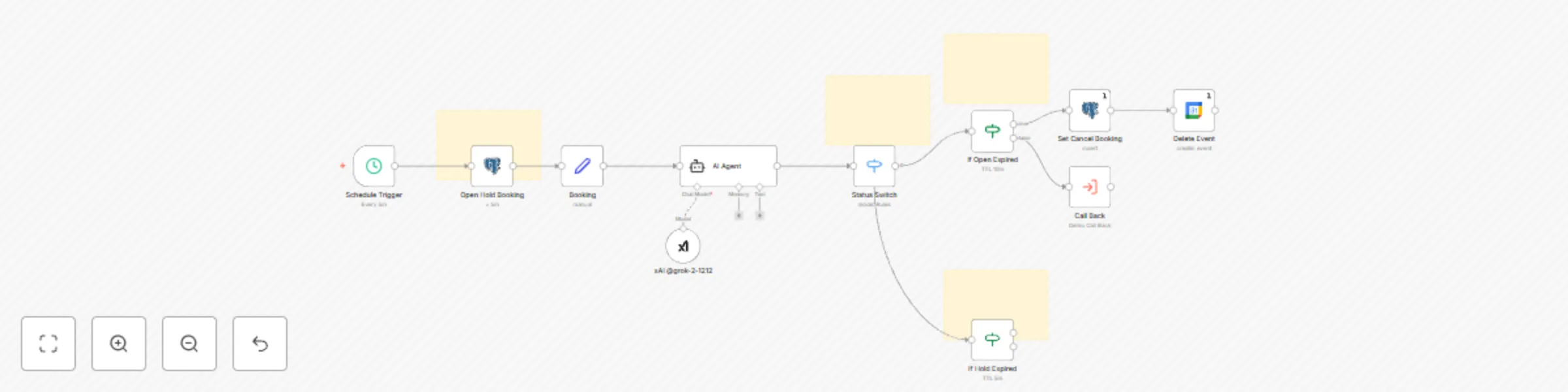
### Workflow Name: 🫶 Taxi Booking Support Template was created in n8n v1.90.2 ### Skill Level: Mid ### Categories: n8n, Chatbot ### Stacks - Schedule Trigger node - Postgres node - AI Agent node - Google Calendar node - Execute Sub-workflow - If node, Switch node, Code node, Edit Fields (Set) ### Prerequisite - Sub-workflow: **Demo Call Back** (or your own node) # Production Features - **Scaling Design** for n8n **Queue mode** in production environment - Customize **Expired Booking Actions** example - **Multi-Language** Design # What this workflow does? This is a n8n **Taxi Booking Support,** the background node to process the job at scheduled. It is scheduled to check the database for outstanding booking and handle the after sales process. In this particular case, it will check for OPEN booking over 10 minutes, then update the booking status from OPEN to CANCELLED, delete the Calendar event and send a reply to the user. # **How it works** - The **Schedule Trigger** node is scheduled to run every 5 minutes. - It will check the database for OPEN or HOLD booking. - For OPEN booking - update the booking status to CANCELLED - delete the Calendar event - send a reply to the user - Optional: The AI Agent is used to create the reply message to the user in Multi-language based on the language set in the booking. # **Set up instructions** 1. Pull and Set up the required SQL from our [Github repository](https://github.com/ChatPayLabs/n8n-chatbot-core). 2. Create you **Postgres credentials**, refer to [n8n integration documentation](https://docs.n8n.io/integrations/builtin/credentials/slack/?utm_source=n8n_app&utm_medium=credential_settings&utm_campaign=create_new_credentials_modal) for more information. 3. Select your Credentials in **Open Hold Booking** and **Set Cancel Booking.** 4. Create your **Google Calendar credentials**, refer to [n8n integration documentation](https://docs.n8n.io/integrations/builtin/app-nodes/n8n-nodes-base.googlecalendar/?utm_source=n8n_app&utm_medium=node_settings_modal-credential_link&utm_campaign=n8n-nodes-base.googleCalendar) for more information. 5. Create a Google Calendar, e.g. DEMO 6. Select your Credentials in **Delete Event**, and select the above Calendar 7. **Remember to activate this workflow for schedule to run.** # How to adjust it to your needs 1. There should be more status for the booking. 2. The current action only check for OPEN and HOLD booking, you can do more based on your needs. 3. You can replace the sub-workflow trigger **Call Back** to another flow as needs.

C
ChatPayLabs
Support Chatbot
14 May 2025
729
0
Workflow preview: AI chatbot call center: demo call back (production-ready, part 6)
Free advanced

AI chatbot call center: demo call back (production-ready, part 6)

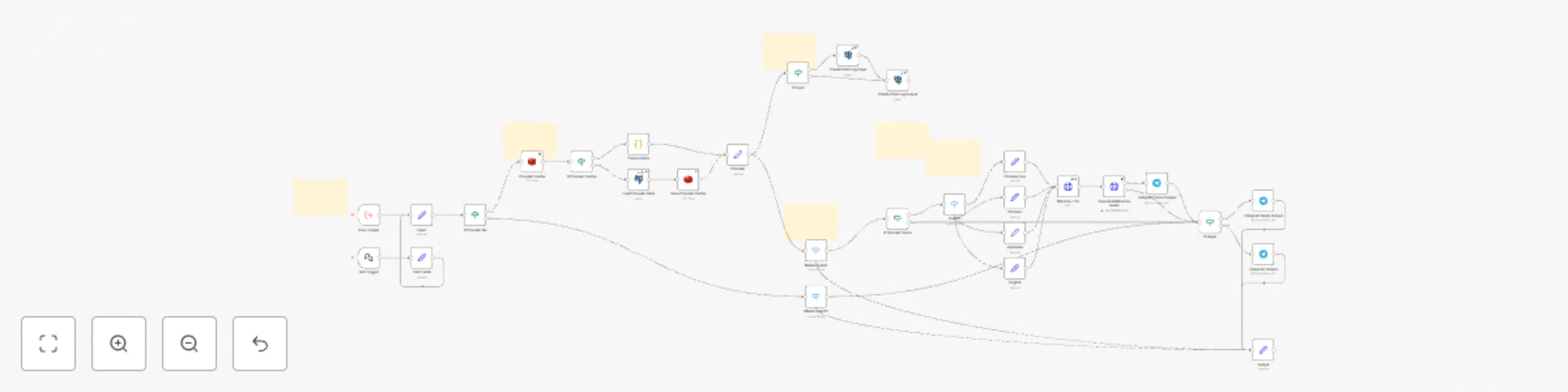
### Workflow Name: 💬 Demo Call Back Template was created in n8n v1.90.2 ### Skill Level: High ### Categories: n8n, Chatbot ### Stacks - Execute Sub-workflow Trigger node - Chat Trigger node - Redis node - Postgres node - Telegram node - HTTP Request node - If node, Code node, Edit Fields (Set) ### Prerequisite - Execute Sub-workflow Trigger: your own node - MiniMax Account (https://www.minimax.io/) # Production Features - **Scaling Design** for n8n **Queue mode** in production environment - Optional **Provider Data** from **external Database** with **Caching Mechanism**. - Optional **AI Clone Voice Message** response via MiniMax API with **Multi-Languages** support. - Optional **Backup Chat Log** to Database, so you can use in APP/API building. - **Testing Flow** with or without dependance on other workflow. - **Multi Chatbot** (This is a demo for Telegram, you can add WhatsApp, Line, etc) - **Error Management** # What this workflow does? This is a n8n **Telegram Output Workflow**. It will receive message from other Sub-workflow then output to Telegram for **Message**, or **Replay Message** and extra **Voice Message**. # **How it works** - The **Flow Trigger** node will wait for the message from other Sub-workflow. - When message is received, it will first check for the matching **Provider** from the PostgreSQL database. - Then determine if it is a Voice message to Text message. - OPTIONAL. For voice message, use the **MiniMax API** to generate a voice message, then send it to Telegram. - Finally, send the text to Telegram. # **Set up instructions** 1. Pull and Set up the required SQL from our [Github repository](https://github.com/ChatPayLabs/n8n-chatbot-core). 2. Create you **Redis credentials**, refer to [n8n integration documentation](https://docs.n8n.io/integrations/builtin/credentials/slack/?utm_source=n8n_app&utm_medium=credential_settings&utm_campaign=create_new_credentials_modal) for more information. 3. Select your Credentials in **Provider Cache** and **Save Provider Cache**. 4. Create you **Postgres credentials**, refer to [n8n integration documentation](https://docs.n8n.io/integrations/builtin/credentials/slack/?utm_source=n8n_app&utm_medium=credential_settings&utm_campaign=create_new_credentials_modal) for more information. 5. Select your Credentials in **Load Member Data, Create Chat Log Input,** and **Create Chat Log Output.** 6. Create you **Telegram credentials**, refer to [n8n integration documentation](https://docs.n8n.io/integrations/builtin/credentials/slack/?utm_source=n8n_app&utm_medium=credential_settings&utm_campaign=create_new_credentials_modal) for more information. 7. Select your Credentials in **Telegram Voice Output**, **Telegram Reply Output**, and **Telegram Output**. # AI Clone Voice setup instructions (Optional) You can clone any voice with MiniMax 1. Go to https://www.minimax.io/ and create a MiniMax account 2. Setup the Database with the required variables found in the **MiniMax TTS** node 3. That’s it # How to adjust it to your needs 1. By default, this template will use the **sys_provider** table provider information, you could change it for your own design. 2. The demo use **MiniMax API** for AI voice cloning, you could implement any other AI your choice. 3. The **Backup Chat Log** will backup all chat conversion line by line. You can use it for you own APP/API development.

C
ChatPayLabs
Support Chatbot
14 May 2025
439
0
Workflow preview: AI chatbot call center: Taxi booking worker (production-ready, part 5)
Free advanced

AI chatbot call center: Taxi booking worker (production-ready, part 5)

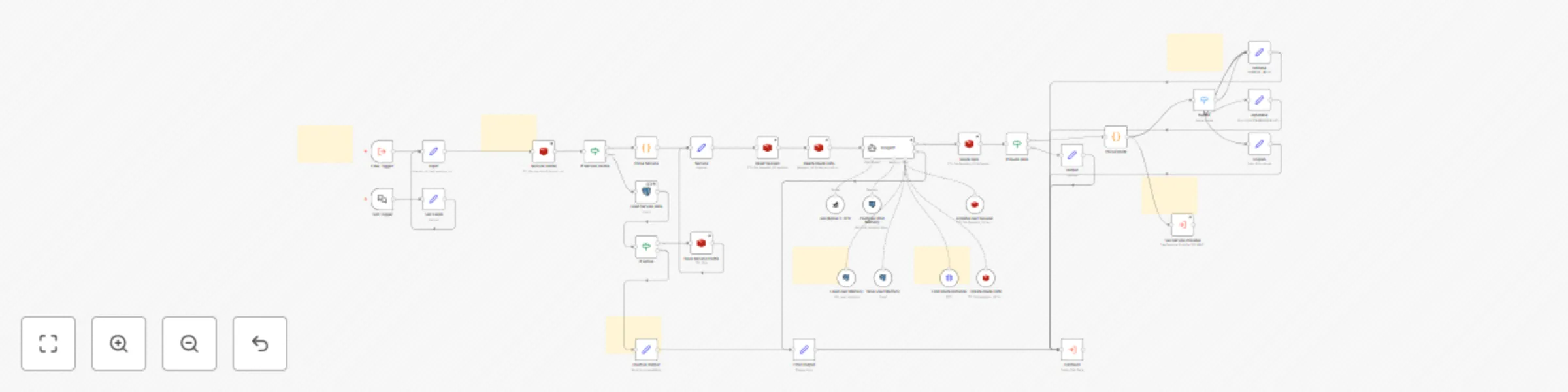
### Workflow Name: 👷‍♂️ Taxi Booking Worker Template was created in n8n v1.90.2 ### Skill Level: High ### Categories: n8n, Chatbot ### Stacks - Execute Sub-workflow Trigger node - Chat Trigger node - Redis node - Postgres node - Google Calendar node - Execute Sub-workflow - If node, Switch node, Code node, Edit Fields (Set) ### Prerequisite - Execute Sub-workflow Trigger: **Call In Center** (or your own node) - Sub-workflow: **Demo Call Back** (or your own node) # Production Features - **Scaling Design** for n8n **Queue mode** in production environment - Customize **Open Booking Action** - Integrate with **Long Term Memory** backup. - **Error Management** # What this workflow does? This is a n8n **Taxi Booking Worker**, the worker node to process the job. It will wait for message from the Call Center node and handle the real process here. In this particular case, it will check the input number for the selected provider, then update the booking from NEW to OPEN, then clean up the orphan data. # **How it works** - The **Form Trigger** node will wait for the message from any node with the input in number. - First check for NEW booking under the same chat session - For input 0, which is cancel - Reset the user session in Redis memory - For input 1 or above, which is the provider selection number - Set the booking status to OPEN in database - OPTIONAL Save the summary to **User Memory** database - OPTIONAL Create a new Event in **Google Calendar** and sync to the database - Reset the user session in Redis memory - Afterward, process data clean up - Delete the provider selection number queue in Redis - Delete the route data in Redis - OPTIONAL Delete the chat memory with current session - Finally, output the response to the **Call Back** node # **Set up instructions** 1. Pull and Set up the required SQL from our [Github repository](https://github.com/ChatPayLabs/n8n-chatbot-core). 2. Create you **Postgres credentials**, refer to [n8n integration documentation](https://docs.n8n.io/integrations/builtin/credentials/slack/?utm_source=n8n_app&utm_medium=credential_settings&utm_campaign=create_new_credentials_modal) for more information. 3. Select your Credentials in **Booking, Set Open Booking, Sync Booking Google Cal**, and **Save User Memory.** 4. Create you **Redis credentials**, refer to [n8n integration documentation](https://docs.n8n.io/integrations/builtin/credentials/slack/?utm_source=n8n_app&utm_medium=credential_settings&utm_campaign=create_new_credentials_modal) for more information. 5. Select your Credentials in **Reset Session, Reset Session 2**, **Delete Provider Number** and **Delete Route Data**. 6. Create your **Google Calendar credentials**, refer to [n8n integration documentation](https://docs.n8n.io/integrations/builtin/app-nodes/n8n-nodes-base.googlecalendar/?utm_source=n8n_app&utm_medium=node_settings_modal-credential_link&utm_campaign=n8n-nodes-base.googleCalendar) for more information. 7. Create a Google Calendar, e.g. DEMO 8. Select your Credentials in **Create Event**, and select the above Calendar 9. FOR TEST ONLY. Enable the **Telegram Test Output** for testing from the **Test Input**. # How to adjust it to your needs 1. You can specific a number to trigger the specific action based on your needs. 2. The current action only create a event in Google Calendar, you can do more based on your needs. 3. You can replace the sub-workflow trigger **Flow Trigger** and **Call Back** to another flow as needs.

C
ChatPayLabs
Support Chatbot
14 May 2025
451
0
Workflow preview: Taxi service provider (production-ready, part 4)
Free advanced

Taxi service provider (production-ready, part 4)

### Workflow Name: 🤖 Taxi Service Provider Template was created in n8n v1.90.2 ### Skill Level: High ### Categories: n8n, Chatbot ### Stacks - Execute Sub-workflow Trigger node - Chat Trigger node - Redis node - Postgres node - AI Agent node - Calculator node - If node, Switch node, Code node, Edit Fields (Set) ### Prerequisite - Execute Sub-workflow Trigger: **Taxi Service Workflow** (or your own node) - Sub-workflow: **Demo Call Back** (or your own node) # Production Features - **Scaling Design** for n8n **Queue mode** in production environment - **Provider Data** from **external Database** with **Caching Mechanism** - Optional **Score** design output - Optimize **Taxi Provider Prompt** from database - **Error Management** # What this workflow does? This is a n8n **Taxi Provider Workflow** demo. It will receive message from the **Taxi Service Workflow**, process the estimation and return to the caller. # **How it works** - The **Flow Trigger** node will wait for the message from other Sub-workflow. - When message is received, it will first check for the matching **Provider** from the PostgreSQL database. - Then it will increase a **Provider Number** in Redis for selection later - Trigger a **AI Agent** to process the fare estimation and create a **NEW booking** - Finally, send the AI response to the **Call Output** - Note: if the **Provider** is set to inactive, it will do nothing # **Set up instructions** 1. Pull and Set up the required SQL from our [Github repository](https://github.com/ChatPayLabs/n8n-chatbot-core). 2. Create you **Redis credentials**, refer to [n8n integration documentation](https://docs.n8n.io/integrations/builtin/credentials/slack/?utm_source=n8n_app&utm_medium=credential_settings&utm_campaign=create_new_credentials_modal) for more information. 3. Select your Credentials in **Provider Cache,** **Save Provider Cache** and **Provider Number**. 4. Create you **Postgres credentials**, refer to [n8n integration documentation](https://docs.n8n.io/integrations/builtin/credentials/slack/?utm_source=n8n_app&utm_medium=credential_settings&utm_campaign=create_new_credentials_modal) for more information. 5. Select your Credentials in **Load Provider Data** and **Create Booking Data.** 6. Modify the **AI Agent** prompt to fit your need # How to adjust it to your needs 1. By default, this template will use the **sys_provider** table provider information, you could change it for your own design. 2. You can use any **AI Model** for the **AI Agent** node 3. Include is our prompt for the taxi service provider. It is a flexible design which use the data from the **Provider Cache** to customize the prompt, so you could create more **Taxi Service Providers** by duplicate this workflow in the **Taxi Service** node.

C
ChatPayLabs
Support Chatbot
14 May 2025
314
0
Workflow preview: AI chatbot call center: Taxi service (Production-ready, part 3)
Free advanced

AI chatbot call center: Taxi service (Production-ready, part 3)

### Workflow Name: 🛎️ Taxi Service Template was created in n8n v1.90.2 ### Skill Level: High ### Categories: n8n, Chatbot ### Stacks - Execute Sub-workflow Trigger node - Chat Trigger node - Redis node - Postgres node - AI Agent node - If node, Switch node, Code node, Edit Fields (Set) ### Prerequisite - Execute Sub-workflow Trigger: **Taxi Service Workflow** (or your own node) - Sub-workflow: **Taxi Service Provider** (or your own node) - Sub-workflow: **Demo Call Back** (or your own node) # Production Features - **Scaling Design** for n8n **Queue mode** in production environment - **Service Data** from **external Database** with **Caching Mechanism** - Optional **Long Terms Memory** design - **Find Route Distance** using **Google Map API** - Optional **Multi-Language** Wait Output example - **Error Management** # What this workflow does? This is a n8n **Taxi Service Workflow** demo. It is the core node for Taxi Service. It will receive message from the **Call Center Workflow**, handling the QA from the caller, and pass to each of the **Taxi Service Provider Workflow** to process the estimation. # **How it works** - The **Flow Trigger** node will wait for the message from **Call Center** or other Sub-workflow. - When message is received, it will first check for the matching **Service** from the PostgreSQL database. - If no service or service is inactive, output Error. - Next, always reset the **Session Data** in Cache, with channel_no set to taxi - Next, delete the previous **Route Data** in Cache - Trigger a **AI Agent** to process the fare estimation question to create the **Route Data** - Use the **Google Map Route API** to calculate the distance. - Repeat until created the route data, then pass to all the **Taxi Service Provider** for an estimation. # **Set up instructions** 1. Pull and Set up the required SQL from our [Github repository](https://github.com/ChatPayLabs/n8n-chatbot-core). 2. Create you **Redis credentials**, refer to [n8n integration documentation](https://docs.n8n.io/integrations/builtin/credentials/slack/?utm_source=n8n_app&utm_medium=credential_settings&utm_campaign=create_new_credentials_modal) for more information. 3. Select your Credentials in **Service Cache,** **Save Service Cache, Reset Session, Delete Route Data, Route Data, Update User Session** and **Create Route Data**. 4. Create you **Postgres credentials**, refer to [n8n integration documentation](https://docs.n8n.io/integrations/builtin/credentials/slack/?utm_source=n8n_app&utm_medium=credential_settings&utm_campaign=create_new_credentials_modal) for more information. 5. Select your Credentials in **Load Service Data, Postgres Chat Memory, Load User Memory** and **Save User Memory.** 6. Modify the **AI Agent** prompt to fit your need 7. Set you Google Map API key in **Find Route Distance** # How to adjust it to your needs 1. By default, this template will use the **sys_service** table provider information, you could change it for your own design. 2. You can use any **AI Model** for the **AI Agent** node 3. Learn we use the prompt for the **Load/Save User Memory** on demand. 4. Include is our prompt for the taxi service. It is a flexible design which use the data from the **Service** node to customize the prompt, so you could duplicate this workflow as another service. 5. Create difference **Taxi Providers** to process the and feedback the estimate.

C
ChatPayLabs
Support Chatbot
14 May 2025
393
0
Workflow preview: AI chatbot call center: Demo call center (production-ready, part 2)
Free advanced

AI chatbot call center: Demo call center (production-ready, part 2)

### Workflow Name: ☎️ Demo Call Center Template was created in n8n v1.90.2 ### Skill Level: High ### Categories: n8n, Chatbot ### Stacks - Execute Sub-workflow Trigger node - Chat Trigger node - Redis node - Postgres node - AI Agent node - If node, Switch node, Code node, Edit Fields (Set) ### Prerequisite - Execute Sub-workflow Trigger: **Telegram Call In Workflow** (or your own node) - Sub-workflow: **Taxi Service** (or your own node) - Sub-workflow: **Taxi Booking Worker** (or your own node) - Sub-workflow: **Demo Call Back** (or your own node) # Production Features - **Scaling Design** for n8n **Queue mode** in production environment - Optional **Rate Limit** design to prevent overused - Optional **Long Terms Memory** design - **Multi-Service** design - **Testing Flow** with or without dependance on other workflow. - **Error Management** # What this workflow does? This is a n8n **Demo Call Center Workflow** demo. It is the main entry node for a **Multiple Services Chatbot**. It will receive message from the **Call In Workflow**, and decide which service should be use, or which service provider should be process the selected result. # **How it works** - The **Flow Trigger** node will wait for the message from the **Call In** **Workflow** or other Sub-workflow. - When message is received, it will first check for the **Rate Limit.** - If ok, load the **Session Data** from Cache. - Next, check the current Session for the **channel_no** (default is **chat**). - if channel_no is **chat**, continue to the AI Agent for chit-chat. - if channel_no is **taxi** or others, pass to the Service Input (i.e. **Taxi Service**) or Service Worker (i.e. **Taxi Booking Worker**) to handle it directly. - The **AI Agent** should decide which service (i.e. **taxi**) will be used at some point and update the **channel_no** in **Session,** and pass to the Service Node (i.e. **Taxi Service**) at once. - In case of any error, reply the error in **Call Back**. # **Set up instructions** 1. Pull and Set up the required SQL from our [Github repository](https://github.com/ChatPayLabs/n8n-chatbot-core). 2. Create you **Redis credentials**, refer to [n8n integration documentation](https://docs.n8n.io/integrations/builtin/credentials/slack/?utm_source=n8n_app&utm_medium=credential_settings&utm_campaign=create_new_credentials_modal) for more information. 3. Select your Credentials in **Rate Limit, Session, Provider** and **New Session**. 4. Create you **Postgres credentials**, refer to [n8n integration documentation](https://docs.n8n.io/integrations/builtin/credentials/slack/?utm_source=n8n_app&utm_medium=credential_settings&utm_campaign=create_new_credentials_modal) for more information. 5. Select your Credentials in **Postgres Chat Memory, Load User Memory** and **Save User Memory.** 6. Modify the **AI Agent** prompt to fit your need # How to adjust it to your needs 1. In Session, we have a timestamp fields which is created at the **Input node.** The usage of this is combined to use with the session id to create a unique session, since some media, such as Telegram, do not have a unique session along with the chat. 2. You can use any **AI Model** for the **AI Agent** node 3. Learn we use the prompt for the **Load/Save User Memory** on demand. 4. Include is our prompt for the taxi service. You can add more service similar to this.

C
ChatPayLabs
Support Chatbot
14 May 2025
1910
0
Workflow preview: AI chatbot call center: Telegram call in (production-ready, part 1a)
Free advanced

AI chatbot call center: Telegram call in (production-ready, part 1a)

### Workflow Name: 🤙 **Telegram Call In** Template was created in n8n v1.90.2 ### Skill Level: High ### Categories: n8n, Chatbot ### Stacks - Chat Trigger node - Telegram Trigger node - Redis node - Postgres node - Execute Sub-workflow - If node, Code node, Edit Fields (Set), Extract From File ### Prerequisite - Community nodes: **n8n-nodes-google-speech** - Sub-workflow: **Demo Call Back** - Sub-workflow: **Demo Call Center** # Production Features - **Scaling Design** for n8n **Queue mode** in production environment - Optional **Member Data** from **external Database** with **Caching Mechanism**. - Optional **Voice Message to Text Message** via Google STT API with **Multi-Languages** support. - **Testing Flow** with or without dependance on other workflow. - **Error Management** # What this workflow does? This is a n8n **Telegram Call In Workflow**. It will wait for message from Telegram bot and sent to the Call Center to process. # **How it works** - The **Telegram Trigger** node will wait for the message from the Telegram bot. - When message is received, it will first check for the matching Member from the PostgreSQL database. - Then determine if it is a Text message or Voice message. - For voice message, use the **Google Speech to Text API** to transcript it into text. - Finally, pass the text to the next flow, i.e. the **Call Center**. # **Set up instructions** **n8n-nodes-google-speech** 1. Pull and Set up the required SQL from our [Github repository](https://github.com/ChatPayLabs/n8n-chatbot-core). 2. Go User > Settings > Community nodes, install **n8n-nodes-google-speech** node 1. Follow https://www.npmjs.com/package/n8n-nodes-google-speech 2. Setup the **Google STT node** 3. Create you **Telegram credentials**, refer to [n8n integration documentation](https://docs.n8n.io/integrations/builtin/credentials/slack/?utm_source=n8n_app&utm_medium=credential_settings&utm_campaign=create_new_credentials_modal) for more information. 4. Select your Credentials in **Telegram Trigger** 5. Create you **Redis credentials**, refer to [n8n integration documentation](https://docs.n8n.io/integrations/builtin/credentials/slack/?utm_source=n8n_app&utm_medium=credential_settings&utm_campaign=create_new_credentials_modal) for more information. 6. Select your Credentials in **Member Cache** and **Save Member Cache**. 7. Create you **Postgres credentials**, refer to [n8n integration documentation](https://docs.n8n.io/integrations/builtin/credentials/slack/?utm_source=n8n_app&utm_medium=credential_settings&utm_campaign=create_new_credentials_modal) for more information. 8. Select your Credentials in **Load Member Data.** 9. FOR TEST ONLY. Enable the **Telegram Test Output** for testing from the **Test Input**. 10. **Remember to activate this workflow for incoming message.** # How to adjust it to your needs 1. By default, this template will use the **sys_member** table for member information, you could change it for your own design. 2. The demo implementation does not include failed member loading situation, you should implement based on your needs, e.g. if is_active is not true, do… 3. You can replace the sub-workflow Demo Call Back and Demo Call Center to another flow as needs.

C
ChatPayLabs
Support Chatbot
14 May 2025
410
0