C

Calvin Cunningham

3
Workflows

Workflows by Calvin Cunningham

Workflow preview: Email Verification and Enrichment from Google Sheets with Hunter and Dropcontact
Free advanced

Email Verification and Enrichment from Google Sheets with Hunter and Dropcontact

### Description This workflow automatically validates email addresses stored in a Google Sheet using Hunter Email Verifier, enriches the valid ones with Dropcontact, updates the sheet with verification and enrichment results, and sends a Slack summary showing total emails checked, valid emails, and enriched profiles. It helps teams clean their data, improve outreach accuracy, and eliminate the manual effort of checking and researching email contacts one by one. ### How It Works 1. The workflow triggers whenever a new row is added or updated in your Google Sheet. 2. It reads any emails that still need to be processed. 3. Each email is validated using Hunter Email Verifier, which returns validity and a confidence score. 4. Emails marked as valid and above the confidence threshold are enriched with Dropcontact to gather additional profile information, including: - Full name - Job title - Company - Domain - Country 5. Invalid or low-confidence emails are marked as invalid and skipped. 6. Verification and enrichment results are written back into the corresponding row in your Google Sheet. 7. A Slack summary message is sent showing: - Total emails processed - Number of valid emails - Number of enriched profiles ### Credential Requirements - **Hunter Email Verifier:** Required for the email validation step. - **Dropcontact:** Requires a **business email address** (non-Gmail, non-Outlook, non-Yahoo) to create an account and use their API. - **Google Sheets:** Required for reading and updating your contact list. - **Slack:** Required to send the summary notification. ### Why This Is Helpful - Automates a repetitive and error-prone workflow. - Saves Dropcontact credits by enriching only valid, high-quality emails. - Improves data accuracy for outreach, lead generation, and CRM imports. - Keeps your Google Sheet updated with clean, structured verification and enrichment results. - Sends a summary to Slack so your team gets instant visibility without opening the sheet. - Ideal for teams preparing outbound lists, cleaning CRM data, or verifying large batches of emails before campaigns. ### Customization Ideas - **Add a second enrichment provider** (such as Clearbit or People Data Labs) to fill in missing fields when Dropcontact does not return enough data. - **Send enriched contacts to a CRM**, such as HubSpot, Airtable, Pipedrive, or Notion, instead of keeping everything in Google Sheets. - **Create separate Slack channels** for valid vs. invalid contacts to help teams prioritize follow-up. - **Add quality tiers** by creating categories such as "High Confidence," "Medium Confidence," and "Low Confidence" based on the verification score. - **Auto-tag enriched leads** with fields like industry, employee count, or revenue if you integrate additional enrichment sources. - **Trigger this workflow nightly** using a Schedule node if you want to process batches instead of reacting to row updates. - **Automatically send outreach emails** to enriched leads using Gmail, Outlook, or Resend, after adding a safety check or approval step. - **Export enriched contacts to CSV** or Google Drive for easy sharing with other teams. - **Add duplicate detection logic** to avoid enriching the same contact multiple times. - **Add a notification for “no enrichments found”** so your team knows when Dropcontact fails to return details.

C
Calvin Cunningham
Lead Nurturing
21 Nov 2025
31
0

Workflow preview: Automate lead response with GPT and human approval to Airtable CRM
Free advanced

Automate lead response with GPT and human approval to Airtable CRM

## AI-Assisted Lead Follow-Up With Human Approval This workflow automates your lead response process from end to end. When someone submits your n8n Form, the workflow generates an AI-written follow-up email, sends that draft to your sales team for approval, and then sends the approved email to the lead or marks it as needing revision. All lead details, drafts, approval decisions, and timestamps are stored in Airtable. ### Ideal For - Teams that want AI to draft emails while keeping a human approval step - Businesses receiving inbound inquiries that need fast, consistent responses - Users building a simple form → email → CRM workflow - Teams that want a record of all drafts and approval outcomes ### What This Template Provides - AI-generated follow-up email drafts - Human approval flow, using Approve and Reject links - Automatic Airtable logging of leads, drafts, and statuses - Fully automated pipeline triggered by a simple form submission ## Setup Steps (5–10 minutes) ### Connect Your Credentials - Gmail - Airtable - OpenAI ### Create Your Airtable Table Use the following fields: - Name - Email - Phone - Company Name - Message - Status - Email Draft - Created On ### Add Your Airtable Base ID and Table ID Insert them into the Workflow Configuration node. ### Enter Your Company Details Add your: - Name - Title - Company name - Email - Phone number - Website - Etc. These values will appear in the final approved email sent to the lead. ### Set the Sales Approval Email Specify the email address where draft approval requests should be sent. ### Deploy the Approval Webhook Switch the Webhook node to the Production URL, and confirm that the Approve and Reject links point to it. ### Publish Your n8n Form Submit a test lead to verify: - AI draft generation - Approval email delivery - Airtable logging - Final email sending ## Why Use This Template? This workflow creates a reliable, semi-automated follow-up process that blends AI speed with human judgment. It ensures consistent communication, maintains accurate CRM records, and reduces manual work without requiring a full CRM platform.

C
Calvin Cunningham
Lead Nurturing
21 Nov 2025
119
0
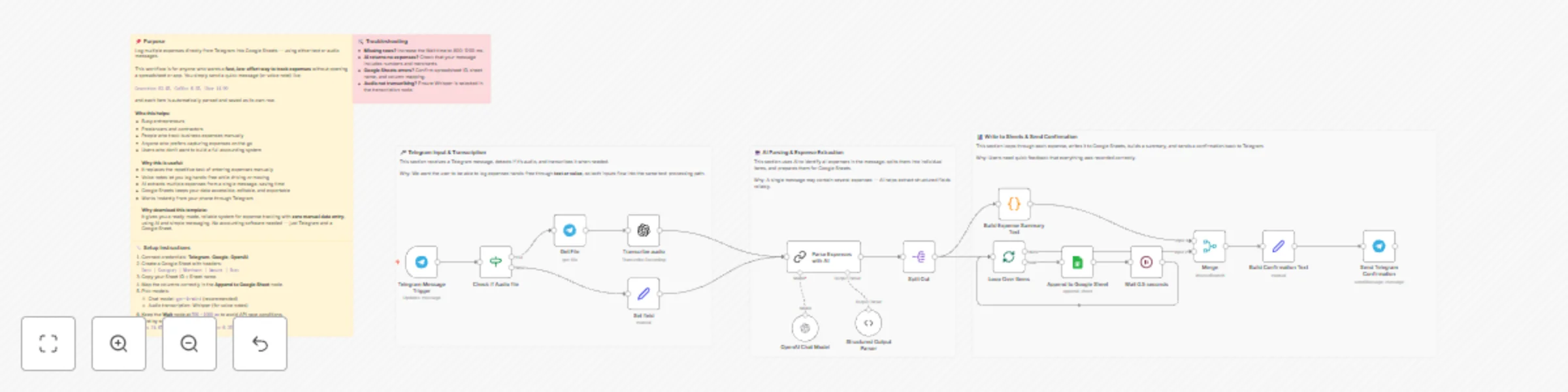
Workflow preview: Expense Logging with Telegram to Google Sheets using AI Voice & Text Parsing
Free advanced

Expense Logging with Telegram to Google Sheets using AI Voice & Text Parsing

## Use Cases -Personal or family budget tracking. -Small business expense logging via Telegram -Hands-free logging (using voice messages) --- ## How it works: -Trigger receives text or voice. -Optional branch transcribes audio to text. -AI parses into a structured array (SOP enforces schema). -Split Out produces 1 item per expense. -Loop Over Items appends rows sequentially with a Wait, preventing missed writes. -In parallel, Item Lists (Aggregate) builds a single summary string; Merge (Wait for Both) releases one final Telegram confirmation. ---- ## Setup Instructions 1. Connect credentials: Telegram, Google, OpenAI. 2. Sheets: Create a sheet with headers Date, Category, Merchant, Amount, Note. Copy Spreadsheet ID + sheet name. 3. Map columns in Append to Google Sheet. 4. Pick models: set Chat model (e.g., gpt-4o-mini) and Whisper for transcription if using audio. 5. Wait time: keep 500–1000 ms to avoid API race conditions. 6. Run: Send a Telegram message like: Gas 34.67, Groceries 82.45, Coffee 6.25, Lunch 14.90. ---- ## Customization ideas: -Add categories map (Memory/Set) for consistent labeling. -Add currency detection/formatting. -Add error-to-Telegram path for invalid schema.

C
Calvin Cunningham
Personal Productivity
19 Nov 2025
392
0