Br1
Workflows by Br1
Build RAG-powered support agent for Jira issues using Pinecone and OpenAI
## Load Jira open issues with comments into Pinecone + RAG Agent (Direct Tool or MCP) ## Who’s it for This workflow is designed for support teams, data engineers, and AI developers who want to centralize Jira issue data into a vector database. It collects open issues and their associated comments, converts them into embeddings, and loads them into Pinecone for semantic search, retrieval-augmented generation (RAG), or AI-powered support bots. It’s also published as an **MCP tool**, so external applications can query the indexed issues directly. ## How it works The workflow automates Jira issue extraction, comment processing, and vector storage in Pinecone. Importantly, the Pinecone index is **recreated at every run** so that it always reflects the current set of unresolved tickets. 1. **Trigger** – A schedule trigger runs the workflow at defined times (e.g., 8, 11, 14, and 17 on weekdays). 2. **Issue extraction with pagination** – Calls the Jira REST API to fetch open issues matching a JQL query (unresolved cases created in the last year). - Pagination is fully handled: issues are retrieved in batches of 25, and the workflow continues iterating until all open issues are loaded. 3. **Data transformation** – Extracts key fields (issue ID, key, summary, description, product, customer, classification, status, registration date). 4. **Comments integration** – Fetches all comments for each issue, filters out empty/irrelevant ones (images, dots, empty markdown), and merges them with the issue data. 5. **Text cleaning** – Converts HTML descriptions into clean plain text for processing. 6. **Embedding generation** – Uses the OpenAI Embeddings node to vectorize text. 7. **Vector storage with index recreation** – Loads embeddings and metadata into Pinecone under the `jira` namespace and the `openissues` index. The namespace is cleared at every run to ensure the index contains only unresolved tickets. 8. **Document chunking** – Splits long issue texts into smaller chunks (512 tokens, 50 overlap) for better embedding quality. 9. **MCP publishing** – Exposes the Pinecone index as an MCP tool (`openissues`), enabling external systems to query Jira issues semantically. ## How to set up 1. **Jira** – Configure a Jira account and generate a token. Update the Jira node with credentials and adjust the JQL query if needed. 2. **OpenAI** – Set up an OpenAI API key for embeddings. Configure embedding dimensions (default: 512). 3. **Pinecone** – Create an index (e.g., `openissues`) with matching dimensions (512). Configure Pinecone API credentials and namespace (`jira`). - The index will be cleared automatically at every run before reloading unresolved issues. 4. **Schedule** – Adjust the cron expression in the Schedule Trigger to fit your update frequency. 5. **Optional MCP** – If you want to query Jira issues via MCP, configure the MCP trigger and tool nodes. ## Requirements - Jira account with API access and permissions to read issues and comments. - OpenAI API key with access to the embedding model. - Pinecone account with an index created (dimensions = 512). - n8n instance with credentials set up for Jira, OpenAI, and Pinecone. ## How to customize the workflow - **JQL query**: Modify it to control which issues are extracted (e.g., by project, type, or time window). - **Pagination size**: Adjust the `maxResults` parameter (default 25) if you want larger or smaller batches per iteration. - **Metadata fields**: Add or remove fields in the “Extract Relevant Info” code node. - **Chunk size**: Adjust chunk size/overlap in the Document Chunker for different embedding strategies. - **Embedding model**: Switch to a different embedding provider if preferred. - **Vector store**: Replace Pinecone with another supported vector database if needed. - **Downstream use**: Extend with notifications, dashboards, or AI assistants that consume the vector data. --------------- ## AI Chatbot for Jira open tickets with SLA insights ### Who’s it for This workflow is designed for commercial teams, customer support, and service managers who need quick, conversational access to unresolved Jira tickets. It enables them to check whether a client has open issues, see related details, and understand SLA implications without manually browsing Jira. ### How it works - **Chat interface** – Provides a web-based chat that team members can use to ask natural language questions such as: - *“Are there any issues from client ACME?”* - *“Do we have tickets that have been open for a long time?”* - **AI Agent** – Powered by OpenAI, it interprets questions and queries the Pinecone vector store (`openissues` index, `jira` namespace). - **Memory** – Maintains short-term chat history for more natural conversations. - **Ticket retrieval** – Uses Pinecone embeddings (dimension = 512) to fetch unresolved tickets enriched with metadata: - Issue key, description, customer, product, severity color, status, AM contract type, and SLA. - **SLA integration** – Service levels (Basic, Advanced, Full Service, with optional Fast Support) are provided via the SLA node. The agent explains which SLA applies based on ticket severity, registration date, and contract type. - **AI response** – Returns a friendly, collaborative summary of all tickets found, including: - Ticket identifier - Description - Customer and product - Severity level (Red, Yellow, Green, White) - Ticket status - Contract level and SLA explanation ### Setup 1. Configure Jira → Pinecone index (`openissues`, 512 dimensions) already populated with unresolved tickets. 2. Provide OpenAI API credentials. 3. Ensure the SLA node includes the correct service-level definitions. 4. Adjust chat branding (title, subtitle, CSS) if desired. ### Requirements - Jira account with API access. - Pinecone account with an index (`openissues`, dimensions = 512). - OpenAI API key. - n8n instance with LangChain and chatTrigger nodes enabled. ### How to customize - Change the SLA node text if your service levels differ. - Adjust the chat interface design (colors, title, subtitle). - Expand metadata in Pinecone (e.g., add project type, priority, or assigned team). - Train with additional examples in the system message to refine AI behavior.
Migrate Pinecone index to Weaviate class with Airtable pagination
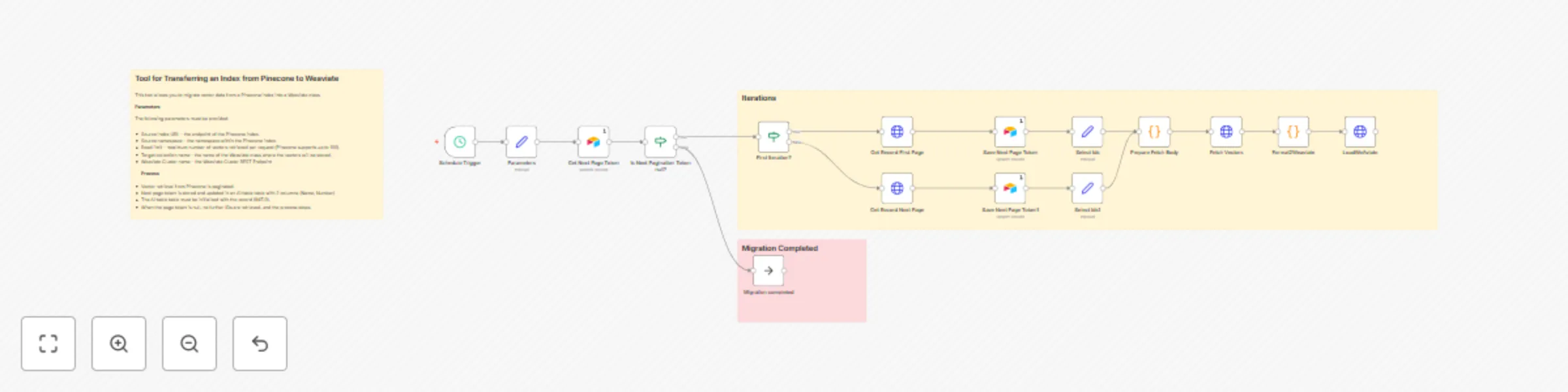
## Who’s it for This workflow is designed for developers, data engineers, and AI teams who need to migrate a Pinecone Cloud index into a Weaviate Cloud class index **without recalculating the vectors (embeddings)**. It’s especially useful if you are consolidating vector databases, moving from Pinecone to Weaviate for hybrid search, or preparing to deprecate Pinecone. ⚠️ Note: The dimensions of the two indexes must match. ## How it works The workflow automates migration by batching, formatting, and transferring vectors along with their metadata: 1. **Initialization** – Uses Airtable to store the pagination token. The token starts with a record initialized as `INIT` (Name=`INIT`, Number=`0`). 2. **Pagination handling** – Reads batches of vector IDs from the Pinecone index using `/vectors/list`, resuming from the last stored token. 3. **Vector fetching** – For each batch, retrieves embeddings and metadata fields from Pinecone via `/vectors/fetch`. 4. **Data transformation** – Two **Code nodes** (`Prepare Fetch Body` and `Format2Weaviate`) are included to correctly structure the body of each HTTP request and map metadata into Weaviate-compatible objects. 5. **Data loading** – Inserts embeddings and metadata into the target Weaviate class through its REST API. 6. **State persistence** – Updates the pagination token in Airtable, ensuring the next run resumes from the correct point. 7. **Scheduling** – The workflow runs on a defined schedule (e.g., every 15 seconds) until all data has been migrated. ## How to set up 1. **Airtable setup** - Create a Base (e.g., `Cycle`) and a Table (e.g., `NextPage`). - The table should have two columns: - `Name` (text) → stores the pagination token. - `Number` (number) → stores the row ID to update. - Initialize the first and only row with (`INIT`, `0`). 2. **Source and target configuration** - Make sure you have a Pinecone index and namespace with embeddings. - Manually create a target Weaviate Cluster and a target Weaviate Class with the same vector dimensions. - In the **Parameters** node of the workflow, configure the following values: | Parameter | Description | Example Value | |---------------------|----------------------------------------------------------------------------------------------|---------------| | **pineconeIndex** | The name of your Pinecone index to read vectors from. | `my-index` | | **pineconeNamespace** | The namespace inside the Pinecone index (leave empty if unused). | `default` | | **batchlimit** | Number of records fetched per iteration. Higher = faster migration but heavier API calls. | `100` | | **weaviateCluster** | REST endpoint of your Weaviate Cloud instance. | `https://dbbqrc9itXXXXXXXXX.c0.europe-west3.gcp.weaviate.cloud` | | **weaviateClass** | Target class name in Weaviate where objects will be inserted. | `MyClass` | 3. **Credentials** - Configure Pinecone API credentials. - Configure Weaviate Bearer token. - Configure Airtable API key. 4. **Activate** - Import the workflow into n8n, update the parameters, and start the schedule trigger. ## Requirements - Pinecone Cloud account with a configured index and namespace. - Weaviate Cloud cluster with a class defined and matching vector dimensions. - Airtable account and base to store pagination state. - n8n instance with credentials for Pinecone, Weaviate, and Airtable. ## How to customize the workflow - Adjust the **batchlimit** parameter to control performance (higher values = fewer API calls, but heavier requests). - Adapt the `Format2Weaviate` Code node if you want to change or expand the metadata stored. - Replace Airtable with another persistence store (e.g., Google Sheets, PostgreSQL) if preferred. - Extend the workflow to send migration progress updates via Slack, email, or another channel.