K

Kees Bosch - Browserflow

3
Workflows

Workflows by Kees Bosch - Browserflow

Workflow preview: Automated LinkedIn company page growth with Browserflow and Google Sheets
Free advanced

Automated LinkedIn company page growth with Browserflow and Google Sheets

## Automate LinkedIn Company Page Growth End-to-End - ⚠️ **Important — Start Here** - Before importing this template, **make a personal copy of the provided [Google Sheets template](https://docs.google.com/spreadsheets/d/1-zak-RUGU4ubw3aZ_9lF9LF1dxEo9ME_-mtzRGtIDFg/edit?gid=0#gid=0)**. - This workflow is designed to work **out of the box** with that sheet. ![Screenshot 20251216 at 09.26.02.png](fileId:3673) Growing a LinkedIn Company Page usually requires time, consistency, and manual outreach. With **Browserflow + n8n**, you can turn the entire process into a **hands-off LinkedIn growth engine**. This template automates everything from: * Scraping LinkedIn engagement * Sending connection invites * Tracking acceptance * Inviting new connections to follow your company page All activity is logged, deduplicated, and fully automated. --- ## ⚠️ Disclaimer – Community Node Notice This template uses a **verified community node** available inside the n8n Cloud environment. To use it: * Go to **Nodes** * Search for **Browserflow for Linkedin** * Click **Install** If you are running n8n locally: * Go to **Settings → Community Nodes** * Search for **n8n-nodes-browserflow** * Install and restart n8n --- ## 📦 Requirements To use this template, you need: * n8n (Cloud or self-hosted) * Installed community node: **Browserflow for Linkedin** * An account for [Browserflow (7-day free trial)](Browserflow (7-day free trial)) * LinkedIn account * A copy of the [Google Sheets template](https://docs.google.com/spreadsheets/d/1-zak-RUGU4ubw3aZ_9lF9LF1dxEo9ME_-mtzRGtIDFg/edit?gid=0#gid=0) --- ## ⚙️ Setup Instructions 1. **Make a copy of the provided [Google Sheets template](https://docs.google.com/spreadsheets/d/1-zak-RUGU4ubw3aZ_9lF9LF1dxEo9ME_-mtzRGtIDFg/edit?gid=0#gid=0)** 2. **Import the n8n template into your n8n workflow** 3. Create an account with [Browserflow (7-day free trial)](Browserflow (7-day free trial)) 3. Reconnect credentials: * Google Sheets * Browserflow (API key via credentials) 4. (Optional) Adjust schedule intervals if needed 5. Add your Company Page URL in the final workflow That’s it — no column mapping required if you use the sheet as provided. --- ## 🤖 Tip – Quickly Switch to Your Own Google Sheet Using n8n AI (Beta) If you already imported the workflow and want to swap the Google Sheet later, you can use the **n8n AI assistant (beta)**. Paste this prompt (replace the URL): ``` I would like to change all my google sheets integrations to use the following sheet instead: ****** It has the exact same sheets and tables and fields ``` The AI will update all Google Sheets nodes automatically. --- ## 🧩 What This Template Does This template consists of **four connected workflows**, each represented with **sticky notes** inside n8n. ### 🔍 Step 1 – Retrieve Leads from LinkedIn Post Engagement This workflow scrapes users who engage with LinkedIn posts and stores them in Google Sheets. **Workflow actions:** * Fetch LinkedIn post URLs from Google Sheets * Scrape: * Commenters * (Optional) Likers * Split results into individual profiles * Filter invalid or duplicate profiles * Append new leads to Google Sheets * Mark posts as “scraped” to prevent reprocessing --- ### 🤝 Step 2 – Send LinkedIn Connection Invites Automatically This workflow sends connection requests to new leads on a schedule. **Workflow actions:** * Schedule trigger (e.g. every 10 minutes) * Fetch leads not yet invited * Check connection status: * ❌ Not connected → Send invite * ⏳ Pending → Mark as pending * ✅ Connected → Mark as connected * Update Google Sheets with status + timestamp --- ### 🔄 Step 3 – Track Connection Acceptance This workflow keeps your lead sheet accurate by tracking accepted invitations. **Workflow actions:** * Scheduled trigger * Fetch recent LinkedIn connections via Browserflow * Match profiles with Google Sheets * Update: * Connection status * Acceptance timestamp --- ### ⭐ Step 4 – Invite Connections to Follow Your Company Page Once someone accepts your connection request, this workflow invites them to follow your Company Page. **Workflow actions:** * Fetch connected leads from Google Sheets * Filter: * Connected * Not yet invited to follow * Use Browserflow to: * Visit your LinkedIn Connections page * Send “Invite to Follow Page” action * Update follow-invite status in Google Sheets **Important configuration:** * Enter your **Company Page URL** * You must be **Admin** of the page --- ## 📊 Final Result – Your Automated LinkedIn Growth Engine After setup, you get: * 🔍 Automated lead scraping from niche engagement * 🤝 Automated LinkedIn connection requests * 🔄 Automatic acceptance tracking * ⭐ Automated Company Page follow invites * 📊 Centralized Google Sheets dashboard This system saves hours every week and turns every new connection into a Company Page follower — **with zero manual work**. --- ## 🚀 Need Help? If you need help customizing or extending this automation, feel free to reach out. Happy automating! 🚀

K
Kees Bosch - Browserflow
Social Media
16 Dec 2025
14
0
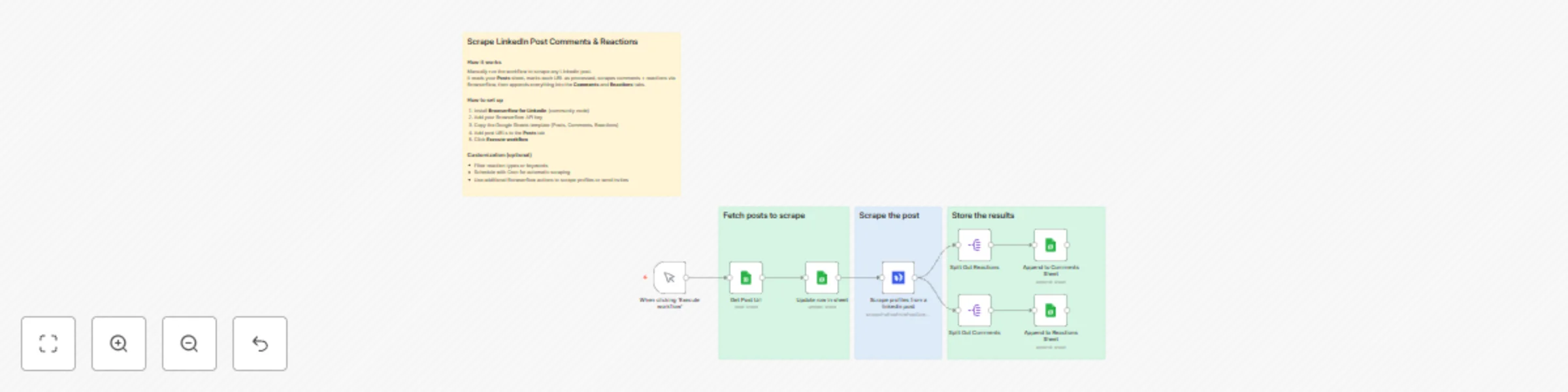
Workflow preview: Scrape LinkedIn post comments & reactions with Browserflow → export to Google Sheets
Free intermediate

Scrape LinkedIn post comments & reactions with Browserflow → export to Google Sheets

## Scrape LinkedIn Post Comments & Reactions → Export to Google Sheets ![Screenshot 20251118 at 09.00.56.png](fileId:3337) This workflow lets you quickly extract all **comments** and **reactions** from any public LinkedIn post using Browserflow, then automatically saves the results into two separate Google Sheets tabs. Perfect for audience research, content analysis, engagement tracking, or social listening. ## ⚠️ Disclaimer – Community Node Notice This template uses a verified community node available inside the n8n cloud environment. To use it, go to “Nodes” → search for: *Browserflow for Linkedin* …and click Install. It’s officially verified and accessible directly from n8n cloud. In case you wish to run this template locally, you need to go to the settings, click community nodes and search for *n8n-nodes-browserflow*. Then after installing you can start using the actions in this node. ## How it works • You click **Execute workflow** to manually start the process • The workflow fetches your Google Sheet to grab all the post urls that have not been scraped yet. • The Posts tab is updated so it registered which post was scraped. • Browserflow scrapes the LinkedIn post (comments + reactions) based on the post URL you provide • The workflow splits the scraped data into two streams:  — one for **reactions**  — one for **comments** • Each item is appended into its matching Google Sheet tab — keeping everything clean and organized --- ## Requirements * n8n (cloud or self-hosted) * Browserflow account (free 7-day trial available at [https://browserflow.io](https://browserflow.io)) * Installed community node: **Browserflow for LinkedIn** * Google account for Sheets access --- ## ⚙️ Setup Instructions 1. **Install the Browserflow Community Node**  Go to *Nodes* → search **Browserflow for LinkedIn** → Install 2. **Get your Browserflow API Key**  Available at [https://browserflow.io](https://browserflow.io) 3. **Connect your Browserflow Credential**  Open any Browserflow node → Add Credential → paste your API key 4. **Prepare Your Sheet**  Make a copy of the provided **Make a copy** of the [Google Sheets template](template).  It already includes three tabs: **Posts,** **Comments** and **Reactions** 5. **Find some posts you want to scrape**  Find some posts on LinkedIn, click on the top right corner and `click copy link to post`, then fill the url in the Posts tab of the sheet. 6. **Run the Workflow**  Click *Execute workflow*, paste your LinkedIn post URL, and let it scrape everything automatically --- ## 🧩 Customization Tips * Add more columns to the Sheets if you want to store additional metadata * Combine this workflow with analytics or CRM integrations * Add filters if you only want certain reaction types or comments containing keywords * Schedule it with a Cron trigger to monitor post engagement over time * Use additional Browserflow actions to scrape profiles or send invites Let me know if you want me to also create the sticky notes, rewrite for posting in the n8n template library, or generate screenshots with annotation! ![Screenshot 20251118 at 09.00.33.png](fileId:3336)

K
Kees Bosch - Browserflow
Lead Generation
13 Nov 2025
151
0
Workflow preview: Automate LinkedIn lead generation and connection requests with Browserflow
Free intermediate

Automate LinkedIn lead generation and connection requests with Browserflow

# **Auto find & invite LinkedIn Leads** This n8n template automates LinkedIn lead generation by scraping profiles, filtering out existing connections, and sending connection requests — all in a controlled, looped workflow. Ideal for outreach campaigns, recruitment, or lead gen efforts. ![Screenshot 20250724 at 18.09.50.png](fileId:1859) ## ⚠️ **Disclaimer – Community Node Notice** This template uses a verified community node available inside the n8n cloud environment. To use it, go to "Nodes" → search for: *Browserflow for Linkedin* …and click Install. It’s officially verified and accessible directly from n8n cloud. In case you wish to run this template locally, you need to go to the settings, click community nodes and search for *n8n-nodes-browserflow*. Then after installing you can start using the actions in this node. ## **🛠️ How to Use** ###### Trigger: Manual Start Initiates the workflow manually via the “Test workflow” button, giving you full control. ###### Scrape LinkedIn Profiles Uses the Browserflow automation to extract profile links from a LinkedIn search or keyword query. ###### Split Out Results Converts the list of profiles into individual items for single-profile processing. ###### Loop Through Each Profile Ensures each LinkedIn profile is handled one at a time, avoiding simultaneous actions. ###### Check Existing Connection Verifies if you’re already connected with the lead on LinkedIn. ###### Conditional Logic ✅ Already Connected → Skip to next profile ❌ Not Connected → Continue to next step ###### Send Connection Invite Sends a LinkedIn connection request, optionally with a personalized message. ## 📦 Requirements - n8n (cloud or self-hosted) - Installed community node: Browserflow for Linkedin - LinkedIn account - Valid Browserflow acount (you can set up a free 7-day trial at [https://browserflow.io](https://browserflow.io/n8n)) ## **⚙️ Setup Instructions** ###### Install the Browserflow Community Node Search “Browserflow for Linkedin” > Install. ###### **Get your API key** Get your API key at [https://browserflow.io](https://browserflow.io/n8n) ###### **Setup your Browserflow account** After registering, setup your Browserflow and connect with Linkedin using the wizard at [https://browserflow.io](https://browserflow.io/n8n) ###### **Connect with Browserflow by making a credential** Click on the Browserflow actions to setup a connection with Browserflow by adding your API key to a credential. ## **🧩 Customization Tips** Targeting: Adjust the Browserflow actions to scrape specific roles, industries, or locations. Messaging: You can add a message to the connection invite but remind that LinkedIn limits the amount of messages that can be send each month. Use variables in the message for personalization (e.g., {firstName}). Trigger: Replace manual trigger with a cron node for scheduled outreach. Integration: Combine with CRM tools (e.g., HubSpot, Notion, Airtable) for syncing leads or integrate with AI Agents.

K
Kees Bosch - Browserflow
Lead Generation
22 Jul 2025
1228
0