Jose Bossa
Workflows by Jose Bossa
Schedule & auto-post videos to Instagram, LinkedIn & TikTok with Google Sheets
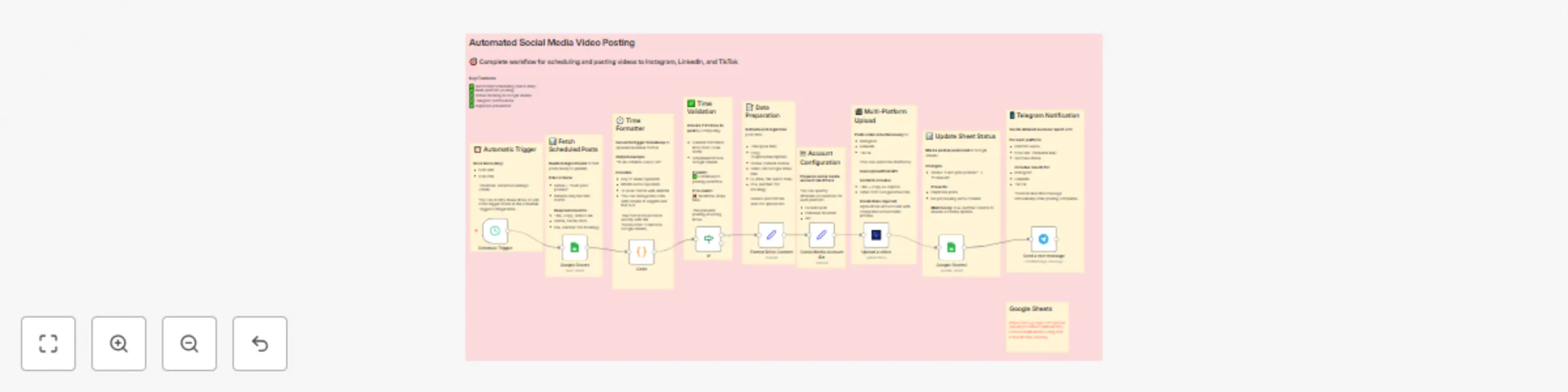
# Automated Social Media Video Posting ## 👥 Who's it for This workflow is perfect for content creators, social media managers, and businesses who want to **schedule and automatically post videos** 📹 to multiple platforms (Instagram, LinkedIn, TikTok) without manual effort. Save hours every week! ⏰ ## 🤖 What it does It automatically reads scheduled posts from Google Sheets, checks if it's the right time to post, downloads videos from Google Drive, uploads them to multiple social media platforms simultaneously, updates the posting status, and sends you a Telegram notification with the results. Complete hands-free social media management! 🚀 ## ⚙️ How it works 1. **⏰ Schedule Trigger** – Runs twice daily at 9 AM and 9 PM 2. **📊 Google Sheets (Read)** – Fetches posts with status "Listo para postear" (Ready to post) 3. **⚙️ Code Node** – Converts trigger time to readable Spanish format (e.g., "16 de Octubre a las 9 am") 4. **🔍 If Condition** – Checks if current time matches the scheduled post time in the sheet 5. **📝 Format Drive Content** – Extracts and organizes post data (Title, Copy, Video URL) 6. **🆔 Social Media Account IDs** – Prepares account identifiers (can be customized for specific accounts) 7. **🎬 Upload a video** – Posts video simultaneously to Instagram, LinkedIn, and TikTok using UploadPost API 8. **📊 Google Sheets (Update)** – Changes post status to "Posteado" (Posted) to avoid duplicates 9. **📱 Telegram Notification** – Sends detailed success report with URLs for each platform ## 📋 Requirements - **Google Sheets** with your content calendar - **Google Drive** to store your videos - **UploadPost API account** (supports Instagram, LinkedIn, TikTok): - Click aquí 👉 [UploadPost](https://www.upload-post.com) - **Telegram Bot** for notifications - **n8n instance** with required node packages ### Google Sheets Structure Your spreadsheet should have these columns: - `Title` – Post title - `Copy` – Post caption/description - `Video Link` – Google Drive download URL - `Status` – Post status ("Listo para postear" or "Posteado") - `Fecha.Hora` – Scheduled time (format: "16 de Octubre a las 9 am") - `row_number` – Auto-generated row identifier ## 🛠️ How to set up 1. **Create your Google Sheets calendar:** - Set up columns as specified above - Use status "Listo para postear" for scheduled posts - Format dates as "DD de Mes a las HH am/pm" (Spanish format) 2. **Upload videos to Google Drive:** - Get shareable download links (format: `https://drive.google.com/uc?export=download&id=FILE_ID`) - Ensure videos meet platform requirements (duration, format, size) 3. **Configure UploadPost API:** - Create account and get API credentials - Connect your Instagram, LinkedIn, and TikTok accounts - Add credentials to the "Upload a video" node 4. **Set up Google Sheets credentials:** - Connect OAuth2 for both read and update operations - Update `documentId` with your spreadsheet ID - Verify sheet name matches (default: "Video") 5. **Configure Telegram notifications:** - Create a Telegram bot via @BotFather - Get your chat ID - Add credentials to "Send a text message" node 6. **Customize posting times:** - Modify Schedule Trigger hours (default: 9 AM and 9 PM) - Times are in Santiago, Chile timezone (America/Santiago) 7. **Test the workflow:** - Create a test entry with current time - Run manually to verify all connections work - Check Telegram for success notification 8. **Activate the workflow** ✅ ## 🎨 How to customize - **Change posting schedule:** Modify `triggerAtHour` values in Schedule Trigger (add more times if needed) - **Add more platforms:** Extend the `platform` array in "Upload a video" node (supports YouTube, Facebook, Twitter) - **Customize notification format:** Edit the Telegram message template to include/exclude information - **Change timezone:** Modify the `timeZone` parameter in the Code node (default: "America/Santiago") - **Filter by platform:** Add a filter node before upload to post only to specific platforms on certain days - **Add approval workflow:** Insert an approval step before posting using Telegram or Slack - **Multiple accounts per platform:** Modify "Social Media Account IDs" node to specify different account IDs - **Error handling:** Add error notification paths to alert you if uploads fail - **Batch posting:** Remove `returnFirstMatch` option to post multiple videos at once ## 💡 Pro Tips - **Time format must match exactly** between Schedule Trigger and Google Sheets for the workflow to trigger - Videos should be optimized for each platform before upload (aspect ratio, length, file size) - Test with a private account first before going live - Keep video files under 100MB for best performance across platforms - Use the `row_number` column to track and update specific posts - The workflow runs twice daily, so schedule posts accordingly (9 AM or 9 PM slots) ## ⚠️ Important Notes - Posts marked as "Posteado" won't be processed again (prevents duplicates) - Video must be publicly accessible from the Google Drive link - UploadPost API has rate limits depending on your plan - Telegram notifications show success status and post URLs for each platform - The Code node converts times to Spanish format - modify if you need different language/format
Automated daily workflow backups to Google Drive with cleanup
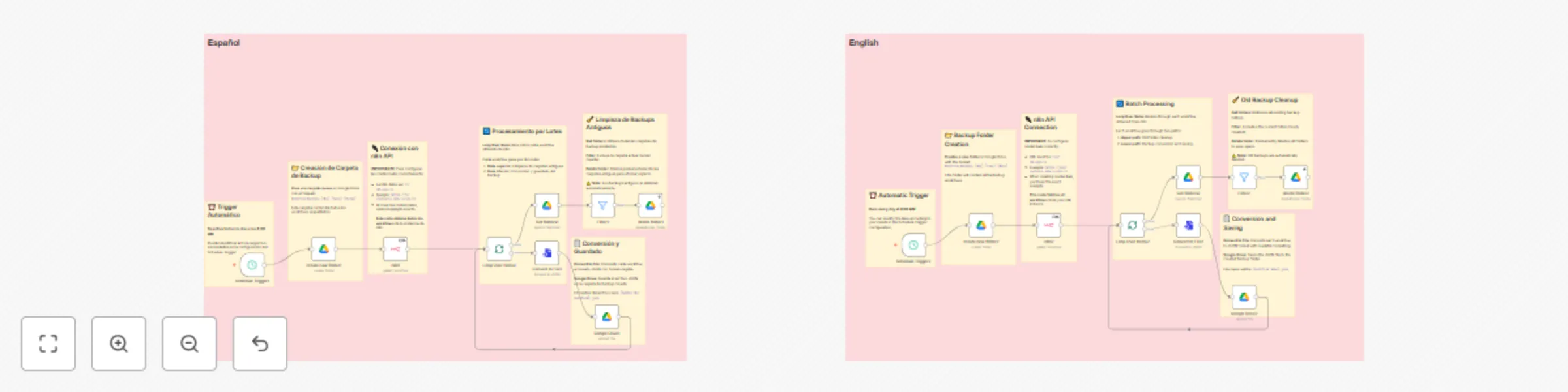
# n8n Workflow Backup System ## 👥 Who's it for This workflow is perfect for n8n users who want to **automatically backup all their workflows** 💾 to Google Drive with zero manual effort. Perfect for teams managing multiple workflows or anyone who values data safety! 🔒 ## 🤖 What it does It automatically creates daily backups of all your n8n workflows to Google Drive in readable JSON format, organizes them in dated folders, and cleans up old backups to save storage space. Set it and forget it! ✨ ## ⚙️ How it works ### Spanish Version (Español) 🇪🇸 1. **⏰ Schedule Trigger** – Runs automatically every day at 4:00 AM 2. **📁 Create New Folder** – Creates a timestamped backup folder in Google Drive 3. **🔌 n8n API Connection** – Fetches all workflows from your n8n instance 4. **🔄 Loop Over Items** – Processes each workflow individually through two paths: - **Upper Path (Cleanup):** - 🗂️ Get Folders – Retrieves all existing backup folders - 🔍 Filter – Excludes the current folder - 🗑️ Delete Folder – Permanently removes old backups - **Lower Path (Backup):** - 📄 Convert to File – Transforms workflow to formatted JSON - ☁️ Google Drive – Saves JSON file to backup folder ### English Version 🇬🇧 *Identical functionality with English interface* ## 📋 Requirements - **n8n instance** with API access enabled - **Google Drive account** with sufficient storage - **n8n API credentials** configured - **Google Drive OAuth2 credentials** configured ## 🛠️ How to set up 1. **Configure n8n API credentials:** - Format: `https://your-instance.n8n.io/api/v1` - Generate API key from your n8n instance settings 2. **Set up Google Drive credentials:** - Connect your Google account via OAuth2 - Grant necessary permissions for folder creation and file management 3. **Configure target folder:** - Create a parent folder in Google Drive (e.g., "N8N Backups") - Copy the folder ID from the URL - Update the `folderId` in "create new folder" nodes 4. **Adjust schedule (optional):** - Default: 4:00 AM daily - Modify `triggerAtHour` in Schedule Trigger node 5. **Test manually:** - Use the Manual Trigger to test before scheduling - Verify folders are created and files are saved correctly 6. **Activate the workflow** ✅ ## 🎨 How to customize - **Change backup frequency:** Modify Schedule Trigger settings (hourly, weekly, monthly) - **Keep multiple backup versions:** Remove or modify the cleanup path to retain more history - **Change folder naming:** Edit the folder name format in "create new folder" node (default: `Workflow Backups [day] [time] [date]`) - **Backup to different location:** Change the parent folder ID - **Add notifications:** Include email/Slack nodes to get backup completion alerts - **Filter specific workflows:** Add Filter node after n8n node to backup only certain workflows ## ⚠️ Important Notes - Old backups are **permanently deleted** by default to save space - Ensure sufficient Google Drive storage for your workflow size - API credentials must have read access to all workflows - The workflow processes items sequentially to avoid rate limits
Create a WhatsApp chatbot with GPT-4o, Whisper transcription and Redis buffer
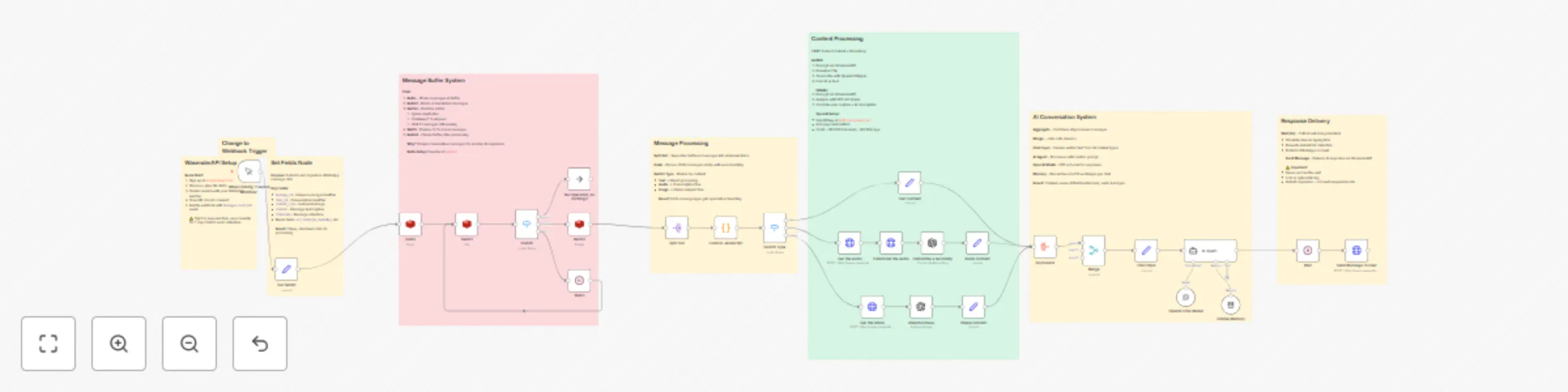
👥 Who's it for This workflow is perfect for businesses or individuals who want to automate WhatsApp conversations 💬 with an intelligent AI chatbot that can handle text, voice notes 🎵, and images 🖼️. No advanced coding required! 🤖 What it does It automatically receives WhatsApp messages through WasenderAPI, intelligently buffers consecutive messages to avoid fragmented responses, processes multimedia content (transcribing audio and analyzing images with AI), and responds naturally using GPT-4o mini with conversation memory. All while protecting your WhatsApp account from being banned. ⚙️ How it works 📱 Webhook Trigger – Receives new messages from WasenderAPI 🗃️ Redis Buffer System – Groups consecutive messages intelligently (7-second window) 🔀 Content Classifier – Routes messages by type (text, audio, or image) 🎵 Audio Processing – Decrypts and transcribes voice notes using OpenAI Whisper 🖼️ Image Analysis – Decrypts and analyzes images with GPT-4O Vision 🧠 AI Agent (GPT-4o mini) – Generates intelligent responses with 10-message memory ⏱️ Anti-Ban Wait – 6-second delay to simulate human typing 📤 Message Sender – Delivers response back to WhatsApp user 📋 Requirements WasenderAPI account with connected WhatsApp number : https://wasenderapi.com/ Redis database (free tier works fine) OpenAI API key with access to GPT-4o mini and Whisper n8n's AI Agent, LangChain, and Redis nodes 🛠️ How to set up Create your WasenderAPI account and connect a WhatsApp number Set up a free Redis database and get connection credentials Configure OpenAI API key in n8n credentials Replace the WasenderAPI Bearer token in "Get the audio", "Get the photo", and "Send Message to User" nodes Change the Manual Trigger to a Webhook and configure it in WasenderAPI Customize the AI Agent prompt to match your business needs Adjust wait times if needed (default: 6 seconds for responses, 7 seconds for buffer) Save and activate the workflow ✅ 🎨 How to customize Modify the AI Agent prompt to change bot personality and instructions Adjust buffer wait time (7 seconds) for faster/slower message grouping Change response delay (6 seconds) based on your use case , its recomendable 30 seconds. Add more content types (documents, videos) by extending the Switch Type node Configure conversation memory window (default: 10 messages)