Babish Shrestha
Workflows by Babish Shrestha
Build a RAG knowledge chatbot with OpenAI, Google Drive, and Supabase
## 🚀 Build Your Own Knowledge Chatbot Using Google Drive Create a smart chatbot that answers questions using your Google Drive PDFs—perfect for support, internal docs, education, or research. ## 🛠️ Quick Setup Guide** ### Step 1: Prerequisites - n8n instance (cloud or self-hosted) - Google Drive account (with PDFs) - Supabase account (vector database) - OpenAI API key - PostgreSQL database (for chat memory) else remove the node ### Step 2: Supabase Setup - Create supabase account (its free) - Create a project - Copy the sql and paste it in supabase sql editor ```SQL -- Enable the pgvector extension to work with embedding vectors create extension vector; -- Create a table to store your documents create table documents ( id bigserial primary key, content text, -- corresponds to Document.pageContent metadata jsonb, -- corresponds to Document.metadata embedding vector(1536) -- 1536 works for OpenAI embeddings, change if needed ); -- Create a function to search for documents create function match_documents ( query_embedding vector(1536), match_count int default null, filter jsonb DEFAULT '{}' ) returns table ( id bigint, content text, metadata jsonb, similarity float ) language plpgsql as $$ #variable_conflict use_column begin return query select id, content, metadata, 1 - (documents.embedding <=> query_embedding) as similarity from documents where metadata @> filter order by documents.embedding <=> query_embedding limit match_count; end; $$; ``` ### Step 3: Import & Configure n8n Workflow - Import this template into n8n - Add credentials: - OpenAI API key - Google Drive OAuth2 - Supabase URL & service key - PostgreSQL connection - Set your Google Drive folder ID in triggers ### Step 4: Test & Use - Add a PDF to your Drive folder → check Supabase for new entries - Start the workflow and chat → ask questions about your documents. "*What can you help me with?*" - Multi-turn chat → context is maintained per user ## ⚡ Features - Auto-syncs new/updated PDFs from Google Drive - Extracts, chunks, and vectorizes text - Finds relevant info and answers questions - Maintains chat history per user ## 📝 Troubleshooting - Check folder permissions & IDs if no docs found - Verify API keys & Supabase setup for errors - Ensure PostgreSQL is connected for chat memory Tags: RAG, Chatbot, Google Drive, Supabase, OpenAI, n8n Setup Time: ~20 minutes
Query PostgreSQL database with natural language using GPT-4o-mini
## This Database SQL Query Agent convert natural language into sql query to get results Turn your PostgreSQL database into a conversational AI agent! Ask questions in plain English and get instant data results without writing SQL. ## ✨ What It Does - **Natural Language Queries**: "Show laptops under $500 in stock" → Automatic SQL generation - **Smart Column Mapping**: Understands your terms and maps them to actual database columns - **Conversational Memory**: Maintains context across multiple questions - **Universal Compatibility**: Works with any PostgreSQL table structure ## 🎯 Perfect For - Business analysts querying data without SQL knowledge - Customer support finding information quickly - Product managers analyzing inventory/sales data - Anyone who needs database insights fast ## 🚀 Quick Setup ### Step 1: Prerequisites - n8n instance (cloud/self-hosted) - PostgreSQL database with read access - OpenAI API key/You can use other LLM as well ### Step 2: Import & Configure 1. Import this workflow template into n8n 2. **Add Credentials**: - OpenAI API: Add your API key - PostgreSQL: Configure database connection 3. **Set Table Name**: Edit "Set Table Name" node → Replace `"table_name"` with your actual table 4. **Test Connection**: Ensure your database user has SELECT permissions ### Step 3: Deploy & Use 1. Start the workflow 2. Open the chat interface 3. Ask questions like: - *"Show all active users"* - *"Find orders from last month over $100"* - *"List products with low inventory"* ## 🔧 Configuration Details ### Required Settings - **Table Name**: Update in "Set Table Name" node - **Database Schema**: Default is 'public' (modify SQL if different) - **Result Limit**: Default 50 rows (adjustable in system prompt) ### Optional Customizations - **Multi-table Support**: Modify system prompt and add table selection logic - **Custom Filters**: Add business rules to restrict data access - **Output Format**: Customize response formatting in the agent prompt ## 💡 Example Queries ### E-commerce *"Show me all electronics under $200 that are in stock"* ### HR Database *"List employees hired in 2024 with salary over 70k"* ### Customer Data *"Find VIP customers from California with recent orders"* ## 🛡️ Security Features - **Read-only Operations**: Only SELECT queries allowed - **SQL Injection Prevention**: Parameterized queries and validation - **Result Limits**: Prevents overwhelming queries - **Safe Schema Discovery**: Uses information_schema tables ## 🔍 How It Works 1. **Schema Discovery**: Agent fetches table structure and column info 2. **Query Planning**: Maps natural language to database columns 3. **SQL Generation**: Creates safe, optimized queries 4. **Result Formatting**: Returns clean, user-friendly data ## ⚡ Quick Troubleshooting - **No Results**: Check table name and ensure data exists - **Permission Error**: Verify database user has SELECT access - **Connection Failed**: Confirm PostgreSQL credentials and network access - **Unexpected Results**: Try more specific queries with exact column names ## 🎨 Use Cases - **Inventory Management**: "Show low-stock items by category" - **Sales Analysis**: "Top 10 products by revenue this quarter" - **Customer Support**: "Find customer orders with status 'pending'" - **Data Exploration**: "What are the unique product categories?" ## 🔧 Advanced Tips - **Performance**: Add database indexes on frequently queried columns - **Customization**: Modify the system prompt for domain-specific terminology - **Scaling**: Use read replicas for high-query volumes - **Integration**: Connect to Slack/Teams for team-wide data access --- **Tags**: AI, PostgreSQL, Natural Language, SQL, Business Intelligence, LangChain, Database Query **Difficulty**: Beginner to Intermediate **Setup Time**: 10-15 minutes
Smart sales support chatbot with GPT-4o and Google Sheets
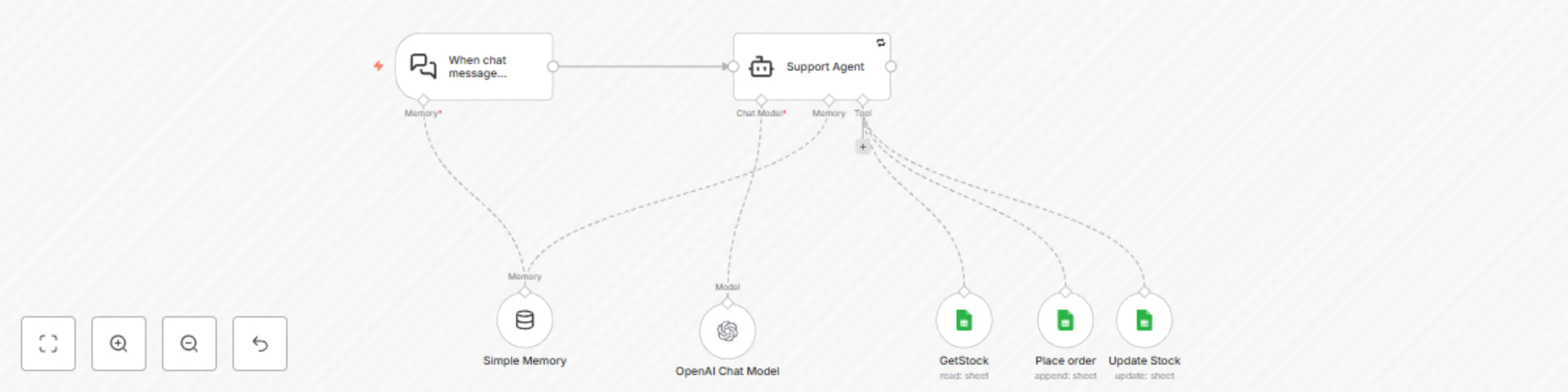
## Who is this tempate for? This workflow powers a **simple yet effective customer and sales support chatbot** for your webshop. It's perfect for solopreneurs who want to **automate customer interactions without relying on expensive or complex support tools**. ## How it works? The chatbot listens to user requests—such as checking product availability—and automatically handles the following - Fetches product information from a Google Sheet - Answers customer queries - Places an order - Updates the stock after a successful purchase *Everything runs through a single Google Sheet used for both stock tracking and order management.* ## **Setup Instructions** Before you begin, connect your Google Sheets credentials by following this guide: This will be used to connect all the tools to Google Sheets 👉 [Setup Google sheets credentials](https://docs.n8n.io/integrations/builtin/credentials/google/oauth-generic/#finish-your-n8n-credential) - ### Get Stock - Open "Get Stock" tool node and select the Google sheet credentials you created. - Choose the correct google sheet document and sheet name and you are done. - ### Place order - Go to your "Place Order" tool node and select the Google sheet credentials you have created. - Choose the correct google sheet document and sheet name. - ### Update Stock - - Open your "Update Stock" tool node and select the Google sheet credentials you have created. - Choose the correct google sheet document and sheet name. - In "Mapping Column Mode" section select map each column manually. - In "Column to match on" select the column with a unique identifier (e.g., Product ID) to match stock items. - In values to update section, add only the column(s) that need to be updated—usually the stock count. - ### AI Agent node - Adjust the prompt according to your use case and customize what you need. ## Google Sheet Template **Stock sheet** |Case ID|Phone Model|Case Name|Case Type|Image URL|Quantity Avaialble|Initital Inventory|Sold| |-|-|-|-|-|-|-|-| |1023|Iphone 14 pro|Black Leather|Magsafe|https://example.com/url|90|100|10 **Order sheet** |Case ID|Phone Model|Case Name|Name|Phone Number|Address| |-|-|-|-|-|-| |1023|Black Leather |Iphone 14 pro|Fernando Torres|9998898888|Paris, France