Axiomlab.dev
Workflows by Axiomlab.dev
Enrich HubSpot contacts with LinkedIn profiles using SerpAPI, Google Docs and AI
## HubSpot Lead Refinement 🚀 **How it works** **Triggers:** * HubSpot Trigger: Fires when contacts are created/updated. * Manual Trigger: Run on demand for testing or batch checks. * Get Recently Created/Updated Contacts: Pulls fresh contacts from HubSpot. * Edit Fields (Set): Maps key fields (First Name, Last Name, Email) for the Agent. **AI Agent:** * First reads your Google Doc (via the Google Docs tool) to learn the research steps and output format. * Then uses SerpAPI (Google engine) to locate the contact’s likely LinkedIn profile and produce a concise result. * Code – Remove Think Part: Cleans the model output (removes hidden “think” blocks / formatting) so only the final answer remains. * HubSpot Update: Writes the cleaned LinkedIn URL to the contact (via email match). 🔑 **Required Credentials:** * HubSpot App Token (Private App) — for Get/Update contact nodes. * HubSpot Developer OAuth (optional) — if you use the HubSpot * Trigger node for event-based runs. * Google Service Account — for the Google Docs tool (share your * playbook doc with this service account). * OpenRouter — for the OpenRouter Chat Model used by the AI Agent. * SerpAPI — for targeted Google searches from within the Agent. 🛠️ **Setup Instructions** **HubSpot** * Create a Private App and copy the Access Token. * Add or confirm the contact property linkedinUrl (Text). * Plug the token into the HubSpot nodes. * If using HubSpot Trigger, connect your Developer OAuth app and subscribe to contact create/update events. **Google Docs (Living Instructions)** [➡️ Sample configuration doc file](https://docs.google.com/document/d/1nn69H3wdwXJolDwu0avlFw7sIwnX_Hpr3bmOD6PgdW4/edit?usp=sharing) * Copy the sample doc file and modify to your need. * Share the doc with your Google Service Account (Viewer is fine). * In the Read Google Docs node, paste the Document URL. **OpenRouter & SerpAPI** * Add your OpenRouter key to the OpenRouter Chat Model credential. * Add your SerpAPI key to the SerpAPI tool node. * (Optional) In your Google Doc or Agent prompt, set sensible defaults for SerpAPI (engine=google, hl=en, gl=us, num=5, max 1–2 searches). ✨ **What you get** * Auto-enriched contacts with a LinkedIn URL and profile insights (clean, validated output). * A research process you can change anytime by editing the Google Doc—no workflow changes needed. * Tight, low-noise searches via SerpAPI to keep costs down. And that’s it—publish and let the Agent enrich new leads automatically while you refine the rules in your doc. It allows handing off to a team who wouldn't necessarily tweak the automation nodes.
Daily Google Tasks briefing in Slack with Ollama-powered summaries
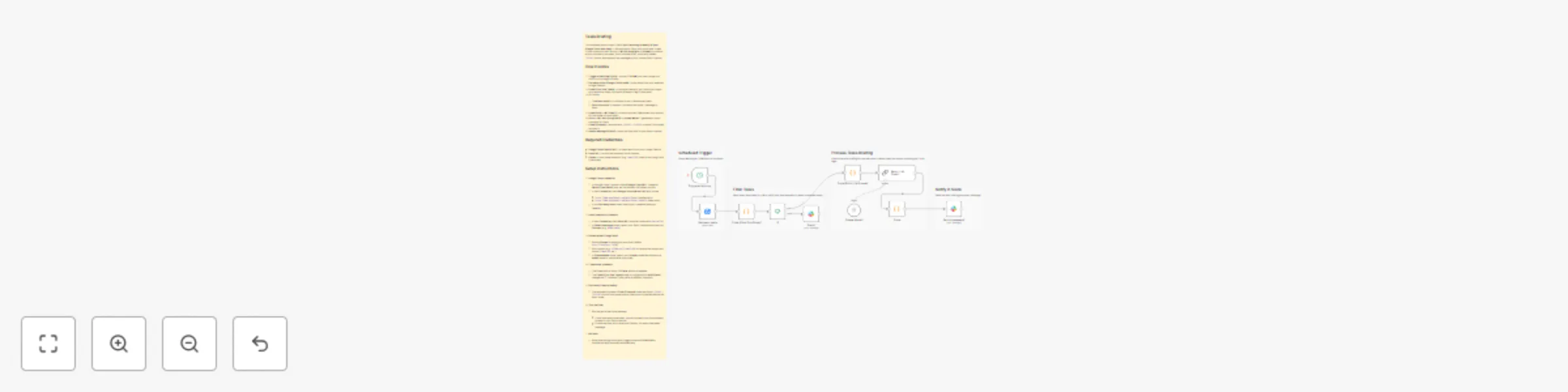
## Tasks Briefing This template posts a clean, Slack-ready **morning summary of your Google Tasks due today**. It fetches tasks, filters only those due “today” in your timezone, asks a local **LLM (via LangChain + Ollama)** to produce a short summary (no steps, just a concise brief), strips any hidden `<think>` blocks, and delivers the message to your chosen Slack channel. ## How it works 1. **Trigger at Morning (Cron)** – runs at **7:00 AM** (you can change the hour) to kick things off daily. 2. **Get many tasks (Google Tasks node)** – pulls tasks from your selected Google Tasklist. 3. **Code (Filter Due Today)** – normalizes dates to your timezone, keeps only tasks due today, and emits a fallback flag if none exist. 4. **If** – routes: * **True (has tasks)** → continues to the LLM summary path. * **False (no tasks)** → sends a “No tasks due today” message to Slack. 5. **Code (Build LLM Prompt)** – builds a compact, Markdown-only prompt for the model (no tool calls). 6. **Basic LLM Chain (LangChain)** + **Ollama Model** – generates a short summary for Slack. 7. **Code (Cleanup)** – removes any `<think>…</think>` content if the model includes it. 8. **Send a message (Slack)** – posts the final brief to your Slack channel. ## Required credentials * **Google Tasks OAuth2 API** – to read tasks from your Google Tasklist. * **Slack API** – to post the summary into a channel. * **Ollama** – local model endpoint (e.g., `qwen3:4b`); used by the LangChain LLM nodes. ## Setup Instructions 1. **Google Tasks credential** * In Google Cloud Console: enable **Google Tasks API**, create an **OAuth Client (Web)**, and set the redirect URI shown by n8n. * In n8n **Credentials**, add **Google Tasks OAuth2 API** with scope: * `https://www.googleapis.com/auth/tasks` (read/write) or * `https://www.googleapis.com/auth/tasks.readonly` (read-only). * In the **Get many tasks** node, select your credential and your **Tasklist**. 2. **Slack credential & channel** * In n8n **Credentials**, add **Slack API** (bot/user token with `chat:write`). * In **Send a message** nodes, select your Slack credential and set the **Channel** (e.g., `#new-leads`). 3. **Ollama model (LangChain)** * Ensure **Ollama** is running on your host (default `http://localhost:11434`). * Pull a model (e.g., `ollama pull qwen3:4b`) or use another supported model (`llama3:8b`, etc.). * In **Ollama Model** node, select your **Ollama** credential and set the **model** name to match what you pulled. 4. **Timezone & schedule** * The **Cron** node is set to **7:00 AM**. Adjust as needed. * The **Code (Filter Due Today)** node is configured for **Asia/Dhaka**; change the `TZ` constant if you prefer a different timezone. 5. **(Optional) Cleanup safety** * The template includes a **Code (Cleanup)** node that strips `<think>…</think>` blocks from model output. Keep this connected before the Slack node. 6. **Test the flow** * Run the workflow once manually: * If you have tasks due today, you should see a concise summary posted to your Slack channel. * If none are due, you’ll receive a friendly “No tasks due today” message. 7. **Activate** * When everything looks good, toggle the workflow **Active** to receive the daily summary automatically.
Extract business leads from Gmail to Google Sheets with Slack notifications
This workflow allows users to extract potential leads from their inboxes. The idea of a reverse outreach is based on the notion that the next big client/customer/partner might be sitting in your inbox waiting to be mined. This automation has two workflows, one that extracts from the historical emails, and the other is a scheduled event, default set to run everyday morning. The workflow intelligently filters out emails from personal domains, system addresses (no-reply, updates), and generic company inboxes (info@, support@). The remaining emails are parsed to extract key information—company name, email address, domain, and subject—which is then stored in a Google Sheets spreadsheet. The Google Sheets node is configured to append or update based on the email address, ensuring that you never store duplicate entries. Finally, you will get a slack message with key information about the lead. 🚀 **How it works** Manual Trigger: A manual click initiate will fetch all historical emails. the limit set to 500, which you can increase up to 5000 Periodic Trigger: The workflow is triggered by time, default is set to daily fetch. Code nodes: Three Code nodes filter the emails based on custom rules - personal domains, system addresses, generic inboxes. Google Sheets: The processed data is sent to a Google Sheets spreadsheet. The append or update operation automatically handles whether to create a new row or update an existing one based on the email address, preventing duplicates. 🔑 **Required Credentials** Google (Gmail): To access your Gmail account and retrieve email messages. Google Sheets: To connect to your spreadsheet. Slack Bot: To Send message in a designated slack channel 🛠️ **Setup Instructions** Configure Gmail Trigger: Connect your Google cloud account credential in Gmail and Google sheet nodes. Choose the schedule to run the Email fetch node that periodically watch for new emails. Configure Code Node: This node is pre-configured with the filtering logic. You can customize the lists of personal, blocked, or generic email parts to fit your needs. Configure Google Sheets Node: Connect your Google Sheets credentials. Create a Spreadsheet with the following columns company_name, email, domain, subject, date_received Enter the Spreadsheet ID of your target spreadsheet in the Google sheet node along with the Sheet Name (e.g., Leads). And that should do it! Now run the manual trigger workflow and see the lead information showing up in your selected Slack Channel and also in the populated google sheet.