Eric
Workflows by Eric
Convert event text to calendar entries with AI and NextCloud/Google/Zoho
## Why use this? This workflow turns any event-related text into a new event on your calendar. **Poster for a concert you want to go to?** Snap a photo [with your iPhone] and boom city, it's in your calendar. † **Parent-Teacher conference you can't forget?** Forward that email to the webhook. † **Appointment card from the doctor?** Snap it in, baby! † ## How it works *(Very, very simple)* 1. Data received by webhook. 2. Ai Agent prompted to parse the text into structured event data. 3. Create event in NextCloud cal (or Zoho, or GoogleCal). 4. (Optional, intended use case) Set up the iOS Shortcut (linked in workflow) to turn your iPhone into the trigger for this workflow. Say *"Siri, Add Event To Calendar,"* and she opens the camera, OCRs the text in the photo and sends that to the webhook. Boom city. ### Expected input structure ```json [ { "body": { "cal": "work", <- this is optional for deciding among calendars "eventInfo": "Join us for Betty-Jean's 98th birthday! (Yes, we celebrate every year now...) It's October 11th at 2:30pm, at Betty-Jean's house. Come after lunch 'cause her kitchen hasn't been used in 20 years. She mellows out pretty early these days so plan for the party to end by 4:00pm." } } ] ``` ## Extras - **Includes multiple calendar nodes.** Whether you're using NextCloud, Zoho or Google Cal, you can swap in the node you need. - **iOS Shortcut linked in workflow.** I also set up a Shortcut for the iPhone. The first time you use the Shortcut, you'll need to give it some permissions, and paste in your production webhook URL. - **Expansion option: Accept images**. iPhone has a native OCR feature but this isn't always an option. To make this workflow more versatile, consider building out a second branch to send an image to an Agent to parse the event data from the image directly. - **Expansion option: Multiple triggers**. You could add more triggers to receive event-related text from other sources, like an IMAP node reading your email (pro tip: set up a designated folder and give the IMAP access only to that folder). † Workflow begins with a webhook which can receive correctly-formatted data from anywhere on the web --- mailhook, webform, iOS Shortcut, etc. Direct data to this webhook from your source of text to use this workflow.
Book Cal.com meetings from ElevenLabs voice agent conversations
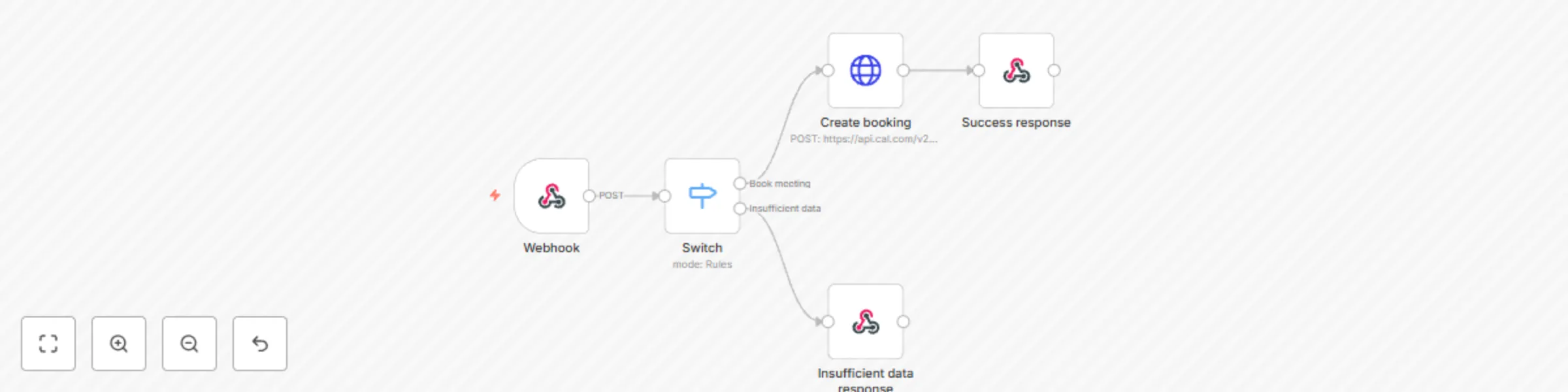
This is a specific use case. The [ElevenLabs guide for Cal.com bookings](https://elevenlabs.io/docs/conversational-ai/guides/integrations/cal-com) is comprehensive but I was having trouble with the booking API request. So I built a simple workflow to validate the request and handle the booking creation. ## Who's this for? You have an ElevenLabs voice agent (or other external service) booking meetings in your Cal.com account and you want more control over the `book_meeting` tool called by the voice agent. ## How's it work? * Request is received by the webhook trigger node * Request sent from ElevenLabs voice agent, or other source * Request body contains contact info for the user with whom a meeting will be booked in Cal.com * Workflow validates input data for required fields in Cal.com * If validation fails, a 400 bad request response is returned * If valid, meeting is booked in Cal.com api ## How do I use this? Create a `custom tool` in the ElevenLabs agent setup, and connect it to the webhook trigger in this workflow. Add authorization for security.  Instruct your voice agent to call this tool **after** it has collected the required information from the user. ## Expected input structure *Note: Modify this according to your needs, but be sure to reflect your changes in all following nodes. Requirements here depend on required fields in your Cal.com `event type`. If you have multiple `event types` in Cal.com with varying required fields, you'll need to handle this in this workflow, and provide appropriate instructions in your **voice agent prompt**.* ``` "body": { "attendee_name": "Some Guy", "start": "2025-07-07T13:30:00Z", "attendee_phone": "+12125551234", "attendee_timezone": "America/New_York", "eventTypeId": 123456, "attendee_email": "[email protected]", "attendee_company": "Example Inc", "notes": "Discovery call to find synergies." } ``` ## Modifications *Note: ElevenLabs doesn't handle webhook response headers or body, and only recognizes the response code. In other words, if the workflow responds with `400 Bad request` that's the only info the voice agent gets back; it doesn't get back any details, eg. "User email still needed".* You can modify the structure of the expected webhook request body, and then you should reflect that structure change in all following nodes in the workflow. Ie. if you change `attendee_name` to `attendeeFirstName` and `attendeeLastName` then you need to make this change in the following nodes that use these properties. You can also require or make optional other user data for the Cal.com `event type` which would reduce or increase the data the voice agent must collect from the user. You can modify the authorization of this webhook to meet your security needs. ElevenLabs has some limitations and you should be mindful of those, but it also offers a `secret` feature with proves useful. An improvement to this workflow could include a GET request to a CRM or other db to get info on the user interacting with the voice agent. This could reduce some of the data collection needed from the voice agent, like if you already have the user's email address, for example. I believe you can also get the user's phone number if the voice agent is set up on a dial-in interface, so then the agent wouldn't need to ask for it. This all depends on your use case. A savvy step might be prompting the voice agent to get an email, and using the email in this workflow to pull enrichment data from Apollo.io or similar ;-)
Batch Delete Posts and Featured Images in WordPress
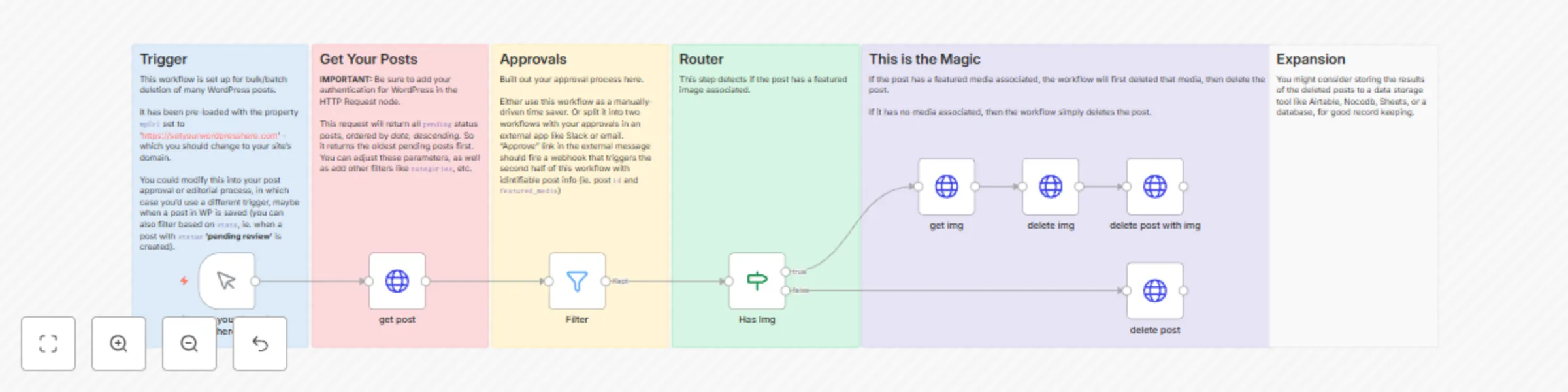
### Why use this You need to delete (many) posts on a WordPress website and also delete the featured image associated with each post. Hours of rote work cut into a fraction with this automation. ### How it works - set your wordpress URL in the manual trigger node - set your WP post search parameters - (WP API returns 10 posts by default; you could also set up pagination for scaling this automation beyond 10 posts per execution) - decide (and build) your filter/approval process ### What you can expect - this automation is set up to run the 10 oldest `pending` posts, with oldest first - if you remove the 'Filter' node from the workflow, after each run, another 10 posts will be returned from WP ### Notes on Filter/Approval This is arbitrary and depends on your own use case. Maybe you have an editor who needs to approve the post deletion. You might want to get approval by email, slack msg or ticketing system. Or maybe you just want to monitor the process and spare specific posts from deletion. I used the Filter node to only grab the first `item` (`itemIndex < 1`) which in this case was the oldest `pending` post. This could also be **expanded** to two separate workflows: - One triggered when a `pending` post is created that sends an approval request - A second triggered by the approval/rejection that either publishes or deletes the post, depending on the approval result This would require another HTTP request, similar to the DELETE post request, that instead publishes the post.
Use a custom URL for recurring Zoom meetings
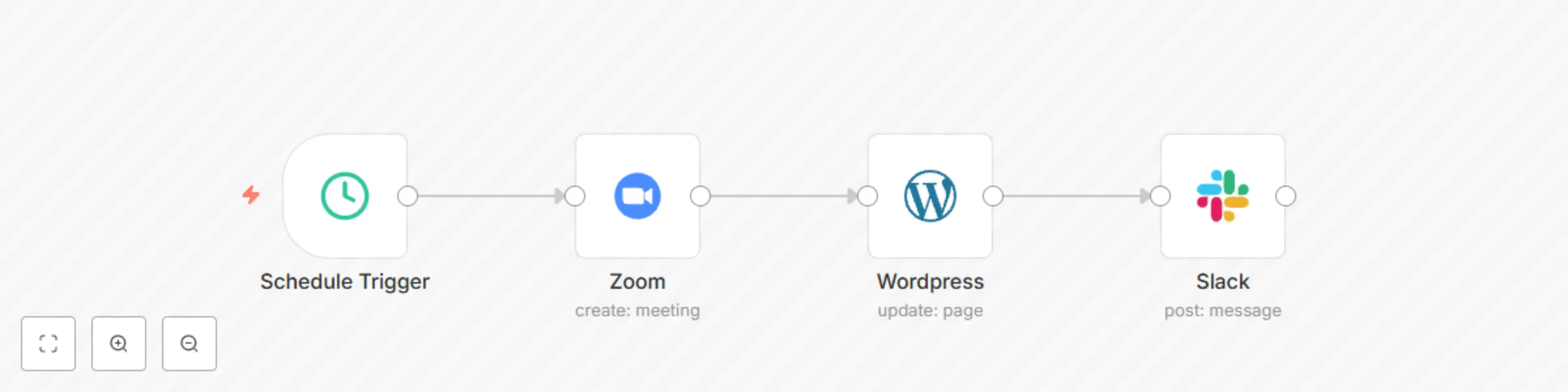
### Use case Instead of this: `https://us06web.zoom.us/j/83456429326?pwd=1hVesbyHCsOfstyVU3z4CR6D46A8K.1` share this: `mydomain.com/meet-me` Do you ever wish you had one, simple URL that you can share with people to hop on a Zoom meeting? 😃 ~~You could waste time:~~ 👎👎 * creating a recurring Zoom meeting 😫 * saving the link somewhere 😵💫 * finding it, copying it each time you need it 😭 * sharing an ugly long link with everyone 🤢 Or... You could create a 🌹 beautiful link using your own domain/website that redirects to your Zoom meeting, and share that beautified URL with everyone. 😌 And it will be easy for you to remember 💡 > NOTE Zoom now forces a one-year max lifetime on recurring videos. 😐 So I created this simple workflow to solve a few headaches. ☺️ ### What this workflow does - Triggers once, annually (360 days) - Creates a new, recurring meeting in Zoom - Updates a redirect script with the new Zoom URL on a Wordpress Page - Notifies you in a Slack channel What this workflow lacks in breakthrough innovation, it makes up for with usefulness and peace of mind. Have fun and make it your own! ### Setup 1. **Add your credentials** in each node 1. this pre-requires you have a Zoom, Wordpress and Slack account, and have gotten API access on those accounts 3. **Create a Page in Wordpress**, and get its ID. (Or create a new Page in WP.) 4. **Configure node parameters** according to your needs. 5. **TEST!!!!** Don't ever skip this step. Ever. 6. **Set it and forget it.** > NOTE You can replace the Wordpress node with another website CMS node, or generic HTTP request for a non-wordpress site. You can also remove or replace the Slack node with other notification functionality (eg. sms, whatsapp, email...) Template was created in n8n `v1.58.2`