automedia
Workflows by automedia
Scheduled YouTube transcription with de-duplication using Transcript.io and Supabase
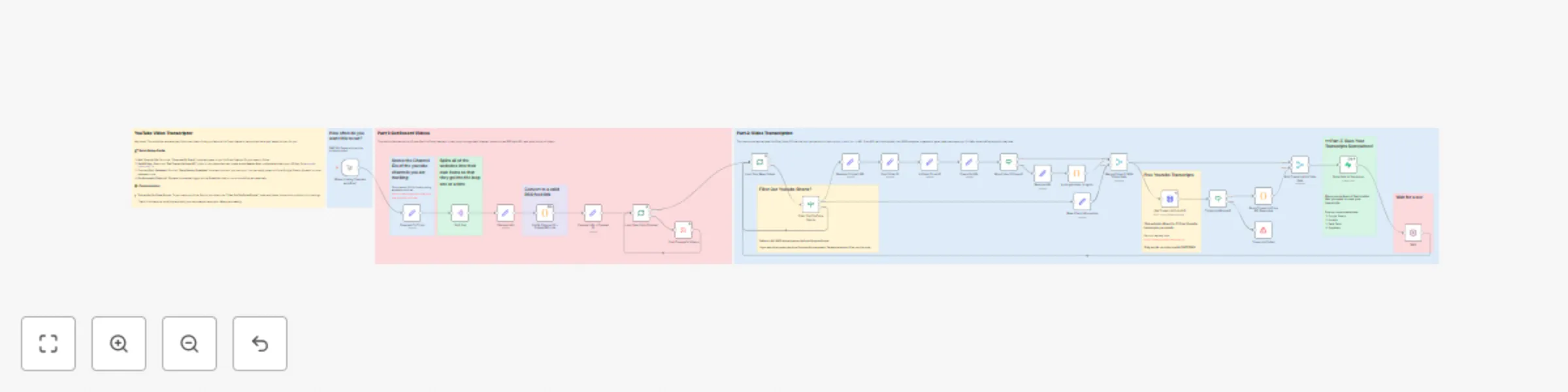
## **Scheduled YouTube Transcription with Duplicate Prevention** ### **Who's It For?** This template is for advanced users, content teams, and data analysts who need a robust, automated system for capturing YouTube transcripts. It’s ideal for those who monitor multiple channels and want to ensure they only process and save each video's transcript once. ### **What It Does** This is an advanced, "set-it-and-forget-it" workflow that runs on a daily schedule to monitor YouTube channels for new content. It enhances the basic transcription process by connecting to your **Supabase** database to prevent duplicate entries. The workflow fetches all recent videos from the channels you track, filters out any that are too old, and then checks your database to see if a video's transcript has already been saved. Only brand-new videos are sent for transcription via the `youtube-transcript.io` API, with the final data (title, URL, full transcript, author) being saved back to your Supabase table. ### **Requirements** * A **Supabase** account with a table to store video data. This table must have a column for the `source_url` to enable duplicate checking. * An API key from [youtube-transcript.io](https://www.youtube-transcript.io/) (offers a free tier). * The **Channel ID** for each YouTube channel you want to track. ### **How to Set Up** 1. **Set Your Time Filter:** * In the **"Max Days"** node, set the number of days you want to look back for new videos (e.g., `7` for the last week). 2. **Add Channel IDs:** * In the **"Channels To Track"** node, replace the example YouTube Channel IDs with the ones you want to monitor. 3. **Configure API Credentials:** * Select the **"Get Transcript from API"** node. * In the credentials tab, create a new "Header Auth" credential. Name it `youtube-transcript-io` and paste your API key into the "Value" field. The "Name" field should be `x-api-key`. 4. **Connect Your Supabase Account:** * This workflow uses Supabase in two places: **"Check if URL Is In Database"** and **"Add to Content Queue Table"**. * You must configure your Supabase credentials in **both** nodes. * In each node, select your target table and ensure the columns are mapped correctly. 5. **Adjust the Schedule:** * The **"Schedule Trigger"** node is set to run once a day. Click it to adjust the time and frequency to your needs. 6. **Activate the Workflow:** * Save your changes and toggle the workflow to **Active**.
Transcribe Youtube videos for free with youtube-transcript.io & save to Supabase
## **Transcribe New YouTube Videos and Save to Supabase** ### **Who's It For?** This workflow is for **content creators**, **marketers**, **researchers**, and anyone who needs to quickly get text transcripts from YouTube videos. If you analyze video content, repurpose it for blogs or social media, or want to make videos searchable, this template will save you hours of manual work. ### **What It Does** This template automatically monitors multiple YouTube channels for new videos. When a new video is published, it extracts the video ID, retrieves the full transcript using the `youtube-transcript.io` API, and saves the structured data—including the title, author, URL, and full transcript—into a **Supabase** table. It intelligently filters out YouTube Shorts by default and includes error handling to ensure that only successful transcriptions are processed. ### **Requirements** * A **Supabase** account with a table ready to receive the video data. * An API key from [youtube-transcript.io](https://www.youtube-transcript.io/) (offers a free tier). * The **Channel ID** for each YouTube channel you want to track. You can find this using a free online tool like TunePocket's Channel ID Finder. ### **How to Set Up** 1. **Add Channel IDs:** * In the **"Channels To Track"** node, replace the example YouTube Channel IDs with your own. The workflow uses these IDs to create RSS links and find new videos. 2. **Configure API Credentials:** * Find the **"youtube-captions"** HTTP Request node. * In the credentials tab, create a new "Header Auth" credential. Name it `youtube-transcript-io` and paste your API key into the "Value" field. The "Name" field should be `x-api-key`. 3. **Connect Your Supabase Account:** * Navigate to the **"Add to Content Queue Table"** node. * Create new credentials for your Supabase account using your Project URL and API key. * Once connected, select your target table and map the incoming fields (`title`, `source_url`, `content_snippet`, etc.) to the correct columns in your table. 4. **Set Your Schedule (Optional):** * The workflow starts with a manual trigger. To run it automatically, replace the **"When clicking ‘Execute workflow’"** node with a **Schedule** node and set your desired interval (e.g., once a day). 5. **Activate the Workflow:** * Save your changes and toggle the workflow to **Active** in the top right corner. ### **How to Customize** * **Transcribe YouTube Shorts:** To include Shorts in your workflow, select the **"Does url exist?"** If node and delete the second condition that checks for `youtube.com/shorts`. * **Change Your Database:** Don't use Supabase? Simply replace the **"Add to Content Queue Table"** node with another database or spreadsheet node, such as **Google Sheets**, **Airtable**, or n8n's own **Table**.
Monitor RSS feeds, extract full articles with Jina AI, and save to Supabase
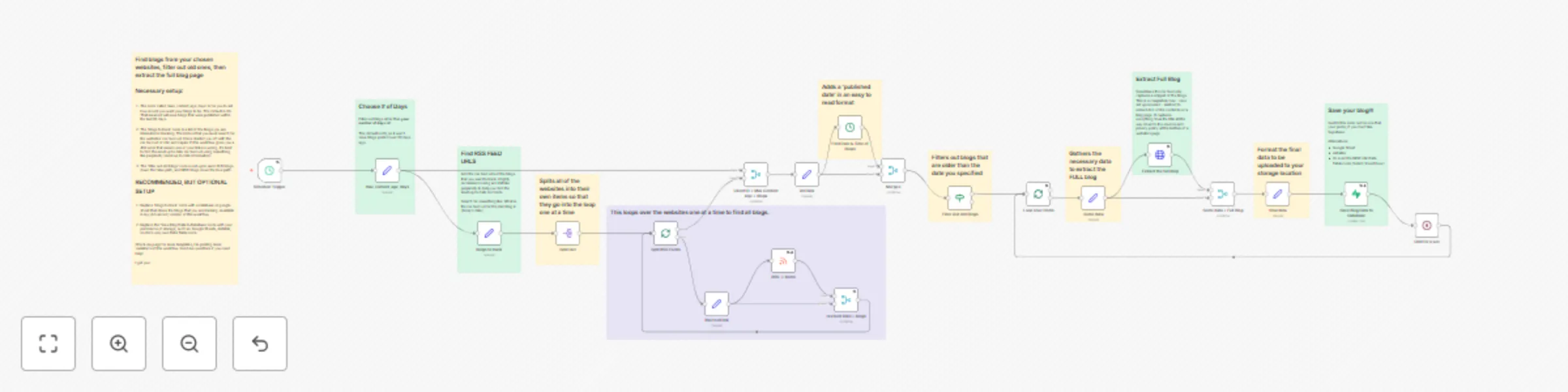
### **Monitor RSS Feeds, Extract Full Articles, and Save to Supabase** ## Overview This workflow solves a common problem with RSS feeds: they often only provide a short summary or snippet of the full article. This template automatically monitors a list of your favorite blog RSS feeds, filters for new content, visits the article page to extract the **entire blog post**, and then saves the structured data into a Supabase database. It's designed for **content creators**, **marketers**, **researchers**, and anyone who needs to build a personal knowledge base, conduct competitive analysis, or power a content aggregation system without manual copy-pasting. ----- ## Use Cases * **Content Curation:** Automatically gather full-text articles for a newsletter or social media content. * **Personal Knowledge Base:** Create a searchable archive of articles from experts in your field. * **Competitive Analysis:** Track what competitors are publishing without visiting their blogs every day. * **AI Model Training:** Collect a clean, structured dataset of full-text articles to fine-tune an AI model. ----- ## How It Works 1. **Scheduled Trigger:** The workflow runs automatically on a set schedule (default is once per day). 2. **Fetch RSS Feeds:** It takes a list of RSS feed URLs you provide in the "blogs to track" node. 3. **Filter for New Posts:** It checks the publication date of each article and only continues if the article is newer than a specified age (e.g., published within the last 60 days). 4. **Extract Full Content:** For each new article, the workflow uses the [Jina AI Reader URL (`https://r.jina.ai/`)](https://www.google.com/search?q=%5Bhttps://jina.ai/reader/%5D\(https://jina.ai/reader/\)) to scrape the full, clean text from the blog post's webpage. This is a free and powerful way to get past the RSS snippet limit. 5. **Save to Supabase:** Finally, it organizes the extracted data and saves it to your chosen Supabase table. The following data is saved by default: * `title` * `source_url` (the link to the original article) * `content_snippet` (the full extracted article text) * `published_date` * `creator` (the author) * `status` (a static value you can set, e.g., "new") * `content_type` (a static value you can set, e.g., "blog") ----- ## Setup Instructions You can get this template running in about 10-15 minutes. 1. **Set Up Your RSS Feed List:** * Navigate to the **"blogs to track"** Set node. * In the `source_identifier` field, replace the example URLs with the RSS feed URLs for the blogs you want to monitor. You can add as many as you like. * *Tip:* The best way to find a site's RSS feed is to use a tool like Perplexity or a web-browsing enabled LLM. ```javascript // Example list of RSS feeds ['https://blog.n8n.io/rss', 'https://zapier.com/blog/feeds/latest/'] ``` 2. **Configure the Content Age Filter:** * Go to the **"max\_content\_age\_days"** Set node. * Change the `value` from the default `60` to your desired timeframe (e.g., `7` to only get articles from the last week). 3. **Connect Your Storage Destination:** * The template uses the **"Save Blog Data to Database"** Supabase node. * First, ensure you have a table in your Supabase project with columns to match the data (e.g., `title`, `source_url`, `content_snippet`, `published_date`, `creator`, etc.). * In the n8n node, create new credentials using your Supabase Project URL and Service Role Key. * Select your table from the list and map the data fields from the workflow to your table columns. * **Want to use something else?** You can easily replace the Supabase node with a **Google Sheets**, **Airtable**, or the built-in **n8n Table** node. Just drag the final connection to your new node and configure the field mapping. 4. **Set Your Schedule:** * Click on the first node, **"Schedule Trigger"**. * Adjust the trigger interval to your needs. The default is every day at noon. 5. **Activate Workflow:** * Click the "Save" button, then toggle the workflow to **Active**. You're all set\!
Automated blog content tracking with RSS feeds and time-based filtering
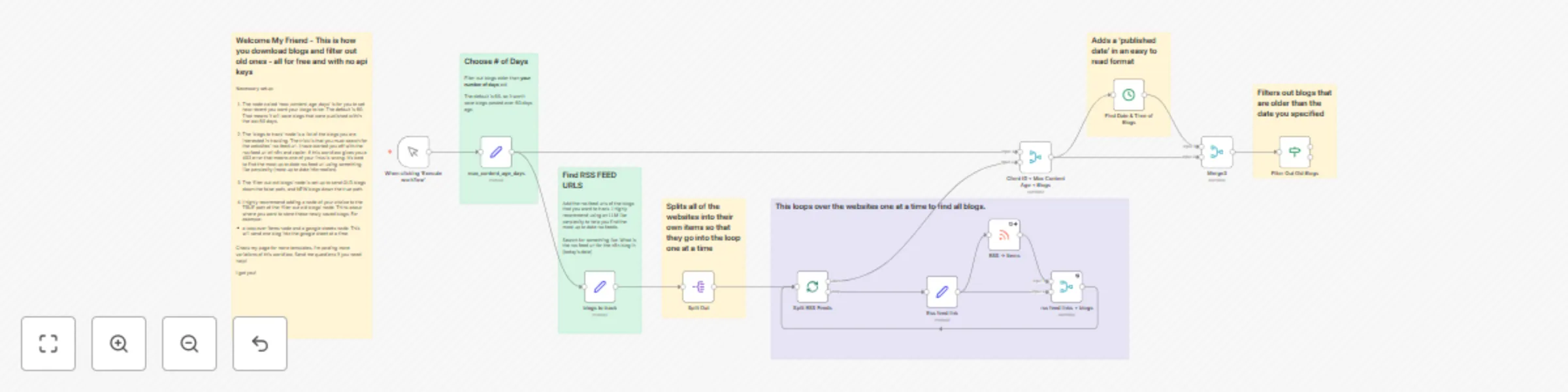
### **Automated Blog Monitoring System with RSS Feeds and Time-Based Filtering** ## Overview This workflow provides a powerful yet simple foundation for monitoring blogs using **RSS feeds**. It automatically fetches articles from a list of your favorite blogs and filters them based on their publication date, separating new content from old. It is the perfect starting point for anyone looking to build a custom content aggregation or notification system without needing any API keys. This template is designed for **developers**, **hobbyists**, and **marketers** who want a reliable way to track new blog posts and then decide what to do with them. Instead of including a specific final step, this workflow intentionally ends with a filter, giving you complete freedom to add your own integrations. ----- ## Use Cases Why would you need to monitor and filter blog posts? * **Build a Custom News Feed:** Send new articles that match your interests directly to a Discord channel, Slack, or Telegram chat. * **Power a Newsletter:** Automatically collect links and summaries from industry blogs to curate your weekly newsletter content. * **Create a Social Media Queue:** Add new, relevant blog posts to a content calendar or social media scheduling tool like Buffer or Hootsuite. * **Archive Content:** Save new articles to a personal database like Airtable, Notion, or Google Sheets to build a searchable knowledge base. ----- ## How It Works 1. **Manual Trigger:** The workflow starts when you click "Execute Workflow". You can easily swap this for a **Schedule Trigger** to run it automatically. 2. **Fetch RSS Feeds:** It reads a list of RSS feed URLs that you provide in the **"blogs to track"** node. 3. **Process Each Feed:** The workflow loops through each RSS feed individually. 4. **Filter by Date:** It checks the publication date of every article and compares it to a timeframe you set (default is 60 days). 5. **Split New from Old:** * **New articles** are sent down the **`true`** path of the **"Filter Out Old Blogs"** node. * **Old articles** are sent down the **`false`** path. * This workflow leaves the `true` path empty so you can add your desired next steps. ----- ## Setup and Customization This workflow requires minimal setup and is designed for easy customization. 1. **Add Your Blog Feeds:** * Find the **"blogs to track"** node. * In the `source_identifier` field, replace the example URLs with the RSS feeds you want to monitor. ```javascript // Add your target RSS feed URLs in this array ['https://blog.n8n.io/rss', 'https://zapier.com/blog/feeds/latest/'] ``` 2. **Set the Time Filter:** * Go to the **"max\_content\_age\_days"** node. * Change the value from the default `60` to your desired number of days. For example, use `7` to only get articles published in the last week. 3. **Customize Your Output (Required Next Step):** * This is the most important part\! Drag a new node and connect it to the **`true`** output of the **"Filter Out Old Blogs"** node. * **Example Idea:** To save new articles to a Google Sheet, add a **Split In Batches** node followed by a **Google Sheets** node to append each new article as a new row.