James Carter
Workflows by James Carter
Generate dynamic sales pipeline metrics for Slack using Airtable
## This n8n template generates a dynamic weekly sales report from Airtable and sends it to Slack. It calculates key sales metrics like total pipeline value, weighted pipeline (based on deal stage), top deal, closed revenue, and win rate.. all formatted in a clean Slack message. ## How it works A schedule trigger starts the workflow (e.g., every Monday). It fetches deal data from Airtable, splits open vs closed deals, calculates all metrics with JavaScript, and formats the output. The message is then sent to Slack using Markdown for readability. ## How to use Update the Airtable credentials and select your base and table with fields: - Deal Name, Value, Status, etc. Set the Slack channel in the final node to your preferred sales or ops channel. ## Requirements - Airtable base with relevant deal data (see field structure) - Slack webhook or token for sending messages ## Customising this workflow You can adapt the logic to other CRMs like Salesforce or HubSpot, add charts, or tweak stage weights. You can also change the schedule or add filters (e.g., by rep or region).
Auto-follow-up for canceled Calendly meetings with GPT-4, Loom & Asana
## This n8n workflow automatically detects canceled meetings from Calendly, uses GPT to write a friendly follow-up message, and sends it via Gmail, complete with a personalized Loom video link. It also creates an Asana task to remind your team to follow up manually if needed. Ideal for B2B consultants, agencies, and sales teams who want to salvage missed opportunities and stay top-of-mind with prospects after no-shows. ⸻ ## Who it’s for Sales teams, consultants, and agencies who rely on scheduled calls to close business and want to re-engage leads who cancel or no-show using automated, human-sounding follow-ups. ⸻ ## How it works / What it does 1. A Calendly Webhook triggers the flow when a meeting is canceled. 2. Edit Fields extracts the meeting details (who canceled, when, and why). 3. A GPT-4 node writes a personalized follow-up email based on the meeting context. 4. You manually paste in your Loom video link. 5. A Merge node combines the AI-written message, user info, and video link. 6. Gmail sends the follow-up message automatically to the contact. 7. An Asana task is created for your team to track the missed call and optionally follow up manually. ⸻ ## How to set up 1. Create a webhook in Calendly and connect it to the Calendly Trigger node. 2. Add your OpenAI key in the Message a Model node. 3. Connect your Gmail and Asana accounts via n8n credentials. 4. Manually paste in the Loom video link in the Loom Link node. 5. Set your preferred Asana project and teammate in the Create a Task node. ⸻ ## Requirements - A Calendly account - OpenAI API key - Gmail account with OAuth connected in n8n - Asana account with access to a project and user ID ⸻ ## How to customize the workflow - Update the GPT prompt to change the tone or add context based on your business. - Replace Loom with a Vidyard, Tella, or custom-hosted video link. - Add a Slack notification node to alert your sales team when a call is missed. - Link with a CRM or Google Sheets to track follow-up activity across your pipeline. This modular workflow helps you turn no-shows into new opportunities, while keeping your team organized and your leads engaged.
Daily business news briefings with NewsAPI & GPT-4 insights to Slack
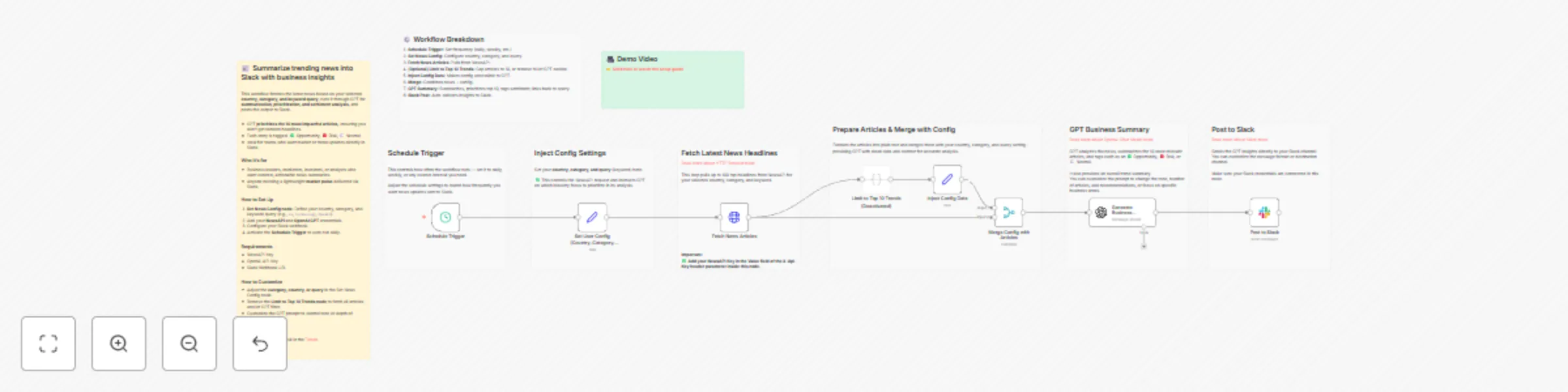
## This n8n workflow automatically fetches trending news articles based on your chosen country, category, and keyword — then enriches the data with AI-powered business insights before posting a concise summary to Slack. Ideal for sales teams, executives, marketers, or anyone who wants fast, actionable news briefings directly in their Slack workspace. ⸻ ## Who it’s for Executives, analysts, sales teams, or marketing professionals who want curated, AI-enhanced news summaries tailored to business opportunities, risks, and trends — delivered automatically to Slack. ⸻ ## How it works / What it does 1. A Schedule Trigger runs on a daily, weekly, or custom frequency. 2. It queries the NewsAPI to retrieve top headlines by country, category, or keyword. 3. Headlines are formatted and enriched with your configured query context. 4. The AI model (GPT-4) analyzes articles and summarizes key insights, categorizing them as Opportunities, Risks, or Trends. 5. Finally, the summarized insights are posted directly into a Slack channel of your choice. ⸻ ## How to set up 1. Set your schedule frequency in the Schedule Trigger node. 2. Configure your preferred country, category, and keyword in the Inject Config node. 3. Add your NewsAPI Key inside the Fetch News Articles node. 4. Connect your Slack credentials in the Post to Slack node. 5. Optional: Adjust the AI prompt for more tailored analysis. ⸻ ## Requirements - A NewsAPI account to fetch headlines. - An OpenAI API key for GPT-4 summarization. - A Slack workspace and connected credentials via n8n. ⸻ ## How to customize the workflow - Change the country, category, or keyword in the Inject Config to focus on specific markets or sectors. - Adjust the AI prompt in the GPT node to prioritize certain insights like ESG factors, M&A activity, or market sentiment. - Extend the workflow to log results to Google Sheets, email summaries, or send SMS alerts. - Replace the Schedule Trigger with a Webhook if you want to trigger summaries on demand. This template is designed to be modular, making it easy to adapt for competitive intelligence, investment tracking, or industry news curation.