Muhammad Anas Farooq
Workflows by Muhammad Anas Farooq
Smart Gmail auto-labeler with Gemini AI & sender history
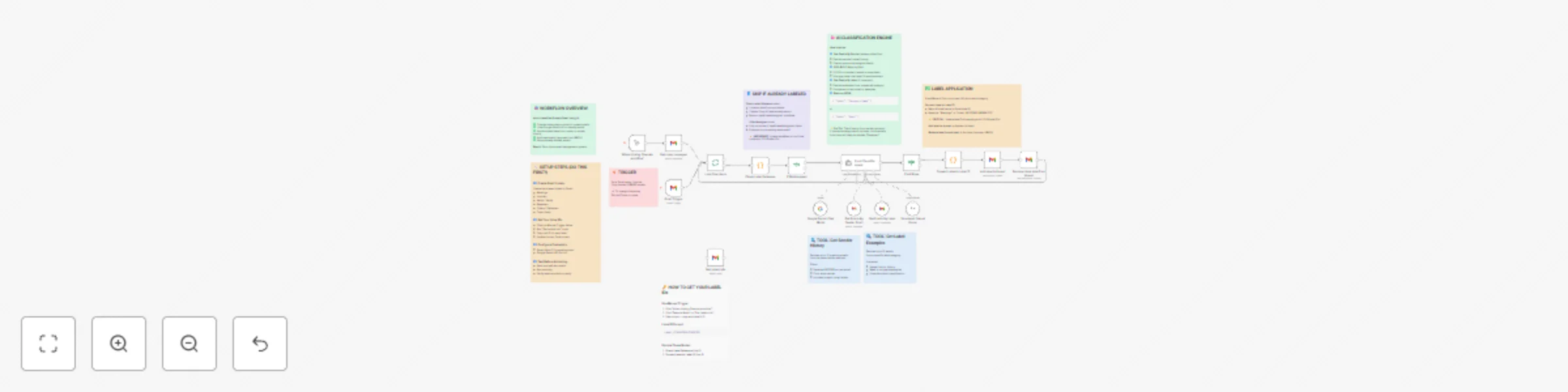
# n8n Gmail AI Auto-Labeler > An intelligent **n8n workflow** that automatically classifies and labels Gmail emails using **Google Gemini AI**, keeping your inbox organized with zero manual effort. This workflow uses AI-powered classification to analyze email content, learn from sender patterns, and automatically apply appropriate labels while archiving processed emails. --- ## How It Works 1. **Trigger**: The workflow runs automatically every minute to check for new unread emails (or manually for bulk processing). 2. **Check for Existing Labels**: Before processing, it verifies if the email already has an AI-assigned label to avoid duplicate processing. 3. **AI Classification**: If unlabeled, the AI agent analyzes the email using: * **Sender History Tool** - Fetches up to 10 previous emails from the same sender to identify patterns * **80% Majority Rule** - If 80%+ of sender's past emails have the same label, strongly prefers that category * **Label Examples Tool** - When uncertain, compares the email with existing examples from suspected categories 4. **Smart Decision**: The AI returns a structured JSON response: ```json { "label": "Category Name" } ``` Or `"None"` if no category fits. 5. **Apply & Archive**: * **Label Applied** → The workflow adds the appropriate Gmail label to the thread. * **Auto-Archive** → Removes the email from INBOX (archives it) to maintain zero-inbox. 6. **Loop**: Processes the next email in the batch, ensuring all new emails are classified. --- ## Requirements * **Gmail OAuth2 Credentials** - Connected Gmail account with API access. * **Google Gemini API Key** - [Get it here](https://ai.google.dev/) * Free tier: 15 requests/minute * **Gmail Labels** - Must be created in Gmail exactly as listed: * Meetings * Income * Inquiries * Notify / Verify * Expenses * Orders / Deliveries * Trash Likely --- ## How to Use 1. **Import the Workflow**: * Copy the provided JSON file. * In your n8n instance → click **Import Workflow** → select the JSON file. 2. **Create Gmail Labels**: * Open Gmail → Settings → Labels → Create new labels. * Use the exact names listed above (case-sensitive). 3. **Get Your Label IDs**: * In the workflow, click **"When clicking 'Execute workflow'"** manual trigger. * Execute the **"Get Labels Info"** node only. * Copy each label's ID (format: `Label_1234567890123456789`). 4. **Update Code Nodes with Your Label IDs**: **Node 1: "Check Label Existence"** ```javascript const labelMap = { "Label_YOUR_ID_HERE": "Meetings", "Label_YOUR_ID_HERE": "Inquiries", "Label_YOUR_ID_HERE": "Notify / Verify", "Label_YOUR_ID_HERE": "Expenses", "Label_YOUR_ID_HERE": "Orders / Deliveries", "Label_YOUR_ID_HERE": "Trash Likely" }; ``` **Node 2: "Convert Label to Label ID"** ```javascript const labelToId = { "Meetings": "Label_YOUR_ID_HERE", "Inquiries": "Label_YOUR_ID_HERE", "Notify / Verify": "Label_YOUR_ID_HERE", "Expenses": "Label_YOUR_ID_HERE", "Orders / Deliveries": "Label_YOUR_ID_HERE", "Trash Likely": "Label_YOUR_ID_HERE" }; ``` 5. **Set Up Credentials**: * **Gmail OAuth2** → Authorize your Gmail account in n8n. * **Google Gemini API** → Add your API key in n8n credentials. 6. **Test the Workflow**: * Send yourself test emails with clear content (e.g., invoice, meeting invite). * Use the manual trigger to process them. * Verify labels are applied correctly. 7. **Activate for Auto Mode**: * Toggle the workflow to **Active**. * New unread emails will be processed automatically every minute. --- ## Notes * **Dual Execution Modes**: * **Auto Mode** - Gmail Trigger polls inbox every minute for unread emails (real-time processing). * **Manual Mode** - Use the manual trigger to bulk process existing emails (adjust limit in "Get many messages" node). * **AI Learning from Patterns**: * The workflow applies an **80% majority rule** - if 80% or more of a sender's historical emails share the same label, the AI strongly prefers that category for new emails from that sender. * This creates intelligent sender-based routing over time. * **Skip Already Labeled Emails**: * The "Check Label Existence" node prevents re-processing emails that already have an AI-assigned label. * Ensures efficient execution and avoids duplicate work. * **Structured AI Output**: * Uses a **Structured Output Parser** to ensure the AI always returns valid JSON: `{ "label": "Category" }`. * If uncertain, returns `{ "label": "None" }` and the email stays in inbox. * **Background Archiving**: * After labeling, emails are automatically removed from INBOX (archived). * Maintains a zero-inbox workflow while preserving emails under their labels. * **Rate Limits**: * Google Gemini free tier: 15 requests/minute. * Adjust polling frequency if hitting limits. --- ## Example Behavior * **Minute 1**: New invoice email arrives → AI fetches sender history → 85% were labeled "Expenses" → applies "Expenses" label → archives email. * **Minute 2**: Meeting invite arrives → No sender history → AI analyzes content (Zoom link, time) → applies "Meetings" label → archives email. * **Minute 3**: Promotional email arrives → AI compares with "Trash Likely" examples → applies label → archives email. * **Minute 4**: Already-labeled email detected → skipped silently. --- ## Label Categories | Label | Description | |-------|-------------| | **Meetings** | Calendar invites, Zoom/Meet links, appointments, scheduled events | | **Expenses** | Bills, invoices, receipts, payment reminders, subscription renewals | | **Income** | Payments received, payouts, deposits, earnings notifications | | **Notify / Verify** | Verification codes, login alerts, 2FA codes, account notifications | | **Orders / Deliveries** | Order confirmations, shipping updates, tracking numbers, deliveries | | **Inquiries** | Business outreach, sales proposals, partnerships, cold emails | | **Trash Likely** | Spam, newsletters, promotions, marketing blasts, ads | > If no category fits clearly, the email returns `"None"` and remains in the inbox. --- ## Customization * **Change Polling Frequency**: Edit the "Gmail Trigger" node → `pollTimes` → `mode` (e.g., `every5Minutes`). * **Adjust Email Limit**: Modify `limit: 10` in "Get many messages" node for manual bulk processing. * **Add Custom Labels**: Create in Gmail → Get ID → Update both Code nodes + AI system prompt. * **Modify 80% Rule**: Edit the AI agent's system message to adjust the majority threshold. * **Increase Tool Limits**: Change `limit: 10` in Gmail tool nodes to fetch more historical data. --- **Author:** Muhammad Anas Farooq
Self update Docker-based n8n with email approval and SSH
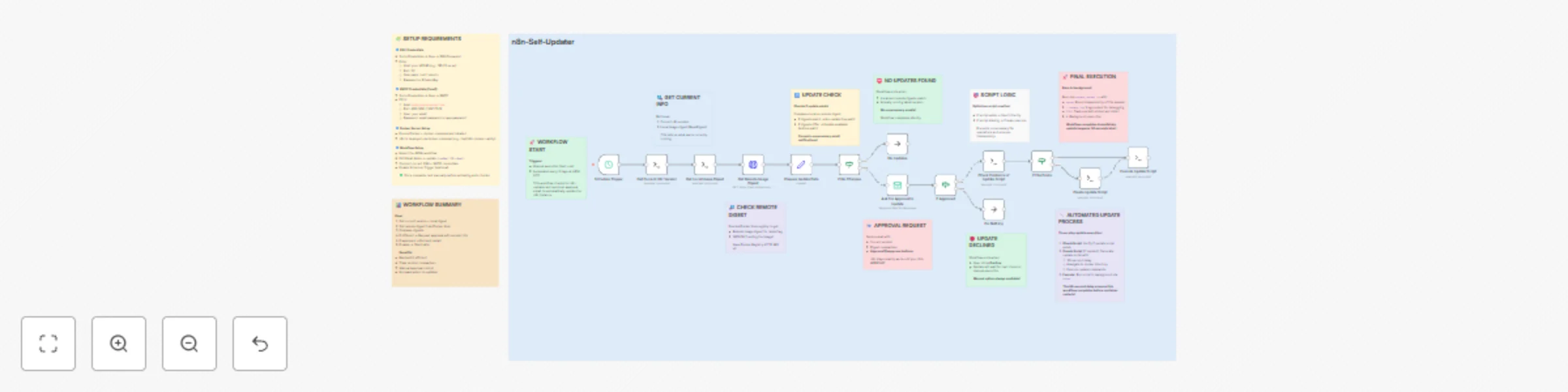
# n8n Self-Updater Workflow > An automated **n8n workflow** originally built for **DigitalOcean-based n8n deployments**, but fully compatible with **any VPS or cloud hosting** (e.g., AWS, Google Cloud, Hetzner, Linode, etc.) where n8n runs via Docker. This workflow checks for the latest Docker image of n8n, notifies you via email for approval, and securely updates your n8n instance via SSH once approved. --- ## How It Works 1. **Trigger**: The workflow runs automatically every 3 days at 4 PM UTC (or manually if triggered). 2. **Check Version**: It retrieves your current n8n Docker version and image digest via SSH. 3. **Compare**: Fetches the remote digest from Docker Hub and compares it with the local one. 4. **Notify via Email**: If a new update is available, an approval email is sent with details: * Current version * Local digest * Remote digest * What will happen after approval 5. **Approval Logic**: * **Approve** → Workflow connects via SSH and updates the n8n container automatically. * **Decline** → Workflow ends; next check occurs in the next cycle. 6. **Auto Update Execution**: * Creates (if missing) a `update_docker.sh` script on the server. * Runs it in the background (`nohup`) to: ```bash cd /opt/n8n-docker-caddy docker compose pull docker compose down docker compose up -d ``` * The delay ensures n8n restarts only after workflow completion. --- ## Requirements * **SSH Access** to your server (where n8n runs). * Add your credentials in n8n under *Credentials → SSH Password*. * **SMTP Connection** for email notifications. * Configure in *Credentials → SMTP*. * Fill in: * **From Email** → e.g., `[email protected]` * **To Email** → your email for receiving approvals * **Docker-based n8n Deployment**, e.g., `n8n-docker-caddy` setup. * **Docker and docker-compose** installed on the server. --- ## How to Use 1. **Import the Workflow**: * Copy the provided JSON file. * In your n8n instance → click **Import Workflow** → paste the JSON. 2. **Set Up Credentials**: * Create two credentials in n8n: * `SSH Password` → Your server's SSH credentials. * `SMTP` → Your email provider's SMTP credentials. 3. **Edit the Email Node**: * Replace: * `fromEmail`: `[email protected]` → with your email. * `toEmail`: `[email protected]` → with your desired recipient. 4. **Enable Auto Trigger** (optional): * Go to the **Schedule Trigger** node and set your desired interval/time. 5. **Run the Workflow**: * Test manually first. * Once verified, activate it for automatic checks. --- ## Notes * Originally designed for **DigitalOcean VPS setups**, but can run on **any Docker-based n8n server**. * The workflow avoids duplicate updates by comparing digests instead of version tags. * If the `update_docker.sh` file already exists, it reuses it safely. * Approval emails include full details for transparency. * Background execution ensures no interruptions during restart. --- ## Example Behavior * **Day 1**: Workflow checks → detects update → sends email → user approves. * **30 seconds later**: Workflow runs update script → n8n restarts with latest Docker image. * **Day 4**: Workflow checks again → digests match → silently completes (no email sent). --- **Author:** Muhammad Anas Farooq