A

Anandkumar C

1
Workflow

Workflows by Anandkumar C

Workflow preview: Website monitoring, scheduling, and email alerts template
Free beginner

Website monitoring, scheduling, and email alerts template

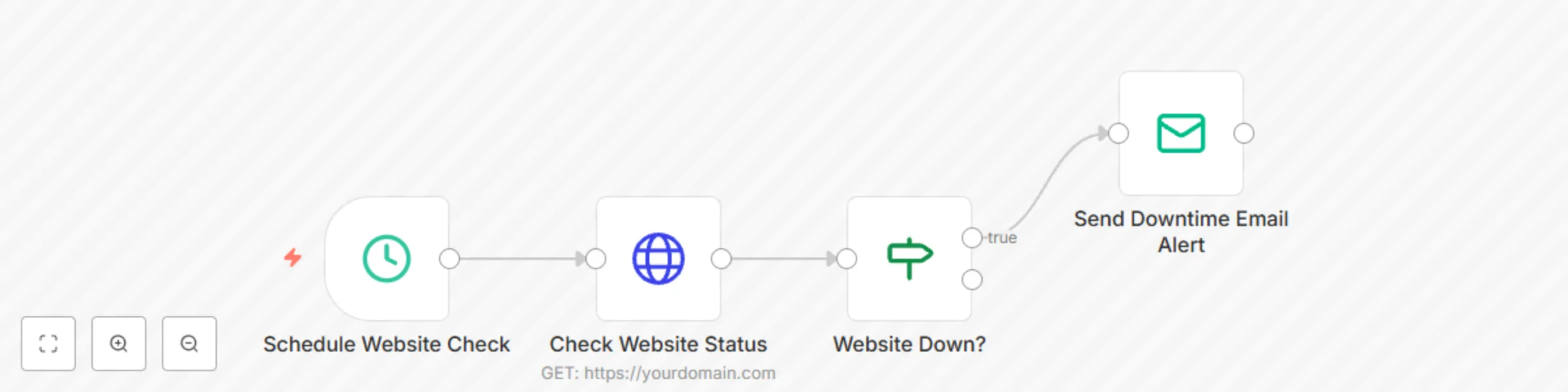
# 🛠 Website Downtime Monitoring with Scheduled Checks and Email Alerts Easily monitor your website uptime and receive instant email alerts when it becomes unreachable — using this no-code template powered by [n8n](https://n8n.io/), a free and flexible workflow automation tool. This ready-to-use workflow periodically checks your website’s status and sends an alert email if it’s down. --- ## ⚙️ How it Works - **Schedule Website Check** Triggers the workflow at regular intervals (e.g., every 8 hours by default). - **Check Website Status** Sends an HTTP GET request to your site. - **Evaluate Response** Determines if the site is reachable (expects HTTP status `200`). - **Send Downtime Alert** If the site is down, an alert email is sent to the specified address. --- ## 🔧 Steps to Customize ### 1. HTTP Request Node Replace `https://yourdomain.com` with your actual website URL. ### 2. Send Email Node Update the `To Email` and `From Email` fields with your addresses. ### 3. Adjust Monitoring Frequency Modify the **Schedule Trigger** node to run every 5 minutes, hourly, or as needed. --- ## ✅ SMTP Configuration Instructions Before emails can be sent, you need to configure SMTP credentials in n8n. ### 📨 Option 1: Gmail SMTP Setup > **Note:** Gmail requires App Passwords (not your regular Gmail password) and 2FA to be enabled. #### Steps: 1. Go to [Google Account Security Settings](https://myaccount.google.com/security). 2. Enable **2-Step Verification**. 3. Go to [App Passwords](https://myaccount.google.com/apppasswords). 4. Create a new app password (choose **Mail** and **Other**, name it `n8n`). 5. In n8n: - Go to **Credentials** → **Create New** → **SMTP**. - Use the following values: - **Host**: `smtp.gmail.com` - **Port**: `465` (SSL) or `587` (TLS) - **User**: your Gmail address (e.g., `[email protected]`) - **Password**: the App Password you generated ### ✉️ Option 2: Generic SMTP Setup Use this if you're using your hosting provider's or business email SMTP server. #### Example Values: - **Host**: `smtp.yourdomain.com` or provider-specific (e.g., `smtp.sendgrid.net`) - **Port**: `587` (TLS) or `465` (SSL) - **User**: your email address (e.g., `[email protected]`) - **Password**: your email/SMTP password - **Secure**: Yes (if using 465 or TLS-enabled 587) Then in the workflow's **Send Email** node, select the SMTP credentials you created. --- ## 📌 Requirements - A running instance of n8n (self-hosted or n8n.cloud) - SMTP credentials configured in n8n for email delivery - Basic familiarity with the n8n visual editor --- ## 🧠 Pro Tips - **Rename Nodes**: Use clear, descriptive names for maintainability. - **Sticky Notes**: Use stickies on the canvas to help explain logic for others. - **Expand Alerts**: Integrate with Slack, Discord, or Telegram for multi-channel alerts.

A
Anandkumar C
DevOps
20 Jun 2025
3699
0