Alex Huy
Workflows by Alex Huy
Create structured Notion workspaces from notes & voice using Gemini & GPT
# AI Assistant Workflow: Create Notion Workspaces from Notes & Voice Records ## 👤 Who is this for? This workflow is designed for **anyone who loves Notion**—from project managers, freelancers, to students—who want to turn scattered ideas, handwritten notes, or quick thoughts into fully structured Notion databases **without the hassle of manual setup**. ## 😩 The Problem You have a brilliant idea jotted down during a meeting or on a piece of paper. But turning that into a structured Notion workspace (for project management, CRM, habit tracking, recipes, etc.) is **time-consuming and disruptive**. Designing properties, configuring views, and entering sample data can interrupt your creative flow and slow down execution. ## ⚡️ How It Works This workflow acts as a **smart AI assistant** that automatically builds a full Notion workspace from just a simple note or voice record. 1. **Notes & Upload** - Snap a picture of your handwritten notes or type a quick description of what you want to manage. - Upload it into a Google Drive folder. 2. **AI Reads & Understands** - **Step 1:** Google Gemini AI converts handwritten notes into text (OCR). - **Step 2:** Another AI (OpenAI/Vertex AI) analyzes the intent—figuring out whether you want a project plan, a CRM contact list, or maybe a recipe collection. 3. **AI Designs & Builds** - A specialized AI then **designs the database structure**, including: - Properties (date, status, assignee, tags, etc.) - Dropdown options - Useful views (Table, Kanban Board, Calendar, Gallery) 4. **Database Creation & Sample Data** - The system **creates the database in your Notion** automatically. - Fills it with realistic sample entries so you can start working immediately. --- ## ⚙️ Detailed Workflow Steps ### 🔄 Automated Flow 1. **Trigger & Read Notes** - Workflow starts when a file (image or text) is uploaded to a Google Drive folder. - Gemini AI extracts text from handwritten notes. 2. **Track Request** - System generates a unique Request ID. - Creates a new page in a Notion tracking database `"Agent Notes"` with status = `"Not started"`. 3. **AI Intent Analysis** - An AI Agent analyzes the extracted text to identify: - Content type (e.g., `project_management`, `crm_contacts`, `inventory_tracking`) - Complexity level (scale 1–5) - Suggested database title, description, and icon 4. **AI Database Design** - Another AI Agent designs the structure: - **Schema:** Names and types for each property (column) - **Sample Data:** 5–10 rows of context-appropriate sample entries (localized for Vietnam if needed) - **Views:** Recommendations for Table, Board, Calendar, Gallery, etc. 5. **Database Creation** - AI output is formatted for Notion API. - Workflow creates a new inline database inside the tracking page. 6. **Insert Sample Data** - Workflow iterates over the AI-generated sample rows and inserts them into the new database. 7. **Completion** - Updates the status of the `"Agent Notes"` page to `"Done"`. - Records completion time. --- ## 🛠️ Setup Instructions ### 1. 📝 Configure Notion - Create a new **Integration** in Notion (`My Integrations`) → Copy the **Internal Integration Token**. - Create a database named `"Agent Notes"` with properties: - `Name (Title)` - `Status (Status)` - `Request ID (Text)` - `Last Updated (Date)` - Share `"Agent Notes"` with your integration. - Copy the database ID from the URL. ### 2. 📁 Configure Google Drive - Create a new folder in Google Drive (e.g., `"Notes for Notion"`). - Copy the folder ID from the URL. ### 3. 🔧 Setup in n8n - Import the workflow into your **n8n** instance. - Add credentials for **Notion, Google Drive, and OpenAI/Google AI (Vertex)**. - Update configuration in nodes: - **Google Drive Trigger** → Paste your Drive folder ID - **Notion Nodes** (`Create Row`, `Get Row`) → Paste `"Agent Notes"` database ID - **AI Nodes** → Ensure correct credentials are selected --- ## 🚀 Usage Example Imagine you want to manage your recipes. 1. Write on paper: Create a recipe collection. Needed fields: Dish name, Ingredients, Cooking time, Difficulty (easy/medium/hard), Type (main/dessert), Picture. 2. Take a photo and upload it to the configured Google Drive folder. 3. Wait a few minutes. 4. A new database **“Recipe Collection 🍲”** will appear in Notion, with: - Columns already set up - Sample recipes filled in - Useful views (Table, Gallery, Calendar) --- ## 🌟 Key Benefits - No manual setup required - Transforms messy notes into structured, usable data - Works with both **handwritten notes** and **typed text** - Saves time, maintains creative flow, and boosts productivity
Daily tech news curation with RSS, GPT-4o-Mini, and Gmail delivery
## How it works This workflow automatically curates and sends a daily AI/Tech news digest by aggregating articles from premium tech publications and using AI to select the most relevant and trending stories. ### 🔄 Automated News Pipeline 1. **RSS Feed Collection** - Fetches articles from 14 premium tech news sources (TechCrunch, MIT Tech Review, The Verge, Wired, etc.) 2. **Smart Article Filtering** - Limits articles per source to ensure diverse coverage and prevent single-source domination 3. **Data Standardization** - Cleans and structures article data (title, summary, link, date) for AI processing 4. **AI-Powered Curation** - Uses Google Vertex AI to analyze articles and select top 10 most relevant/trending stories 5. **Newsletter Generation** - Creates professional HTML newsletter with summaries and direct links 6. **Email Delivery** - Automatically sends formatted digest via Gmail ### 🎯 Key Features - **Premium Sources** - Curates from 14 top-tier tech publications - **AI Quality Control** - Intelligent article selection and summarization - **Balanced Coverage** - Prevents source bias with smart filtering - **Professional Format** - Clean HTML newsletter design - **Scheduled Automation** - Daily delivery at customizable times - **Error Resilience** - Continues processing even if some feeds fail ## Setup Steps ### 1. 🔑 Required API Access - **Google Cloud Project** with Vertex AI API enabled - **Google Service Account** with AI Platform Developer role - **Gmail API** enabled for email sending ### 2. ☁️ Google Cloud Setup 1. Create or select a Google Cloud Project 2. Enable the Vertex AI API 3. Create a service account with these permissions: - AI Platform Developer - Service Account User 4. Download the service account JSON key 5. Enable Gmail API for the same project ### 3. 🔐 n8n Credentials Configuration Add these credentials to your n8n instance: **Google Service Account (for Vertex AI):** - Upload your service account JSON key - Name it descriptively (e.g., "Vertex AI Service Account") **Gmail OAuth2:** - Use your Google account credentials - Authorize Gmail API access - Required scopes: gmail.send ### 4. ⚙️ Workflow Configuration 1. **Import the workflow** into your n8n instance 2. **Update node configurations**: - **Google Vertex AI Model**: Set your Google Cloud Project ID - **Send Newsletter Email**: Update recipient email address - **Daily Newsletter Trigger**: Adjust schedule time if needed 3. **Verify credentials** are properly connected to respective nodes ### 5. 📰 RSS Sources Customization (Optional) The workflow includes 14 premium tech news sources: - TechCrunch (AI & Startups) - The Verge (AI section) - MIT Technology Review - Wired (AI/Science) - VentureBeat (AI) - ZDNet (AI topics) - AI Trends - Nature (Machine Learning) - Towards Data Science - NY Times Technology - The Guardian Technology - BBC Technology - Nikkei Asia Technology **To customize sources:** - Edit the "Configure RSS Sources" node - Add/remove RSS feed URLs as needed - Ensure feeds are active and properly formatted ### 6. 🚀 Testing & Deployment 1. **Manual Test**: Execute the workflow manually to verify setup 2. **Check Email**: Confirm newsletter arrives with proper formatting 3. **Verify AI Output**: Ensure articles are relevant and well-summarized 4. **Schedule Activation**: Enable the daily trigger for automated operation ### 💡 Customization Options **Newsletter Timing:** - Default: 8:00 AM UTC daily - Modify "triggerAtHour" in the Schedule Trigger node - Add multiple daily sends if desired **Content Focus:** - Adjust the AI prompt in "AI Tech News Curator" node - Specify different topics (e.g., focus on startups, enterprise AI, etc.) - Change output language or format **Email Recipients:** - Update single recipient in Gmail node - Or modify to send to multiple addresses - Integrate with mailing list services **Article Limits:** - Current: Max 5 articles per source - Modify the filtering logic in "Filter & Balance Articles" node - Adjust total article count in AI prompt ### 🔧 Troubleshooting **Common Issues:** - **RSS Feed Failures**: Individual feed failures won't stop the workflow - **AI Rate Limits**: Vertex AI has generous limits, but monitor usage - **Gmail Sending**: Ensure sender email is authorized in Gmail settings - **Missing Articles**: Some RSS feeds may be inactive - check source URLs **Performance Tips:** - Monitor execution times during peak RSS activity - Consider adding delays if hitting rate limits - Archive old newsletters for reference This workflow transforms daily news consumption from manual browsing to curated, AI-powered intelligence delivered automatically to your inbox.
Scrape Airbnb listings with pagination & store in Google Sheets
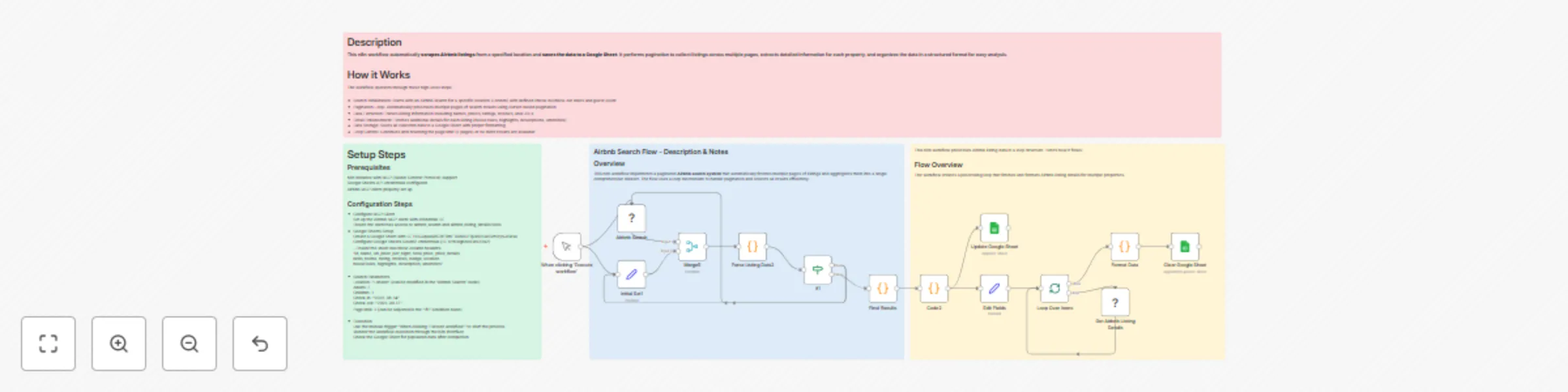
*This workflow contains community nodes that are only compatible with the self-hosted version of n8n.* # Description This n8n workflow automatically **scrapes Airbnb listings** from a specified location and **saves the data to a Google Sheet**. It performs pagination to collect listings across multiple pages, extracts detailed information for each property, and organizes the data in a structured format for easy analysis. # How it Works The workflow operates through these high-level steps: - Search Initialization: Starts with an Airbnb search for a specific location (London) with defined check-in/check-out dates and guest count - Pagination Loop: Automatically processes multiple pages of search results using cursor-based pagination - Data Extraction: Parses listing information including names, prices, ratings, reviews, and URLs - Detail Enhancement: Fetches additional details for each listing (house rules, highlights, descriptions, amenities) - Data Storage: Saves all collected data to a Google Sheet with proper formatting - Loop Control: Continues until reaching the page limit (2 pages) or no more results are available # Setup Steps - Prerequisites n8n instance with MCP (Model Context Protocol) support Google Sheets API credentials configured Airbnb MCP client properly set up - Configuration Steps --- Configure MCP Client Set up the Airbnb MCP client with credential ID: Ensure the client has access to airbnb_search and airbnb_listing_details tools --- Google Sheets Setup Create a Google Sheet with ID: 15IOJquaQ8CBtFilmFTuW8UFijux10NwSVzStyNJ1MsA Configure Google Sheets OAuth2 credentials (ID: 6YhBlgb8cXMN3Ra2) Ensure the sheet has these column headers: "id, name, url, price_per_night, total_price, price_details beds_rooms, rating, reviews, badge, location houseRules, highlights, description, amenities" - Search Parameters Location: "London" (can be modified in the "Airbnb Search" node) Adults: 7 Children: 1 Check-in: "2025-08-14" Check-out: "2025-08-17" Page limit: 2 (can be adjusted in the "If1" condition node) - Execution Use the manual trigger "When clicking 'Execute workflow'" to start the process Monitor the workflow execution through the n8n interface Check the Google Sheet for populated data after completion - Key Features Automatic Pagination: Processes multiple pages without manual intervention Comprehensive Data: Extracts both basic listing info and detailed property information Error Handling: Includes JSON parsing error handling and data validation Batch Processing: Uses split batches for efficient processing of individual listings Real-time Updates: Appends new data to existing Google Sheet records ## Output Data Structure Each listing contains: - Basic info: ID, name, URL, pricing details, room/bed count - Ratings: Average rating and review count Location: Latitude and longitude coordinates - Enhanced details: House rules, highlights, descriptions, amenities - Metadata: Page number, check-in/out dates, badges
AI-powered knowledge assistant using Google Sheets, OpenAI, and Supabase Vector Search
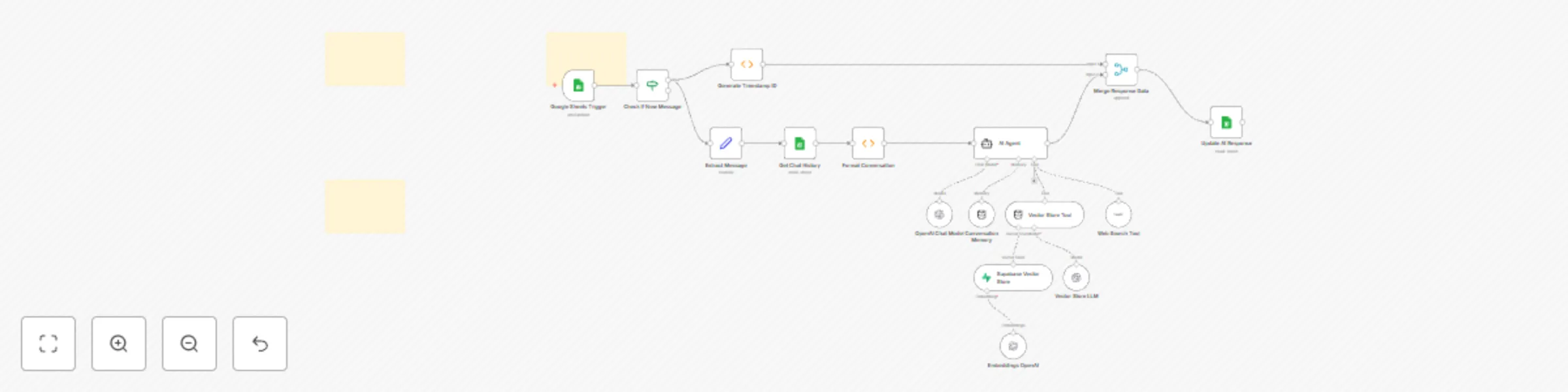
Description An intelligent conversational AI system that provides contextual responses by combining chat history, vector database knowledge retrieval, and web search capabilities. How it Works (High-level steps) Message Detection: Google Sheets trigger monitors for new user messages and filters out already-processed entries Context Preparation: Extracts user message, retrieves chat history, and formats conversation context with system prompt Knowledge Retrieval: AI agent searches vector database for relevant context using Supabase + OpenAI embeddings Response Generation: LangChain agent processes the request using: OpenAI GPT-4 language model Vector store tool for knowledge base queries SerpAPI tool for web search when needed Buffer memory for conversation continuity Response Storage: Updates Google Sheets with AI response and assigns unique timestamp ID Setup Steps Configure Google Sheets with columns: user_message, ai_respond, id Set up Supabase vector store with OpenAI embeddings Connect OpenAI API credentials (GPT-4 + embeddings) Configure SerpAPI for web search functionality Set up Google Sheets trigger and update permissions