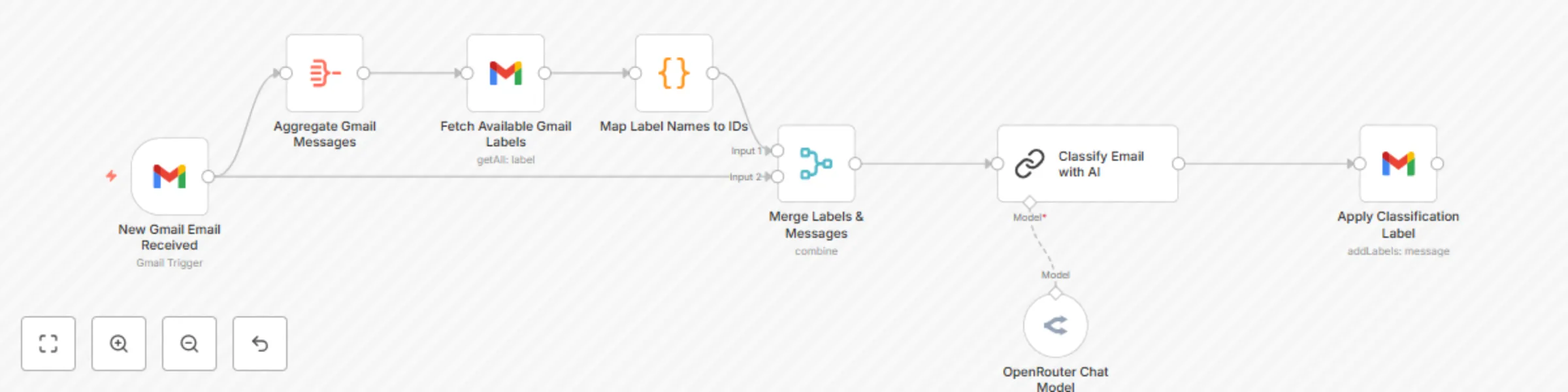
Auto-classify Gmail emails with AI and apply labels for inbox organization
# Who is this for?
**Professionals** and **individuals** who receive *high volumes of emails*, those who want to automatically organize their Gmail inbox using **AI classification**.
## What problem is this workflow solving?
Manual email sorting is **time-consuming and inconsistent**. This workflow automatically *categorizes incoming emails into 8 predefined labels* (To respond, FYI, Comment, Notification, Meeting update, Awaiting reply, Actioned, Marketing) to help maintain inbox zero and prioritize responses.
## What this workflow does
- Monitors Gmail for new incoming emails
- Uses AI to analyze email content and classify into appropriate categories
- Automatically applies the corresponding Gmail label
- Runs on a schedule to process emails consistently
## Setup
#### Prerequisites
- n8n instance (cloud or self-hosted)
- Gmail account with API access enabled
- Access to an LLM provider (OpenAI, Anthropic Claude, or similar)
### Step-by-Step
1. Configure Gmail Credentials
2. Create Gmail Labels
3. Configure LLM Chain
4. Set Email Polling Schedule
5. Test the Workflow
#### Create Gmail Labels
Before running the workflow, create these 8 labels in your Gmail account:
1. To respond
2. FYI
3. Comment
4. Notification
5. Meeting update
6. Awaiting reply
7. Actioned
8. Marketing
## How to customize this workflow to your needs
### Modify Classification Categories
To change the email categories, update two places:
**In the AI prompt (Basic LLM Chain node):**
```
1. Your new category - Description of what emails fit here
2. Another category - Description
[... continue with your categories]
```
**In Gmail labels:**
Create corresponding labels in your Gmail account with the exact same names and numbering.
### Adjust Classification Rules
The AI prompt contains specific rules for each category. To modify:
- Edit the "Key classification rules" section in the LLM prompt
- Add examples of emails that should go into each category
- Specify edge cases and how they should be handled
### Change Email Sources
Currently monitors all incoming emails. To filter specific emails:
In the Gmail Trigger node, add filters such as:
- `from:[email protected]`
- `subject:contains-keyword`
- `-label:already-processed`
You can also change this use Outlook
### Modify Polling Frequency
- **More frequent**: Add multiple poll times (e.g., 9 AM, 12 PM, 6 PM)
- **Less frequent**: Change to once daily or weekly
- **Real-time**: Switch to webhook-based triggering (requires Gmail API setup)
I choose daily for cost.