A

Akram Kadri

4
Workflows

Workflows by Akram Kadri
Workflow preview: Generate business leads with OpenStreetMap data and save to Google Sheets
Free advanced

Generate business leads with OpenStreetMap data and save to Google Sheets

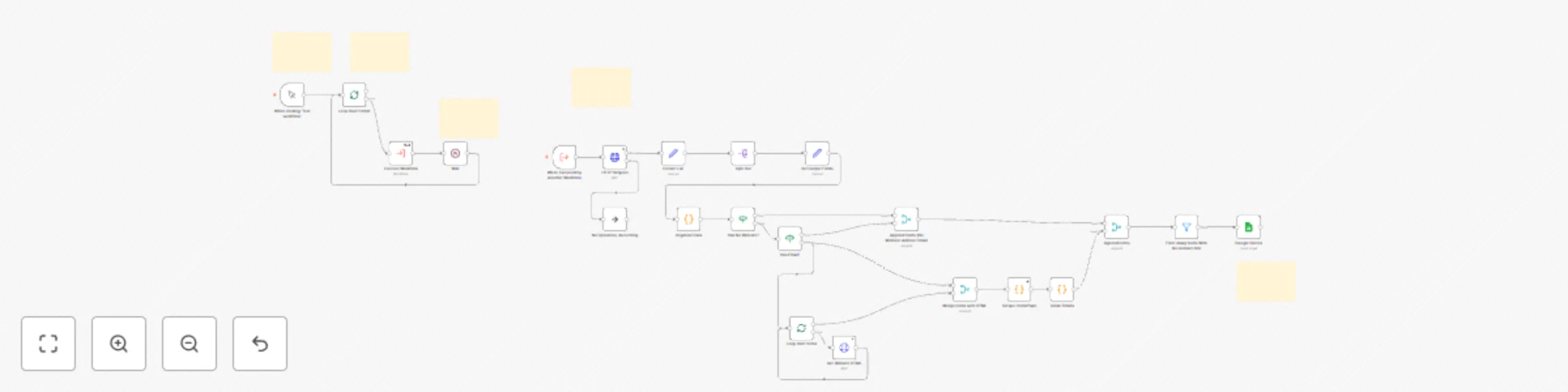
## Who is this template for? This n8n lead generation workflow template is designed for business owners, marketers, sales professionals, and entrepreneurs who need to generate targeted business leads without paying for expensive APIs or third-party services. The template leverages the free Overpass API (powered by OpenStreetMap data) to gather comprehensive business information for any industry in almost any region worldwide. Perfect for: - Small businesses looking to expand their customer base - Real estate agents seeking potential clients - Marketing agencies needing targeted lead lists - Entrepreneurs researching potential markets - Sales teams building prospect databases You can watch the video tutorial here: https://youtu.be/6WVfAIXdwsE ## How it works This n8n lead generation template provides a powerful solution using n8n core nodes and the free OpenStreetMap Overpass API, allowing you to generate thousands of business leads with comprehensive contact information: ### Data Collection Process **1. Define Your Queries** - Create a list of search queries combining keywords (like "real estate", "dentist", etc.) with target locations - Use both inner areas (specific cities) and outer areas (broader regions) to precisely target your search **2. Iterative Query Execution** - The workflow processes each query in sequence, preventing API timeout issues - Each query triggers a sub-workflow that handles the data extraction process **3. Data Extraction via OpenStreetMap's Overpass API** - Searches for businesses matching your keywords in name, description, and relevant OpenStreetMap tags - Collects comprehensive business data including names, addresses, and contact details from the OpenStreetMap database - Searches using both regular expressions and exact tag matching for optimal n8n lead generation results **4. Website Scraping for Additional Information** - For businesses with websites but missing email addresses, the workflow visits their homepage - Extracts email addresses using regular expressions for more complete contact information - Filters out irrelevant emails using configurable patterns **5. Data Cleaning and Organization** - Removes duplicate contact information and standardizes data format - Filters results based on your specific requirements for contact details - Saves all extracted data to Google Sheets for easy access and management ## Setup **1. Configure Your Queries:** - Open the "Run Workflow" node and input your list of queries - Format queries with outer area, inner area, and keyword (e.g., "California,Los Angeles,real estate") **2. Optimize Tag Targeting:** - After initial runs, identify the specific tags used by your target industry - Update the HTTP Request node with these specific tags to improve result quality - Common tags include "office", "shop", and "amenity" with industry-specific values **3. Configure Data Filters:** - Customize the filter node to keep only results meeting your specific requirements - Adjust the email filtering regex to remove irrelevant email addresses **4. Set up Google Sheets Integration:** - Configure the Google Sheets node to save results to your preferred spreadsheet - Authorize the connection to your Google account **5. Run the Workflow:** - Start the workflow and watch as your Google Sheet fills with comprehensive business leads - The template automatically handles pagination and rate limiting to prevent API timeouts The resulting leads include comprehensive contact information such as: - Business names - Complete addresses (street, city, postal code) - Phone numbers - Email addresses (both from API and website scraping) - Website URLs - Social media accounts - Opening hours - And more!

A
Akram Kadri
Lead Generation
2 May 2025
1034
0
Workflow preview: Automatically update YouTube video descriptions with inserted text
Free intermediate

Automatically update YouTube video descriptions with inserted text

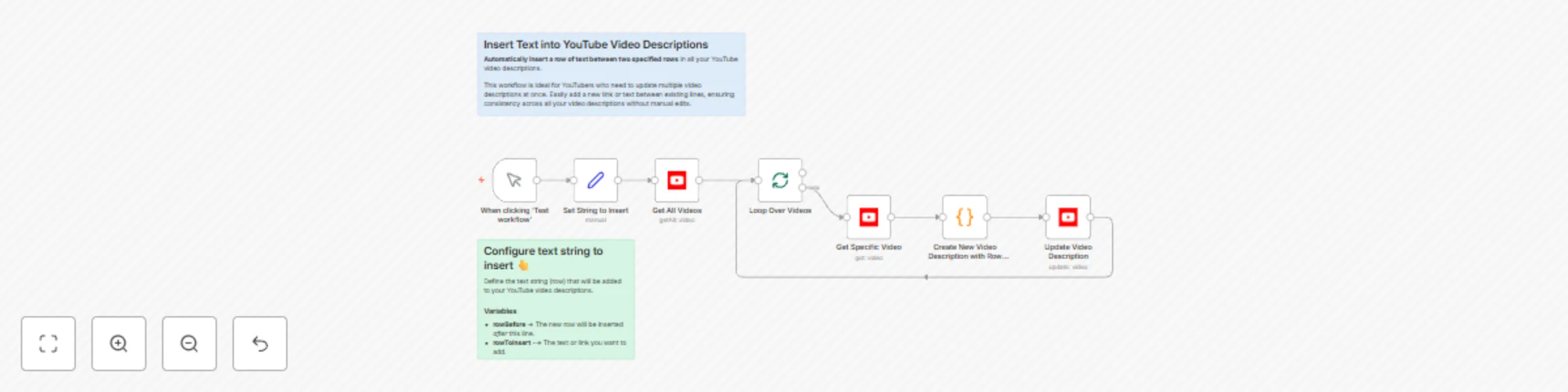
## Who is this for? This workflow is designed for YouTubers who want to update their video descriptions in bulk without manually editing each one. It's especially useful for creators who include a standard set of links in their descriptions and need to insert a new link between existing ones across multiple videos. ## What problem does this workflow solve? Manually updating video descriptions for multiple videos can be tedious and time-consuming. If you have a section in your video descriptions that contains important links, adding a new one in a specific position (e.g., between two existing links) can be a challenge. This workflow automates that process, allowing you to insert a specific string between two predefined rows in all of your video descriptions at once. ## What this workflow does 1. Fetches all videos from your YouTube channel. 2. Iterates through each video to retrieve its existing description. 3. Identifies two predefined rows in the description. 4. Inserts a new row between the two specified rows. 5. Updates the video description with the modified text. ## Setup 1. Connect your YouTube account to n8n and grant necessary permissions. 2. Define your variables in the "Set String to Insert" node: - **rowBefore**: The existing row after which the new row will be inserted. - **rowToInsert**: The new text or link to insert. - **rowAfter**: The existing row before which the new row will be inserted. 3. Run the workflow using the manual trigger. 4. Review the updated descriptions to ensure accuracy. ## How to customize this workflow to your needs - **Change the insertion criteria** by modifying the rowBefore and rowAfter values. - **Insert multiple rows** by adjusting the JavaScript code in the Code node. - **Extend the workflow** by adding conditions (e.g., only updating descriptions of videos with certain tags). - **Filter specific** videos instead of updating all by modifying the "Get All Videos" node. This workflow ensures that all your YouTube descriptions stay updated and consistent with minimal effort.

A
Akram Kadri
Social Media
5 Mar 2025
2059
0
Workflow preview: Generate text images from the Free DummyJSON API using the HTTP request node
Free beginner

Generate text images from the Free DummyJSON API using the HTTP request node

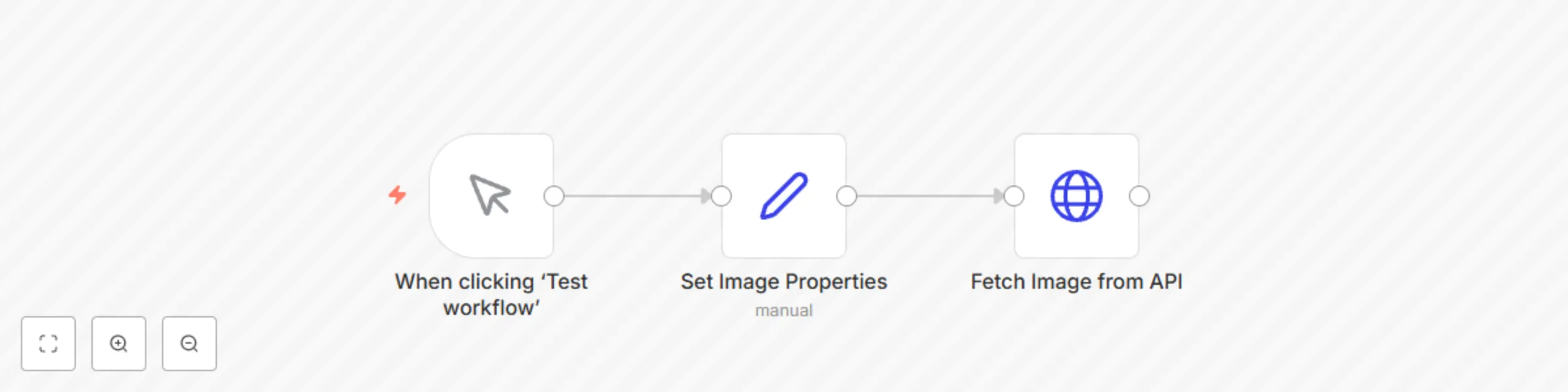
## Who is this for? This workflow template is ideal for marketers, designers, content creators, and developers who need to generate custom text-based images dynamically. Whether you want to create social media graphics, placeholder images, or text-based LinkedIn carousels, this workflow provides a simple, no-code solution using an API that requires no authentication. ## What problem does this workflow solve? Creating text-based images often requires design software or complex integrations with graphic tools. This workflow eliminates that hassle by allowing users to generate images with custom text, font styles, colors, and background colors using a simple HTTP request. It’s perfect for automating image generation without relying on external tools or manual effort. ## What this workflow does This workflow leverages an HTTP request to a free API that generates text-based images dynamically. Here's what it enables you to do: - Define custom image text - Set image dimensions (width x height) - Choose a background color and text color using hex codes - Select a font family and font size - Specify the image format (PNG, JPG, or WebP) The generated image can be used immediately, making it ideal for automating content creation workflows. ### Setup 1. Open the workflow in n8n. 2. Modify the Set node to define your preferred image properties: ``` - text: The message displayed on the image. - size: Image dimensions (e.g., 500x300 pixels). - backgroundColor: Hex color code for the background. - textColor: Hex color code for the text. - fontFamily: Select from available font options (e.g., Pacifico, Ubuntu). - fontSize: Define the text size. - type: Choose the image format (PNG, JPG, or WebP). ``` 3. Execute the workflow to generate an image. 4. The HTTP request returns the generated image, ready for use. ## How to customize this workflow - 1. Adjust the Set node values to match your desired design. - 2. Use dynamic data for text, allowing personalized images based on user input. - 3. Automate image delivery by adding email or social media posting nodes. - 4. Integrate this workflow into larger automation sequences, such as content marketing pipelines.

A
Akram Kadri
Content Creation
24 Feb 2025
4698
0
Workflow preview: Scrape business emails from Google Maps without the use of any third party APIs
Free advanced

Scrape business emails from Google Maps without the use of any third party APIs

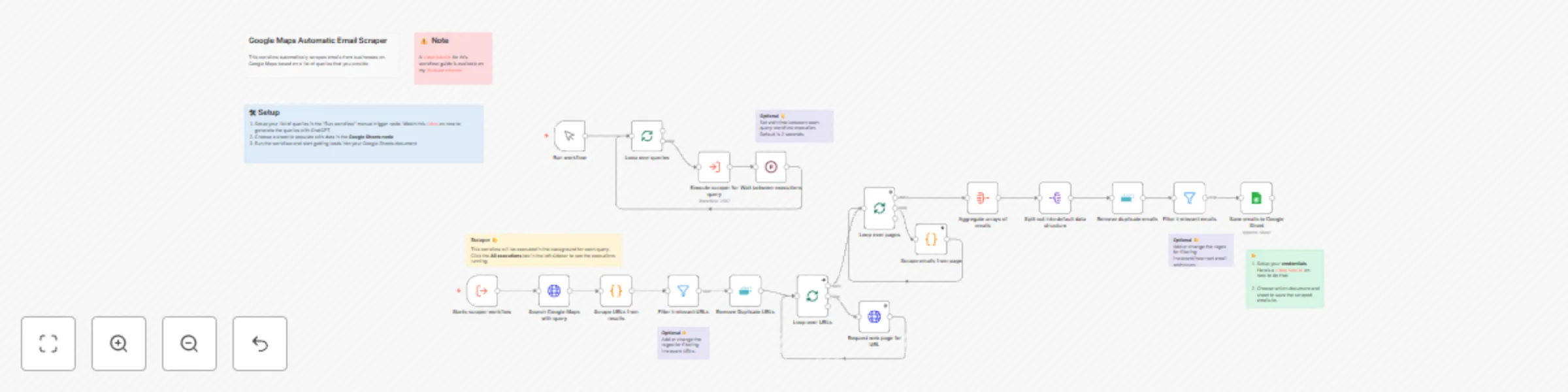
## Who is this template for? This workflow template is designed for sales, marketing, and business development professionals who want a cost-effective and efficient way to generate leads. By leveraging n8n core nodes, it scrapes business emails from Google Maps without relying on third-party APIs or paid services, ensuring there are no additional costs involved. Ideal for small business owners, freelancers, and agencies, this template automates the process of collecting contact information for targeted outreach, making it a powerful tool for anyone looking to scale their lead generation efforts without incurring extra expenses. You can watch the video tutorial here: https://youtu.be/HaiO-UeiKBA ## How it works This template streamlines email scraping from Google Maps using only n8n core nodes, ensuring a completely free and self-contained solution. Here’s how it operates: ### Input Queries You provide a list of queries, each consisting of keywords related to the type of business you want to target and the specific region or subregion you’re interested in. ### Iterates through Queries The workflow processes each query one at a time. For each query, it triggers a sub-workflow dedicated to handling the scraping tasks. ### Scrapes Google Maps for URLs Using these queries, the workflow scrapes Google Maps to collect URLs of business listings matching the provided criteria. ### Fetches HTML Content The workflow then fetches the HTML pages of the collected URLs for further processing. ### Extracts Emails Using a Code Node with custom JavaScript, the workflow runs regular expressions on the HTML content to extract business email addresses. ## Setup 1. **Add Queries:** Open the first node, "Run Workflow" and input a list of queries, each containing the business keywords and the target region. 2. **Configure the Google Sheets Node:** Open the Google Sheets node and select a document and specific sheet where the scraped results will be saved. 3. **Run the workflow**: Click on "Test workflow" and watch your Google Sheets document gradually receive business email addresses. ## Customize as Needed: You can adjust the regular expressions in the Code Node to refine the email extraction logic or add logic to extract other kinds of information.

A
Akram Kadri
Lead Generation
24 Nov 2024
198089
0