A

Adrian Kendall

2
Workflows

Workflows by Adrian Kendall
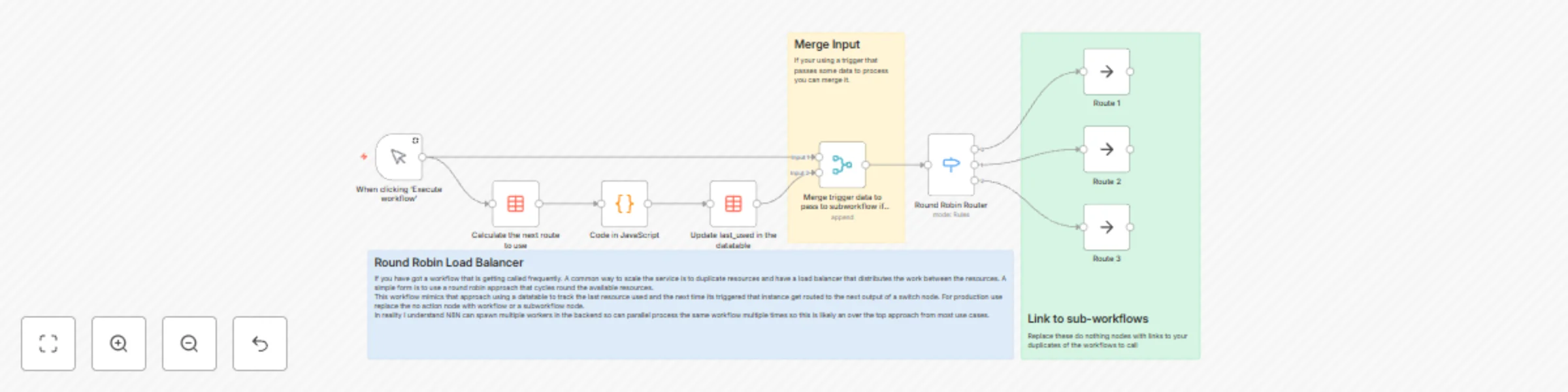
Workflow preview: Distribute workflow execution with round-robin logic using data tables
Free intermediate

Distribute workflow execution with round-robin logic using data tables

## Key Features Implements a simple round-robin distribution mechanism using a Data Table to track the last route used. Supports multiple downstream workflows or resources, balancing workload across them sequentially. Uses Switch and Code nodes for flexible routing logic. Designed for easy customization — replace placeholder “Route” nodes with sub-workflow calls or API triggers. Works with any trigger type, and includes merge logic to preserve input data. ## Nodes in Use | Node Name | Type | Purpose | |-------------------------------------------------|---------------|--------------------------------------------------------------------------| | When clicking ‘Execute workflow’ | Manual Trigger | Test entry point for manual execution. | | Calculate the next route to use | Data Table | Retrieves the last used route number. | | Code in JavaScript | Code | Increments the route counter (0–3 cycle). | | Update last_used in the datatable | Data Table | Updates the “Last_Used” field to track next route. | | Round Robin Router | Switch | Routes workflow execution to the correct path based on Last_Used value. | | Route 1 / Route 2 / Route 3 | NoOp | Placeholder routes — replace with your own workflows. | | Merge trigger data to pass to subworkflow if needed | Merge | Combines trigger data with routing data for sub-workflows. | | Sticky Notes | Annotations | Explain workflow logic and intended replacements. | ## How It Works The workflow starts when triggered manually (or by another workflow). The Data Table node fetches the current value of Last_Used, which identifies which route was last used. The Code node increments that value, resetting to 0 after 3, creating a round-robin cycle. The Data Table update node stores the new Last_Used value. The Switch node reads Last_Used and routes execution to the correct downstream branch. Each route can represent a duplicated workflow, resource, or API endpoint. Optionally, the Merge node reattaches trigger data before sending it to sub-workflows. ## Step-by-Step Trigger the workflow manually or via webhook/cron/etc. Retrieve current route index using the Data Table node. Increment route counter with the JavaScript Code node: If Last_Used = 3, it resets to 0. Otherwise, increments by 1. Update Data Table with the new Last_Used value. Route execution using the Switch node based on that value. Send data to corresponding subworkflow (Route 1, Route 2, Route 3). Replace the NoOp nodes with your target workflow or HTTP call nodes for real routing. ## Use Cases Distribute load across multiple API endpoints to prevent throttling. Run identical sub-workflows on different worker instances for parallel processing. Simulate load balancing during testing of N8N workflows. Sequentially alternate between external systems or servers handling similar tasks. Act as a proof-of-concept for balancing strategies before scaling up.

A
Adrian Kendall
DevOps
22 Oct 2025
151
0

Workflow preview: Home Assistant event triggering with AppDaemon Webhooks
Free beginner

Home Assistant event triggering with AppDaemon Webhooks

## Summary This is a minimal template that focuses on how to integrate n8n and Home Assistant for event-based triggering from Home Assistant using the AppDaemon addon to call a webhook node. ## Problem Solved: There is no Home Assistant trigger node in n8n. You can poll the Home Assistant API on a schedule. A more efficient work around is to use the AppDaemon addon to create a listener app within Home Assistant. When the listener detects the event, it is subscribed to. An AppDaemon app is initiated that calls a N8N webhook passing the the event data to the workflow. AppDaemon runs python code. The template contains a sticky note. Within the sticky note there is a code example (repeated below) for a AppDeamon app, the code contains annotated instructions on configuration. ## Steps: ## Install the AppDaemon Add-on A. Open Home Assistant. In your Home Assistant UI, go to Settings - Add-ons (or Supervisor - Add-on Store, depending on your version). B. Search and Install. In the Add-on Store, search for "AppDaemon 4". Click on the result and then the Install button to start the installation. C. Start the Add-on. Once installed, open the AppDaemon 4 add-on page. Click Start to launch AppDaemon. (Optional but recommended) Enable Start on boot and Watchdog options to make sure AppDaemon starts automatically and restarts if it crashes. D. Verify Installation. Check the logs in the AppDaemon add-on page to ensure it’s running without issues. No need to set access tokens or Home Assistant URL manually; the add-on is pre-configured to connect with your Home Assistant. E. Configure AppDaemon. After installation, a directory named appdaemon will appear inside your Home Assistant config directory (/config/appdaemon/). Inside, you’ll find a file called appdaemon.yaml. For most uses, the default configuration is fine, but you can customize it as needed. ## Create the AppDaemon App. F. Prepare Your Apps Directory. Inside /config/appdaemon/, locate or create an apps folder. Path: /config/appdaemon/apps/. G. Create a Python App Inside the apps folder, create a new Python file (example: n8n_WebHook.py). Open the file in an editor and paste the example code into the file. ``` python import appdaemon.plugins.hass.hassapi as hass import requests import json class EventTon8nWebhook(hass.Hass): """ AppDaemon app that listens for Home Assistant events and forwards them to n8n webhook """ # # def initialize(self): """ Initialize the event listener and configure webhook settings """ # EDIT: Replace 'your_event_name' with the actual event you want to listen for # Common HA events: 'state_changed', 'call_service', 'automation_triggered', etc. self.target_event = self.args.get('target_event', 'your_event_name') # EDIT: Set your n8n webhook URL in apps.yaml or replace the default here self.webhook_url = self.args.get('webhook_url', 'n8n_webhook_url') # EDIT: Optional - set timeout for webhook requests (seconds) self.webhook_timeout = self.args.get('webhook_timeout', 10) # EDIT: Optional - enable/disable SSL verification self.verify_ssl = self.args.get('verify_ssl', True) # Set up the event listener self.listen_event(self.event_handler, self.target_event) self.log(f"Event listener initialized for event: {self.target_event}") self.log(f"Webhook URL configured: {self.webhook_url}") # # def event_handler(self, event_name, data, kwargs): """ Handle the triggered event and forward to n8n webhook Args: event_name (str): Name of the triggered event data (dict): Event data from Home Assistant kwargs (dict): Additional keyword arguments from the event """ try: # Prepare payload for n8n webhook payload = { 'event_name': event_name, 'event_data': data, 'event_kwargs': kwargs, 'timestamp': self.datetime().isoformat(), 'source': 'home_assistant_appdaemon' } self.log(f"Received event '{event_name}' - forwarding to n8n") self.log(f"Event data: {data}") # Send to n8n webhook self.send_to_n8n(payload) except Exception as e: self.log(f"Error handling event {event_name}: {str(e)}", level="ERROR") # # def send_to_n8n(self, payload): """ Send payload to n8n webhook Args:payload (dict): Data to send to n8n """ try: headers = { 'Content-Type': 'application/json', #EDIT assume header authentication parameter and value below need to match what is set in the credential used in the node. 'CredName': 'credValue', #set to what you set up as a credential for the webhook node } response = requests.post( self.webhook_url, json=payload, headers=headers, timeout=self.webhook_timeout, verify=self.verify_ssl ) response.raise_for_status() self.log(f"Successfully sent event to n8n webhook. Status: {response.status_code}") # EDIT: Optional - log response from n8n for debugging if response.text: self.log(f"n8n response: {response.text}") except requests.exceptions.Timeout: self.log(f"Timeout sending to n8n webhook after {self.webhook_timeout}s", level="ERROR") except requests.exceptions.RequestException as e: self.log(f"Error sending to n8n webhook: {str(e)}", level="ERROR") except Exception as e: self.log(f"Unexpected error sending to n8n: {str(e)}", level="ERROR") ``` H. Register Your App In the same apps folder, locate or create a file named apps.yaml. Add an entry to register your app: ```yaml EventTon8nWebhook: module: n8n_WebHook class: EventTon8nWebhook ``` Module should match your Python filename (without the .py). class matches the class name inside your Python file, i.e. *EventTon8nWebHook* I. Reload AppDaemon In Home Assistant, return to the AppDaemon 4 add-on page and click Restart. Watch the logs; you should see a log entry from your app confirming it is initialised running. ## Set Up n8n J. In your workflow create a webhook trigger node as the first node, or use the template as your starting point. Ensure the webhook URL (production or test) is correctly copied to the python code. If you are using authentication this needs a credential creating for the webhook. The example uses header auth. Naturally this should match what is in the code. For security likely better to put the credentials in a *"secrets.yaml"* file rather than hard code like this demo. Execute the workflow or activate if using the production webhook. Either wait for an event in Home Assistant or one can be manually triggered from the developer settings page, event tab. K. Finally develop your workflow to process the received event per your use case. See the Home Assistant docs on events for details of the event types you can subscribe to: [Home Assistant Events](https://www.home-assistant.io/docs/configuration/events/)

A
Adrian Kendall
Personal Productivity
30 Jul 2025
135
0