Arkadiusz
Workflows by Arkadiusz
Generate custom icons with OpenAI GPT image & Google Drive auto-storage
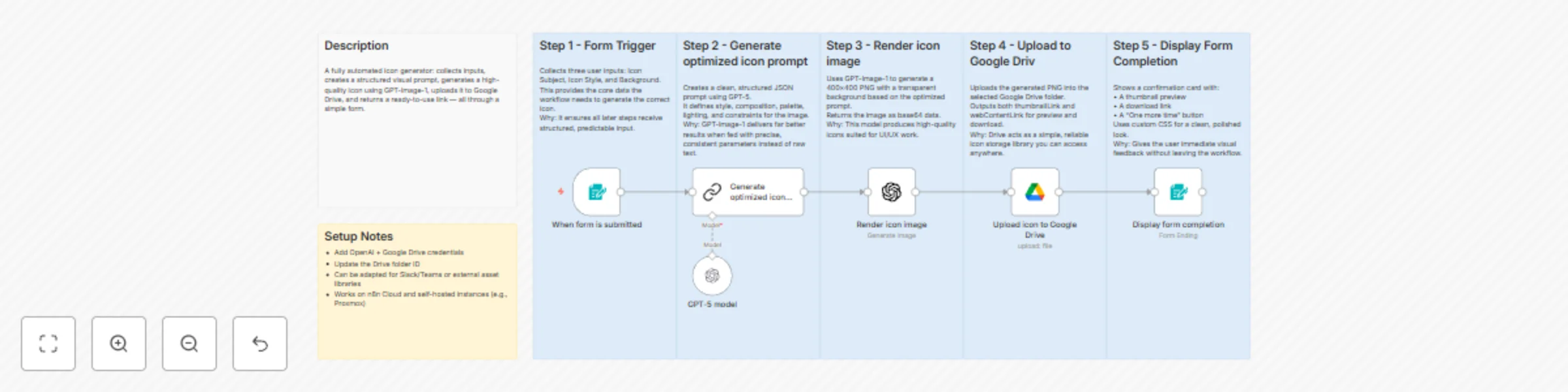
## Workflow Description: Turn a simple text idea into production-ready icons in seconds. With this workflow, you input a subject (e.g., “Copy”, “Banana”, “Slack Mute”), select a style (Flat, 3D, Cartoon, etc.), and off it goes. Here’s what happens: 1. A form trigger collects your icon subject, style and optional background. 3. The workflow uses an LLM to construct an optimised prompt. 5. An image-generation model (OpenAI image API) renders a transparent-background, 400×400 px PNG icon. 7. The icon is automatically uploaded to Google Drive, and both a download link and thumbnail are generated. 9. A styled completion card displays the result and gives you a “One More Time” option. Perfect for designers, developers, no-code creators, UI builders and even home-automation geeks (yes, you can integrate it with Home Assistant or Stream Deck!). It saves you the manual icon-hunt grind and gives consistent visual output across style variants. ## 🔧 Setup Requirements: - n8n instance (self-hosted or cloud) - OpenAI API access (image generation enabled) - Google Drive credentials (write access to a folder) - (Optional) Modify to integrate Slack, Teams or other file-storage destinations ## ✅ Highlights & Benefits: - Fully automated prompt creation → consistent icon quality - Transparent background PNGs size-ready for UI use - Saves icons to Drive + gives immediate link/thumbnail - Minimal setup, high value for creative/automation workflows - Easily extendable (add extra sizes, style presets, share via chat/bot) ## ⚠️ Notes & Best-Practices: - Check your OpenAI image quota and costs - image generation may incur usage. - Confirm Google Drive folder permissions to avoid upload failures. - If you wish a different resolution or format (e.g., SVG), clone the image node and adjust parameters.
Extract text from receipts with OCR.space table recognition
## 📝 Description This workflow automates the process of extracting text from receipt or document images using **OCR.space** and presenting the results in a clean, styled form. It’s especially useful for cases like **receipt digitization, invoice parsing, table recognition, or quick OCR text extraction** directly inside n8n without third-party dashboards. The workflow is lightweight and self-contained - all you need is an OCR.space API key. --- ## 🔄 How it works 1. **Form Trigger – Upload File** A simple form collects the image (max 1 MB) and asks whether the file contains a table. 2. **Normalize Inputs** Converts the “Yes/No” response into a boolean flag `isTable` and keeps the uploaded file attached. 3. **OCR.space API Call** Sends the uploaded image to the OCR.space API with the correct parameters: - `language=pol` (Polish by default, can be changed) - `OCREngine=2` - `isTable` flag 4. **Display Results** The parsed text (`ParsedResults[0].ParsedText`) is rendered in a styled card with monospace formatting for easier reading and copy-paste. --- ## 🎯 Use cases - Receipt OCR for expense tracking - Invoice or document text digitization - Table parsing from scanned files - Quick OCR text preview in n8n flows --- ## ⚙️ Requirements - [OCR.space API key](https://ocr.space/ocrapi) (Header Authentication) - n8n instance running ≥ v1.20 --- ## 📌 Notes & Customization - **Language**: change `language` parameter (`eng`, `deu`, etc.) to match your input. - **Validation**: add a file size check if you expect larger files. - **Error handling**: add an Error Trigger if you anticipate API rate limits. - **Table vs Text**: enabling `isTable` improves structured data parsing. --- ## 🔑 Keywords `OCR`, `receipt parsing`, `document OCR`, `invoice automation`, `text extraction`, `table recognition`, `AI OCR`, `OCR.space`, `workflow automation`
Voice & text control for Home Assistant using Telegram, Whisper & Gemini
## 📝 Workflow Description This workflow creates a conversational bridge between Telegram / n8n Chat and Home Assistant. It allows users to control smart home devices or request information using natural language (text or voice). ⸻ ## 🔑 Key Features - Multi-channel input: Works with both Telegram and n8n’s chat interface. - Voice support: Telegram voice messages are transcribed to text using OpenAI Whisper. - AI-driven assistant: Google Gemini processes queries in natural language. - Home Assistant integration: Uses MCP client tools to execute actions like turning devices on/off, adjusting lights, or broadcasting messages. - Memory management: Short-term memory keeps context within conversations. - Smart reply routing: Responses are automatically sent back to the correct channel (Telegram or chat). - Message formatting: Telegram replies are beautified (bold, bullet points, inline code, links). ⸻ ## 📌 Node Overview - Telegram Trigger: Captures incoming Telegram messages (text or voice). - Bot Is Typing: Sends a “typing…” action to indicate the bot is working. - Voice or Text: Separates voice and text inputs. - Get Voice File → Speech to Text → Transcription to ChatInput: Handles Telegram voice notes by downloading the file, transcribing it, and preparing it for the chat pipeline. - When Chat Message Received: Captures messages from n8n’s built-in chat interface. - Process Messages: Normalizes incoming data (input text, source, session ID, voice flag). - Home Agent: Main AI agent that processes queries. - Google Gemini Chat Model: Language model for intent understanding and conversation. - Simple Memory & Simple Memory1: Buffer memories to preserve conversation context. - Home Assistant Connector: MCP client node that executes smart home actions (turn on/off devices, adjust lights, etc.). - Reply Router: Routes the assistant’s response either to Telegram or to the n8n chat webhook. - Telegram Message Beautifier → Telegram Send: Formats and sends responses back to Telegram. - Respond to Webhook: Sends responses to n8n chat. ⸻ ## 🚀 Example Use Cases - Send “Turn on the living room lights” via Telegram → Bot triggers Home Assistant action. - Ask “What’s the temperature in the bedroom?” → Response comes back formatted in Telegram. - Record a voice note “Goodnight mode” → Automatically transcribed and executed by Home Assistant. - Use n8n chat to quickly trigger automations or check device statuses. ⸻ ## ⚡️ Benefits - Unified chat & voice control for Home Assistant. - AI-powered natural language understanding. - Works seamlessly across platforms (Telegram & n8n chat). - Extensible: new tools or intents can be added easily.
Generate sprint review summaries from transcripts with OpenAI and Google Sheets
## What this workflow does This template automates the entire process of documenting **Sprint Reviews in Scrum**: 1. **Input Collection** – Through a friendly form, users upload the **transcript file** (meeting notes, sprint review transcript, or VTT captions) and specify the sprint name and domain. 2. **Transcript Parsing** – A Code node formats the transcript into clean [HH:MM:SS] Speaker: text lines, supporting VTT, Zoom, or custom timestamp formats used in Scrum events. 3. **AI-Driven Summary** – The AI Agent (LangChain + OpenAI) produces a well-structured **AI summarization** in Markdown, including: - A 3–5 bullet Executive Summary of sprint review highlights - A Presentation Recap table (Timestamp | Presenter | Topics) - A list of Action Items with owners (if recognizable from the transcript) 4. **Preview** – The summary renders as a styled card with custom CSS for easy readability in n8n. 5. **Archive** – Automatically appends a record to Google Sheets, saving the date, domain, sprint, transcript file name, and the **AI-generated sprint review summary**. ## Why it’s useful - **Zero manual summarizing** – AI extracts key insights from transcript files into Markdown you can instantly share with your Scrum team and stakeholders. - **Easy setup** – drag-and-drop import, plus form-based input for non-technical users during sprint reviews. - **Centralized tracking** – all past sprint summaries live in one spreadsheet for retrospectives, audits, and continuous improvement. - **Flexible and extendable** – you can switch to Airtable, Slack, or Notion, or refine the summary template to match your Scrum workflow. ## Ideal for - **Scrum Masters** wanting quick sprint review summaries for stakeholders - **Agile Coaches** analyzing sprint review transcripts, presentation patterns, and follow-up tasks - **Product Owners** keeping a searchable log of sprint outcomes and action items ## Prerequisites / Credentials - **OpenAI API Key** — required for the AI Agent node (or any other Agent for summarization) - **Google Sheets OAuth2 credentials** — required for saving sprint review data to Sheets - (Optional) Ensure LangChain / AI Agent nodes are installed in your n8n instance ## How to Use This Template 1. Import the workflow JSON into your n8n instance. 2. Set up credentials: - For the **OpenAI LLM** node, provide your OpenAI API key - In **Google Sheets**, configure OAuth2 and specify your spreadsheet ID (replace YOUR_SHEET_ID) 3. **Create a new sheet** with the following columns: - Date - Domain - Sprint name - Content - VTT file - Transcript 4. Enable and run the workflow. 5. Fill out the form: upload transcript file, enter sprint & domain, click **Create Summary**. 6. View the AI-generated Markdown sprint review summary in the preview card. 7. Verify the new entry appears in your Google Sheet with all sprint details.