Z

Zach @BrightWayAI

3
Workflows

Workflows by Zach @BrightWayAI

Workflow preview: Generate AI sales pitches from website URLs with GPT-4o and Google Sheets
Free intermediate

Generate AI sales pitches from website URLs with GPT-4o and Google Sheets

# Overview This n8n workflow converts a simple list of website URLs in Google Sheets into a concise, consultative Context + AI pitch for each organization. It scrapes real page content (markdown preferred), feeds it to OpenAI with tight prompts to avoid fluff, and writes the result back to the same sheet row. You can run it on demand or schedule it, and it’s resume-safe—rows with existing messages are skipped. The net effect: faster, higher-quality prospect research and consistent outbound messaging without leaving your sheet. ## How it works - Reads rows from Google Sheets with headers Website and Personalized Message. - Skips rows where Personalized Message already has content. - Scrapes each URL to get clean page content (prefer markdown from a scraper like Firecrawl). - Calls OpenAI with strict System/User prompts to produce Context + Pitch grounded in the site. - Writes the generated message back to the same row (upsert by Website). - (Optional) Adds a short delay between rows to respect rate limits. ## Setup: - Sheet: Create headers Website, Personalized Message (row 1). - Credentials: Add Google Sheets OAuth2 and OpenAI in n8n. - Read node (Sheets): Select your doc/tab → Get All. - Scrape step: Use Firecrawl → Scrape (markdown), or fallback to HTTP Request → HTML extract. - OpenAI node: Model like gpt-4o-mini; paste your System/User prompts; enable Simplify Output if available. - Write node (Sheets): Append or Update → Column to match on = Website; map - Website → original URL - Personalized Message → OpenAI output ({{$json.content}} - (Optional) Add a Wait node (500–2000 ms) for throttling and stability.

Z
Zach @BrightWayAI
Lead Generation
29 Aug 2025
172
0

Workflow preview: Find quality YouTube videos with automated filtering & relevance scoring to Google Sheets
Free advanced

Find quality YouTube videos with automated filtering & relevance scoring to Google Sheets

## Who's it for Content creators, researchers, educators, and digital marketers who need to discover high-quality YouTube training videos on specific topics. Perfect for building curated learning resource lists, competitive research, or content inspiration. ## What it does This workflow automatically searches YouTube using multiple search queries, filters for quality content, scores videos by relevance, and exports the top results to Google Sheets. It processes hundreds of videos and delivers only the most valuable educational content ranked by custom relevance criteria. The workflow searches for videos using 10 different AI automation-related queries (easily customizable), filters out low-quality content like shorts and clickbait, then ranks results based on title keywords, view counts, and engagement metrics. ## How it works 1. Multi-query search: Searches YouTube with an array of related queries to get comprehensive coverage 2. Content filtering: Removes shorts, spam, and low-quality videos using regex patterns 3. Quality assessment: Filters videos based on view count, likes, and publication date 4. Relevance scoring: Assigns scores based on title keywords and engagement metrics 5. Result ranking: Sorts videos by relevance score and limits to top 50 results 6. Export to Sheets: Delivers clean, organized data to Google Sheets with all metadata ## Requirements - YouTube Data API v3 credentials from Google Cloud Console - Google Sheets credentials for n8n workspace - A Google Sheets document to receive the results ## How to set up 1. Enable YouTube Data API v3 in your Google Cloud Console 2. Add YouTube OAuth2 credentials to your n8n workspace 3. Add Google Sheets credentials to your n8n workspace 4. Create a Google Sheet and update the Google Sheets node with your document ID 5. Customize search queries in the "Set Query" node for your topic 6. Adjust filtering criteria in the Filter nodes based on your quality requirements ## How to customize the workflow Search topics: Modify the query array in the "Set Query" node to research any topic: ``` [ "Python tutorial", "JavaScript course", "React beginner guide", // Add your queries here ] ``` **Quality thresholds**: Adjust minimum views, likes, and date ranges in the "Filter for Quality" node **Relevance scoring**: Customize keyword weightings in the "Relevance Score" node to match your priorities **Result limits**: Change the number of final results in the "Limit" node (default: 50) **Output format**: Modify the "Set Fields" node to include additional YouTube metadata like duration, thumbnails, or category information The workflow is designed to be easily adaptable for any research topic while maintaining high content quality standards.

Z
Zach @BrightWayAI
Market Research
9 Jul 2025
1020
0
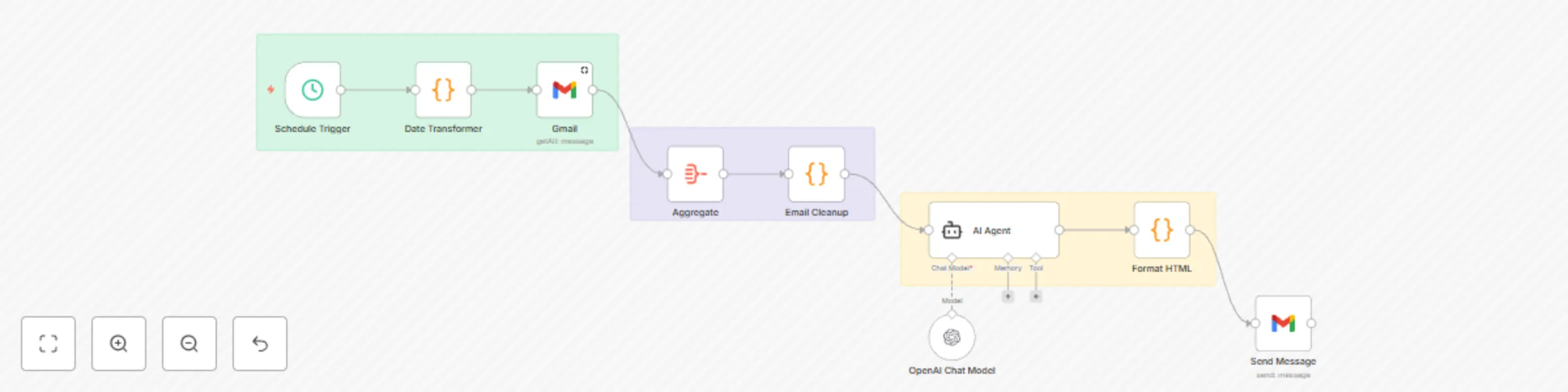
Workflow preview: Automated daily email analysis & summary with GPT-4o and Gmail
Free intermediate

Automated daily email analysis & summary with GPT-4o and Gmail

# Daily Email Pulse Summary: This agent summarizes a user's daily emails into a clean, actionable summary. It uses OpenAI to analyze content and sends a formatted "Daily Pulse" email at the end of each day. ## Main use cases: Keep track of open loops and next steps across all email conversations Identify high-potential leads and flag conversations going nowhere Eliminate the need to manually review your inbox at day’s end Build a smart summary layer using AI without hallucination or noise ## How it works This workflow can be divided into eight core nodes, each serving a distinct purpose in helping a user stay on top of their day. The result is a curated, AI-generated summary delivered to your inbox — crafted from real message content, not guesswork. 1. Schedule Trigger (Trigger Node – Runs Daily at Set Time) - Kicks off the workflow at a specific time each day (e.g. 6:00 PM). - Ensures you receive your Daily Pulse consistently, without needing to run it manually. 2. Date Transformer (Function Node – Define Today & Tomorrow Range) - Uses JavaScript to calculate the current day’s date range: - today: Start of day (00:00:00) - tomorrow: Start of next day (used as a cutoff) - This ensures only emails from today are analyzed, keeping the summary focused and current. 3. Get All Messages (Gmail Node – Fetch Filtered Emails) - Pulls in all Gmail messages with internalDate between today and tomorrow. - Outputs structured data: from, subject, and body text of each email. - This forms the raw data for the daily business pulse. 4. Aggregator (Function or Item Lists Node – Combine Message Fields) - Aggregates each message into a readable format: ``` From: [email protected] Subject: Demo Follow-up Body: Let’s schedule a time this week... ``` - All messages are stitched together into a single combinedText string for analysis. - This gives the AI model full context for the day in one unified document. 5. Email Cleanup (Function Node – Remove Noise & Normalize Text) - Cleans the combinedText blob to remove: - HTML tags - Marketing footers (e.g., unsubscribe links) - Redundant whitespace or formatting artifacts - Ensures GPT gets clean, relevant message content with no distractions. 6. Agent (OpenAI Node – Generate Structured Summary) - Uses a System Prompt to define its role as an AI Chief of Staff. - Uses a User Prompt that instructs it to categorize messages into sections: - 📝 Open Loops / Pending Follow-Up - 🚀 Next Steps You’ve Committed To - 🧲 Leads Worth Following Up On - 🛑 Conversations That Aren’t Leading Anywhere - 🧠 Strategy Notes - ✅ Top 3 Tasks for Tomorrow - Built-in guardrails ensure the model only uses real content (no hallucination). - Sections with no relevant data are omitted to keep it concise. 7. HTML Formatter (Function Node – Wrap Markdown in Email-Ready HTML) - Wraps the GPT-generated markdown summary in a simple &lt;html&gt;&lt;body&gt;<pre> structure. - Applies white-space: pre-wrap to preserve formatting and spacing. - The result is a clean, readable email that renders well across all inboxes (especially Gmail). 8. Email Send (Email Node – Deliver the Final Pulse) - Sends the formatted summary to your email inbox. - Subject: Your Daily Business Pulse – {{today}} - HTML body: Uses the formatted output from the previous step. - Final output: a well-organized, scannable summary of the day’s communication — focused on what matters. ## Why It Works - Automates the end-of-day review ritual without effort - Prioritizes follow-ups, action items, and time-sensitive leads - Filters out noise and low-value conversations - Leverages GPT without risk of hallucination or irrelevant output - Delivers clarity, helping you focus on tomorrow’s most important tasks```language ```

Z
Zach @BrightWayAI
Personal Productivity
12 Jun 2025
2820
0