A

Agent Studio

13
Workflows

Workflows by Agent Studio

Workflow preview: Track OpenAI Admin API usage and costs automatically with Google Sheets
Free advanced

Track OpenAI Admin API usage and costs automatically with Google Sheets

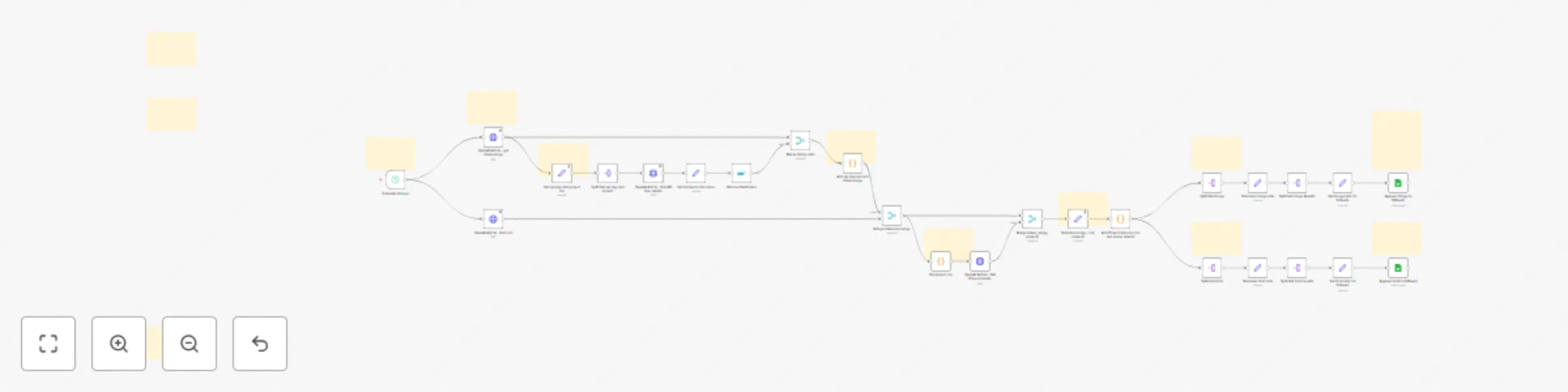
## Overview This workflow aims to help you and your team track your expenses with OpenAI It automatically collects your OpenAI organization’s API usage and cost data every few days and saves it to a ready-to-use Google Sheets template. It pulls detailed metrics for every project and API key, including token usage, model breakdowns, and costs per line item, making it easy for your team to analyze and track spend over time! ## Who is it for * Finance or ops teams tracking AI usage and spend * Data/analytics teams needing detailed project-level breakdowns * Technical leads or admins managing OpenAI organization usage and cost * Anyone needing a simple audit trail or historical record of OpenAI API activity ## How to get started * Access to your organization’s [OpenAI Admin API key](https://platform.openai.com/settings/organization/admin-keys) -> Note: **it's a different API than the one you use to call the models.** * Add your credentials in all `OpenAI Admin` nodes as Predefined Credentials > OpenAI. * Create your [Google Sheets credentials](https://docs.n8n.io/integrations/builtin/credentials/google/) * Get the [Google Sheets template](https://docs.google.com/spreadsheets/d/1n7P9tsi3s8Y3Z_zErjxyRu5fyGaHByMEJMeYT2jHrhg/edit?usp=sharing) (copy to your Drive) ## How it works 1. **Trigger:** The workflow runs automatically on a schedule (every 3 days by default, but you can adjust). 2. **Fetch Data:** Calls OpenAI’s Admin API to get all token usage and cost details for the reporting window. 3. **Enrich Data:** Resolves project names and API key names for clarity in reports. 4. **Write to Sheets:** Appends new usage and cost data to your Google Sheet, with one row per project/key/period. ## Google Sheets Template * Use our [template to track OpenAI's cost and usage](https://docs.google.com/spreadsheets/d/1n7P9tsi3s8Y3Z_zErjxyRu5fyGaHByMEJMeYT2jHrhg/edit?usp=sharing) ## Notes * All data is appended, so your sheet keeps historical records. But ⚠️ if you run the workflow manually or change the schedule, you could end up with duplicated rows * API key and project enrichment makes reports easier to read. * You can adapt the workflow to save results anywhere: BigQuery, Airtable, DB, or even another spreadsheet. * Easy to change schedule or reporting window to fit your team’s needs. ## Extra * Depending on your internal processes, you could also generate monthly files and automatically send the report to your finance team via email or Slack, for example. The possibilities are endless! * Note that we intended to do the same with Anthropic and Gemini via API and n8n built-in methods. At this stage, it is not possible to do it, but it could probably be done using Browser Agents! ## Service If you need help implementing the template or modifying it, [just reach out 💌](mailto:[email protected]?subject=Store%20OpenAI%20API%20Cost%20and%20Usage)

A
Agent Studio
Document Extraction
14 Jul 2025
200
0
Workflow preview: Sync Zendesk knowledge base articles to Airtable with markdown conversion
Free advanced

Sync Zendesk knowledge base articles to Airtable with markdown conversion

## Who is it for * Customer service or support teams who want to use their Zendesk articles in other tools. * Content/Knowledge managers consolidating or migrating knowledge bases. * Ops/automation specialists who want Markdown versions of articles (could be adapted to Notion, Google Sheets, or any Markdown-friendly system). ## How to get started * Download the template and install it on your instance * Set Zendesk and Airtable credentials * Modify the Zendesk base_url and Airtable's table and base * Run the workflow once manually to get your existing articles * Finally, modify the Schedule Trigger (by default it runs every 30 days) and activate the workflow ## Prerequisites * **Airtable base** set up using [this template](https://airtable.com/apptzJnbB6FphIprO/shrA6AhTkogTgrRn5). It includes the fields `Title`, `Content`, `URL` and `Article ID`. * **Zendesk account** with API access (read permissions for help center articles) * **Zendesk API credentials** (see instructions below) * **Airtable API credentials** (see instructions below) ## Getting Your Credentials **Airtable:** 1. [Sign up or log in to Airtable](https://airtable.com/). 2. Go to [your account settings](https://airtable.com/account) and generate a **Personal Access Token** (recommended scopes: `data.records:read`, `data.records:write`). 3. In n8n, create new Airtable credentials using this token. **Zendesk:** 1. Log in to your Zendesk dashboard. 2. Go to **Admin Center > Apps and Integrations > Zendesk API**. 3. Enable “Token Access,” and create an API token. 4. In n8n, add Zendesk credentials with your Zendesk domain, email, and the API token. ## How it works ### 1. **Triggers** * **Manual:** For first setup, use the Manual Trigger to fetch **all** existing articles. * **Scheduled:** Automatically runs every N days to fetch **only new or updated** articles since the last run. ### 2. **Fetch Articles from Zendesk** * Calls the Zendesk Help Center API, using pagination to handle large volumes. ### 3. **Extract and Prepare Data** * Splits out each article, then collects fields: `id`, `url`, `title`, and `body`. * Converts the article body from HTML to Markdown (for portability and easier reuse). ### 4. **Upsert Into Airtable** * Inserts new articles, or updates existing ones (using `Article ID` as the unique key). * Fields stored: **Title**, **Content** (Markdown), **URL**, **Article ID**. ## Airtable Template * Use [this Airtable template](https://airtable.com/apptzJnbB6FphIprO/shrA6AhTkogTgrRn5) as your starting point. * Make sure the table has columns: **Title**, **Content**, **URL**, **Article ID**. You can add more depending on your needs. ## Example Use Cases * Migrating Zendesk articles to another knowledge base. * Building an internal knowledge hub in Airtable or Notion. * Creating Markdown backups for compliance or versioning. ## Service If you need help implementing the template or modifying it, [just reach out 💌](mailto:[email protected]?subject=Store%20Zendesk%20KB%20Articles)

A
Agent Studio
Document Extraction
11 Jul 2025
278
0
Workflow preview: Export AI agent conversation logs from Postgres to Google Sheets
Free advanced

Export AI agent conversation logs from Postgres to Google Sheets

## Overview This n8n workflow retrieves AI agent chat memory logs stored in Postgres and pushes them to Google Sheets, creating one sheet per session. It’s useful for teams building chat-based products or agents and needing to review or analyze session logs in a collaborative format. ## Who is it for * Anyone with an AI Agent in Production storing the conversation logs in Postgres (or Supabase) who wants to see transcript and have control * Product teams building AI agents or assistants. * Teams that want to centralize conversation history for analysis or support. * Anyone managing AI chat memory and needing to explore it in a spreadsheet. ## Prerequisites * A Postgres database with a `n8n_chat_histories` table with an AI Agent connected to it. If you need an example, you can follow [this tutorial](https://www.youtube.com/watch?v=JjBofKJnYIU) * Once done, you need to run the Postgresql query to add the `created_at` column (see Setup > Add a datetime column) * Google Sheets access and OAuth credentials connected to n8n. * A Google Sheets document set up as a template (see below). ## Google Sheets Template This workflow expects a Google Sheets file where each session will be stored in its own tab. A basic tab layout is duplicated and renamed with the session ID. 👉 [Use this template as a starting point](https://docs.google.com/spreadsheets/d/14bKI5J0h18Nv48jbe1IXpZWma6EtqYLFWnpKoCB5Bgc/edit?usp=sharing) Note: You can hide the template after the first tabs have been created ## How it works 1. **Trigger** The workflow can be launched manually or on a schedule (e.g. daily at noon). 2. **Retrieve sessions** Runs a SQL query to get distinct `session_id` values from the `n8n_chat_histories` table. 3. **Loop over sessions** For each session: * Clears the corresponding sheet (if it exists). * Duplicates the template tab. * Renames it with the current `session_id`. 4. **Fetch messages** Selects all messages linked to the session from Postgres. 5. **Append to sheet** Adds each message to the Google Sheet with columns: * **Who**: speaker role (`user`, `assistant`, etc.) * **Message**: text content * **Date**: timestamp from `created_at`, formatted `yyyy-MM-dd hh:mm:ss` ## Notes * The sheet is **cleared and rebuilt** each run to ensure logs are up-to-date. * If a sheet for a session doesn’t exist, it will be created by duplicating the first tab (template) * You can group sessions under a persistent ID (like `user_id`) by overriding `session_id` in your memory config. * Works perfectly with Supabase by using PG credentials from the connection pooler. #### 👉 If you're looking for a solution to better visualize and analyse conversations, [reach out to us!](mailto:[email protected])

A
Agent Studio
Document Extraction
29 May 2025
1000
0
Workflow preview: Connect Retell Voice Agents to custom functions
Free intermediate

Connect Retell Voice Agents to custom functions

## Overview - This workflow allows you to **trigger custom logic in n8n directly from Retell's Voice Agent** using [Custom Functions](https://docs.retellai.com/build/conversation-flow/custom-function#custom-function). - It captures a POST webhook from Retell every time a Voice Agent reaches a Custom Function node. - You can plug in any logic—call an external API, book a meeting, update a CRM, or even return a dynamic response back to the agent. ## Who is it for For builders using [Retell](https://www.retellai.com/) who want to **extend Voice Agent functionality** with real-time custom workflows or AI-generated responses. ## Prerequisites - Have a [Retell AI Account](https://www.retellai.com/) - A Retell agent with a Custom Function node in its conversation flow (see template below) - Set your n8n webhook URL in the Custom Function configuration (see "How to use it" below) - (Optional) Familiarity with [Retell's Custom Function docs](https://docs.retellai.com/build/conversation-flow/custom-function#custom-function) - Start a conversation with the agent (text or voice) ## Retell Agent Example To get you started, **[we've prepared a Retell Agent](https://drive.google.com/file/d/1rAcsNz-f8SyuOxO0VJ_84oPscYFpir4-/view?usp=sharing)** ready to be imported, that includes the call to this template. - Import the agent to your Retell workspace (top-right button [on your agent's page](https://dashboard.retellai.com/agents)) - You will need to modify the function URL in order to call your own instance. - This template is a simple hotel agent that calls the custom function to confirm a booking, passing basic formatted data. ## How it works - Retell sends a webhook to n8n whenever a Custom Function is triggered during a call (or test chat). - The webhook includes: - Full call context (transcript, call ID, etc.) - Parameters defined in the Retell function node - You can process this data and return a response string back to the Voice Agent in real-time. ## How to use it 1. Copy the webhook URL (e.g. `https://your-instance.app.n8n.cloud/webhook/hotel-retell-template`) 2. Modify the Retell Custom Function webhook URL (see template description for screenshots) - Edit the function ![retell_functions.png](fileId:1211) - Modify the URL ![retell_function_config.png](fileId:1212) 3. Modify the logic in the Set node or replace it with your own custom flow 4. Deploy and test: Retell will hit your n8n workflow during the conversation ## Extension Ideas - Call a third-party API to fetch data (e.g. hotel availability, CRM records) - Use an LLM node to generate dynamic responses - Trigger a parallel automation (Slack message, calendar invite, etc.) #### 👉 [Reach out to us](mailto:[email protected]) if you're interested in **analyzing your Retell Agent conversations**.

A
Agent Studio
Support Chatbot
30 Apr 2025
3169
0
Workflow preview: Analyze & Tag User Feedback in Notion with GPT-4 Sentiment Analysis
Free advanced

Analyze & Tag User Feedback in Notion with GPT-4 Sentiment Analysis

## Overview - This n8n workflow processes user feedback automatically, tags it with sentiment, and links it to relevant insights in Notion. - It uses GPT-4 to analyze each feedback entry, determine whether it corresponds to an existing insight or a new one, and update the Notion databases accordingly. - It helps teams centralize and structure qualitative user feedback at scale. ## Who It’s For - Product teams looking to organize and prioritize user feedback. - Founders or solo builders seeking actionable insights from qualitative data. - Anyone managing a Notion workspace where feedback is collected and needs to be tagged or linked to features and improvements. ## Prerequisites - A Notion account with: - A **Feedback** database (must include fields for feedback content and status). - An **Insights** database with multi-select fields for `Solution`, `User Persona`, and a relation to Feedback. - The Notion template (linked below) helps you get started quickly — just remove the mock data. - A [configured Notion API integration in n8n](https://docs.n8n.io/integrations/builtin/credentials/notion/#using-api-integration-token). 👉 Don’t forget to connect the n8n integration to the correct Notion page. - An [OpenAI API key](https://platform.openai.com/api-keys) ## Notion Template This workflow is designed to work seamlessly with **a pre-configured Notion template** that includes the required feedback and insights structure. 👉 **[User Feedback Analysis – Notion Template](https://agentstudio-templates.notion.site/User-Feedback-Analysis-1df6b2b6117f81ec8273e6fcb29d0dab)** ## How It Works - The workflow is triggered when a feedback item is updated in Notion (e.g. new feedback is submitted). - Sentiment analysis (Positive, Neutral, or Negative) is run using OpenAI and stored in a select field in Notion. - The AI agent analyzes the feedback to: - Identify whether it matches an **existing insight**. - Or create a **new insight** in Notion with a concise name, solution, and user persona. - The feedback is then linked to the appropriate insight and marked as "Processed." ## How to Use It 1. Connect your Notion databases in all Notion nodes (including those used by the AI agent) for both Feedback and Insights — follow the node names provided. 2. Ensure your OpenAI and Notion credentials are correctly set. 3. **Set up your product context**: - Define a `“Product Overview”` and list your `“Core Features”`. - This helps the AI agent categorize insights more accurately. - (The Basecamp product is used as an example in the template.) 4. (Optional) Modify the prompt to better fit your specific product context. 5. Once feedback is added or updated in Notion, the workflow triggers automatically. ## Notes - Only feedback with the status `Received` is processed. - New insights are only created if no relevant match is found. - Feedback is linked to insights via Notion’s relation property. - A fallback parser is included to fix potential formatting issues in the AI output. - You can swap the default n8n memory for a more robust backend like Supabase. #### 🙏 [Please share your feedback with us](https://tally.so/r/w82eNO). It helps us tremendously!

A
Agent Studio
Market Research
24 Apr 2025
1011
0
Workflow preview: Store retell transcripts in Sheets, Airtable or Notion from webhook
Free intermediate

Store retell transcripts in Sheets, Airtable or Notion from webhook

## Automatically store Retell transcripts in Google Sheets/Airtable/Notion from webhook ## Overview - This workflow stores the results of a **[Retell](https://www.retellai.com/)** voice call (transcript, analysis, etc.) once it has ended and been analyzed. - It listens for `call_analyzed` webhook events from Retell and stores the data in **Airtable**, **Google Sheets**, and **Notion** (choose based on your stack). - Useful for anyone building Retell agents who want to keep a detailed history of analyzed calls in structured tools. ## Who is it for For builders of [Retell's](https://www.retellai.com/) Voice Agents who want to store call history and essential analytic data. ## Prerequisites - Have a [Retell AI Account](https://www.retellai.com/) - [Create a Retell agent](https://docs.retellai.com/get-started/quick-start) - Associate a phone number with your Retell agent - Set up one of the following: - An Airtable base and table (example: "Transcripts") - A Google Sheet with a “Transcripts” tab - A Notion database with columns to match the transcript fields - Templates: - [Airtable](https://airtable.com/appN4jeIrD8waWCfr/shrsPtQLeqt8Sp3UZ) - [Google Sheets](https://docs.google.com/spreadsheets/d/1TYgk8PK5w2l8Q5NtepdyLvgtuHXBHcODy-2hXOPP6AU/edit?usp=sharing) - [Notion](https://www.notion.so/1cea19b9d4848089bda6f3d7e05a818d?v=1cea19b9d48481ea97ef000ccd20f210&pvs=4) ## How it works - Receives a webhook POST request from Retell when a call has been analyzed. - Filters out any event that is not `call_analyzed` ([Retell sends webhooks](https://docs.retellai.com/features/webhook-overview#webhook-overview) for `call_started`, `call_ended` and `call_analyzed`) - Extracts useful fields like: - Call ID, start/end time, duration, total cost - Transcript, summary, sentiment - Stores this data in your preferred tool: - Airtable - Google Sheets - Notion ## How to use it 1. Copy the webhook URL (e.g., `https://your-instance.app.n8n.cloud/webhook/poc-retell-analysis`) and paste it in your Retell agent under "Webhook settings" then "Agent Level Webhook URL". ![Screenshot 20250409 at 18.05.34.png](fileId:1100) 2. Make sure your Airtable, Google Sheet, or Notion databases are correctly configured to receive the fields. 3. After each call, once Retell finishes the analysis, this workflow will automatically log the results. ## Extension - If you use any "Post-Call Analysis" fields, you can add columns to your Airtable, Google Sheet, or Notion database. - Then fetch the data from the `call.call_analysis.custom_analysis_data` object. ## Additional Notes - Phone numbers are extracted depending on the call direction (`from_number` or `to_number`). - Cost is converted from cents to dollars before saving. - Dates are converted from timestamps to local ISO strings. - You can remove any of the outputs (Airtable, Google Sheets, Notion) if you're only using one. #### 👉 [Reach out to us](mailto:[email protected]) if you're interested in **analysing your Retell Agent conversations**.

A
Agent Studio
Document Extraction
10 Apr 2025
2239
0
Workflow preview: Populate Retell dynamic variables with Google Sheets data for call handling
Free intermediate

Populate Retell dynamic variables with Google Sheets data for call handling

## Overview - This workflow provides Retell agent builders with a simple way to populate [dynamic variables](https://docs.retellai.com/build/dynamic-variables) using n8n. - The workflow fetches user information from a Google Sheet based on the phone number and sends it back to Retell. - It is based on Retell's [Inbound Webhook Call](https://docs.retellai.com/features/inbound-call-webhook). - Retell is a service that lets you create Voice Agents that handle voice calls simply, based on a prompt or using a conversational flow builder. ## Who is it for For builders of [Retell's](https://www.retellai.com/) Voice Agents who want to make their agents more personalized. ## Prerequisites - Have a [Retell AI Account](https://www.retellai.com/) - [Create a Retell agent](https://docs.retellai.com/get-started/quick-start) - [Purchase a phone number](https://docs.retellai.com/deploy/purchase-number) and associate it with your agent - Create a Google Sheets - for example, [make a copy of this one](https://docs.google.com/spreadsheets/d/1TYgk8PK5w2l8Q5NtepdyLvgtuHXBHcODy-2hXOPP6AU/edit?usp=sharing). - Your Google Sheet must have at least one column with the phone number. The remaining columns will be used to populate your Retell agent’s dynamic variables. - All fields are returned as strings to Retell (variables are replaced as text) ## How it works - The webhook call is received from Retell. We filter the call using their whitelisted IP address. - It extracts data from the webhook call and uses it to retrieve the user from Google Sheets. - It formats the data in the response to match Retell's expected format. - Retell uses this data to replace [dynamic variables](https://docs.retellai.com/build/dynamic-variables#dynamic-variables) in the prompts. ## How to use it See the description for screenshots! - Set the webhook name (keep it as POST). - Copy the Webhook URL (e.g., `https://your-instance.app.n8n.cloud/webhook/retell-dynamic-variables`) and paste it into Retell's interface. Navigate to "Phone Numbers", click on the phone number, and enable "Add an inbound webhook". ![Screenshot 20250331 at 16.38.06.png](fileId:1075) - In your prompt (e.g., "welcome message"), use the variable with this syntax: `{{variable_name}}` (see [Retell's documentation](https://docs.retellai.com/build/dynamic-variables)). ![image.png](fileId:1074) - These variables will be dynamically replaced by the data in your Google Sheet. ## Notes - In Google Sheets, the phone number must start with `'+`. - Phone numbers must be formatted like the example: with the `+`, extension, and no spaces. - You can use any database—just replace Google Sheets with your own, making sure to keep the phone number formatting consistent. #### 👉 [Reach out to us](mailto:[email protected]) if you're interested in **analysing your Retell Agent conversations**.

A
Agent Studio
Support Chatbot
31 Mar 2025
1157
0
Workflow preview: Extract and process information directly from PDF using Claude and Gemini
Free intermediate

Extract and process information directly from PDF using Claude and Gemini

## Overview - This workflow helps you compare Claude 3.5 Sonnet and Gemini 2.0 Flash when extracting data from a PDF - This workflow extracts and processes the data within a PDF in **one single step**, **instead of calling an OCR and then an LLM”** ## How it works - The initial 2 steps download the PDF and convert it to base64. - This base64 string is then sent to both Claude 3.5 Sonnet and Gemini 2.0 Flash to extract information. - This workflow is made to let you compare results, latency, and cost (in their dedicated dashboard). ## How to use it - Set up your Google Drive if not already done - Select a document on your Google Drive - Modify the prompt in "Define Prompt" to extract the information you need and transform it as wanted. - Get a [Claude API key](https://console.anthropic.com/settings/keys) and/or [Gemini API key](https://aistudio.google.com/app/apikey) - Note that you can deactivate one of the 2 API calls if you don't want to try both - Test the Workflow

A
Agent Studio
Document Extraction
21 Jan 2025
15895
0
Workflow preview: Visualize your SQL Agent queries with OpenAI and Quickchart.io
Free advanced

Visualize your SQL Agent queries with OpenAI and Quickchart.io

### Overview - This workflow aims to provide data visualization capabilities to a native SQL Agent. - Together, they can help foster data analysis and data visualization within a team. - It uses the native SQL Agent that works well and adds visualization capabilities thanks to OpenAI’s Structured Output and Quickchart.io. ### How it works 1. Information Extraction: - The Information Extractor identifies and extracts the user's question. - If the question includes a visualization aspect, the SQL Agent alone may not respond accurately. 2. SQL Querying: - It leverages a regular SQL Agent: it connects to a database, queries it, and translates the response into a human-readable format. 3. Chart Decision: - The Text Classifier determines whether the user would benefit from a chart to support the SQL Agent's response. 4. Chart Generation: - If a chart is needed, the sub-workflow dynamically generates a chart and appends it to the SQL Agent’s response. - If not, the SQL Agent’s response is output as is. 5. Calling OpenAI for Chart Definition: - The sub-workflow calls OpenAI via the HTTP Request node to retrieve a chart definition. 6. Building and Returning the Chart: - In the "Set Response" node, the chart definition is appended to a Quickchart.io URL, generating the final chart image. - The AI Agent returns the response along with the chart. ### How to use it - Use an existing database or create a new one. - For example, I've used [this Kaggle dataset](https://www.kaggle.com/datasets/ihelon/coffee-sales/versions/15?resource=download) and uploaded it to a Supabase DB. - Add the PostgreSQL or MySQL credentials. - Alternatively, you can use SQLite binary files (check [this template](https://n8n.io/workflows/2292-talk-to-your-sqlite-database-with-a-langchain-ai-agent/)). - Activate the workflow. - Start chatting with the AI SQL Agent. - If the Text Classifier determines a chart would be useful, it will generate one in addition to the SQL Agent's response. ### Notes - The full Quickchart.io specifications have not been fully integrated, so there may be some glitches (e.g., radar graphs may not display properly due to size limitations).

A
Agent Studio
Engineering
20 Nov 2024
16231
0
Workflow preview: Text automations using Apple Shortcuts
Free intermediate

Text automations using Apple Shortcuts

## Overview - This workflow answers user requests sent via Mac Shortcuts - Several Shortcuts call the same webhook, with a query and a type of query - Types of query are: - translate to english - translate to spanish - correct grammar (without changing the actual content) - make content shorter - make content longer ## How it works - Select a text you are writing - Launch the shortcut - The text is sent to the webhook - Depending on the type of request, a different prompt is used - Each request is sent to an OpenAI node - The workflow responds to the request with the response from GPT - Shortcut replace the selected text with the new one For a demo and setup instructions: [![Check the explanations](https://cdn.loom.com/sessions/thumbnails/c5b657568af64bb1b50fa8e8a91c45d1-1db3990a618986c9-full-play.gif)](https://www.loom.com/share/c5b657568af64bb1b50fa8e8a91c45d1?sid=a406be73-55eb-4754-9f51-9ddf49b22d69) ## How to use it - Activate the workflow - [Download this Shortcut template](https://drive.usercontent.google.com/u/0/uc?id=16zs5iJX7KeX_4e0SoV49_KfbU7-EF0NE&export=download) - Install the shortcut - In step 2 of the shortcut, change the url of the Webhook - In Shortcut details, "add Keyboard Shortcut" with the key you want to use to launch the shortcut - Go to settings, advanced, check "Allow running scripts" - You are ready to use the shortcut. Select a text and hit the keyboard shortcut you just defined

A
Agent Studio
Personal Productivity
8 Oct 2024
5085
0
Workflow preview: AI agent with charts capabilities using OpenAI structured output and Quickchart
Free intermediate

AI agent with charts capabilities using OpenAI structured output and Quickchart

This workflow is an experiment to integrate charts in AI Agents, using the new [Structured Output from OpenAI](https://openai.com/index/introducing-structured-outputs-in-the-api/) and [Quickchart.io](https://quickchart.io/). ## How it works - Users chat with an AI Agent. - Anytime the AI Agent considers a chart is needed, it calls a tool to generate a chart - OpenAI generates a chart using the Quickchart definition - This object is added at the end of a Quickchart.io URL ([see documentation](https://quickchart.io/documentation/usage/parameters/)) - The url is added in the conversation via the AI Agent as markdown. ## Set up steps - Create an [OpenAI API Key](https://platform.openai.com/api-keys) - Create the OpenAI credentials - Use the credentials for the HTTP Request node (as Predefined Credential type) - Activate your workflow - Start chatting - For example, you can ask the AI Agent to generate a chart about the top 5 movies at the box office - Start exploring the limits **Shout-out** [Quickchart.io](https://quickchart.io) is an amazing open source project that provides a free API to test. Go check them out! **Example of chart** ![Screenshot 20240904 at 14.08.29.png](fileId:836)

A
Agent Studio
Engineering
4 Sep 2024
18295
0
Workflow preview: Dynamically generate a webpage from user request using OpenAI structured output
Free intermediate

Dynamically generate a webpage from user request using OpenAI structured output

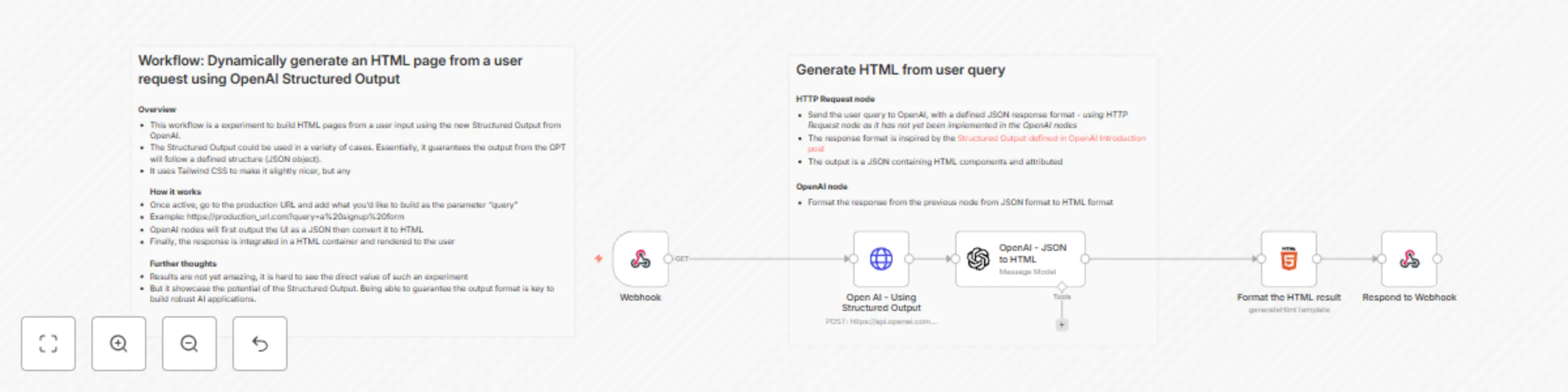
This workflow is a experiment to build HTML pages from a user input using the new Structured Output from OpenAI. How it works: - Users add what they want to build as a query parameter - The OpenAI node generate an interface following a structured output defined in the body - The JSON output is then converted to HTML along with a title - The HTML is encapsulated in an HTML node (where the Tailwind css script is added) - The HTML is rendered to the user via the Webhook response. Set up steps - Create an [OpenAI API Key](https://platform.openai.com/api-keys) - Create the OpenAI credentials - Use the credentials for both nodes HTTP Request (as Predefined Credential type) and OpenAI - Activate your workflow - Once active, go to the production URL and add what you'd like to build as the parameter "query" - Example: https://production_url.com?query=a%20signup%20form Example of generated page![Screenshot 20240823 at 13.01.56.png](fileId:831)

A
Agent Studio
Content Creation
23 Aug 2024
38472
0
Workflow preview: Restore backed up workflows from GitHub to n8n
Free advanced

Restore backed up workflows from GitHub to n8n

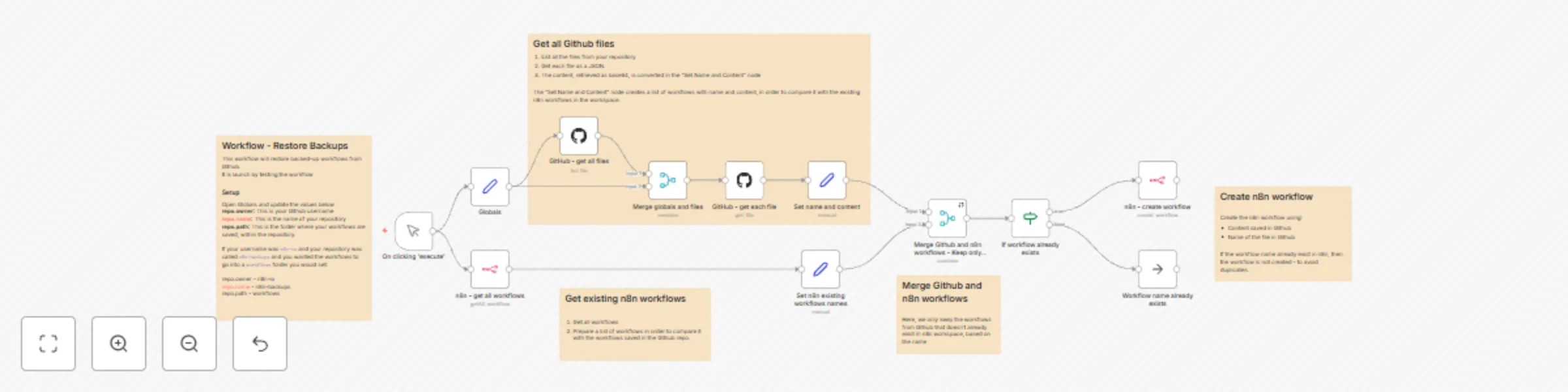
Restore backed up workflows from GitHub to your n8n workspace. This workflow was inspired by [this one](https://n8n.io/workflows/1534-back-up-your-n8n-workflows-to-github/) that lets you back up your n8n workflows to GitHub. It will let you restore your backed up workflows in your workspace, without creating duplicates. In case of issue with your instance, it will save you a lot of time to restore them. ## How it works - It retrieves the workflows saved in a GitHub repository. - Then compares these saved workflows with the ones in your n8n workspace based on the name. - It will only create them if they don't already exist. ## Set up steps 1. Open the "Global" node and set your own information (see Configuration below) 2. Click on "Test workflow" 3. It will run through all the workflows in the GitHub repository, check if the name doesn't already exist in your workspace and, in this case, create it. ## Configuration - repo.owner: your GitHub owner name - repo.name: your GitHub repository name - repo.path: the path within the GitHub repository

A
Agent Studio
DevOps
11 Jun 2024
5473
0