Adam Bertram
Workflows by Adam Bertram
Build an AI IT support agent with Azure Search, Entra ID & Jira
An intelligent IT support agent that uses Azure AI Search for knowledge retrieval, Microsoft Entra ID integration for user management, and Jira for ticket creation. The agent can answer questions using internal documentation and perform administrative tasks like password resets. ## How It Works The workflow operates in three main sections: **Agent Chat Interface**: A chat trigger receives user messages and routes them to an AI agent powered by Google Gemini. The agent maintains conversation context using buffer memory and has access to multiple tools for different tasks. **Knowledge Management**: Users can upload documentation files (.txt, .md) through a form trigger. These documents are processed, converted to embeddings using OpenAI's API, and stored in an Azure AI Search index with vector search capabilities. **Administrative Tools**: The agent can query Microsoft Entra ID to find users, reset passwords, and create Jira tickets when issues need escalation. It uses semantic search to find relevant internal documentation before responding to user queries. The workflow includes a separate setup section that creates the Azure AI Search service and index with proper vector search configuration, semantic search capabilities, and the required field schema. ## Prerequisites To use this template, you'll need: - n8n cloud or self-hosted instance - Azure subscription with permissions to create AI Search services - Microsoft Entra ID (Azure AD) access with user management permissions - OpenAI API account for embeddings - Google Gemini API access - Jira Software Cloud instance - Basic understanding of Azure resource management ## Setup Instructions 1. **Import the template into n8n.** 2. **Configure credentials:** - Add Google Gemini API credentials - Add OpenAI API credentials for embeddings - Add Microsoft Azure OAuth2 credentials with appropriate permissions - Add Microsoft Entra ID OAuth2 credentials - Add Jira Software Cloud API credentials 3. **Update workflow parameters:** - Open the "Set Common Fields" nodes - Replace `<azure subscription id>` with your Azure subscription ID - Replace `<azure resource group>` with your target resource group name - Replace `<azure region>` with your preferred Azure region - Replace `<azure ai search service name>` with your desired service name - Replace `<azure ai search index name>` with your desired index name - Update the Jira project ID in the "Create Jira Ticket" node 4. **Set up Azure infrastructure:** - Run the manual trigger "When clicking 'Test workflow'" to create the Azure AI Search service and index - This creates the vector search index with semantic search configuration 5. **Configure the vector store webhook:** - Update the "Invoke Query Vector Store Webhook" node URL with your actual webhook endpoint - The webhook URL should point to the "Semantic Search" webhook in the same workflow 6. **Upload knowledge base:** - Use the "On Knowledge Upload" form to upload your internal documentation - Supported formats: .txt and .md files - Documents will be automatically embedded and indexed 7. **Test the setup:** - Use the chat interface to verify the agent responds appropriately - Test knowledge retrieval with questions about uploaded documentation - Verify Entra ID integration and Jira ticket creation ## Security Considerations - Use least-privilege access for all API credentials - Microsoft Entra ID credentials should have limited user management permissions - Azure credentials need Search Service Contributor and Search Index Data Contributor roles - OpenAI API key should have usage limits configured - Jira credentials should be restricted to specific projects - Consider implementing rate limiting on the chat interface - Review password reset policies and ensure force password change is enabled - Validate all user inputs before processing administrative requests ## Extending the Template You could enhance this template by: - Adding support for additional file formats (PDF, DOCX) in the knowledge upload - Implementing role-based access control for different administrative functions - Adding integration with other ITSM tools beyond Jira - Creating automated escalation rules based on query complexity - Adding analytics and reporting for support interactions - Implementing multi-language support for international organizations - Adding approval workflows for sensitive administrative actions - Integrating with Microsoft Teams or Slack for notifications
Generate Azure VM timeline reports with Google Gemini AI chat assistant
An AI-powered chat assistant that analyzes Azure virtual machine activity and generates detailed timeline reports showing VM state changes, performance metrics, and operational events over time. ## How It Works The workflow starts with a chat trigger that accepts user queries about Azure VM analysis. A Google Gemini AI agent processes these requests and uses six specialized tools to gather comprehensive VM data from Azure APIs. The agent queries resource groups, retrieves VM configurations and instance views, pulls performance metrics (CPU, network, disk I/O), and collects activity log events. It then analyzes this data to create timeline reports showing what happened to VMs during specified periods, defaulting to the last 90 days unless the user specifies otherwise. ## Prerequisites To use this template, you'll need: - n8n instance (cloud or self-hosted) - Azure subscription with virtual machines - Microsoft Azure Monitor OAuth2 API credentials - Google Gemini API credentials - Proper Azure permissions to read VM data and activity logs ## Setup Instructions 1. **Import the template into n8n.** 2. **Configure credentials:** - Add Microsoft Azure Monitor OAuth2 API credentials with read permissions for VMs and activity logs - Add Google Gemini API credentials 3. **Update workflow parameters:** - Open the "Set Common Variables" node - Replace `<your azure subscription id here>` with your actual Azure subscription ID 4. **Configure triggers:** - The chat trigger will automatically generate a webhook URL for receiving chat messages - No additional trigger configuration needed 5. **Test the setup to ensure it works.** ## Security Considerations Use minimum required Azure permissions (Reader role on subscription or resource groups). Store API credentials securely in n8n credential store. The Azure Monitor API has rate limits, so avoid excessive concurrent requests. Chat sessions use session-based memory that persists during conversations but doesn't retain data between separate chat sessions. ## Extending the Template You can add more Azure monitoring tools like disk metrics, network security group logs, or Application Insights data. The AI agent can be enhanced with additional tools for Azure cost analysis, security recommendations, or automated remediation actions. You could also integrate with alerting systems or export reports to external storage or reporting platforms.
Automate GitHub PR linting with Google Gemini AI and auto-fix PRs
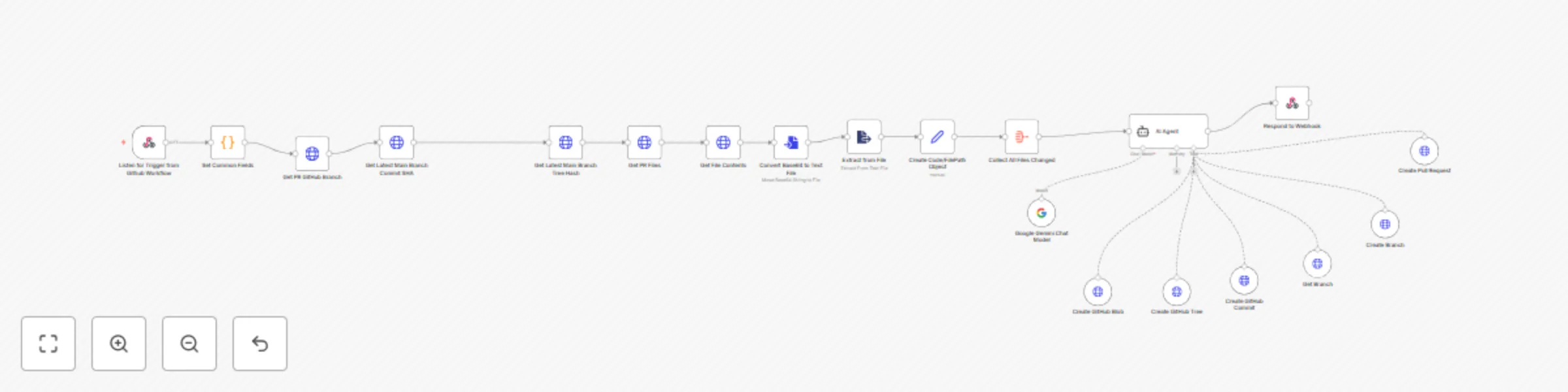
# LintGuardian: Automated PR Linting with n8n & AI ## What It Does LintGuardian is an n8n workflow template that automates code quality enforcement for GitHub repositories. When a pull request is created, the workflow automatically analyzes the changed files, identifies linting issues, fixes them, and submits a new PR with corrections. This eliminates manual code style reviews, reduces back-and-forth comments, and lets your team focus on functionality rather than formatting. ## How It Works The workflow is triggered by a GitHub webhook when a PR is created. It fetches all changed files from the PR using the GitHub API, processes them through an AI-powered linting service (Google Gemini), and automatically generates fixes. The AI agent then creates a new branch with the corrected files and submits a "linting fixes" PR against the original branch. Developers can review and merge these fixes with a single click, keeping code consistently formatted with minimal effort. ## Prerequisites To use this template, you'll need: 1. **n8n instance**: Either self-hosted or using n8n.cloud 2. **GitHub repository**: Where you want to enforce linting standards 3. **GitHub Personal Access Token**: With permissions for repo access (repo, workflow, admin:repo_hook) 4. **Google AI API Key**: For the Gemini language model that powers the linting analysis 5. **GitHub webhook**: Configured to send PR creation events to your n8n instance ## Setup Instructions 1. **Import the template** into your n8n instance 2. **Configure credentials**: - Add your [GitHub Personal Access Token](https://docs.github.com/en/authentication/keeping-your-account-and-data-secure/managing-your-personal-access-tokens#creating-a-personal-access-token-classic) under Credentials → GitHub API - Add your [Google AI API key](https://ai.google.dev/tutorials/setup) under Credentials → Google Gemini API 3. **Update repository information**: - Locate the "Set Common Fields" code node at the beginning of the workflow - Change the `gitHubRepoName` and `gitHubOrgName` values to match your repository ```javascript const commonFields = { 'gitHubRepoName': 'your-repo-name', 'gitHubOrgName': 'your-org-name' } ``` 4. **Configure the webhook**: Create a file named `.github/workflows/lint-guardian.yml` in your repository replacing the `Trigger n8n Workflow` step with your webhook: ```yaml name: Lint Guardian on: pull_request: types: [opened, synchronize] jobs: trigger-linting: runs-on: ubuntu-latest steps: - name: Trigger n8n Workflow uses: fjogeleit/http-request-action@v1 with: url: 'https://your-n8n-instance.com/webhook/1da5a6e1-9453-4a65-bbac-a1fed633f6ad' method: 'POST' contentType: 'application/json' data: | { "pull_request_number": ${{ github.event.pull_request.number }}, "repository": "${{ github.repository }}", "branch": "${{ github.event.pull_request.head.ref }}", "base_branch": "${{ github.event.pull_request.base.ref }}" } preventFailureOnNoResponse: true ``` 5. **Customize linting rules** (optional): - Modify the AI Agent's system message to specify your team's linting preferences - Adjust file handling if you have specific file types to focus on or ignore ## Security Considerations When creating your GitHub Personal Access Token, remember to: - Choose the minimal permissions needed (repo, workflow, admin:repo_hook) - Set an appropriate expiration date - Treat your token like a password and store it securely - Consider using GitHub's fine-grained personal access tokens for more limited scope As GitHub [documentation](https://docs.github.com/en/authentication/keeping-your-account-and-data-secure/managing-your-personal-access-tokens#keeping-your-personal-access-tokens-secure) notes: "Personal access tokens are like passwords, and they share the same inherent security risks." ## Extending the Template You can enhance this workflow by: - Adding Slack notifications when linting fixes are submitted - Creating custom linting rules specific to your team's needs - Expanding it to handle different types of code quality checks - Adding approval steps for more controlled environments This template provides an excellent starting point that you can customize to fit your team's exact workflow and code style requirements.