Abrar Sami
Workflows by Abrar Sami
Auto-translate blog articles with Google Translate and Airtable storage
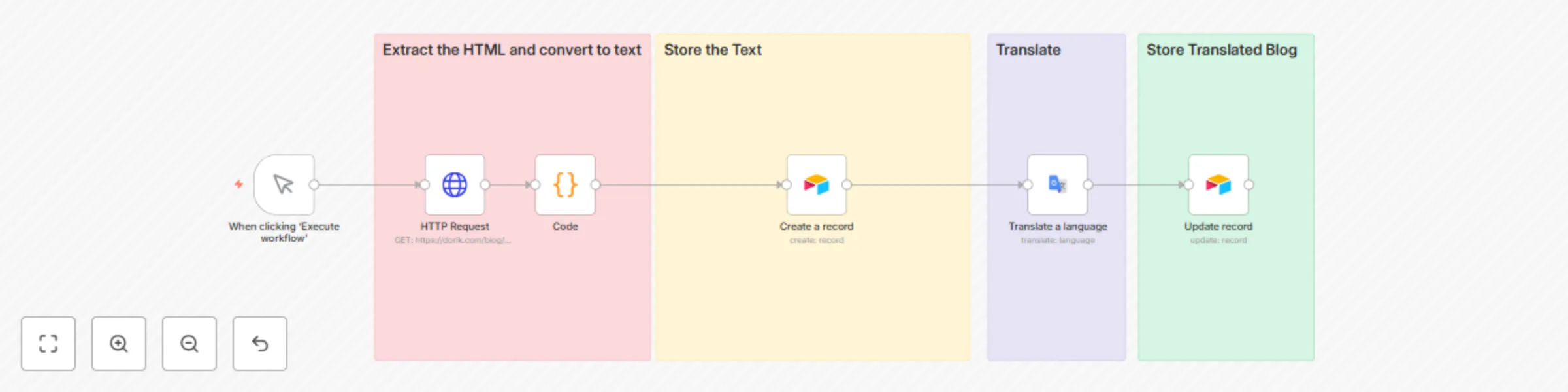
## How it works - Fetches a blog post HTML from your blog URL using an HTTP request node - Extracts readable content using Cheerio (code node) - Saves the raw blog text to Airtable - Translates the content to a language of your choice using Google Translate - Updates the same Airtable record with the translated version in a different column ## Set up steps - **Estimated setup time:** 15–20 minutes (includes connecting Airtable and Google Translate credentials) - You’ll need an Airtable base with `HTML` and `TRANSLATED` fields - Or use this pre-made base: [Airtable Template](https://airtable.com/appP62U5MtSww1eeP/shrXwvTYdN7EXPvsp) - Simply add your blog post URL inside the **HTTP Request** node
Auto-generate product comparison pages with OpenAI & Google Sheets
## Auto-generate product comparison pages that help users buy faster This workflow creates detailed "X vs Y" product comparison pages designed to help readers make faster, more confident purchase decisions — all with zero manual writing. --- ### How it works - Triggered manually or via Google Sheets row - Takes two product names as input (e.g. “Notion vs Evernote”) - Uses AI to generate: - ✅ A compelling title and meta description - 📝 Clear feature-by-feature comparison - 🤝 Use-case-based recommendations - 💬 FAQ section tailored to user pain points - Saves each section into a Google Sheet for review or publishing - Final output can be exported to your CMS or website builder (like Dorik, Webflow, etc.) --- ### Set up steps - You’ll need OpenAI and Google Sheets credentials - Takes **10–15 minutes** to plug in your keys and connect the sheet - Adjust prompts to match your brand tone or SEO goals 📝 You can easily expand this to generate pricing tables, testimonials, or even localized versions using the same structure. --- Ideal for SaaS companies, affiliate marketers, or content teams who want to scale up comparison content — without spending hours writing.
Transform Reddit questions into SEO blog posts with OpenAI and Google Sheets
## Turn Reddit Questions into SEO Articles Automatically This workflow takes real user questions from Reddit and transforms them into fully structured blog posts — title, intro, steps, and conclusion — using AI. --- ### How it works - Manually triggered when you want to run it - Scrapes the latest posts from a specific subreddit (e.g. `r/n8n`) - Filters only posts that are real questions (based on keywords like “how,” “what,” “why”) - Logs relevant questions into a Google Sheet as raw input - Enhances each question using AI (rephrases, creates a clean title and slug) - Generates full-length blog content: - ✏️ Intro paragraph - ✅ Step-by-step guide - 🧠 Clear conclusion - Saves the final blog content to a second Google Sheet for publishing --- ### Set up steps - You’ll need access to: - Reddit API (OAuth) - OpenAI API - Google Sheets - Takes around **15–20 minutes** to connect all the credentials and tweak prompts - Customize the subreddit or topic focus by changing the Reddit node config --- Perfect for content teams who want to scale content output using real community pain points — without ever starting from a blank page.
Automate social media posts with AI content and images across Twitter, LinkedIn & Facebook
## Auto-generate & post content using AI This workflow helps you create daily content using just a topic prompt. It writes a tweet, generates an image, and publishes across Twitter, Facebook, and LinkedIn — all on autopilot. --- ### How it works - Triggers daily at 10 PM to start the flow - Uses OpenAI to generate a niche topic title - Writes a short-form post (tweet style) with hashtags - Generates a Japanese anime-style image for visual context - Saves everything in Google Sheets - Publishes automatically on Twitter, LinkedIn, and Facebook --- ### Set up steps - You’ll need OpenAI, Google Sheets, and social media credentials (Twitter, Facebook, LinkedIn) - Takes about **10–15 minutes** to configure if you already have the credentials ready - Make sure your Sheet and API keys are properly linked before activating 📝 Keep detailed notes inside the workflow with sticky notes for easier handoff or collaboration.