A

Abhijay Vuyyuru

4
Workflows

Workflows by Abhijay Vuyyuru

Workflow preview: Enrich calendar events with AI analysis using OpenAI, Perplexity & Weather data
Free advanced

Enrich calendar events with AI analysis using OpenAI, Perplexity & Weather data

This template helps you manage your calendars by enriching each calendar event with data from Perplexity, OpenWeatherMap, & Open AI, and sending notifications on your Telegram. # 🤖 Smart Calendar Agent: Enrich Calendar Events with AI Analysis using OpenAI, Perplexity & Weather Data ## Problem 😤 Calendar management is a NIGHTMARE. I waste hours manually checking weather, researching restaurants, remembering flight details, and missing important prep work for events—scattered, reactive, exhausting. I wish calendars were actually SMART and would automatically prepare me for every event! If only I could just add: "Flight DL123 tomorrow at 9 AM from SFO to JFK" and instantly get terminal info, check-in reminders, weather updates, and travel tips delivered right to my phone. Introducing **Smart Calendar Agent**, an automated agentic workflow powered by n8n that turns your calendar into a proactive AI assistant. ## Prerequisites Required accounts/API keys for Google Calendar, OpenAI, OpenWeatherMap, Perplexity, and Telegram. ## This would be helpful for: 🎯 **Busy Professionals**: Never miss important event prep again 🎯 **Frequent Travelers**: Get flight details, weather updates, and travel tips automatically 🎯 **Event Planners**: Stay ahead of weather changes and venue details 🎯 **Anyone**: Transform reactive calendar checking into proactive event intelligence ## Step-by-step workflow: Takes 10-15 minutes to setup. 1. **Schedule Trigger** runs daily at 8 AM to scan your calendar 2. **Smart Calendar Agent** analyzes each event and classifies type (flight, meeting, outdoor activity, etc.) 3. **Contextual Intelligence** automatically executes relevant actions: - **Flights**: Fetches terminal info, boarding gates, check-in procedures - **Weather-sensitive events**: Gets weather forecasts and clothing suggestions - **Restaurant reservations**: Gathers reviews and insights via Perplexity - **Back-to-back meetings**: Detects scheduling conflicts and suggests fixes - **Travel bookings**: Provides packing suggestions based on destination weather 4. **Google Calendar integration** reads your events and context 5. **OpenWeatherMap** provides weather forecasts for location-based events 6. **Perplexity AI** researches venues, reviews, and travel requirements 7. **Telegram notifications** deliver perfectly timed, actionable insights to your phone ## Sample Query **Input**: Calendar Event - "Flight DL123 tomorrow at 9 AM from SFO to JFK" **Output**: Telegram notification - "✈️ Make sure to carry your REAL ID and boarding pass. The flight will depart from Terminal 2, Boarding Gate 1. Traffic to SFO: 45 mins from your location." The system automatically sends contextual reminders 24 hours before flights, weather updates the night before outdoor events, and conflict alerts 30 minutes before back-to-back meetings. Never be caught unprepared again—your calendar just got a brain! 🧠 ## Customizations The Smart Calendar Agent is modular — you can mix and match services to fit your tech stack, region, and preferences. Here’s how you can customize each part of the workflow: ### 🔄 Replace Perplexity AI with Your Preferred AI Search Tool If you don’t have access to Perplexity’s API or prefer another tool, swap it out easily: Claude AI (Anthropic) Use Claude for deeper, context-aware responses. Replace the Perplexity HTTP Request node with an Anthropic-compatible OpenAI node using claude-3-opus or similar via https://api.anthropic.com. Gemini (Google) Use Vertex AI or Gemini API to generate summaries or travel tips. Custom Web Scraper + GPT-4 Scrape restaurant/event URLs and feed scraped data to GPT for summarization. Example: Instead of Perplexity suggesting restaurant reviews, use Claude to analyze Google Maps reviews and suggest the top 3 things to try. ### 📆 Replace Google Calendar with Another Calendar Provider Use a different calendar tool by adjusting your data source: Microsoft Outlook Calendar Use n8n’s Microsoft Graph integration. Requires Azure App registration and Calendars.Read scope. Notion Calendar (via Notion API) Pull event data from a Notion table that acts like a calendar. CSV or Google Sheets Input Parse a CSV or Sheet that stores event information and act on that. Example: Use Outlook Calendar to pull events for the day, fetch weather via OpenWeatherMap, and message you on Slack. ### 📲 Replace Telegram with Other Notification Platforms You can notify yourself through your preferred messaging app: ✅ WhatsApp (via Twilio or Ultramsg) Use n8n’s HTTP Request node to call Twilio API for WhatsApp. Send templated messages including time, location, and action items. ✅ Slack Use Slack’s Webhook URL or Slack Node in n8n. Great for team-wide prep messages or workspace reminders. ✅ Discord Use a Discord Webhook to post prep summaries into a private server or DM. ✅ Email Use the Email node in n8n to send daily summaries to your inbox. Example: Instead of sending alerts on Telegram, send a beautifully formatted Slack message 30 minutes before a flight. ### 🌐 Enhance with Other External Data Sources Go beyond weather and flights: FlightAware API: For accurate flight status updates, delays, and gate changes Google Maps API: Estimate travel time to event location + suggest departure time Eventbrite or Ticketmaster API: Fetch event entry rules, artist lineup, or parking info ChatGPT Plugins (via Browser automation or 3rd-party wrappers): Fetch contextual insights from anywhere online Example: If your event is an outdoor concert, fetch artist bios via Ticketmaster, weather updates from OpenWeather, and Uber travel estimates from Google Maps API. ### 🧠 Personalize the AI Prompts for Your Needs Customize the way OpenAI responds: Add your name, preferences, or tone of voice in the system prompt Tell it your travel habits, favorite cuisines, or packing preferences Prompt Example: “I’m a vegan traveler with asthma — summarize how I should prepare for this flight from NYC to Delhi and what the AQI is expected to be.”. ## Setup Instructions Here are step-by-step setup instructions for integrating each of the requested services in n8n: ## 1. Google Calendar Integration ### A. Set up Google Calendar Credentials Go to n8n, open the Credentials section. Add new credentials for Google (OAuth2). Follow the instructions to create a Google Cloud project and OAuth2 credentials: Go to the Google Cloud Console. Create a new project. Enable the Google Calendar API. Go to "APIs & Services" -> "Credentials" -> "Create Credentials" -> "OAuth client ID". Set the redirect URI to your n8n instance Copy the Client ID and Client Secret into n8n. Authenticate and save. ### B. Add Google Calendar Node In your workflow, click "Add node" and search for "Google Calendar". Select the operation you need (e.g., Create Event, Get Events, Update Event). Select your Google Calendar credentials. Fill in the required fields (e.g., calendar ID, event details). Execute the node to test. ## 2. OpenAI Integration ### A. Set up OpenAI Credentials Go to n8n, open the Credentials section. Add new credentials for OpenAI. Enter your OpenAI API key (get it from your OpenAI account). Save the credentials. ### B. Add OpenAI Node In your workflow, click "Add node" and search for "OpenAI". Choose the operation (e.g., Message a Model, Message an Assistant). Select your OpenAI credentials. Enter the prompt or parameters as needed.(already in the JSON) Execute the node to test. ## 3. OpenWeatherMap Integration ### A. Set up OpenWeatherMap Credentials Sign up at OpenWeatherMap and verify your email. Get your API key from your account dashboard (API Keys page). In n8n, go to Credentials and add new OpenWeatherMap credentials. Paste your API key and save. ### B. Add OpenWeatherMap Node In your workflow, click "Add node" and search for "OpenWeatherMap". Select the operation (e.g., Get Current Weather, Get 5 Day Forecast). Select your OpenWeatherMap credentials. Enter the required parameters (e.g., city name, coordinates). Execute the node to test. ## 4. Perplexity Integration ### A. Set up Perplexity Credentials Create a Perplexity account. Generate an API key following the Perplexity API getting started guide. In n8n, go to Credentials and add new Perplexity credentials. Paste your API key and save. B. Add Perplexity Node In your workflow, click "Add node" and search for "Perplexity". Select the operation (e.g., Message a Model). Select your Perplexity credentials. Enter the prompt or parameters as needed. (present in the JSON) Execute the node to test. ## 5. Telegram Integration ### A. Set up Telegram Credentials Create a Telegram bot using BotFather in the Telegram app. Copy the name token provided by BotFather (search for it on the Telegram app). Create credentials on the Telegram Website. In n8n, go to Credentials and add new Telegram credentials. Paste your bot token and save. ### B. Add Telegram Node In your workflow, click "Add node" and search for "Telegram". Select the operation (e.g., Send Message, Get Updates). Select your Telegram credentials. Enter the required parameters (e.g., chat ID, message text). Execute the node to test.

A
Abhijay Vuyyuru
Personal Productivity
15 Jul 2025
94
0

Workflow preview: Get an automated, curated newsletter everyday using Perplexity and Gmail
Free intermediate

Get an automated, curated newsletter everyday using Perplexity and Gmail

*This workflow contains community nodes that are only compatible with the self-hosted version of n8n.* ## Setup Time 5-10 minutes ## Problem ⏳ Researching and personalizing outreach is slow and manual! You spend hours searching for the right people, reading through profiles, and then writing custom emails—only to repeat the process for every new lead or opportunity. It’s tedious, error-prone, and not scalable. What if you could get a beautifully formatted, ready-to-send newsletter in your Gmail drafts—automatically, every day? That’s what this Perplexity Newsletter Workflow does, powered by n8n. ## Prerequisites n8n account (self-hosted or cloud) Perplexity API key (or OpenAI API key for similar LLMs) Gmail account (for sending emails) (Optional) Google Sheets account (for archiving newsletters) Who is this for? 🎯 Product Managers who want to stay ahead of trends 🎯 MBA aspirants tracking admission news 🎯 AI professionals and enthusiasts seeking curated updates 🎯 Anyone who wants a daily, personalized, multi-topic newsletter—without manual work ## Step-by-step workflow Setup time: 5-10 minutes ## Trigger Use a Cron node to schedule the workflow (e.g., every morning at 8am). Fetch News from Perplexity Add three HTTP Request nodes (or Perplexity nodes if available): One for MBA News One for Product Management News One for AI Automation News Each node sends a prompt to Perplexity and receives a summary with citations. Merge News Items Use a Merge node (mode: Append) to combine the three news responses. Format Newsletter Add a Code node after the Merge node. In the Code node, format each news item with a section header (e.g., “MBA News”, “Product Management”, “AI Automation News”), apply HTML formatting, and combine all into a single HTML message. (Use the code from our previous message for beautiful formatting and sectioning.) Send Email Add a Gmail node. Set the “HTML” field to the formatted newsletter from the Code node. Set the “Subject” to something like “🤖 Your Daily Perplexity Newsletter”. (Optional) Archive to Google Sheets Add a Google Sheets node to append the newsletter content and date for future reference. ## Sample Output A single, beautifully formatted email in your Gmail drafts, with three clearly labeled sections, clickable sources, and all the latest insights—ready to send or review. Ready to automate your daily insights? Set up this workflow in n8n and never miss an update again! ## Customization Change schedule time in the Cron node Modify news topics or prompts in the Perplexity nodes Adjust section titles or email styling in the Format Newsletter (Code) node

A
Abhijay Vuyyuru
Personal Productivity
21 Jun 2025
2281
0
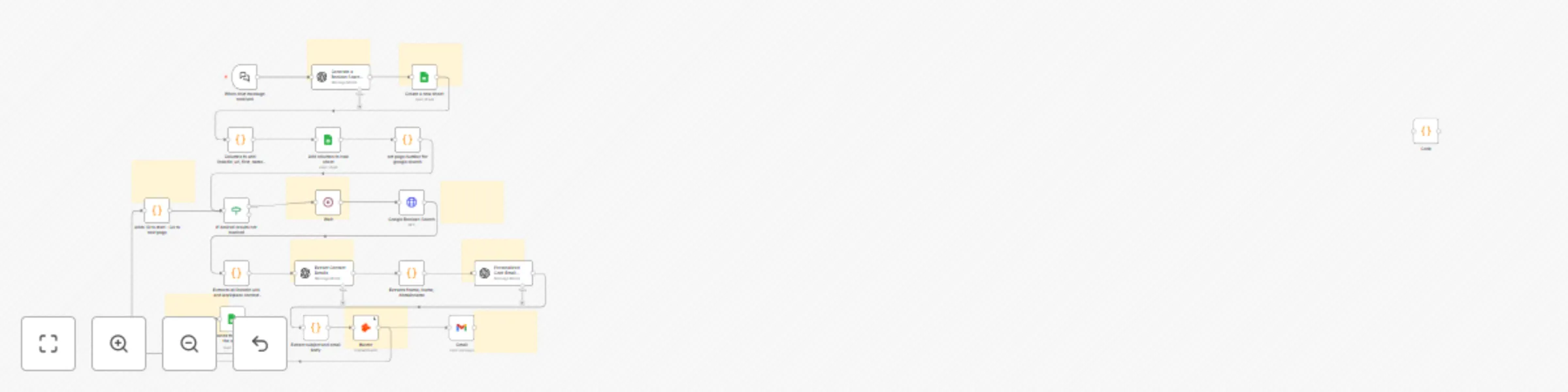
Workflow preview: Find and email ANYONE on LinkedIn with OpenAI, Hunter & Gmail
Free advanced

Find and email ANYONE on LinkedIn with OpenAI, Hunter & Gmail

## Setup Time 5-10 minutes ## Problem 🚨 LinkedIn search is BROKEN. Personalized cold-emailing takes hours! I waste hours on LinkedIn manually filtering profiles, reading summaries, hoping they’d reply—tedious, frustrating, inefficient. But even after finding the email IDs of the contacts, the job to be done is incomplete. 𝗜 𝘄𝗮𝗻𝘁 𝘁𝗼 𝘀𝘁𝗮𝗿𝘁 𝗮 𝗰𝗼𝗻𝘃𝗲𝗿𝘀𝗮𝘁𝗶𝗼𝗻 𝘄𝗶𝘁𝗵 𝘁𝗵𝗲𝘀𝗲 𝗰𝗼𝗻𝘁𝗮𝗰𝘁𝘀. If only I could type "𝘗𝘳𝘰𝘥𝘶𝘤𝘵 𝘮𝘢𝘯𝘢𝘨𝘦𝘳𝘴 𝘸𝘰𝘳𝘬𝘪𝘯𝘨 𝘰𝘯 𝘨𝘦𝘯𝘦𝘳𝘢𝘵𝘪𝘷𝘦 𝘈𝘐 𝘪𝘯 𝘠𝘰𝘶𝘛𝘶𝘣𝘦 𝘪𝘯 𝘕𝘦𝘸 𝘠𝘰𝘳𝘬" and seconds later have 10 personalized outreach emails in my Gmail drafts folder, ready for my review. It would save me hours of research effort! Introducing LinkGPT, a LinkedIn Agent, an automated agentic workflow powered by n8n. ## Prerequisites: Required accounts/API keys for Hunter.io, Google, and OpenAI. ## This would be helpful for: 🎯 Job Seekers wanting direct outreach to hiring managers (everyone applies to multiple jobs, and crafting personal emails takes hours!) 🎯 Recruiters looking to personalize candidate outreach at scale 🎯 Sales & Founders aiming for targeted customer conversations ## Step-by-step workflow: Takes 5-10 minutes to setup. 1. Generate a Boolean search string for LinkedIn profiles. 2. Perform authenticated Google searches using your query. 3. Extract LinkedIn URLs and workplace context from the search results. 4. Use OpenAI to extract first name, last name, and domain name from the context. 5. Use Hunter.io to find emails of the contacts. 6. Append all results to your connected Google Sheet. Columns: first_name, last_name, domain_name, email, context 7. Read everything publicly available about your target profiles 8. Identify common ground (shared backgrounds, interests, experiences) 9. Craft highly personalized, thoughtful email drafts 10. Automatically save tailored drafts in your Gmail and Google Sheets I put together a clear, step-by-step guide on setting this up yourself. ## Sample Query Sample: Input: "I am headed to NYC later this month, whom should I meet with that works in product management for gen AI products?" Output: List of 10 contacts with first name, last name, workplace, email address and context about them, and 10 personalized emails waiting for you review in your Gmail drafts folder

A
Abhijay Vuyyuru
Lead Generation
18 Jun 2025
6045
0
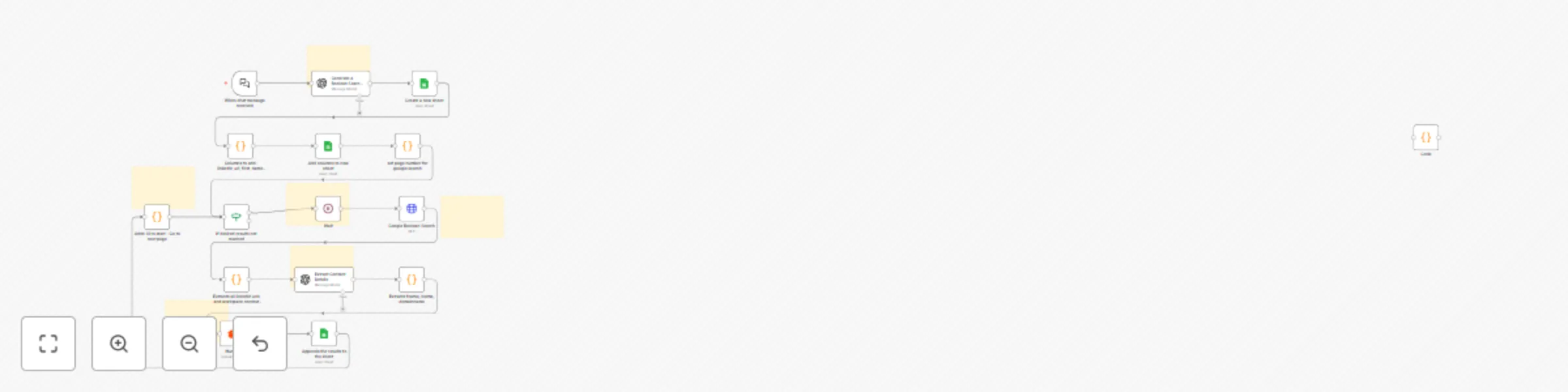
Workflow preview: Automate LinkedIn profile search & cold email outreach with OpenAI and Hunter
Free advanced

Automate LinkedIn profile search & cold email outreach with OpenAI and Hunter

## Problem 🚨 LinkedIn search is BROKEN. I waste hours on LinkedIn manually filtering profiles, reading summaries, hoping they’d reply—tedious, frustrating, inefficient. I wish LinkedIn had built an agent that would get me to the right profile with one click! If only I could just type: "Product managers working on YouTube Shorts' generative AI features." and seconds later, have LinkedIn URLs, names, emails, and full context about them. Introducing LinkGPT, a LinkedIn Agent, an automated agentic workflow powered by n8n. ## Prerequisites: Required accounts/API keys for Hunter.io, Google, and OpenAI. ## This would be helpful for: 🎯 Job Seekers: Skip ATS, email hiring managers directly ( I wish I had this when I was recruiting!) 🎯 Recruiters: Reach your dream candidates first 🎯 Founders & Sales Teams: Share your demos with customers directly (this does NOT use the expensive Sales Navigator API) ## Step-by-step workflow: Takes 5-10 minutes to setup. 1. Generate a Boolean search string for LinkedIn profiles. 2. Perform authenticated Google searches using your query. 3. Extract LinkedIn URLs and workplace context from the search results. 4. Use OpenAI to extract first name, last name, and domain name from the context. 5. Use Hunter.io to find emails of the contacts. 6. Append all results to your connected Google Sheet. Columns: first_name, last_name, domain_name, email, context I put together a clear, step-by-step guide on setting this up yourself. ## Sample Query Sample: Input: "I am headed to NYC later this month, whom should I meet with that works in product management for gen AI products?" Output: List of 10 contacts with first name, last name, workplace, email address and context about them so you can email them.

A
Abhijay Vuyyuru
Lead Generation
10 Jun 2025
1902
0