Abdul Mir
Workflows by Abdul Mir
Company knowledge base agent (RAG)
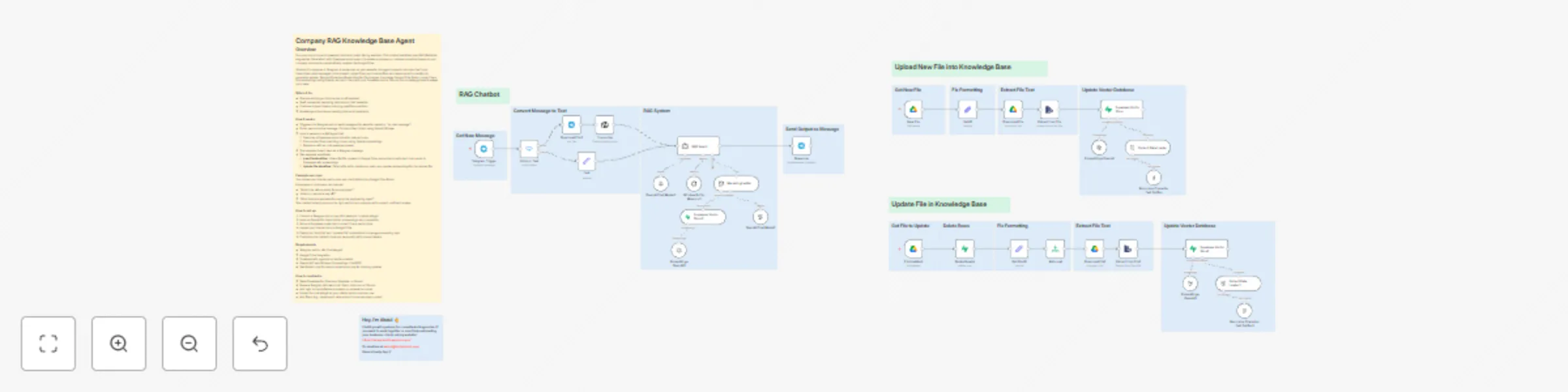
## Overview Turn your docs into an AI-powered internal or public-facing assistant. This chatbot workflow uses RAG (Retrieval-Augmented Generation) with Supabase vector search to answer employee or customer questions based on your company documents—automatically updated via Google Drive. Whether it’s deployed in Telegram or embedded on your website, this agent supports voice and text input, transcribes voice messages, pulls relevant context from your internal files, and responds with a helpful, AI-generated answer. Two additional workflows listen for file changes in a shared Google Drive folder, convert them into embeddings using OpenAI, and sync them with your Supabase vector DB—so your knowledge base is always up to date. ### Who’s it for - Startups building an internal ops or HR assistant - SaaS companies deploying help bots on their websites - Customer support teams reducing repetitive questions - Knowledge-driven teams needing internal AI assistants ### How it works - Triggered via Telegram bot (or easily swapped for website chatbot or “on chat message”) - If user sends a voice message, it’s transcribed to text using OpenAI Whisper - Input is passed to a RAG agent that: - Searches a Supabase vector store for relevant docs - Pulls context from matching chunks using OpenAI embeddings - Responds with an LLM-powered answer - The response is sent back as a Telegram message - Two separate workflows: - **New File Workflow**: Listens for file uploads in Google Drive, extracts and splits text, then sends to Supabase with embeddings - **Update File Workflow**: Detects file edits, deletes old rows, and updates embeddings for the revised file ### Example use case > You upload your internal policy docs and client FAQs into a Google Drive folder. > > Employees or customers can now ask: > - “What’s the refund policy for annual plans?” > - “How do I request a day off?” > - “What tools are approved for use by the engineering team?” > > The chatbot instantly pulls up the right section and responds with a smart, confident answer. ### How to set up 1. Connect a Telegram bot or use n8n’s webchat / chatbot widget 2. Hook up OpenAI for transcription, embeddings, and completion 3. Set up a Supabase project and connect it as a vector store 4. Upload your internal docs to Google Drive 5. Deploy the “Add File” and “Update File” automations to manage embedding sync 6. Customize the chatbot’s tone and personality with prompt tweaks ### Requirements - Telegram bot (or n8n Chat widget) - Google Drive integration - Supabase with pgvector or similar enabled - OpenAI API key (Whisper, Embeddings, ChatGPT) - Two folders: one for raw documents and one for tracking updates ### How to customize - Swap Supabase for Pinecone, Weaviate, or Qdrant - Replace Telegram with web chat, Slack, Intercom, or Discord - Add logic to handle fallback answers or escalate to human - Embed the chat widget on your site for public customer use - Add filters (e.g. department, date, author) to narrow down context
Inbox manager (GPT, Google Calendar & Supabase)
## Overview Turn your cluttered inbox into a smart, autonomous assistant that categorizes emails, replies to leads, checks your calendar, and notifies you on Telegram—all without lifting a finger. This workflow is designed for a marketing agency, but can be adapted for any business. It classifies incoming emails into categories like Sales, Client Communication, Reports, Billing, and Other. If it detects a new lead or priority message, it routes the email to one of two agents: - The **Calendar Agent** checks your availability in Google Calendar and drafts a consultation reply - The **Knowledge Agent** answers FAQs using your business knowledge base (with Supabase embeddings) Both agents create draft email responses and send a Telegram alert so you're always in the loop. ### Who’s it for - Founders and agency owners buried in emails - Marketing teams handling lots of inbound leads - Customer support managers automating Tier 1 replies - Anyone who wants a cleaner, smarter inbox without hiring a VA ### How it works - Gmail trigger watches for incoming emails - Email content is passed to an AI classifier to apply a label (Sales, Client, Billing, etc.) - If the message is a new inquiry or lead, it’s routed to: - **Calendar Agent** → checks Google Calendar and drafts a reply with available slots - **Knowledge Agent** → searches vector DB and drafts a helpful reply from documentation - Both agents create a Gmail draft response and send a Telegram notification with summary ### Example use case > A lead emails you asking for a discovery call. > > ✅ Email is labeled "Sales" > ✅ AI Calendar Agent checks your Google Calendar > ✅ A reply is drafted offering free time slots > ✅ You get a Telegram ping: > _"New lead: Abdul Mir. I checked your calendar and drafted a reply. Check your email!"_ ### How to set up 1. Connect your Gmail and set up a trigger for new messages 2. Train the AI classifier with example categories and emails 3. Connect Google Calendar API for availability checks 4. Upload your internal docs and sync to Supabase vector store 5. Connect Telegram for alerts 6. Customize AI prompts and escalation logic as needed ### Requirements - Gmail integration - OpenAI or Claude API (for classification + chat agents) - Google Calendar API - Supabase (or Pinecone, Weaviate) for RAG vector DB - Telegram bot API key ### How to customize - Add custom labels like “Recruiting,” “Investor,” or “Support” - Replace Telegram with Slack or SMS alerts - Add CRM sync to update lead status - Escalate complicated replies to a human via task creation - Add auto-send (instead of drafts) after review or based on confidence score
Lead research report emails
## Overview This workflow auto-generates a personalized research report on any prospect who books a call with you—using their LinkedIn profile and advanced web research. When a call is booked in your calendar, the system looks up the lead’s LinkedIn URL from a Google Sheets database. That profile is then scraped using Relevance AI to extract posts, experiences, and education. It also runs a deep-dive query on the person using Perplexity to uncover relevant news, insights, and context. This structured data is passed to an AI model that produces a clean profile summary, suggested pain points, and solution ideas. Finally, the system builds and sends you a fully formatted HTML report via email—ready to review before your meeting. ### Who’s it for - Founders taking high-stakes sales calls - SDRs/BDRs booking back-to-back meetings - Agencies and consultants who want to personalize discovery calls - Teams doing high-touch enterprise sales or B2B outreach ### How it works - Triggered when a new call is booked via Cal.com - Finds matching LinkedIn URL from a local database (Google Sheets) - Scrapes public LinkedIn data via Relevance AI - Runs a Perplexity query on the prospect for deeper context - Formats the scraped data using Code nodes - Sends structured info to AI to generate: - A company + person profile - Suggested pain points and solutions - Formats everything into a clean HTML report - Emails you the final summary to prep for the call ### Example use case > Someone books a call. You receive a report 2 minutes later in your inbox with: > - Their role, company, and latest posts > - What their business does > - Recent news and context from Perplexity > - Predicted pain points and how you might help > > You show up to the call prepped and ready ### How to set up 1. Connect your Cal.com trigger (or replace with any booking tool) 2. Set up your Google Sheet(s) with contact info + LinkedIn profiles 3. Add Relevance AI API key and configure LinkedIn scraping (they have free credits) 4. Link Perplexity API for web research 5. Customize the AI prompts and report formatting 6. Connect Gmail or preferred email provider to send reports ### Requirements - Cal.com or other booking platform - Google Sheets for lead storage - Relevance AI account and API access - Perplexity API key - OpenAI or similar LLM for summarization - Email integration (e.g. Gmail) ### How to customize - Replace Cal.com with Calendly, SavvyCal, etc. - Change AI prompt tone and structure of the report - Add CRM push (e.g. log into HubSpot, Notion, or Airtable) - Add Slack or Telegram notifications for call alerts - Format reports as PDF instead of HTML for download
AI proposal generator
## Overview Stop spending hours formatting proposals. This workflow turns a short post-call form into a high-converting, fully-personalized PandaDoc proposal—plus updates your CRM and drafts the follow-up email for you. After a sales call, just fill out a 3-minute form summarizing key pain points, solutions pitched, and the price. The workflow uses AI to generate polished proposal copy, then builds a PandaDoc draft using dynamic data mapped into the JSON body (which you can fully customize per business). It also updates the lead record in ClickUp with the proposal link, company name, and quote—then creates an email draft in Gmail, ready to send. ### Who’s it for - Freelancers and consultants sending service proposals - Agencies closing deals over sales calls - Sales reps who want to automate proposal follow-up - Teams using ClickUp as their lightweight CRM ### How it works - After a call, fill out a short form with client details, pitch notes, and price - AI generates professional proposal copy based on form input - Proposal is formatted and sent to PandaDoc via HTTP request - ClickUp lead is updated with: - Company Name - Proposal URL - Quote/price - A Gmail draft is created using the proposal link and a thank-you message ### Example use case > You hop off a call, fill out: > - Prospect: Shopify agency > - Pain: No lead gen system > - Solution: Automated cold outreach > - Price: $2,500/month > > 3 minutes later: PandaDoc proposal is ready, CRM is updated, and your email draft is waiting to be sent. ### How to set up 1. Replace the form with your preferred tool (e.g. Tally, Typeform) 2. Connect PandaDoc API and structure your proposal template 3. Customize the JSON body inside the HTTP request to match your business 4. Link your ClickUp space and custom fields 5. Connect Gmail (or other email tool) for final follow-up draft ### Requirements - Form tool for capturing sales call notes - OpenAI or LLM key for generating proposal copy - PandaDoc API access - ClickUp custom fields set up for lead tracking - Gmail integration ### How to customize - Customize your PandaDoc proposal fields in the JSON body of the HTTP node - Replace ClickUp with another CRM like HubSpot or Notion - Adjust AI tone (casual, premium, corporate) for proposal writing - Add Slack or Telegram alerts when the draft is ready - Add PDF generation or auto-send email step
Personalized thank-you emails with website scraping, GPT-4o, and Gmail
## Overview Impress your leads with ultra-personalized “thank you” emails that look hand-written — sent automatically seconds after they submit your intake form. This workflow instantly scrapes the prospect's website, extracts meaningful copy, and uses AI to write a custom thank-you message referencing something specific from their site. It gives the impression you immediately reviewed their business and crafted a thoughtful reply — without lifting a finger. ### Who’s it for - Agencies and consultants using intake forms - Freelancers booking discovery calls - B2B businesses that want high-touch first impressions - Sales teams automating initial follow-ups ### How it works - Triggered when a form (e.g. Tally, Typeform) is submitted - Scrapes the website URL provided in the form - Converts HTML to Markdown and extracts plain copy - Uses AI to write a personalized thank-you message referencing the site - Waits briefly to simulate real typing delay - Sends the message via Gmail (or any email provider) ### Example use case > Prospect submits a form with their website: `coolstartup.ai` > > 30 seconds later, they receive: > > _“Thanks for reaching out! I just checked out Cool Startup’s homepage — love the clean UX and mission around AI for teams. Looking forward to diving into how we might collaborate!”_ ### How to set up 1. Connect your form tool (e.g. Tally or Typeform) 2. Connect Gmail or another email provider 3. Customize the AI prompt to match your tone 4. Set the wait time (e.g. 30 seconds) for a realistic delay 5. Update your website scraping logic if needed ### Requirements - Form tool with webhook support - OpenAI (or other LLM) credentials - Email sending integration (Gmail, Mailgun, Postmark, etc.) ### How to customize - Edit the email tone (casual, formal, funny, etc.) - Add CRM integration to log form submission and response - Trigger additional workflows like lead scoring or Slack alerts - Add fallback logic if the website doesn’t scrape cleanly
Lead gen agent (Telegram)
## Overview Use your voice or text to command a Telegram-based AI agent that scrapes leads or generates detailed research reports—instantly. This workflow turns your Telegram bot into a full-blown outbound machine. Just tell it what type of leads you need, and it’ll use Apollo to find and save them into a spreadsheet. Or drop in a LinkedIn profile, and it’ll generate a personalized research dossier with info like job title, company summary, industry insights, and more. It handles voice messages too—just speak your request and get the results sent back like magic. ### Who’s it for - Cold emailers and growth marketers - Solo founders running outbound - SDRs doing daily prospecting - Agencies building high-quality lead lists or custom research for clients ### How it works - Triggered by a message (text or voice) in Telegram - If it’s voice, it transcribes using OpenAI Whisper - Uses an AI agent to interpret intent: scrape leads or research a person - For lead scraping: - Gathers criteria (e.g., location, job title) via Telegram - Calls the Apollo API to return fresh leads - Saves the leads to Google Sheets - For research reports: - Takes a LinkedIn profile link - Uses AI and lead data tools to create a 1-page professional research report - Sends it back to the user via email ### Example outputs - **Lead scraping**: Populates a spreadsheet with names, roles, LinkedIn links, company info, emails, and more - **Research report**: A formatted PDF-style brief with summary of the person, company, and key facts ### How to set up 1. Connect your Telegram bot to n8n 2. Add your OpenAI credentials (for Whisper + Chat agent) 3. Plug in your Apollo API key or scraping tool 4. Replace the example spreadsheet with your own 5. Customize the prompts for tone or data depth 6. (Optional) Add PDF generation or CRM sync ### Requirements - Telegram Bot Token - OpenAI API Key - Apollo (or other scraping API) credentials - LinkedIn URLs for research functionality ### How to customize - Replace Apollo with Clay, People Data Labs, or another scraping tool - Add a CRM push step (e.g. Airtable, HubSpot, Notion) - Add scheduling to auto-scrape daily - Reformat the research report as a downloadable PDF - Change the agent’s tone or role (e.g. “Outreach Assistant,” “Investor Scout,” etc.)
LinkedIn content creator system
## Overview Automate your entire LinkedIn content machine — from research and image generation to scheduling and posting — with this AI-powered workflow. This workflow pulls in past content ideas, researches new ones using Perplexity, generates a new post (with image) using your brand's voice and style, saves the output to Google Sheets, and auto-posts twice a week to LinkedIn. It’s perfect for founders, creators, and marketers who want to stay consistent on LinkedIn without manually writing or designing every post. ### Who’s it for - Solo founders or marketers building a LinkedIn presence - Content creators growing their audience - Agencies managing client content calendars - Anyone who wants to post consistently without spending hours on content ### How it works - Pulls old ideas from a Google Sheet - Schedules content creation using n8n’s cron node - Uses Perplexity to research current topics and trends - Feeds the data into an AI agent (like Claude or GPT) to generate post copy - Creates a branded image using a reference style and OpenAI’s image model - Saves post content + image URL into Google Sheets - Twice a week, selects one ready post, downloads the image, and publishes it to LinkedIn ### How to set up 1. Add your Google Sheet ID and column names for posts 2. Connect your OpenAI (or Claude) and Perplexity API keys 3. Upload a brand-style reference image to Google Drive 4. Configure your LinkedIn account and connect the node 5. Adjust the cron schedule for both post creation and auto-posting 6. (Optional) Edit the AI prompt to match your personal voice or niche ### Requirements - Google Drive & Sheets access - OpenAI or Claude API key - Perplexity API key - LinkedIn credentials (via n8n’s LinkedIn integration) ### How to customize - Change the prompt for the AI to fit your voice or audience - Swap out Perplexity for another research method - Adjust how often you want posts scheduled or published - Swap LinkedIn for Twitter, Slack, or another platform - Add Notion or Airtable as your CMS backend
Generate personalized icebreakers
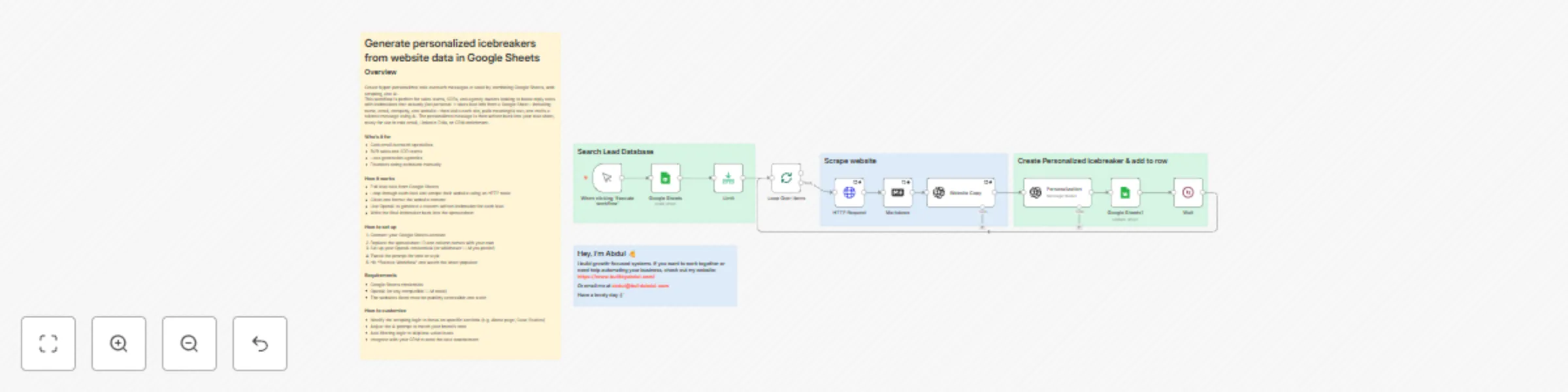
## Overview Create hyper-personalized cold outreach messages at scale by combining Google Sheets, web scraping, and AI. This workflow is perfect for sales teams, SDRs, and agency owners looking to boost reply rates with icebreakers that *actually feel personal*. It takes lead info from a Google Sheet—including name, email, company, and website—then visits each site, pulls meaningful text, and crafts a tailored message using AI. The personalized message is then written back into your lead sheet, ready for use in cold email, LinkedIn DMs, or CRM enrichment. ### Who’s it for - Cold email outreach specialists - B2B sales and SDR teams - Lead generation agencies - Founders doing outbound manually ### How it works - Pull lead data from Google Sheets - Loop through each lead and scrape their website using an HTTP node - Clean and format the website content - Use OpenAI to generate a custom-written icebreaker for each lead - Write the final icebreaker back into the spreadsheet ### How to set up 1. Connect your Google Sheets account 2. Replace the spreadsheet ID and column names with your own 3. Set up your OpenAI credentials (or whichever LLM you prefer) 4. Tweak the prompt for tone or style 5. Hit "Execute Workflow" and watch the sheet populate ### Requirements - Google Sheets credentials - OpenAI (or any compatible LLM node) - The websites listed must be publicly accessible and static ### How to customize - Modify the scraping logic to focus on specific sections (e.g. About page, Case Studies) - Adjust the AI prompt to match your brand’s tone - Add filtering logic to skip low-value leads - Integrate with your CRM to send the data downstream
Company website chatbot agent (RAG, calendar integrations)
## Company Website Chatbot Agent #### Overview This workflow implements a modular **Website AI Chatbot Assistant** capable of handling multiple types of customer interactions autonomously. Instead of relying on a single large agent to handle all logic and tools, this system routes user queries to specialized sub-agents—each dedicated to a specific function. By using a manager-style orchestration layer, this approach prevents overloading a single AI model with excessive context, leading to cleaner routing, faster execution, and easier scaling as your automation needs grow. --- #### How It Works **1. Chat Trigger** - The flow is initiated when a chat message is received via the website widget. **2. Manager Agent (Ultimate Website AI Assistant)** - The central LLM-based agent is responsible for parsing the message and deciding which specialized sub-agent to route it to. - It uses an OpenAI GPT model for natural language understanding and a lightweight memory system to preserve recent context. **3. Sub-Agent Routing** - `calendarAgent`: Handles availability checks and books meetings on connected calendars. - `RAGAgent`: Searches company documentation or FAQs to provide accurate responses from your internal knowledge base. - `ticketAgent`: Forwards requests to human support by generating and sending support tickets to a designated email. --- #### Setup Instructions 1. **Embed the Chatbot** - Use a custom HTML widget or script to embed the chatbot interface on your website. - Connect the frontend to the webhook that triggers the `When chat message received` node. 2. **Configure Your OpenAI Key** - Insert your API key in the `OpenAI Chat Model` node. - Adjust the model parameters for temperature, max tokens, etc., based on how formal or creative you want the bot to be. 3. **Customize Sub-Agents** - `calendarAgent`: Connect to your Google or Outlook calendar. - `RAGAgent`: Link to a vector store or document database via API or native integration. - `ticketAgent`: Set the destination email and format for ticket generation (e.g. via SendGrid or SMTP). 4. **Deploy in Production** - Host on n8n Cloud or your self-hosted instance. - Monitor usage through the Executions tab and refine prompts based on user behavior. --- #### Benefits - Modular system with dedicated logic per function - Reduces token bloat by offloading complexity to sub-agents - Easy to scale by adding more tools (e.g. CRM, analytics) - Fast and responsive user experience for customers on your site - Cleaner code structure and easier debugging