Abdulaziz
Workflows by Abdulaziz
Automate interview scheduling and data cleanup with Cal.com and Google Sheets
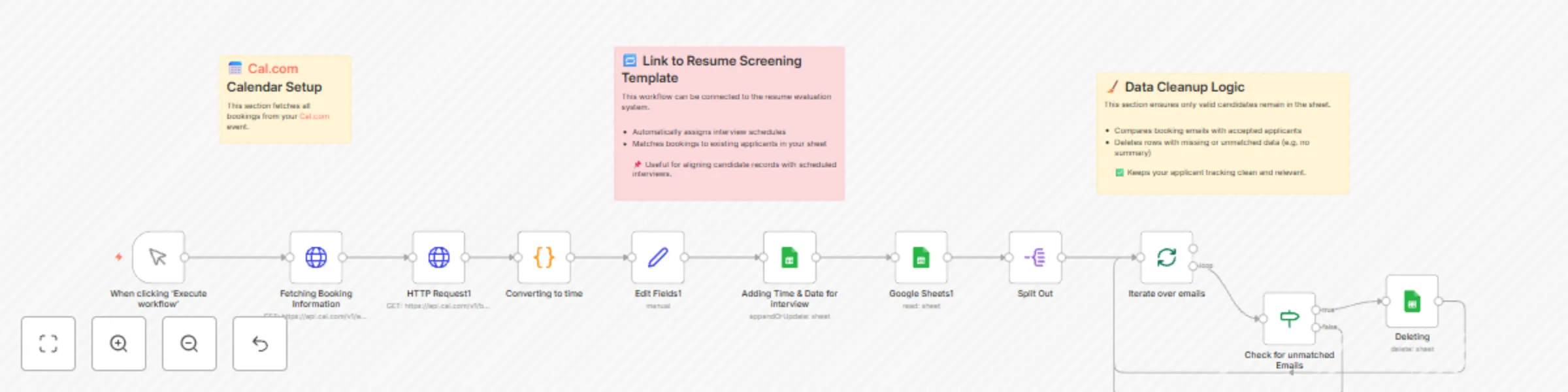
***Workflow Description*** Automate your candidate interview pipeline with precision. This powerful integration pulls booking data from Cal.com, extracts interview details (name, email, date & time), and syncs them directly into your Google Sheets tracker. It matches applicants using email, formats the date in the Asia/Riyadh timezone, and appends only relevant entries. But it doesn’t stop there — it cleans your sheet automatically by removing unmatched or empty records, ensuring your data stays clean, reliable, and ready for HR decisions. What it does: Fetches interview bookings from Cal.com Converts time to readable format (e.g. 30 June, 09:00 AM) Matches booking emails with existing applicant records Auto-updates interview date in your sheet Detects and deletes irrelevant or blank entries **Use Cases:** Resume screening workflows that require automated interview sync HR dashboards needing real-time calendar updates Applicant pipelines where only valid interviews should remain **Ideal for:** Recruiters • HR teams • Automation architects • Remote hiring pipelines
Screen resumes & send follow-ups with OpenAI GPT-4o, Google Sheets & Gmail
*This workflow contains community nodes that are only compatible with the self-hosted version of n8n.* ## 🧠 How It Works This workflow automates the process of screening resumes using AI, logging results to Google Sheets, and sending follow-up emails via Gmail. 1. User uploads their resume via a form (PDF only). 2. Resume content is extracted and sent to OpenAI for evaluation. 3. AI scores the resume based on: - Role-specific must-have qualifications - Soft skills / strategic fit questions 4. Based on the **score threshold**, the candidate is classified as: - ✅ **Accepted** → Saved to Accepted sheet + Gmail invite - ❌ **Rejected** → Logged to Rejected sheet + Gmail rejection message 5. Output is stored in Google Sheets with detailed justification. --- ## ⚙️ Set Up Steps 1. 🔑 Connect your OpenAI and Google Sheets credentials. 2. Replace the placeholder tags in the AI prompt: - `COMPANY_NAME` - `ROLE_NAME` - `ROLE_DESCRIPTION` - `CRITERIA_1` to `CRITERIA_5` - `Q1` to `Q5` - `THRESHOLD` (score to pass) 3. Customize Gmail messages (optional). 4. ✅ Make sure your sheet has two tabs: `Accepted` and `Rejected`. --- ## 📌 Notes Sticky Notes included in the flow explain: - What each node does - Where to replace variables - Tips for improving match scoring